If you open the Camera app on your Windows 11 laptop and get error “0xA00F429F<WindowShowFailed>“, often followed by a second code like (0x80004005) or (0x80070491), and the built-in camera just won’t start, this guide will show you what could be wrong and how to fix it.
Also see: How to Test Camera on Windows 11
Page Contents
What causes camera error 0xA00F429F?
Microsoft doesn’t say what this exact code means, so there’s no single fix for it. Users on Reddit and Microsoft’s Q&A forum have reported it on all sorts of laptops, including Acer, Lenovo and Dell, and several of them started seeing it right after resetting Windows. Some common reasons are:
- A camera privacy key or shutter that’s turned on
- Privacy settings that block apps from using the camera
- Antivirus software blocking the camera
- A wrong or broken camera driver, for example after a reset or an update
- The camera being turned off in the BIOS
- A hardware problem with the camera module or its cable
Start with the quick checks below and work your way down.
Check for a camera privacy key or shutter
A lot of laptops now have a way to turn off the camera, and it’s easy to switch it off by accident. Look for a key with a camera icon on the F1 to F12 row (usually pressed with Fn), a dedicated camera button on the keyboard, a sliding switch on the side of the laptop, or a small shutter built into the camera. Switch it back on and open the Camera app again.
Turn on camera access in privacy settings
If camera access is off in Windows, no app can use the camera, the Camera app included. Here’s how to check:
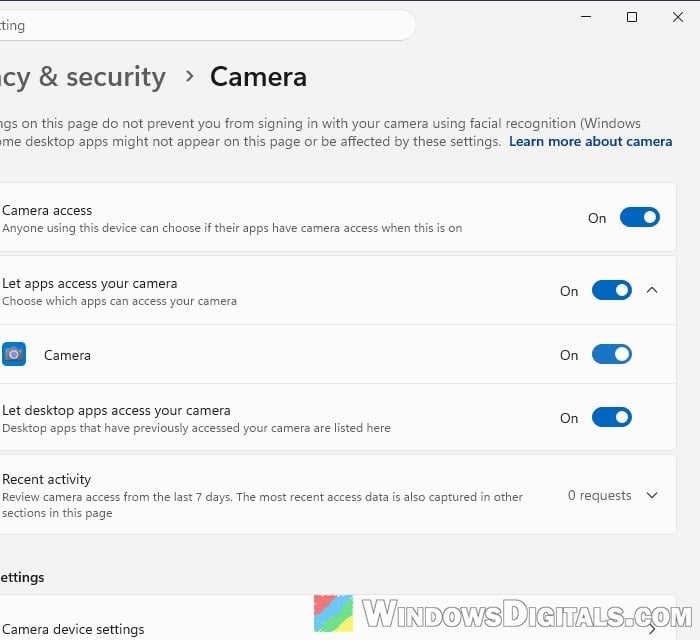
- Open Settings > Privacy & security > Camera.
- Make sure Camera access and “Let apps access your camera” are both turned on.
- In the list of apps under it, make sure Camera itself is turned on too. On a fresh Windows install it can be off.
- Also turn on “Let desktop apps access your camera“. This one is needed for browsers and other apps that aren’t from Microsoft Store.
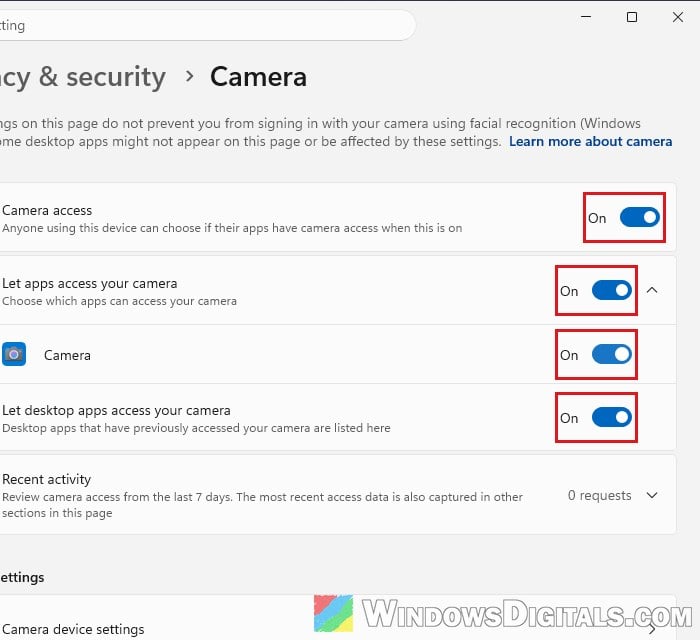
One user on Reddit, whose camera worked in Zoom but not in the Camera app or browsers, suggests turning camera access off and back on here, so it’s worth a try even if everything already looks on. Then open the Camera app again and see if the error is gone.
Pro tip: How to Test Webcam on Windows 11/10 Laptop or Desktop
Check your antivirus
Some antivirus programs and firewalls can block camera access. Look for a webcam or camera protection setting in your security software, temporarily turn it off, and test the Camera app again. If the camera works now, you’ve found the culprit. Allow the camera in that program’s settings, then turn the protection back on.
Repair or reset the Camera app
If the Camera app itself is broken, a quick repair can sort it out, and Windows says the app’s data won’t be affected. If that doesn’t work, a reset is the next step. Follow the steps below:
- Open Settings > Apps > Installed apps.
- Find Camera, click the three-dot menu next to it and select Advanced options.
- Click Repair first. If the error is still there, come back and click Reset.
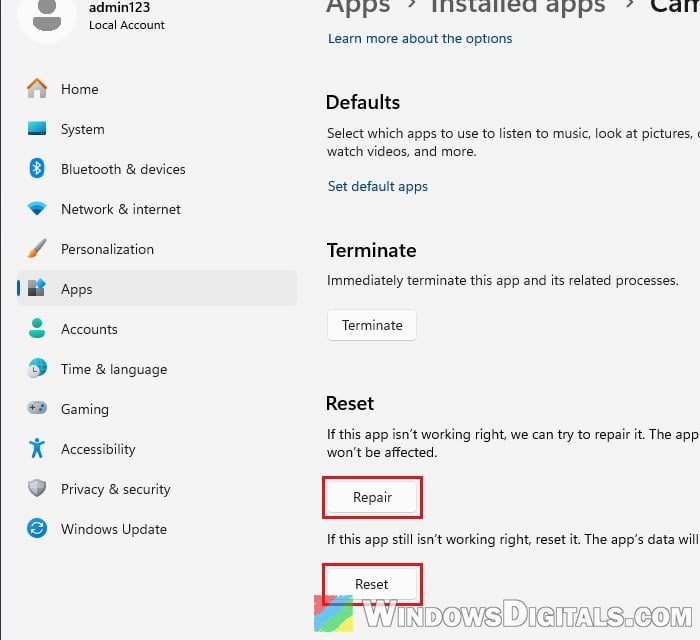
Open the Camera app again after each one to see if it works.
Reinstall or roll back the camera driver
Since some of these reports started after a Windows reset or an update, the camera driver is a very possible reason. Here’s what you should do:
- Right-click the Start button and select Device Manager.
- Look for your camera under Cameras, Imaging devices, or Sound, video and game controllers.
- If you can’t find it, click Action > Scan for hardware changes, or the same button (a monitor icon) in the toolbar.
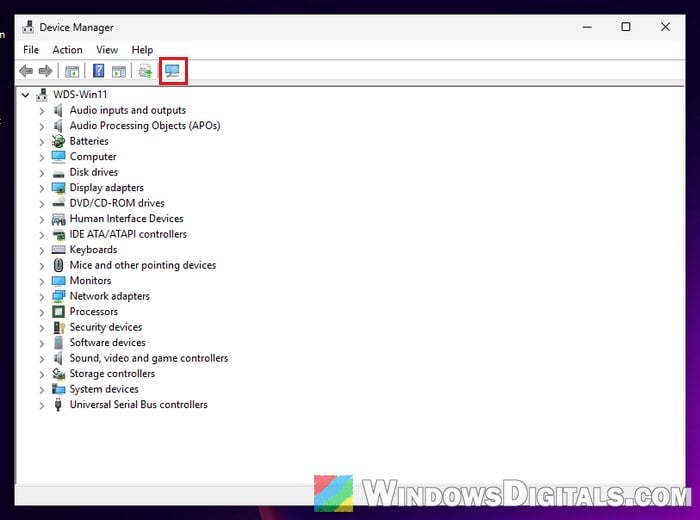
- Right-click the camera and select Properties.
- On the Driver tab, click Roll Back Driver if it’s available, and choose Yes.
- If it isn’t available, click Uninstall Device on the same tab and tick “Attempt to remove the driver for this device” if it shows up.
- Restart your PC. Windows should scan for the camera and reinstall its driver. If it doesn’t show up again, use Action > Scan for hardware changes.
Then open the Camera app again to check.
Note: A Microsoft Q&A answer warns against uninstalling the camera driver on a Surface Pro X, so skip this step on that device.
Related guide: How to Install or Update Driver in Windows 11
Switch to the built-in “USB Video Device” driver
If the camera’s own driver keeps failing, Windows has a basic camera driver you can switch to. It may not support all of your camera’s features, such as Windows Hello face sign-in. Here’s how:
- In Device Manager, right-click the camera and select Update driver.
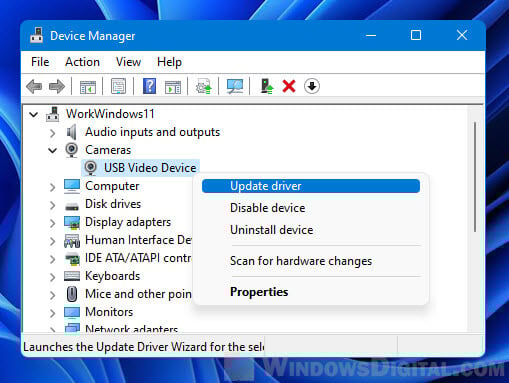
- Select “Browse my computer for drivers“.
- Select “Let me pick from a list of available drivers on my computer“.
- Select USB Video Device, then click Next.
Restart your PC and open the Camera app again to see if it works.
Try the “Basic camera” option
Newer versions of Windows 11 have advanced camera options for each camera, found under Settings > Bluetooth & devices > Cameras. The one you want is Basic camera. Microsoft recommends it as a last resort when a camera won’t work, and it runs the camera with just its basic functions. Here’s how to try it:
- Open Settings > Bluetooth & devices > Cameras and select your camera.
- Open its advanced camera options and turn on Basic camera.
- Open the Camera app again and see if the picture shows up.
Make sure the camera is enabled in BIOS
Some laptops let you switch off the built-in camera in the BIOS (or UEFI), and it’s easy to miss. To check:
- Restart your PC and press your maker’s BIOS setup key while it starts (your laptop’s manual or support page lists it).
- Look for an option like Integrated Camera, Webcam or Camera. The name and location differ between brands.
- Make sure it’s set to Enabled, then save and restart.
Install the camera and BIOS updates from your laptop maker
The drivers Windows installs by itself aren’t always the right ones for your camera. Go to your laptop maker’s support page, enter your model, and install the latest camera, chipset and BIOS updates for Windows 11. Get them from the maker’s site, not from a third-party driver updater. One Lenovo LOQ owner on Reddit, for example, suggests Lenovo’s own camera driver package.
Be warned: A BIOS update that gets interrupted, for example by a power cut or a dead battery, can stop your laptop from starting. Keep it plugged in, follow your maker’s instructions exactly, and if you’re not sure what you’re doing, it’s better to get someone to help you instead.
Related concern: Windows 11 Not Activated After BIOS Update
Maybe a hardware problem
If Device Manager shows an error on the camera, like Code 43 or Code 42, or the camera disappears completely even after reinstalling Windows, the bad news is that it’s likely a problem with the camera module or its cable. If your laptop is still under warranty, contact the manufacturer and have them check it. Until then, a USB webcam will do for video calls.