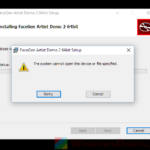
If you’re trying to install an app on Windows 11 or 10 and the setup stops with “An error occurred while trying to copy a file:“, followed by a file path and “Out of memory“, even though you have plenty of RAM and free disk space, this guide will show you what usually causes it and how to get the app installed.
Also see: An error occurred while unpacking: Does not match checksum
Page Contents
Why does an installer say “Out of memory” when you have plenty of RAM?
The first part of the message, “An error occurred while trying to copy a file”, is a standard error from Inno Setup, a free tool that a lot of apps use to build their installers. It shows up when the installer fails to copy one of its files to your PC. “Out of memory” is just the reason the installer shows, and it usually has nothing to do with your RAM or your disk space. Most people who get this error have more than enough of both.
Based on what users reported on forums and Reddit, some common reasons for this error are:
- A background app that hooks into other programs, most often MSI Afterburner together with RivaTuner Statistics Server (RTSS).
- Antivirus or ransomware protection blocking the installer while it unpacks its files.
- A broken or modified installer, such as a “repack” from an unofficial site instead of the real setup file.
Oddly, it can happen with one installer and not another on the same PC, which also points to something other than memory. Start with the Afterburner fix below, since it’s the one most users confirmed worked.
Close MSI Afterburner and RivaTuner (RTSS) first
If you have MSI Afterburner installed, this is the first thing to check. On the support forum of Hybrid (a video tool whose installer kept failing with this exact error), several users over a couple of years reported that the installer worked as soon as they closed MSI Afterburner and RivaTuner Statistics Server, including one user on Windows 11. Both of these hook into other running programs, which can get in the way of an installer.
You don’t need to uninstall them, just close them while you install. Here’s how:
- Click the up arrow on the right side of the taskbar to show the hidden icons.
- Right-click the MSI Afterburner icon and close it.
- Right-click the RivaTuner Statistics Server icon and close it too.
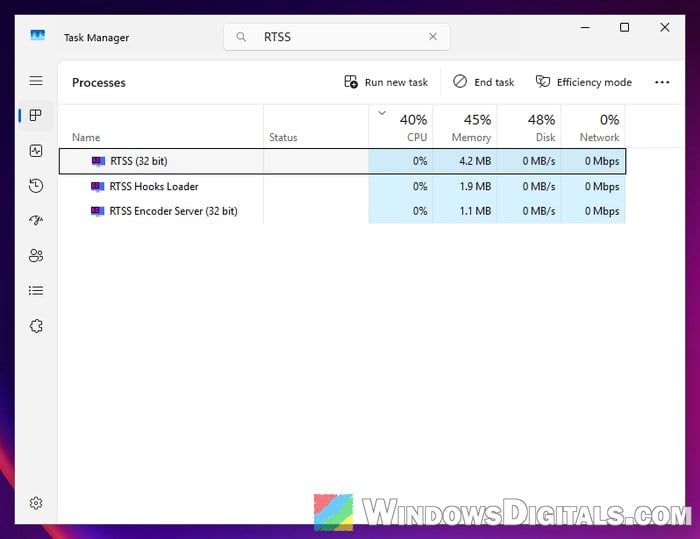
- Press Ctrl + Shift + Esc to open Task Manager and check that nothing named “MSI Afterburner” or “RTSS” is still listed under “Processes“.
- If one is still there, select it and click “End task“.
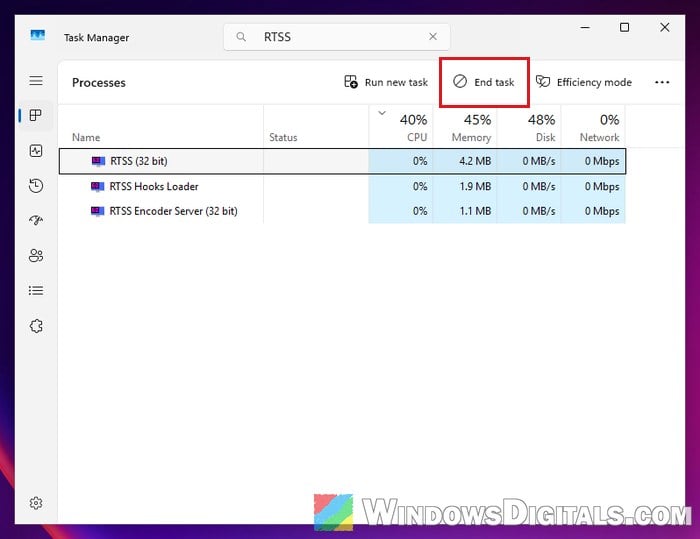
- Run the installer again.
Once the app is installed, you can open MSI Afterburner again as usual. If you use other overlay tools, it might be worth closing those too while you install, just in case.
Might be useful: What is HP.OMEN.Overlay.Helper & How to disable it
Do a clean boot and run the installer again
If you don’t use Afterburner, or closing it didn’t help, something else running in the background might be interfering. On the same forum, one user got the installer to work in Safe Mode, and another got it to install by running it right after signing in, before the startup apps had loaded. Both of these point to some program running in the background.
A clean boot starts Windows with only Microsoft’s own services and no startup apps, so it’s the easiest way to test this. Here’s how to do it:
- Open Start, type “msconfig” and select “System Configuration“.
- Go to the “Services” tab, check “Hide all Microsoft services“, then click “Disable all” and “Apply“.
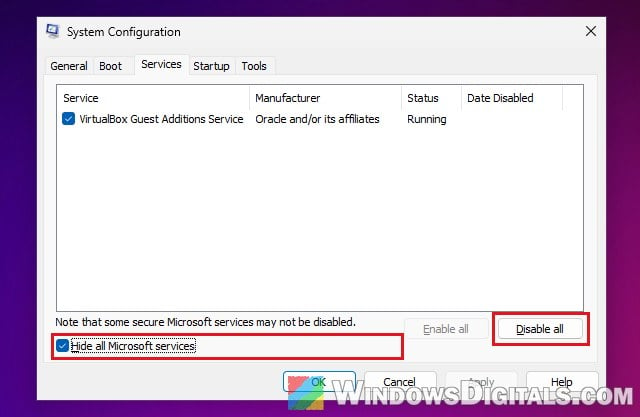
- Go to the “Startup” tab and click “Open Task Manager“.
- On the “Startup apps” page, select each app marked “Enabled” and click “Disable“. Keep track of which ones you disabled.
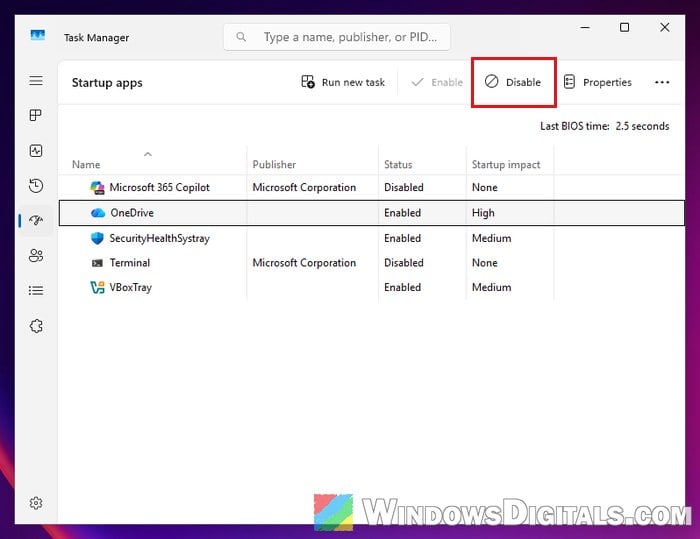
- Go back to System Configuration, click “OK” and restart your PC.
- Run the installer again.
If the app installs fine now, one of the services or startup apps you turned off was the cause. To go back to normal, open System Configuration again and select “Normal startup” on the “General” tab. Then on the “Services” tab, uncheck “Hide all Microsoft services“, click “Enable all” and “Apply“. Turn your startup apps back on in Task Manager and restart. If you want to find the exact culprit, turn them back on a few at a time.
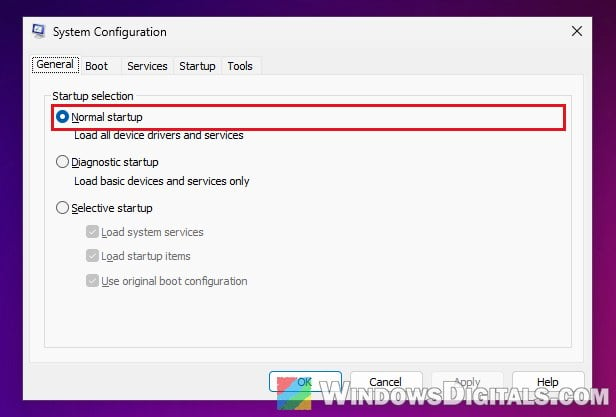
Related guide: How to Disable Startup Programs in Windows 11
Download the installer again from the official website
If only one particular installer keeps failing, the setup file itself could be the problem. In the Reddit thread about this error, people who looked at the poster’s screenshot noticed that the installer wasn’t the developer’s own setup file but a repacked copy from an unofficial source. Repacks are modified installers, and besides breaking in odd ways, they can also carry malware.
Delete the installer you have, download a fresh copy straight from the developer’s official website, and run that one instead. If the fresh copy installs without the error, the old file was the problem.
Only ever pause your antivirus for an installer you got from the official site, which brings us to the next fix.
Pause your antivirus or ransomware protection
Users on the Hybrid forum also named security software as something that can stop an installer from unpacking its files, especially the ransomware protection features in suites like Kaspersky, Acronis True Image, HitmanPro.Alert and Trend Micro. The top answer in the Reddit thread also blamed permissions or antivirus software, not actual memory.
If you use a third-party antivirus, temporarily turn off its protection, run the installer, and turn it back on right after.
Windows has a similar feature of its own called Controlled folder access, which can block apps from changing files in protected folders. Users haven’t confirmed it as a cause of this exact error, but if it’s turned on, it’s worth checking:
- Open “Windows Security” from the Start menu.
- Go to “Virus & threat protection” and click “Manage ransomware protection“.
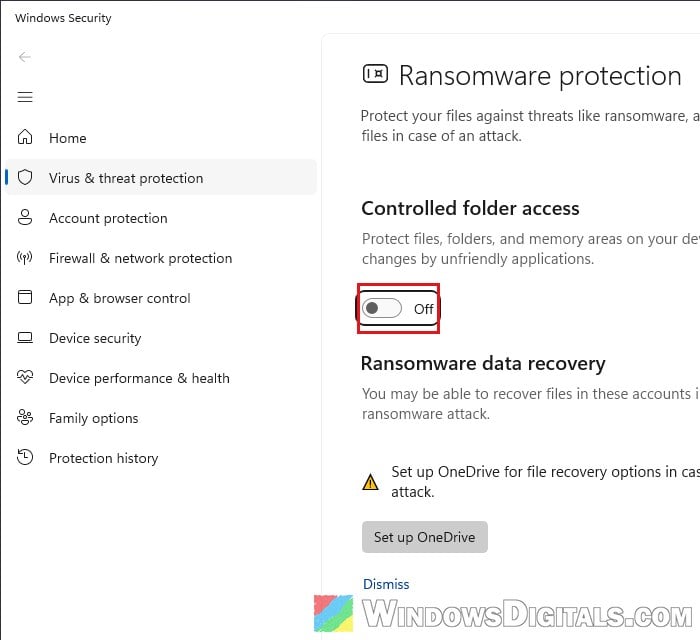
- If “Controlled folder access” is on, you have two options:
- Click “Allow an app through Controlled folder access” and add the installer.
- Turn Controlled folder access off just while you install.
- Run the installer again, then turn Controlled folder access back on if you turned it off.
You can also check “Protection history” in Windows Security’s left menu to see whether Windows Security blocked something around the time the installer failed. To be fair, this doesn’t fix it for everyone: one user disabled Microsoft Defender and still got the same error, so the first two fixes are usually the better bet.
Related problem: Explorer.exe Blocked by Windows Defender or Firewall?
Other things you can try
If none of the above fixed it, these are quick things to try, though users haven’t confirmed them as fixes for this error:
- Right-click the installer and select “Run as administrator“.
- Choose a different install folder or drive when the setup asks where to install.
- Don’t count on page file (virtual memory) changes. They’re often suggested because of the word “memory”, but the person in the Reddit thread changed them and still got the error.