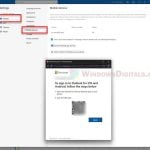
Outlook.com normally takes you straight to your inbox once you’re signed in, but lately many people get stopped by a pop-up that says “Update your recovery method to keep signing in” (or the earlier “Keep access to your account with a recovery method“), and for some it keeps coming back even after they’ve checked everything. This guide will explain whether the pop-up is real, why Microsoft is showing it, and how to stop it from coming back.
Also see: Outlook Sends a Code to Your Other Email Every Time You Sign In
Is the “Update your recovery method” pop-up real or a scam?
In most cases, it’s real. It’s Microsoft’s own prompt, shown inside Outlook.com after you’ve signed in, and the newer version says why: Microsoft will no longer use phone numbers for account recovery, so add a recovery email or a passkey.
The earlier “Keep access” version has a “Review recovery method” button that opens your account’s security settings in a new tab, and usually a “Not now” button that only puts it off.
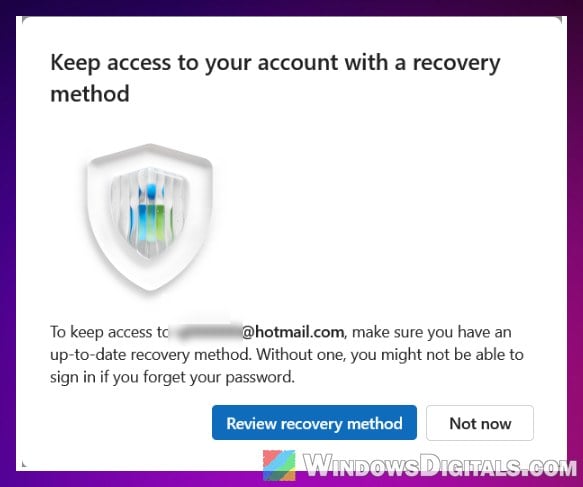
Still, scammers copy this kind of message in emails and fake sign-in pages. Microsoft’s advice is to never use a link from a pop-up or message you’re not sure about, and to go to the website yourself instead. So skip the pop-up’s button and check your account directly:
- Open a new browser tab and type “account.microsoft.com” in the address bar yourself.
- Sign in, then select “Security” at the top.
- Select “Manage how I sign in“.
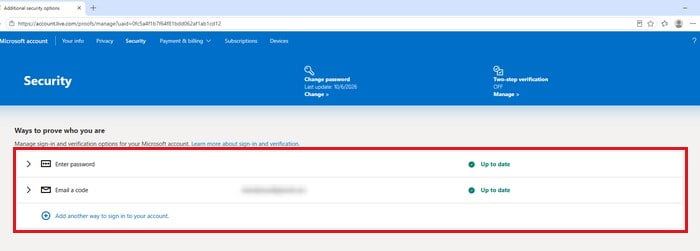
- Look at the list under “Ways to prove who you are“. If there’s only a phone number and no recovery email or passkey, the pop-up was asking for something real, and you can fix it here (next section).
On the Security page, “Review activity” also shows your recent sign-ins. If one wasn’t you, select “This wasn’t me” and follow the steps to secure your account.
Related concern: “Windows locked due to unusual activity” Scam
Why is Microsoft asking you to update your recovery method?
Microsoft is phasing out SMS as a way to sign in to and recover personal Microsoft accounts (Outlook.com, Hotmail and the like), because it says text codes are now a leading source of fraud. Instead, it wants every account to have a verified email address and a passkey, and it walks people through adding them when they sign in. Microsoft hasn’t said when text codes will stop working for good.
That’s likely why the pop-up shows up on accounts that still rely on a phone number for recovery, and why you may not be able to add a new phone number anymore. Microsoft says you might only see a recovery email, Microsoft Authenticator or a passkey as options.
Linked issue: Can’t Add a Phone Number to Your Microsoft Account?
How to add a recovery email or a passkey
This is what the pop-up is asking for. Keep your phone number on the account until the new method is verified, so you’re never left without a way to prove it’s you.
Here’s how to add a recovery email:
- Go to “account.microsoft.com/security” and select “Manage how I sign in“.
- Select “Add another way to sign in to your account“. A box titled “Add a new way to sign in or verify” opens.
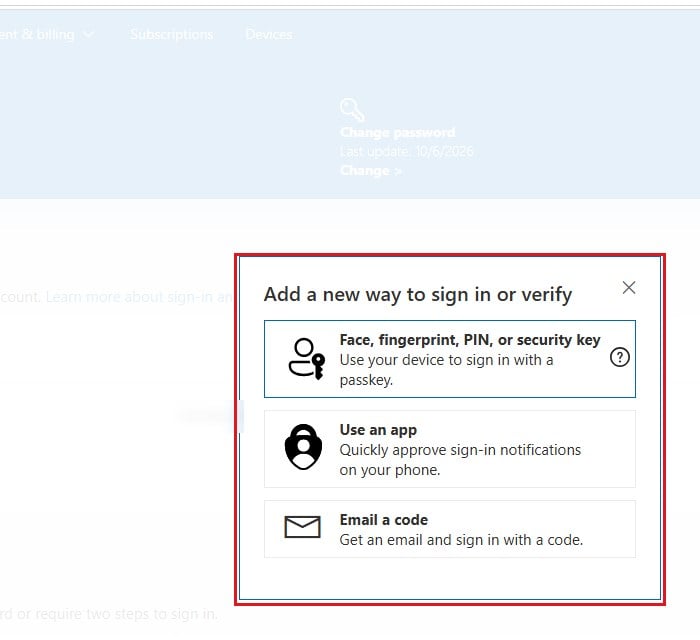
- Choose “Email a code” and enter an email address you can open. It doesn’t have to be your own, but it can’t be another address (alias) of the same Microsoft account.
- Microsoft sends a code to that address. Enter the code and select “Next“.
For a passkey, Microsoft usually offers one when you sign in, on a “Sign in faster” screen. Select “Next” there to create it, or pick “Face, fingerprint, PIN, or security key” in the “Add a new way to sign in or verify” box instead.
If the code doesn’t arrive, stop asking for new ones for a few hours, since requesting code after code can hold up delivery.
Might be useful: Microsoft Account Locked for Unusual Activity and Won’t Unlock
Why does the pop-up keep coming back after you update it?
Some people get it on every sign-in, or every few seconds, even though everything on their account shows as up to date. It’s a pretty common complaint on Microsoft’s forums. Microsoft hasn’t explained it, but often the browser is behind it. Outlook seems to keep a note that you’ve already reviewed your recovery info in the browser’s cookies and site data. In a private (InPrivate or Incognito) window, or a browser that deletes cookies every time it closes, that note is gone the next time.
Once you’ve checked the pop-up is real, sign in to Outlook.com in a normal window, click the pop-up’s button once (“Review recovery method” on the earlier version), look over the page it opens, then go back to Outlook. If it asks how it went, say everything looks good. That can keep it away for the rest of the session.
Stop your browser from deleting Microsoft’s cookies
If your browser clears cookies when you close it, either turn that off or let Outlook and Microsoft’s sign-in pages keep theirs. In Microsoft Edge, follow the steps below:
- Open Edge, select the three dots (…) at the top right and go to “Settings” > “Privacy, search, and services“.
- Select “Clear browsing data“, then “Choose what to clear every time you close the browser“.
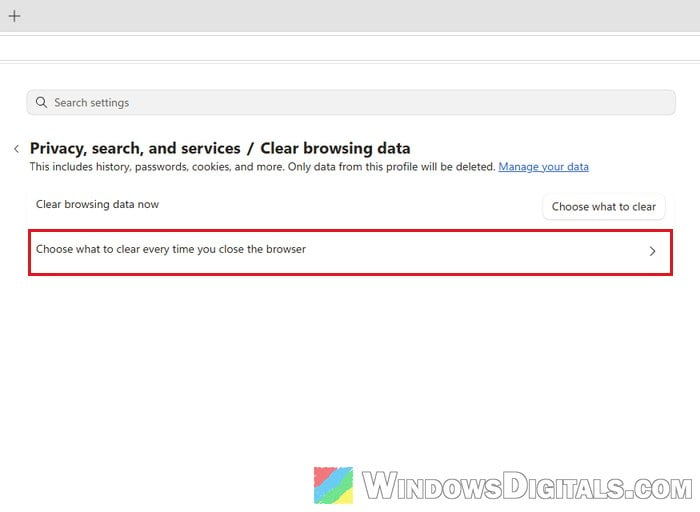
- Turn off “Cookies and other site data“. Or, to keep it on for other sites, select “Add” next to “Don’t clear“, type
[*.]live.comand select “Add“. That covers outlook.live.com and Microsoft’s sign-in pages on live.com.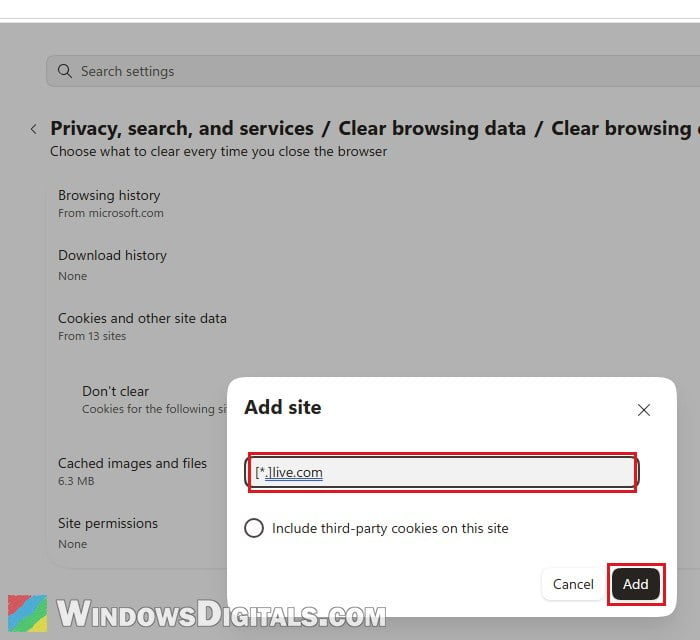
In Firefox, go to “Settings” > “Privacy and security” and look under “Browsing data“. Uncheck “Clear cookies and site data every time you close Firefox“, or use “Manage exceptions” to let the same sites keep their cookies.
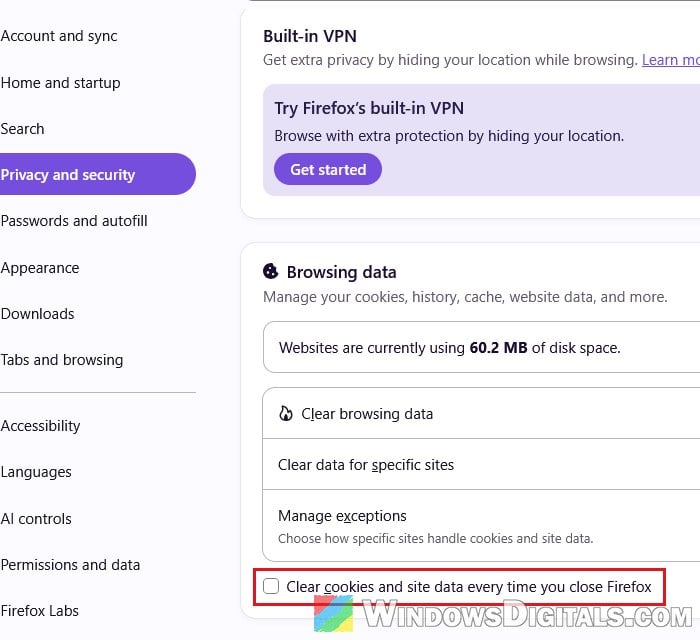
After that, sign in to Outlook.com again and review your recovery method one more time. Clearing Outlook’s and Microsoft’s cookies once before you sign in can help too.
Remove the recovery email and add it back
If the pop-up still won’t go away and your recovery email is already verified, removing it and adding the same one back has stopped it right away for at least one person. It’s not clear why, so treat it as a last try.
Only do this while you have another working way to sign in, like a passkey or the Microsoft Authenticator app. A removed method is first marked for removal, and Microsoft keeps it for 30 days before it’s actually deleted.
- On the “Manage how I sign in” page, open the “Email a code” row with your recovery email and remove it.
- Select “Add another way to sign in to your account” and choose “Email a code“.
- Enter the same email address, then enter the code Microsoft sends.
Related problem: “Password Sign-In Isn’t Available. Try Another Method” on Microsoft Account
What if a sign-in method says “Scheduled for removal”?
While checking your security settings, you might see a sign-in method marked “Scheduled for removal“. If you didn’t remove it yourself, someone else may have access to your account. A method scheduled for removal keeps working for 30 days, so there’s time to undo it. Select “Cancel removal” on that method, and remove any methods you don’t recognize right away.