There is a strange bug in Word right now where, when you type an equation and press Space to turn something like x^2, x_1 or 1/5 into a superscript, subscript or fraction, everything you type after it suddenly gets a bigger font size and a different color, as if the equation were your document’s title or a heading. The font stays Cambria Math, and the characters you already typed keep their size. This guide will explain what’s causing it and how to work around it until Microsoft fixes it.
Also see: Excel Copy and Paste Not Working After an Office Update
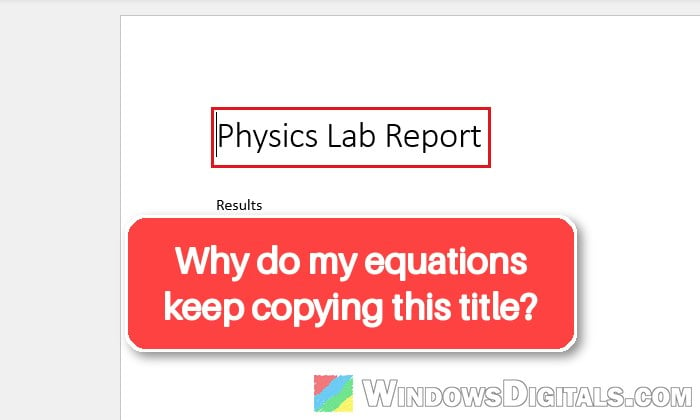
Why does Word change the formatting after an equation?
It looks like a bug that came with the November 2026 update for Word. On Windows, it’s been seen in Word for Microsoft 365 Version 2611 (builds 20625.20102 and 20625.20108), and Word for Mac 16.115.1 has it too. Several people on Reddit ran into it around the same time, and some said it had never happened to them before. On a Mac, it even happened in a brand new document.
From what users found by testing, it works like this:
- It seems to happen when Math AutoCorrect converts what you typed after you press Space (a power, a subscript, a fraction and so on).
- After that conversion, Word applies the formatting of the first character in your document to whatever you type next. That first line is usually your Title or a heading, so what you type next suddenly takes on its size and color, like 20 or 28 pt and blue.
Microsoft hasn’t said anything about it yet. The release notes for Version 2611 don’t mention equations at all, so there’s no official fix yet, but the workarounds below can stop it from happening in the meantime.
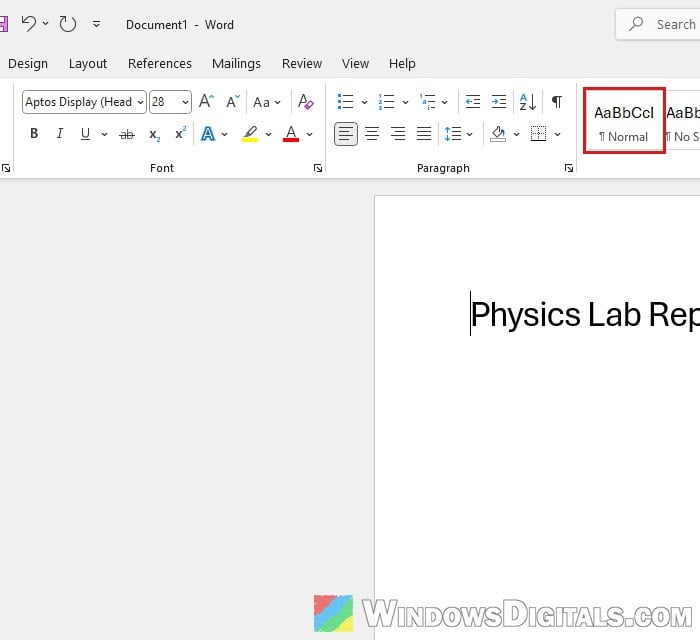
Set the first line of your document to Normal text
Since Word gives whatever you type after the equation the format of the very first character in the document, the simplest workaround is to keep that first line as Normal text (or in whatever style you want your equations to have) while you write equations. You can put the Title style back once you’re done.
Here’s how to do it:
- Click anywhere in the first line of your document (usually the title).
- On the Home tab, click Normal in the Styles gallery. You can also just press Ctrl + Shift + N.
- Go back to your equation and type it as usual.
- When you’ve finished all your equations, click in the first line again and apply the Title (or heading) style back.
Type “x^2” and press Space in a new equation to check that the text after it keeps its normal size and color. This doesn’t help everyone, so if it doesn’t work in your document, try the next method.
Suggested read: “Word Cannot Save or Create This File” but the Disk Isn’t Full
Insert a test equation first
This one sounds a little bit silly, but inserting a quick test equation in the affected document can make the bug stop. For some people, the formatting stayed normal after that. Follow the steps below:
- Click somewhere in your document where you can type.
- Press Alt +
=to insert a new equation, or go to Insert > Equation.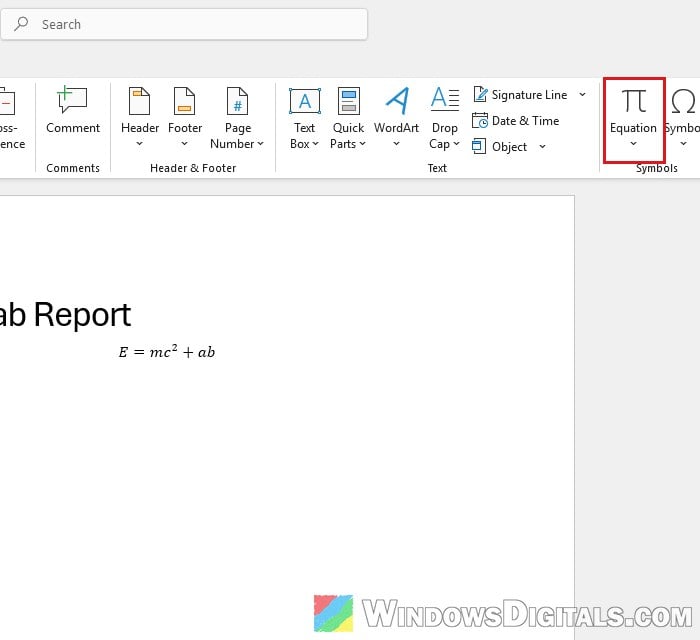
- Type “x^2” and press Space.
Now type one of your real equations as usual and check that the text after it keeps its normal size. If it does, you can try deleting the test equation, but if the problem comes back after that, just leave it in until you’re done.
Might be useful: How to Turn Off or Remove Copilot in Microsoft Word
Clean up text that has already changed
The workarounds above stop new text from changing, but they won’t fix the text that already got the wrong size and color. For that, you can strip the formatting and start that part over:
- Select the text that changed. Try to select only the affected part, because clearing formatting removes all formatting from the selection, including your headings, bold and font sizes.
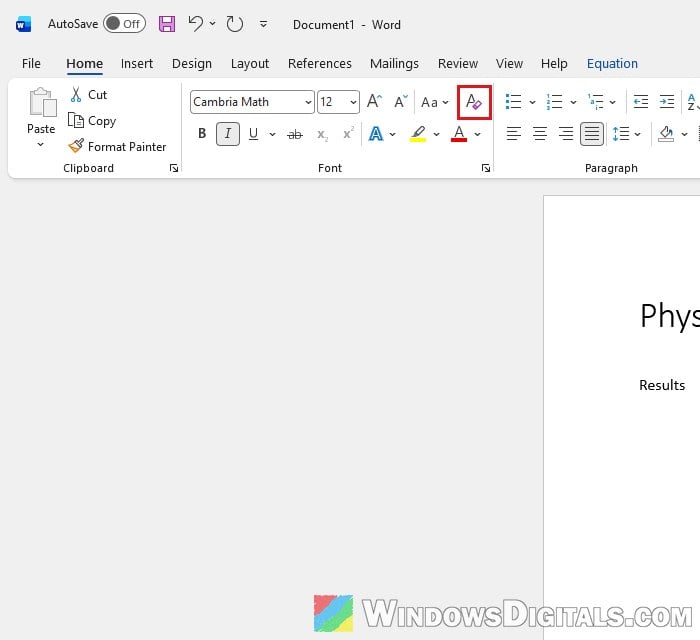
- On the Home tab, click Clear All Formatting (the “A” with an eraser, in the Font group).
- Make sure the style is set to Normal (Ctrl + Shift + N).
- Redo any bold, sizes or fonts you need.
If the whole document is a mess, you can press Ctrl + A to select everything first, but you’ll have to reapply every heading and format afterwards.
Check for an Office update
Microsoft usually fixes bugs like this in a later update, so it’s worth checking whether a newer build is out. The newest Current Channel build at the time of writing is Version 2611 (Build 20625.20142) from November 23, 2026, but its notes don’t say anything about equations, so it may not include a fix yet.
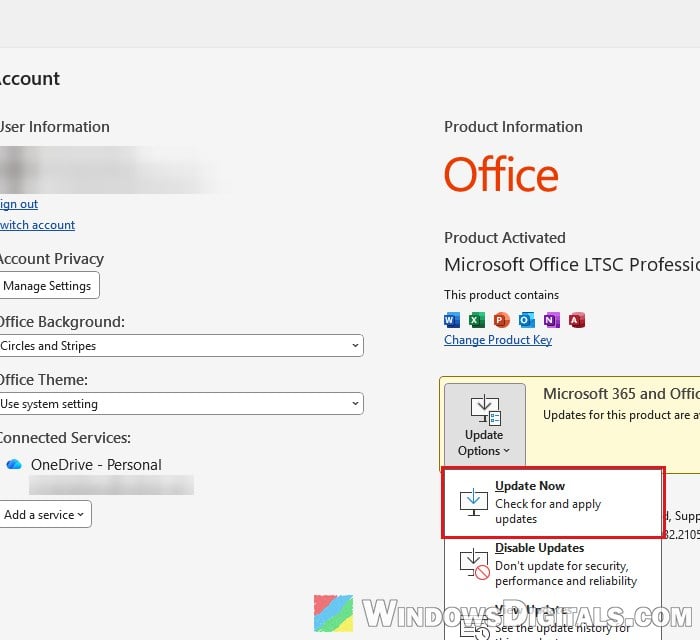
- In Word, click File, then Account.
- Click Update Options and select Update Now.
- Wait for the update to finish, then restart Word and test an equation again.
While you’re at it, you can let Microsoft know about the bug from Help > Feedback in Word. Microsoft tends to fix problems that get enough reports.
Related guide: “This Product Cannot Be Installed on the Selected Update Channel” When Installing Microsoft 365
Roll back Office to Version 2610 (last resort)
If you write a lot of equations and none of the workarounds help, you can roll Office back to Version 2610 (Build 20527.20196), the last Current Channel build before 2611. On a Mac, going back to Word 16.114.3 got rid of the bug, so the older Windows build should be free of it as well.
Be warned: Rolling back means turning off Office updates, which also blocks security fixes, so treat it as temporary. It also rolls back every Office app on your PC, not just Word. If your PC is managed by your school or company, ask your IT department instead, since you may not be allowed to change the version.
Here’s what you should do:
- Close Word and all other Office apps.
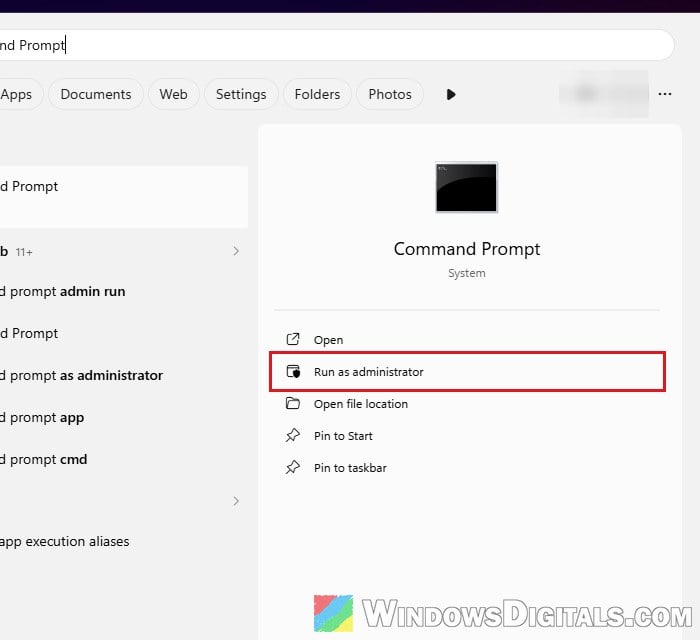
- Open Command Prompt as administrator.
- Type the following command and press Enter:
cd "%ProgramFiles%\Common Files\Microsoft Shared\ClickToRun"
If it says the path can’t be found, you probably have 32-bit Office on 64-bit Windows. Use this command instead:
cd "%ProgramFiles(x86)%\Common Files\Microsoft Shared\ClickToRun"
- Then run this command:
OfficeC2RClient.exe /update user updatetoversion=16.0.20527.20196
- Wait for Office to download and install the older build. It needs a steady internet connection.
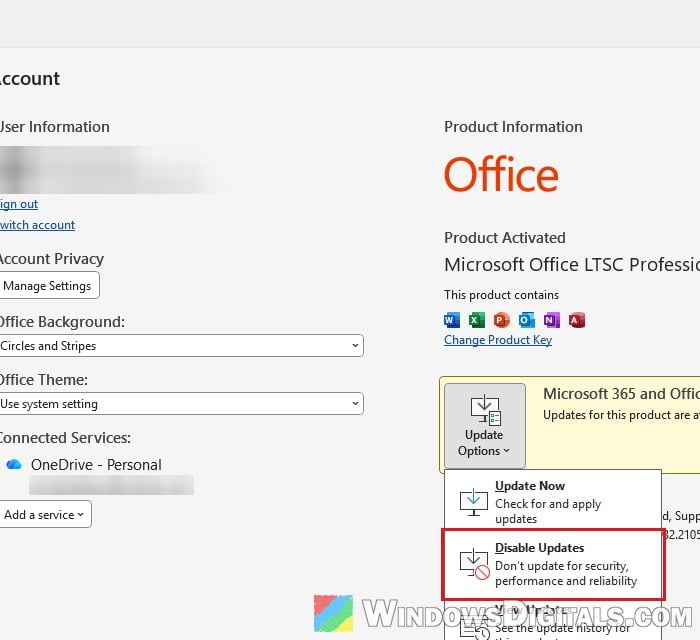
- Open Word, go to File > Account > Update Options and select Disable Updates, so Office doesn’t update itself back to 2611.
Test an equation again to make sure the bug is gone. Set yourself a reminder to turn updates back on from the same Update Options menu once a newer version fixes the problem.