War Thunder starts with a small BattlEye window before the game itself loads, but for a lot of players since the Eagle’s Shadow update, that’s the moment the whole PC crashes to a blue screen with the stop code “KERNEL_MODE_HEAP_CORRUPTION” and restarts, while other games run fine. This guide will explain what’s behind the crash and which fixes have gotten players back into the game so far.
Also see: Blue Screen with Bugcheck 0x0000013a: Kernel Mode Heap Corruption
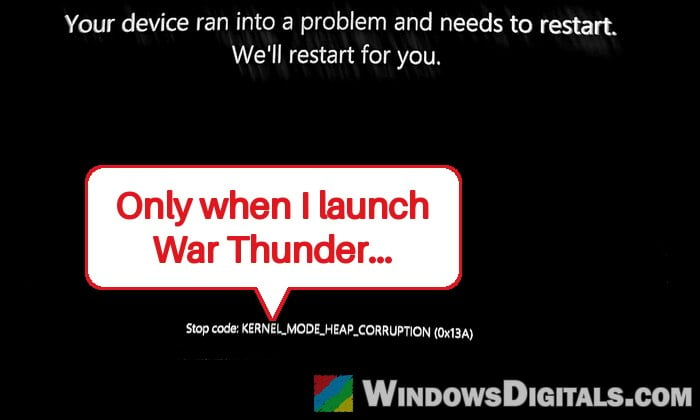
Why does War Thunder crash the whole PC?
War Thunder itself runs like any other app, but its anti-cheat doesn’t. The game has used BattlEye since December 2024, and BattlEye runs a driver inside the Windows kernel (BEDaisy.sys) so it can watch for cheats. According to Microsoft, KERNEL_MODE_HEAP_CORRUPTION (0x13A) means Windows found damaged memory that belongs to the kernel itself, and when that happens, Windows stops everything.
Here’s why players are pointing at BattlEye:
- The crash usually hits right as BattlEye starts while the game loads, and sometimes mid-match or when closing the game.
- Crash dumps from several players show BattlEye’s driver and its “BE__” memory tag in the crash, and the dumps players have shared show 0x11 as the first parameter.
- With the anti-cheat turned off in the launcher, the game starts without crashing, which several players on Reddit and the War Thunder forums have found.
The reports picked up right after the Eagle’s Shadow update on November 11, 2026, though some players had the same crash months before. None of Gaijin’s update notes since mention BattlEye, and there’s no fix or statement from Gaijin yet, only a report for this crash in its bug tracker.
Many of the reports come from gaming laptops with Intel 13th or 14th gen HX processors and NVIDIA RTX graphics, but desktops get it too. Reinstalling the game, verifying its files, running SFC and DISM, and switching between DirectX 11 and 12 didn’t help the players who tried them. Sometimes the game gets in on the second or third try, but that’s luck, not a fix.
Make sure Driver Verifier is off
BattlEye’s own help page lists Driver Verifier as a known cause of blue screens with its anti-cheat. It’s a Windows tool that stress-tests drivers, and it’s easy to forget it’s on if you followed a guide that turned it on while chasing another crash. Most players with this crash have it off already, so treat this as a quick check before the real fixes. It’s safe to run even if Driver Verifier was never on. Here’s what you should do:
- Search for Command Prompt in the Start menu, right-click it and select Run as administrator.
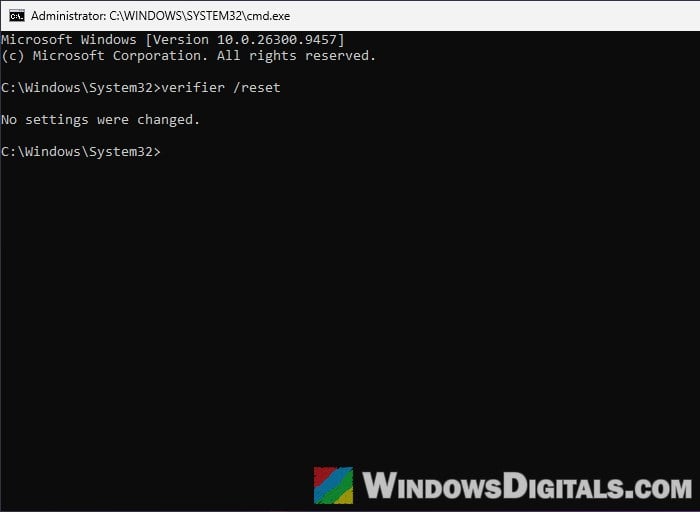
- Type the following command and press Enter:
verifier /reset
- Restart your PC, then launch War Thunder again.
Reinstall BattlEye from scratch
A clean reinstall of BattlEye replaces its service and files, which has stopped the crashes for some players. It doesn’t hold for everyone, so if the blue screen comes back after a while, move on to the next fixes. BattlEye installs itself into Windows as a service called BEService, so the idea is to remove that service and both BattlEye folders, then let War Thunder set it up again. Here’s how to do it:
- Close War Thunder and its launcher completely.
- Open Command Prompt as administrator and run this command to remove the BattlEye service:
sc delete BEService
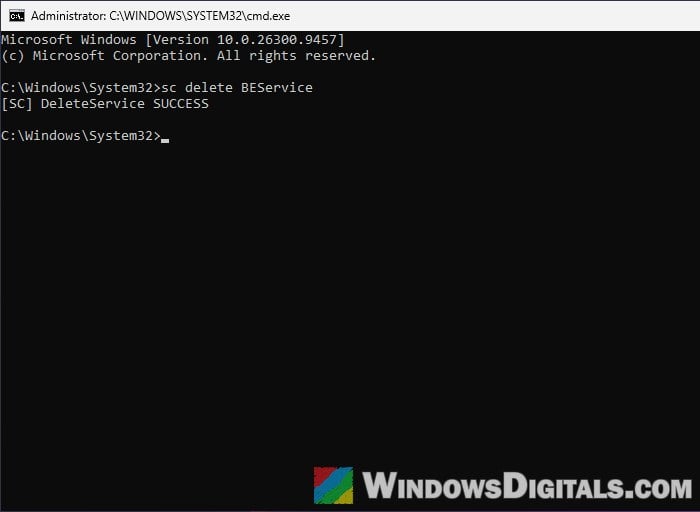 Some games come with an Uninstall_BattlEye.bat file that does this for you, but War Thunder’s BattlEye folder doesn’t have one on a fresh install, so use the command instead.
- Open File Explorer, go to
C:\Program Files (x86)\Common Files\BattlEyeand delete that folder if it’s still there. - Open the War Thunder game folder:
- Standalone launcher installed “for me only”:
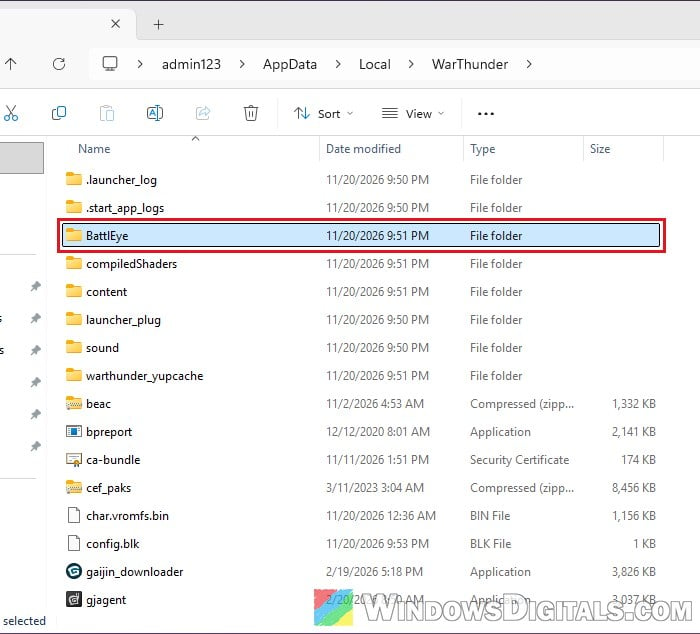
C:\Users\<your user name>\AppData\Local\WarThunder - Standalone launcher in another folder: the folder you picked when installing
- Steam: right-click War Thunder in your Library and select Manage > Browse local files
- Standalone launcher installed “for me only”:
- Delete the BattlEye folder inside it.
- Restart your PC.
- If you play on Steam, right-click War Thunder in your Library, select Properties > Installed Files and click Verify integrity of game files. This time it’s to bring back the BattlEye folder you deleted.
- Launch the game with the anti-cheat on. BattlEye installs itself again as the game starts.
If the game now gets past the BattlEye window without a blue screen, you’re done.
Linked issue: Battlefield 6 Crashes After a Minute, EAAntiCheatService Terminated Error
Update your graphics driver
An outdated graphics driver is worth ruling out, especially on laptops that haven’t had one in months. Two players stopped getting the blue screen after updating their NVIDIA driver, though one of them also got a War Thunder update around the same time, so it’s hard to say which did it. Others still crash with the newest driver, so don’t expect too much from it.
Get the driver straight from NVIDIA, AMD or Intel, not from a driver updater app. Restart your PC after installing it and try the game again.
Might be useful: How to Update Graphics Driver in Windows 11
Update your BIOS
BattlEye also tells players with blue screens to fully update the BIOS, and it’s what finally stopped the crash for a couple of players, one of them after nearly three months of trying, especially on PCs with older BIOS versions and Intel 13th or 14th gen processors. For those processors, BIOS updates also carry Intel’s microcode fixes for CPU instability. It doesn’t fix every case, though, since some players updated and still got the crash.
Be warned: A BIOS update that gets interrupted or goes wrong can leave your PC unable to start. Keep a laptop plugged in the whole time, follow the maker’s guide exactly, and if you’re not sure what you’re doing, it’s better to get someone to help you instead.
Download the latest BIOS from your motherboard or laptop maker’s support page for your exact model, or through the maker’s own update app on many laptops, and follow its instructions. Update the chipset driver from the same page while you’re there.
Play with the anti-cheat off for now
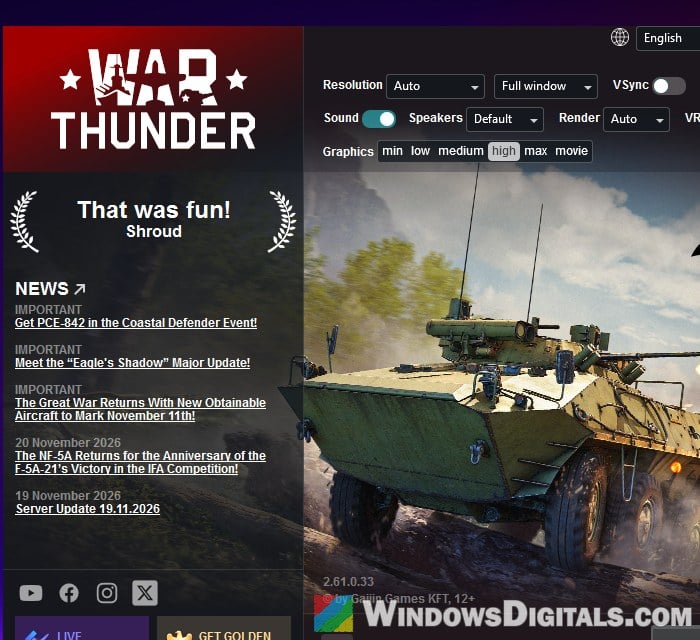
If nothing above works, you can still play some of the game until a fix comes out. With the anti-cheat off, the game starts without crashing for players who have this problem. Open the War Thunder launcher and click the Anticheat toggle at the bottom right, under Client, to turn it off.
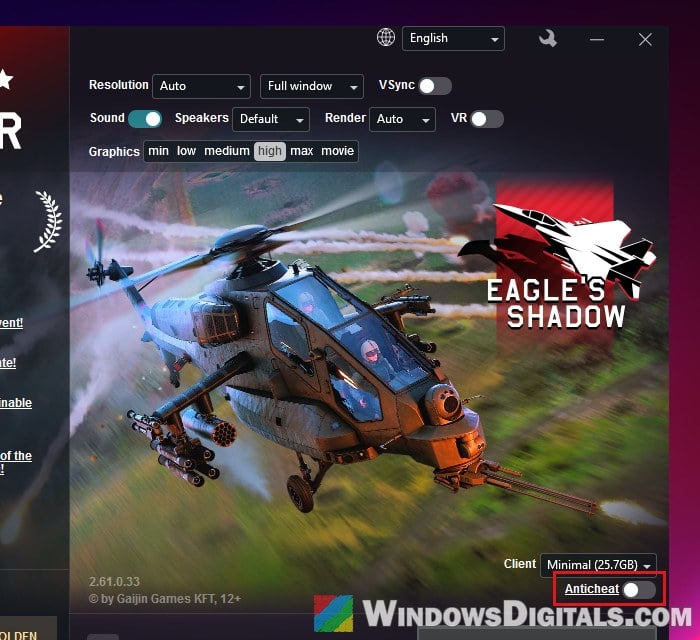
Please note that with it off, you can’t join battles in modes that need it. According to Gaijin’s wiki, that’s Ground Realistic, Ground Simulator and Air Simulator at any Battle Rating, plus Air Arcade, Air Realistic and Ground Arcade at Battle Rating 4.7 and higher. Turn the toggle back on once a fix is out.
Report the crash to Gaijin and BattlEye
A lasting fix has to come from Gaijin or BattlEye, and your crash dumps help them find the cause. Each blue screen usually leaves a small dump file in C:\Windows\Minidump, named with the date of the crash. Copy those files to another folder (zipping them makes them easier to attach) before you send them anywhere.
Pro tip: Windows 11 Dump File Location
Gaijin asks players to report anti-cheat problems on its bug reporting site, https://community.gaijin.net/issues/p/warthunder, under the Anti-Cheat category. A report for this crash already exists, so look for it first and add your details there rather than opening a new one. BattlEye also asks players whose crashes keep coming back to contact its support at https://www.battleye.com/support/.