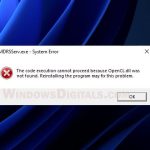
If your PC froze or a game crashed to a black screen, and after the restart your AMD graphics driver seems to be gone (low resolution, a dead second monitor, very low FPS), reinstalling AMD Software might end with “Error 207 – AMD Software installation completed successfully but Windows detected a potential issue with your graphics device“. This guide will explain what the error really means and how to get your Radeon card working again.
Also see: AMD Software Warning: Graphics Driver Replaced?
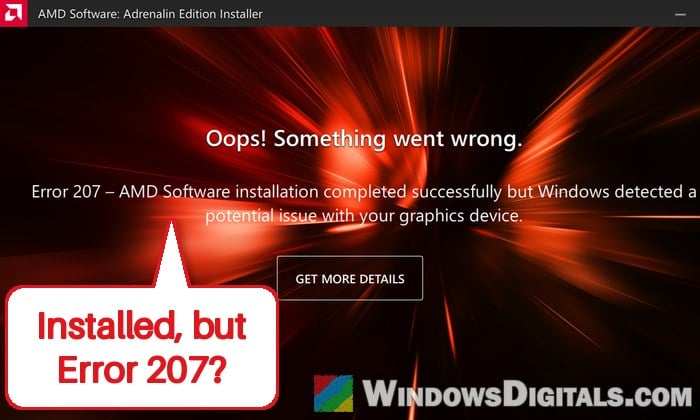
What does AMD Error 207 actually mean?
Just as the message says, the driver package did install. The problem is on the Windows side: according to AMD, Device Manager has detected an issue with your display adapter after the installation finished. In other words, the new driver can’t run on the card.
In most cases, the reason is one of these:
- Windows disabled your graphics card in Device Manager after the crash. This is by far the most common one, and no amount of reinstalling will fix it until the card is enabled again.
- The driver install is broken or mixed, for example when Windows Update puts its own AMD driver over the one from AMD Software. The card may show a yellow warning triangle instead of being disabled.
So check Device Manager before you download anything.
Check if Windows disabled your graphics card
This sounds almost too simple, but it’s what fixed it for most people on Reddit and Microsoft’s forums. After a driver crash, Windows can switch the Radeon card off in Device Manager. Here’s how to check and fix it:
- Press Win + X and select Device Manager.
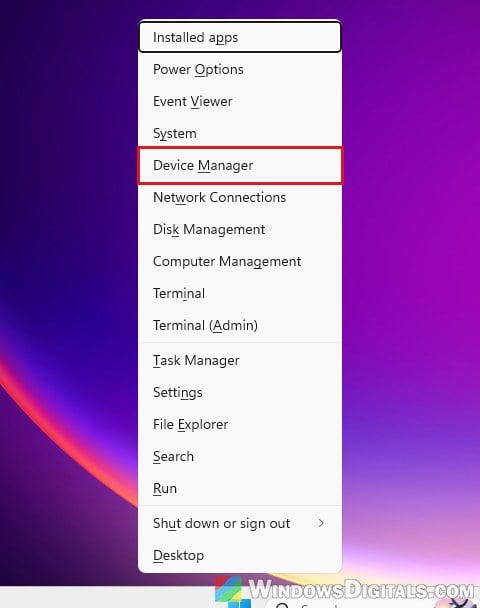
- Expand Display adapters (spelled Display adaptors in some English versions of Windows).
- Look at your AMD Radeon card. If its icon has a small down arrow, the card is disabled.
- Right-click the card and select Enable device. You can also double-click it: its General tab will say “This device is disabled. (Code 22)“, with an Enable Device button right below.
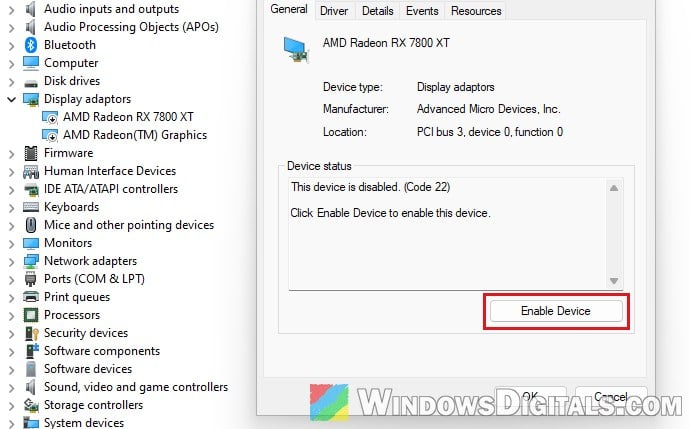
- Restart your PC, then run the AMD Software installer again.
If the card shows up with a yellow warning triangle after you enable it, restart once more before you do anything else, since a restart can be enough to clear it. And if enabling it didn’t stick the first time, right-click the card, choose Disable device, then Enable device again. Sometimes it takes several tries before the driver finally installs. Once the installer finishes without Error 207, your normal resolution and second monitor should be back.
Linked issue: Second Monitor Not Detected After Upgrading to Windows 11
Install pending Windows updates
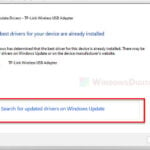
If the card isn’t disabled but still has the yellow warning, let Windows finish its own updates first. Sometimes that alone clears the warning. This is about Windows’ own updates: the graphics driver itself you’ll install from AMD in the next steps.
- Open Settings and go to Windows Update.
- Click Check for updates and install everything it finds, then restart.
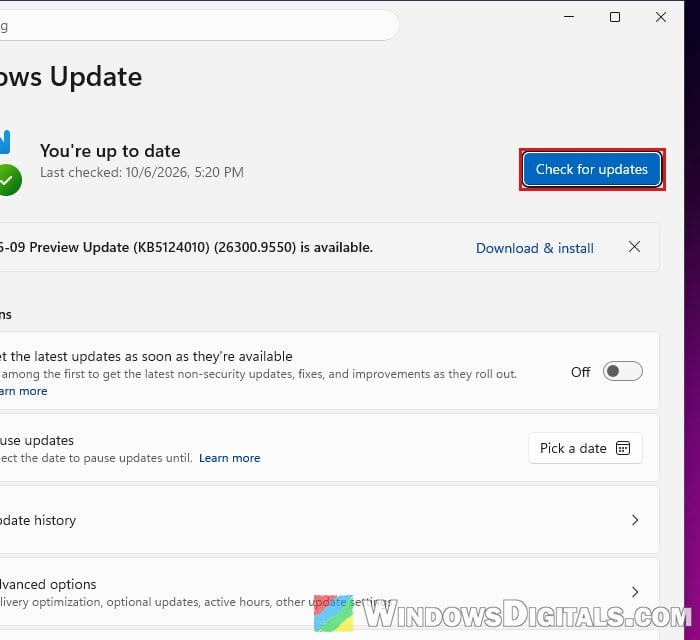
After that, open Device Manager again and see whether the warning on your graphics card is gone.
Remove the AMD driver completely with AMD Cleanup Utility
When the card is enabled but the error still shows up, the driver install itself is probably broken, so remove everything and install the driver fresh. AMD’s own tool for this is AMD Cleanup Utility. It removes AMD graphics and audio drivers and AMD Software, but leaves your AMD chipset drivers alone.
First download the latest Adrenalin driver for your card from AMD’s website. Then:
- Download AMD Cleanup Utility from
https://www.amd.com/en/resources/support-articles/faqs/GPU-601.html. - Run amdcleanuputility.exe and click Yes on the User Account Control prompt.
- If it asks whether you want to reboot and run it in Safe Mode, click Yes, since AMD recommends Safe Mode for the best result.
- It then explains that it will remove AMD drivers and applications, but not your AMD chipset drivers. Click OK to start.
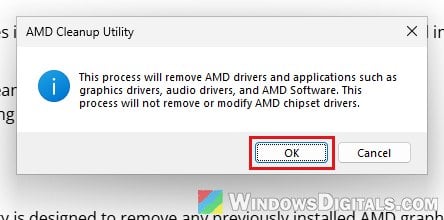
- According to AMD, it’s normal for the screen to flicker or go blank for a moment while it works. When it says it has successfully completed, click Finish.
- If you’re still in Safe Mode, restart into normal Windows, then run the Adrenalin installer you downloaded earlier.
Then check Device Manager again. The card should show no warning icon, and your normal resolution and second monitor should be back.
Do a clean reinstall with DDU in Safe Mode, offline
If AMD Cleanup Utility didn’t do it, a clean reinstall with DDU (Display Driver Uninstaller) has cleared the error for several people. The key part is to stay offline the whole time and tell DDU to stop Windows Update from fetching a driver, so Windows can’t slip its own AMD driver in before yours is installed.
- Download the latest Adrenalin driver from AMD’s site and DDU from
https://www.wagnardsoft.com/, and keep both files on your desktop. - Disconnect from the internet (unplug the Ethernet cable or turn off Wi-Fi).
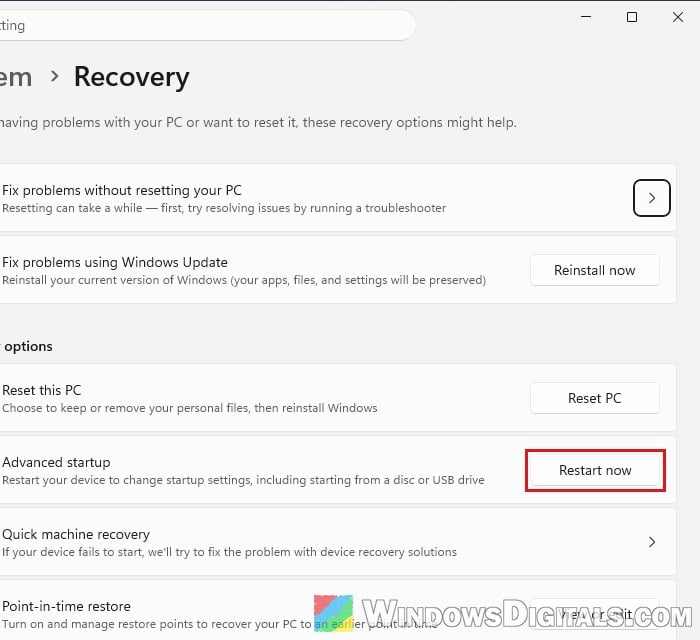
- Boot into Safe Mode: go to Settings > System > Recovery, click Restart now next to Advanced startup, then pick Troubleshoot > Advanced options > Startup Settings > Restart, and press 4 or F4.
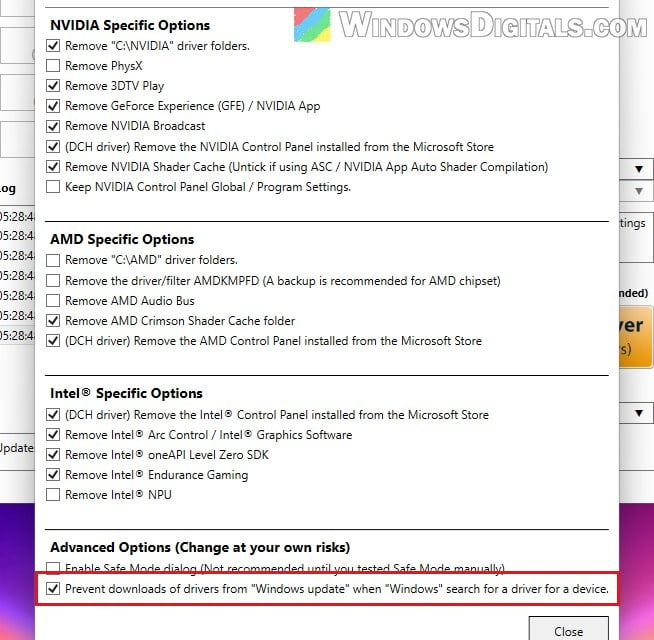
- Open DDU. Click Options at the top, and under Advanced Options, tick “Prevent downloads of drivers from “Windows update” when “Windows” search for a driver for a device.“, click OK on the notice that pops up, then click Close.
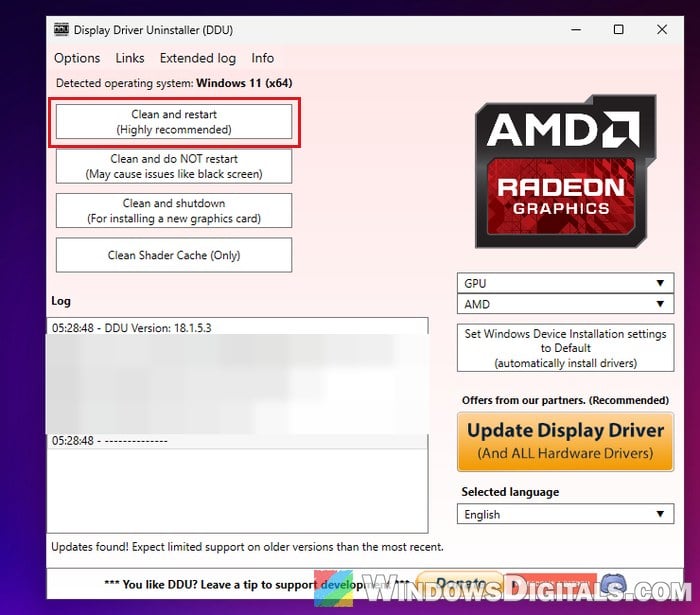
- In the two drop-downs on the right, select GPU and then AMD, and click “Clean and restart (Highly recommended)“.
- Back in Windows, while still offline, run the Adrenalin installer you saved.
- Reconnect to the internet once the installation is done.
Please note that this DDU option changes a Windows setting. Once the problem is sorted, turn it back: open DDU again and click “Set Windows Device Installation settings to Default (automatically install drivers)“. If you leave it off, Windows may have trouble installing drivers for new devices you plug in.
Pro tip: Enter Safe Mode in Windows 11/10 when PC isn’t booting
Stop Windows Update from replacing your AMD driver
If the error returns after every clean install, Windows Update replacing the AMD driver is a likely suspect. The Device Installation Settings switch, the same one DDU changes, tells Windows not to download things for your devices by itself:
- Press Win + R, type “sysdm.cpl” and press Enter.
- Go to the Hardware tab and click Device Installation Settings.
- Select “No (your device might not work as expected)” and click Save Changes.
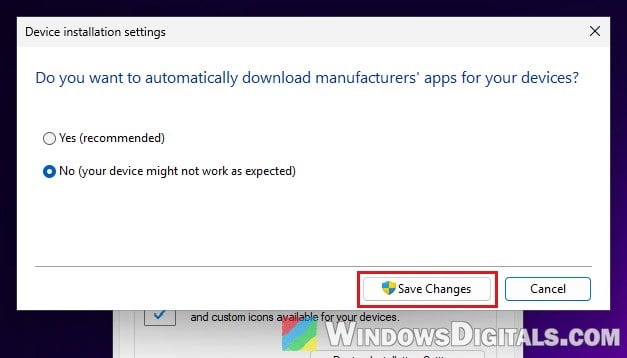
This window only asks about “manufacturers’ apps”, so it may not stop every driver that comes through Windows Update, but it can help keep Windows from undoing your clean install. You can leave it on No while the problem lasts, but set it back to Yes before you add new hardware.
If Error 207 keeps coming back
Sometimes something on your PC sets off the crashes that start all this. If you undervolt or overclock your graphics card, or run your RAM with an XMP profile, leave those off for a while and see if the crashes stop.
As a last resort, resetting Windows is what finally cleared the error in some cases. Go to Settings > System > Recovery and click Reset PC, then choose “Keep my files“. For a full walkthrough, see how to reset Windows 11/10 to factory default.
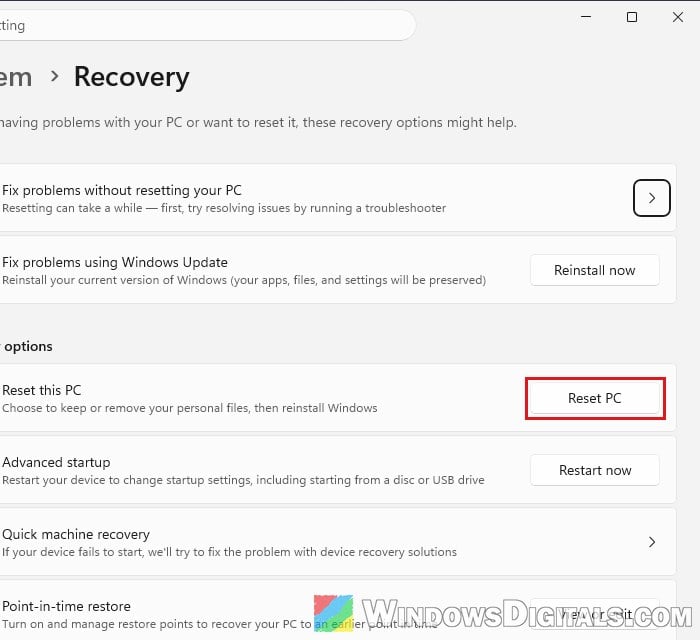
If the card still keeps disappearing or shows the warning after a reset, the problem might not be the software at all. Try the card in another PCIe slot or another PC, and check your power supply. If the card is still under warranty, contact the maker or the store you bought it from.