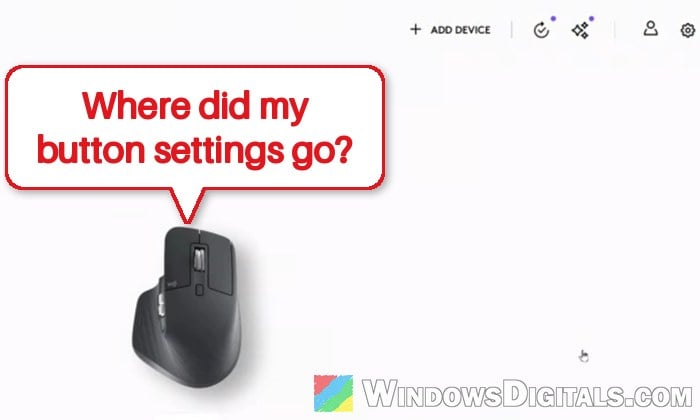
There is a quite common issue with Logi Options+ on Windows 11 and 10 where, right after the app updates itself, your custom mouse button settings are gone. The side buttons, gesture button or thumb wheel go back to their default actions or do nothing at all, and sometimes the mouse disappears from the app entirely. This guide will show you how to get your button settings back, and what to do if the mouse won’t show up in the app again.
Also see: Why Isn’t Logitech Options+ Flow Working on Windows 11?
Is this a known Logi Options+ problem?
Logitech hasn’t said why it happens, but Logi Options+ updates itself in the background, and the same complaint has come back after many of its updates this year. In November 2026, after the early-November updates, a lot of people found their side button mappings wiped, and some couldn’t set the side buttons to left or right click anymore. Earlier updates did the same thing in January, June, August and September 2026. Version 3.0 came out on November 17, 2026, and Logitech’s release notes say nothing about button settings.
Logitech’s own staff have said that an update shouldn’t wipe your settings and that nothing was removed on purpose. Sometimes a restart is all it takes to bring them back. When they really are gone, Logi Options+ usually has a backup of them, as long as you were signed in.
Related problem: What is LogiOverlay.exe and How to Fix Its Errors
Restart the PC or the Logi Options+ Agent first
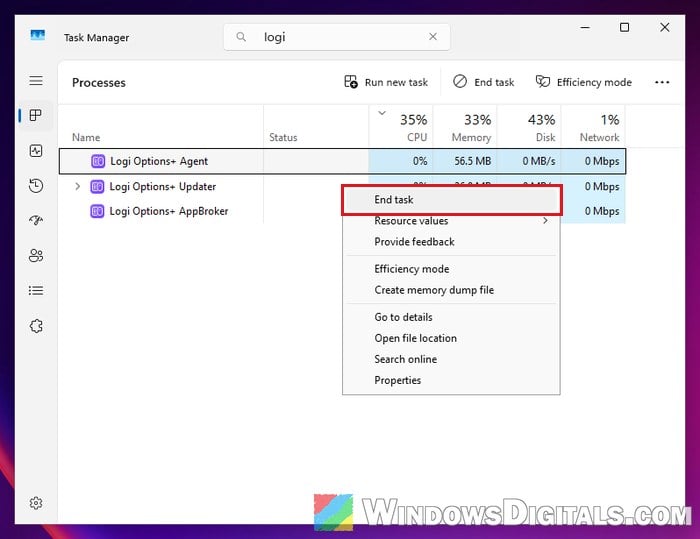
This might sound too simple, but it’s what Logitech suggests first, and for some people it brought back the mouse with all its buttons. You can restart the whole PC, or end the Logi Options+ Agent (the app’s background process) in Task Manager instead:
- Press Ctrl + Shift + Esc to open Task Manager.
- In the Processes tab, find Logi Options+ Agent. You can type “logi” in the search box at the top to find it faster.
- Right-click it and select End task. If there’s also a Logi Options+ Updater entry, end that one too.
- Open Logi Options+ again from the Start menu.
Once it’s open, select your mouse and check if your button assignments are back. Press a side button in an app to make sure it does what you set it to.
Restore your button settings from a backup
If the buttons are still on their default actions after a restart, the settings were most likely reset for real. Luckily, Logi Options+ backs up your device settings automatically when you’re signed in to it with a verified Logitech account, and this option is on by default. The backup includes your mouse button assignments, keyboard keys, Point & Scroll settings and app-specific settings (Flow settings and the app’s own settings aren’t included).
To restore them, follow the steps below:
- Open Logi Options+ and make sure you’re signed in with the same account you used before the update. An update can sign you out, and Logitech says that part is normal.
- Make sure the mouse is connected, then click its picture on the Logi Options+ home screen to open its settings. If your mouse isn’t on the home screen, follow the next section first.
- Click SETTINGS in the menu on the left and scroll down to the Restore backup section. If you don’t see it there, look under More > Backups.
- Click RESTORE SETTINGS FROM BACKUP.

- Each backup shows the computer name, its make and model, and when it was created. Pick one that was made before the update, then restore it.
Please note that the app can create a new backup right after the update, so the newest one in the list might already hold the reset settings. If you weren’t signed in before the update, there’s sadly no backup to restore, and you’ll need to set up your buttons again in Logi Options+.
Linked issue: Logitech Mouse Double Clicking on Single Click (Fix)
Your mouse is missing from Logi Options+ after the update
Some updates go a step further and the mouse doesn’t show up in Logi Options+ at all. Logitech says an update can sign you out, but it shouldn’t make the app forget your devices, though for some people it did. When you try to add the mouse again, newer versions also ask you to confirm it’s your mouse by clicking the left or right button a few times, and that verification step can get stuck.
Here’s what you should do:
- Restart the PC first. In some cases, the mouse came back with all its settings after a restart or two.
- Turn the mouse off and on again with its power switch.
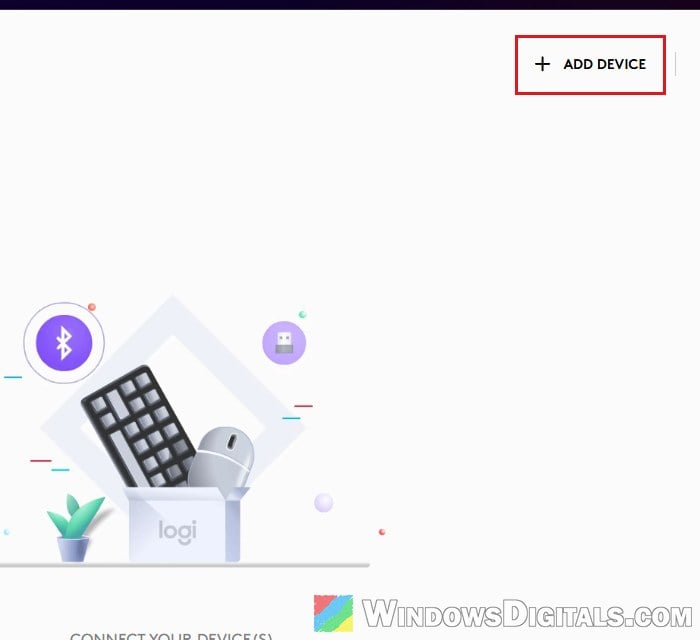
- In Logi Options+, click ADD DEVICE and go through the steps to add your mouse again. If it gets stuck on the step that asks you to click the buttons, cancel it, restart the PC and the mouse, and try again.
- Once it’s back, check your buttons, and restore a backup as shown above if they’ve been reset.
Might be useful: Logitech Wireless Mouse USB Receiver Lost or Broken
Reinstall the latest Logi Options+ over the old one
If the app itself is still broken after the update (it won’t find your mouse at all), installing the latest version over the old one is the next thing to try. It has fixed a broken update for some people. Download it only from Logitech’s own website.
Be warned: Don’t uninstall Logi Options+ and delete its leftover data before reinstalling. Some people who did that lost their backups too, not just the settings on their PC. Install the new version over the old one instead, and sign in first to check that a backup of your mouse exists (see the backup section above).
Here’s how to do it:
- Go to
https://www.logitech.com/en-us/software/logi-options-plusand click DOWNLOAD OPTIONS+.
- Run the installer and let it install over your current version (choose to reinstall if it asks).
- Open Logi Options+, sign in, and select your mouse.
- Restore your button settings from a backup as shown above.
Side buttons can’t be set to left or right click anymore?
After the November 2026 update, some people found they couldn’t map the side buttons to left or right click anymore. Logitech says it didn’t remove this on purpose, so restart the PC and Logi Options+ first, then check again.
If you still can’t set it, the X-Mouse Button Control app can map a side button to left click, and some people have switched to it for exactly that. Logi Options+ and X-Mouse Button Control may not work well together, and some people uninstalled Logi Options+ before setting it up, which also means losing its other settings for that mouse. Only go this route if that one mapping is all you need.