Many Discord server owners have recently seen a new channel called “server-hub” pop up in their server out of nowhere, often spotted only because a logging bot like Dyno posted “Channel Created: #server-hub” while nobody on the team had touched the channel list. It’s not a hack and not your bot. This guide explains what the channel is, what Discord’s new Server Hub feature does, and how to turn it off if you don’t want it.
Also see: Discord Won’t Connect to Voice Channel (Fix)
What is the “server-hub” channel?
The channel was created by Discord itself. Discord has confirmed it’s one of its own internal channels, set up for an experiment it’s about to run. That lines up with Server Hub, a new feature Discord is trying out in some servers right now (more on that below). It started showing up in early November 2026, sometimes even in old servers nobody uses anymore.

That’s also why it looks so odd. In some servers, the channel doesn’t even show up in the channel list, and the only trace of it is the line a logging bot posted. It’s Discord’s own internal channel, so it isn’t something you or your members are meant to use.
Might be useful: Discord Stream Keeps Freezing: How to Fix it
Did a bot or a hacker create it?
No. A lot of people first blamed Dyno, a raid protection bot, or thought their account or bot had been compromised. The bot only reported that a channel was created, the same way it would for any other new channel. It didn’t make the channel.
If you check your server’s Audit Log (Server Settings > Audit Log), you’ll most likely find no entry for the new channel at all. That makes sense, since Discord’s own internal changes don’t seem to show up in the audit log the way actions by members and bots do.
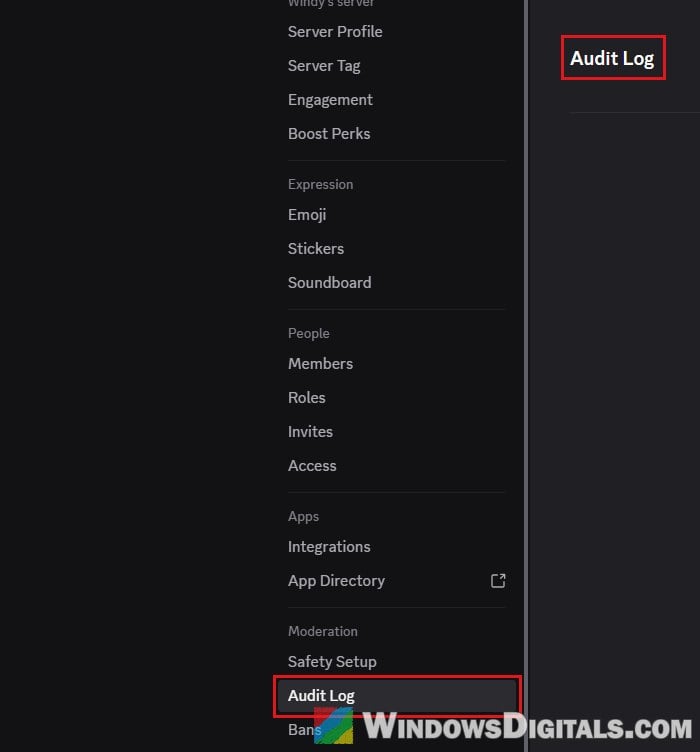
So there’s no need to remove your bots, kick anyone or change your password over this channel alone. It’s pretty much safe to ignore. If you also see other channels, roles or messages nobody on your team made, though, that’s a different story.
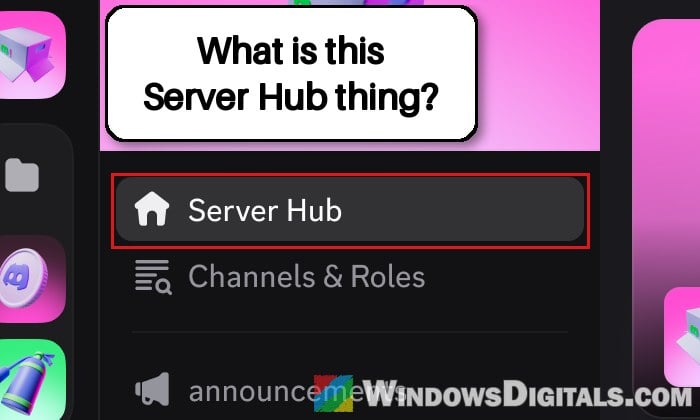
What is Server Hub?
Server Hub is a shared page for your server that shows up as a “Server Hub” tab at the top of the channel list. According to Discord, it’s currently an experiment, it only works on desktop (not the mobile app), and only some servers with fewer than 1,000 members get it. That’s why some people see it and others don’t.
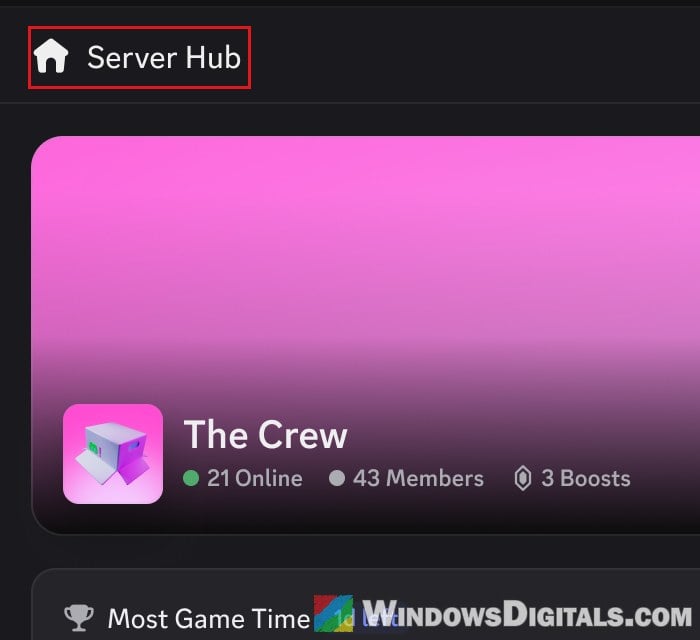
The page is made of widgets:
- Gaming Leaderboard: a weekly competition on one of three challenges (Most Game Time, Most Game Days or Most Unique Games), with standings updated daily.
- Popular Games: the games your server played the most that week.
- Whiteboard: a shared canvas where members can draw, add shapes, images and sticky notes.
- Text & Image and Custom Banner Image: content the admins add themselves.
It doesn’t cost anything, the Whiteboard included, and it doesn’t need Server Boosts. If your server has enough gaming activity, Discord may publish it automatically. Otherwise it starts as a draft that only the owner and admins can see, with a Publish button in the draft banner. Be aware that once Server Hub is published, it can’t be unpublished or turned back into a draft. You can only turn it off.
Suggested read: Unable to confirm payment method: Discord declines cards
How to turn off or hide Server Hub
If you don’t want Server Hub in your server, an admin (anyone with the Administrator permission) can hide it for everyone. Turning it off keeps your widgets, layout and Whiteboard content, so you can bring it back later from the server settings. Here’s how to do it:
- Open your server in the Discord desktop app.
- Select the X next to Server Hub at the top of the channel list.
- Select Disable to confirm. The tab disappears for all members right away.
You can also do it from the settings:
- Click the server name and open Server Settings.
- Go to Engagement and select Show Server Hub Settings.
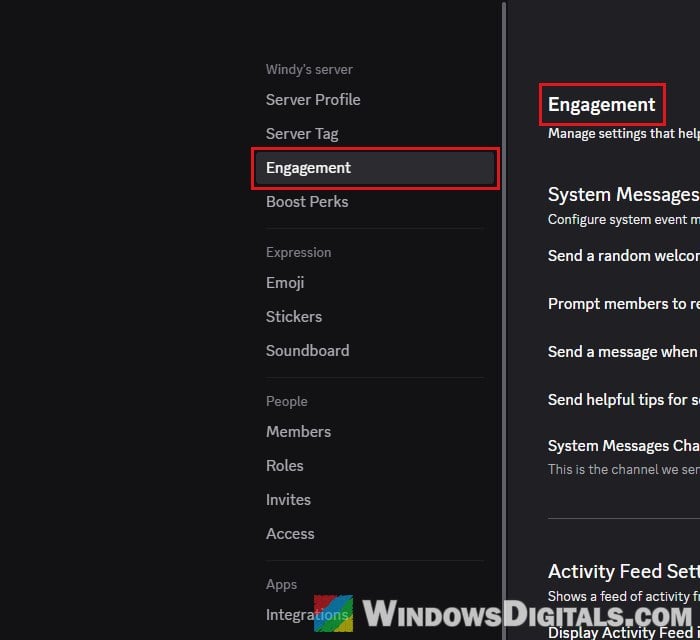
- Turn off Show Server Hub tab in channel list.
Note that the Server Hub options only show up on the Engagement page when your server is part of the experiment. Also, either way only hides the Server Hub tab. It isn’t clear whether it removes the server-hub channel too, but you don’t need to delete that channel anyway.
Stop Server Hub messages in your channels
Each widget can post up to one system message a day into a channel the admins choose. If those messages bother you, go to Server Settings > Engagement > Show Server Hub Settings, and under Server Hub System Messages, turn off the messages for each widget, or pick a different channel for them.
Will you show up on the Server Hub leaderboard?
Only if you agree to it. To appear on the Gaming Leaderboard and in Popular Games, a member has to turn on activity sharing, usually through the Share Activity prompt in one of the widgets. That opens a “Share my activity” window with two switches. Members set to Invisible are left out, and a widget needs at least 3 members sharing before it shows anything. Discord says this activity is only visible to members of that server.
If you’d rather stay off it, or you turned it on and changed your mind, you can switch these off in your user settings:
- Click the gear icon (User Settings) at the bottom left.
- Go to Activity Privacy and turn off Share my activity.
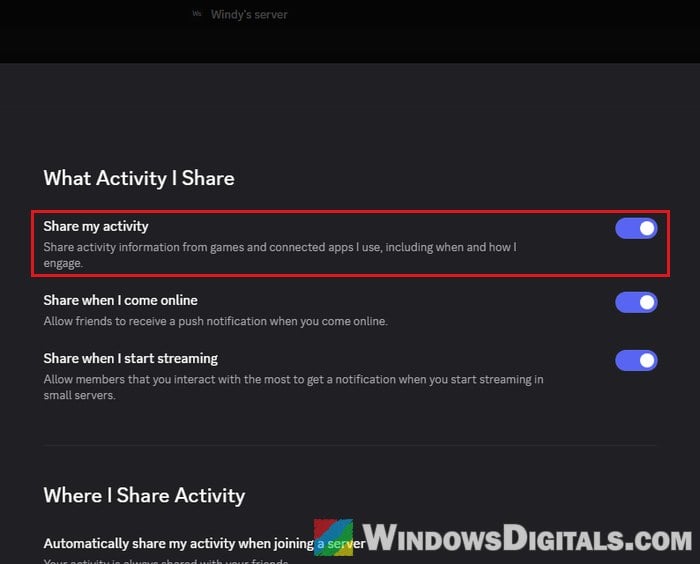
- Go to Data & Privacy and turn off Use data to personalize my Discord experience if you also want that one off.
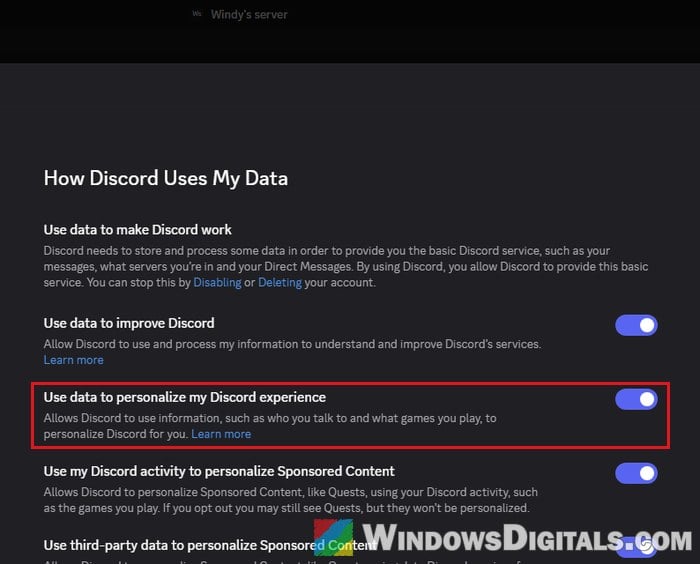
Keep in mind that Share my activity covers the activity from your games and connected apps across Discord, not just Server Hub, so turning it off changes more than the leaderboard.