Say you open YouTube, Wikipedia or a news site in Microsoft Edge, and the page comes up squished into the left side of the window or with the article text missing below its title, but the moment you press refresh, everything looks normal again, until you click through to the next page and it breaks all over again. This guide will help you find what’s causing it and get your pages to load properly on the first try.
Also see: Microsoft Edge Not Loading Google Sites (Gmail, YouTube, Search)
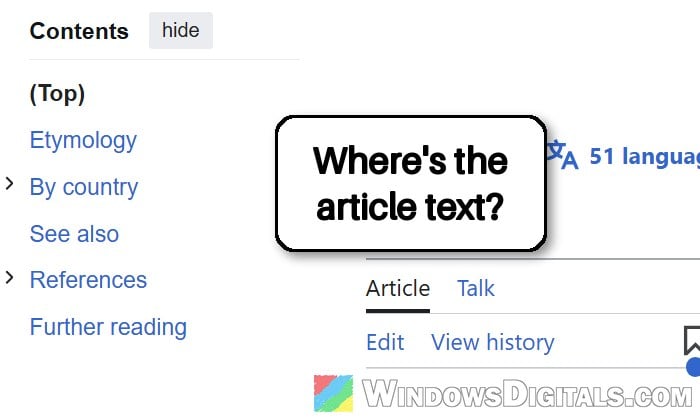
Why do pages load squished in Edge until you refresh?
This started for a few Edge users around the start of November 2026, with reports on both Reddit and Microsoft’s own forums. The pages most often mentioned are YouTube, Wikipedia, Flickr and news sites. On first load, the layout is wonky: the page gets crammed into the left side (YouTube can shrink to about a quarter of the screen), or the text of an article simply doesn’t show up below its title.
It doesn’t happen on every site or on every PC. Some people on the same Edge version (156.0.4314.58) don’t have it at all, so it’s likely something on the affected PCs rather than Edge being broken for everyone. As of now, Microsoft hasn’t listed it as a known issue for Edge.
Possible causes:
- The “Microsoft Bing Quick Search” extension. So far it’s the only thing that fixed it for someone with this problem.
- Another extension that changes how pages look or load, like an ad blocker, a privacy tool or a YouTube add-on.
- Graphics acceleration, which can make Edge draw pages wrongly with some graphics drivers.
Until you’ve found the cause, a quick refresh (Ctrl + R or F5) is the workaround. You’ll just have to do it again on each new page you open on that site.
Turn off the “Microsoft Bing Quick Search” extension
Microsoft Bing Quick Search is an old add-on from Microsoft that shows Bing results when you highlight text on a web page. It was taken off the Edge Add-ons store in 2025, but it’s still on the Chrome Web Store (Edge even offers to add it from there), and if you ever added it, it still runs on every page you open. That seems to be enough to mess up how some pages are drawn the first time they load, and for at least one person with this problem, turning it off made pages load properly again without a refresh.
Here’s how to turn it off:
- Open Microsoft Edge, type
edge://extensionsinto the address bar and press Enter.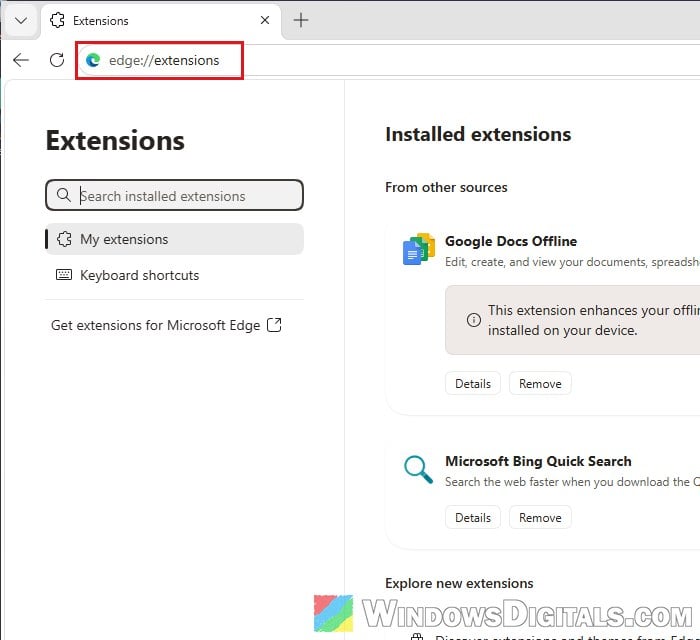
- Look for Microsoft Bing Quick Search in the list of installed extensions.
- Turn off the toggle next to it.
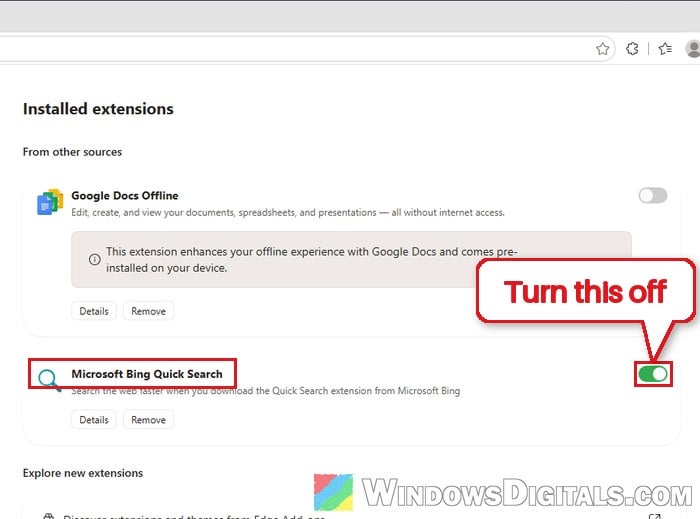
- If you don’t use it anyway, click Remove instead to get rid of it for good.
Now close the tab, open YouTube or Wikipedia again in a new tab, and see if the page loads correctly without a refresh.
Related concern: Can’t Remove Edge Extension “Added by your organization” (ExtensionInstallForcelist)
Use an InPrivate window to find a faulty extension
If you don’t have Bing Quick Search, or turning it off didn’t help, another extension could be doing the same thing. Ad blockers, privacy and security add-ons, and anything made for YouTube are the usual suspects, since they all change what loads on the page.
An InPrivate window is the quickest way to check this, because extensions don’t run in it unless you’ve allowed them to. Here’s what you should do:
- In Edge, press Ctrl + Shift + N to open an InPrivate window.
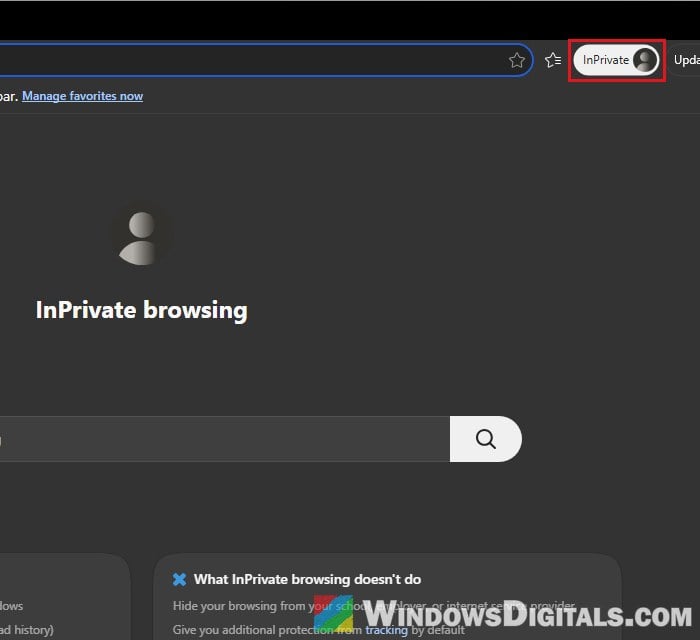
- Open the site that loads squished, for example YouTube, in the InPrivate window.
- If the page looks normal there, an extension is the most likely cause. Go back to a normal Edge window and open
edge://extensions. - Turn off all your extensions, then reload the site to confirm it now loads properly.
- Turn the extensions back on one at a time, opening the site after each one, until the problem comes back. The last one you turned on is the culprit.
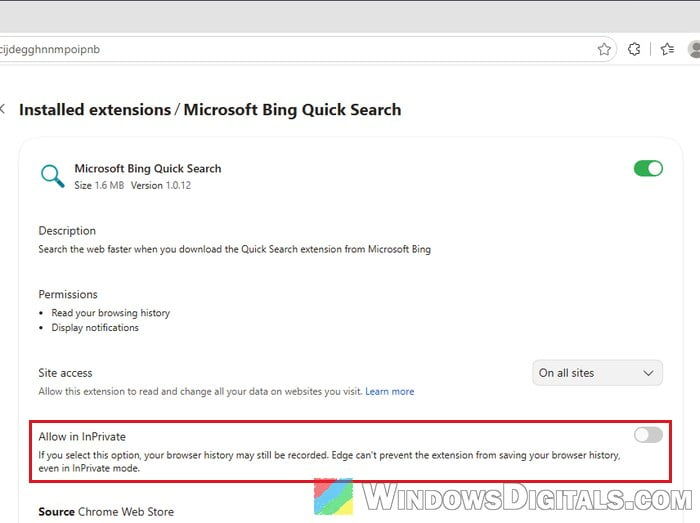
If a page still loads squished in the InPrivate window, check each extension’s Details page in edge://extensions first. An extension with Allow in InPrivate turned on runs there too, so turn that off for the test. If none of them has it on, an extension probably isn’t the cause, so move on to the next fix.
Might be useful: Microsoft Edge Keeps Opening Facebook or YouTube by Itself, Virus?
Turn off graphics acceleration in Edge
Edge uses your graphics card to draw web pages faster. When the graphics driver and Edge don’t get along, pages can come out with parts missing or out of place. Turning graphics acceleration off for a while is an easy way to rule this out. Here’s how to do it:
- Type
edge://settings/systeminto the address bar and press Enter. This opens System and performance. - Click System.
- Turn off “Use graphics acceleration when available“.
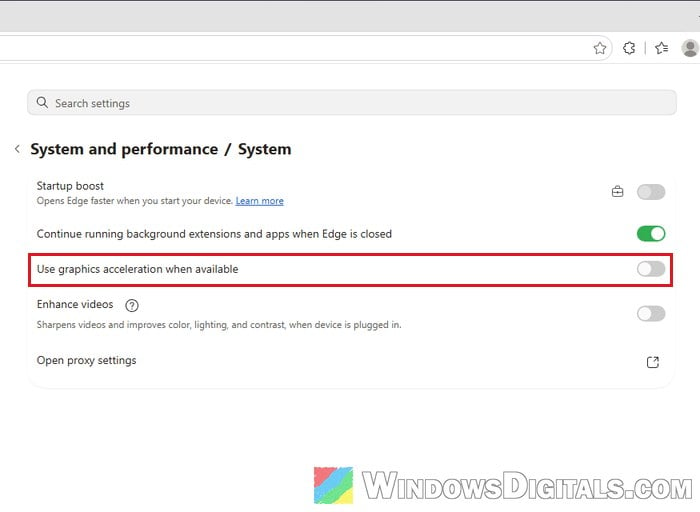
- Close all Edge windows and open Edge again so the change takes effect.
If this fixes it, look for a newer graphics driver in Settings > Windows Update > Advanced options > Optional updates (or from your graphics card’s maker). After updating the driver, you can turn graphics acceleration back on and check if the problem stays away, since Edge runs smoother with it on.
Update Microsoft Edge
Version 157 of Edge came out on November 5, 2026. None of the updates so far lists a fix for this problem, but it’s still worth staying on the latest version, so you get the fix as soon as Microsoft releases one. To check for updates:
- In Edge, click the three dots (Settings and more) in the top-right corner.
- Go to Help and feedback > About Microsoft Edge.
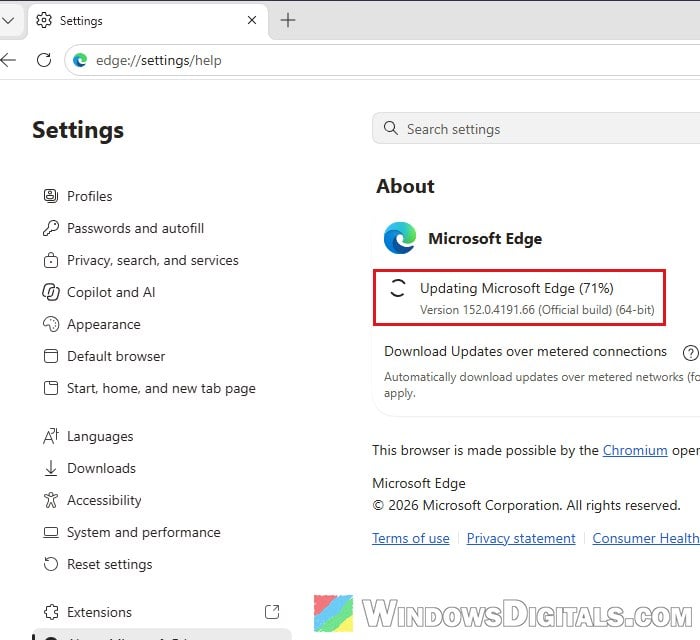
- Edge checks for updates and installs them. Restart Edge when it asks.
Once Edge has restarted, open the site that was loading squished and see if it shows up right the first time.
Clear Edge’s cached images and files
If Edge’s saved copy of a site’s files gets corrupted, pages from that site can load wrong too. Clearing the cache doesn’t fix this problem for everyone, but it’s harmless and only takes a minute. It doesn’t remove your passwords or browsing history if you only tick the cache. Follow the steps below:
- Press Ctrl + Shift + Delete in Edge to open Delete browsing data (it’s also in the Settings and more menu).
- Set Time range to All time.
- Tick only Cached images and files and untick everything else.
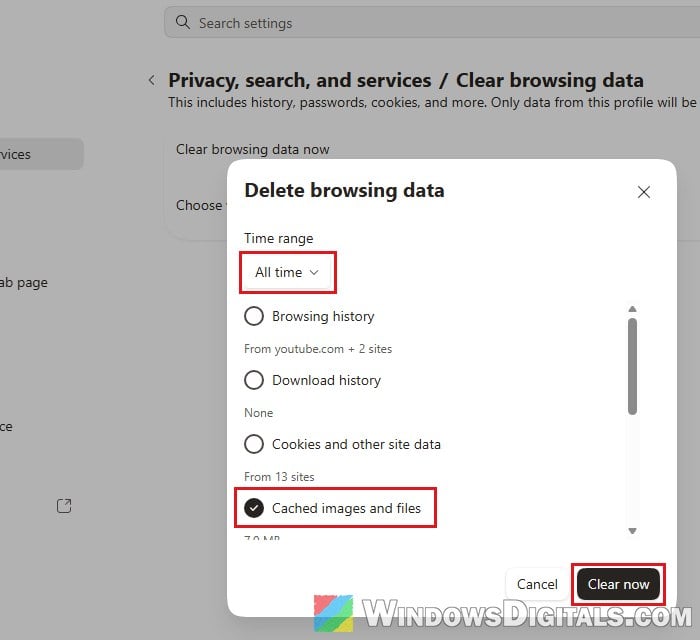
- Click Clear now.
Then open the site again and check if it loads properly without a refresh.
Pro tip: How to Clear Cookies in Windows 11
Repair Microsoft Edge
If nothing above worked, repairing Edge reinstalls the browser without touching your browsing data or settings. You’ll need to be connected to the internet for it. It’s the last thing to try before waiting for Microsoft to fix it in an update. Follow the steps below:
- Open Settings in Windows 11 and go to Apps > Installed apps.
- Find Microsoft Edge, click the three dots next to it and select Modify.
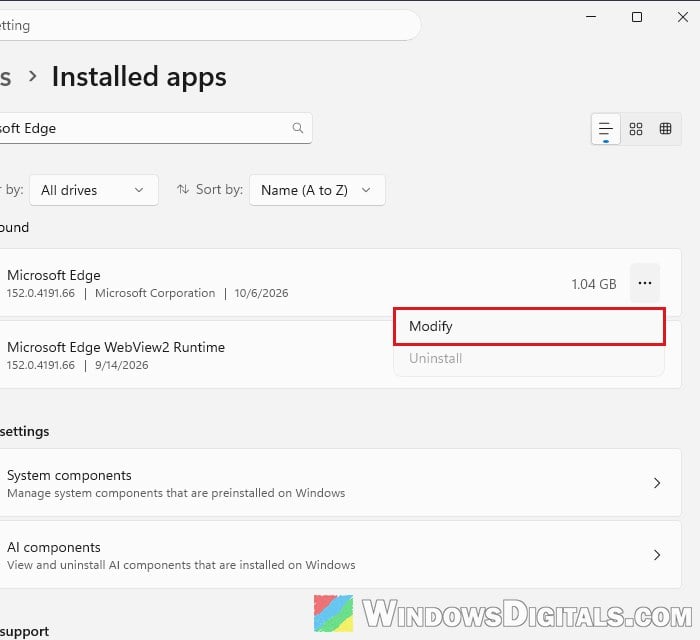
- Click Yes if Windows asks for permission.
- In the window that opens, click Repair.
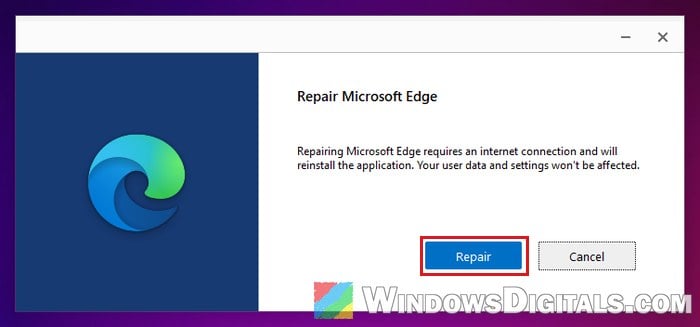
Let the repair finish. Then open Edge, go to the site that was loading squished and see if it shows up correctly the first time.