Many Windows 11 users have run into a problem where the taskbar search opens as an empty box and never loads. The search panel pops up, but it stays plain grey, black or white with no apps, no recent items and no results, sometimes with a loading bar along the top that never finishes. This guide will walk you through what usually causes it and the fixes worth trying.
Also see: Can You Get the Old Search Back in Windows 11 26H2?
Why does Windows search open blank?
The search panel in Windows 11 is a small app that shows results from your PC and web results from Bing in one place. If any part of it gets stuck, the panel can open empty. Typing still works, and pressing Enter can even open the top match you can’t see.

Some common reasons for this are:
- A stuck SearchHost.exe process, the process behind the search panel.
- Bing’s web results failing to load. In April 2026, Microsoft confirmed that Start menu search broke on some Windows 11 23H2 PCs around the time of a server-side Bing update, leaving people with blank results, and rolled the change back on its end.
- Damaged search app files or search data in your user account.
- Windows Font Cache Service acting up, or missing Windows updates.
It has been reported on Windows 11 23H2 to 26H2 and on Windows 10, so it isn’t tied to one update.
Related problem: Windows 10/11 Start Menu Search Can’t Find Anything
Restart SearchHost.exe and Windows Explorer
Ending the SearchHost.exe process stops Windows Search, and according to Microsoft, it starts again by itself the next time you search. Here’s what you should do:
- Press Ctrl + Alt + Delete and select Task Manager.
- Go to the Details tab.
- Right-click SearchHost.exe and select End task, then confirm with End process.
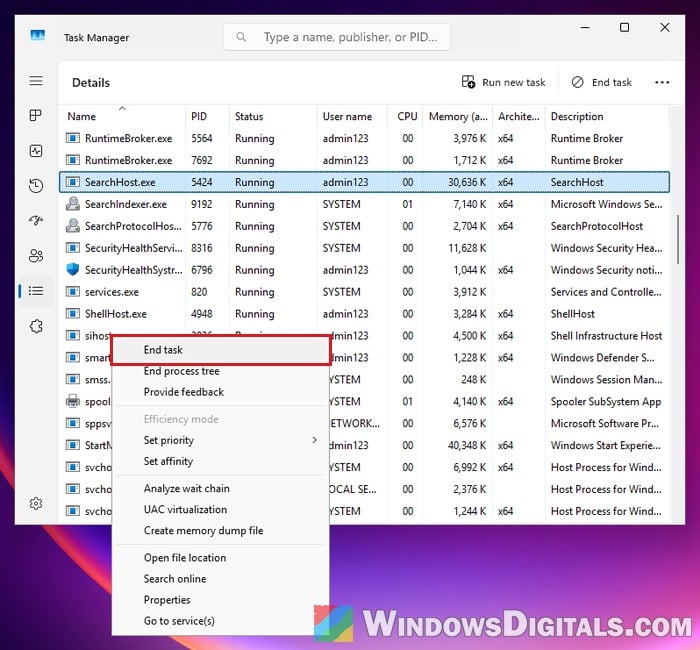
- Open search again and see if the results show up.
- If not, go to the Processes tab, right-click Windows Explorer and select Restart.
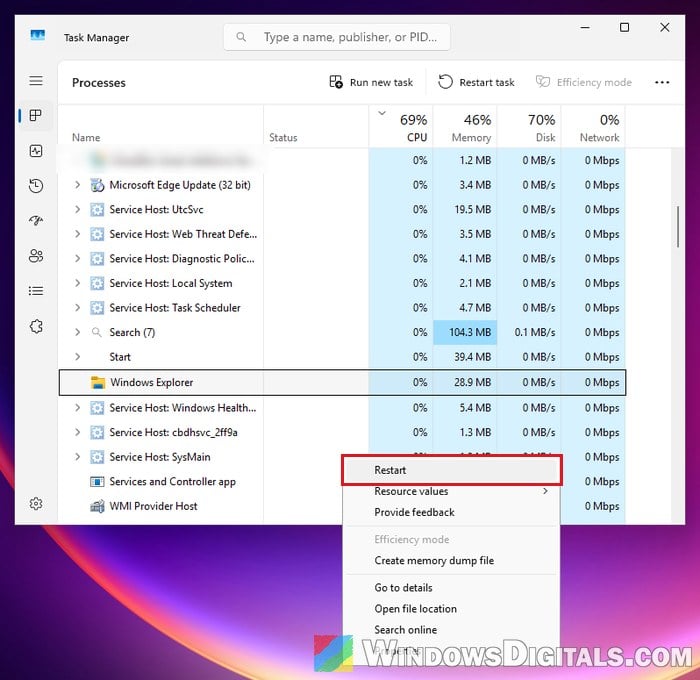
If search is still blank after both, restart your PC once. A restart also installs any update that’s waiting.
Related guide: Restart Explorer.exe with CMD or PowerShell in Windows 11
Turn off web (Bing) results in search
When the web part of the search panel can’t load, it can take the whole panel down with it. Turning off web results makes search show only results from your PC. This has fixed a blank panel for several users, though not for everyone, so undo it if nothing changes.
On PCs that already have the new search look in Windows 11, there’s a setting for this. Go to Settings > Privacy & security > Search and open Show suggested search results, then turn off the toggle for web search results.
If you don’t see that setting, use a registry value instead. Incorrectly changing the registry could cause problems, so please at least create a system restore point first. This one only affects your own account and needs no admin rights:
- Press Win + R, type “cmd” and press Enter to open Command Prompt.
- Type the following command and press Enter:
reg add "HKCU\Software\Microsoft\Windows\CurrentVersion\Search" /v BingSearchEnabled /t REG_DWORD /d 0 /f
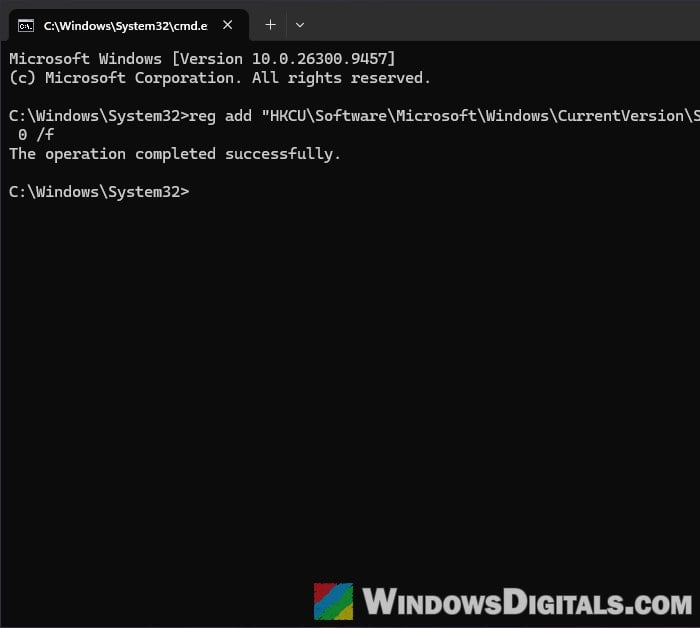
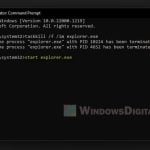
- Restart Windows Explorer so the change takes effect. Type the following commands one by one, and press Enter after each:
taskkill /im explorer.exe /f
start explorer.exe
- Open search again and check if the panel loads.
If that doesn’t do it, there’s a stronger switch that also blocks web suggestions. Right-click the Start button, select Terminal (Admin), run the command below, then restart Explorer the same way:
reg add "HKCU\SOFTWARE\Policies\Microsoft\Windows\Explorer" /v DisableSearchBoxSuggestions /t REG_DWORD /d 1 /f
Keep in mind this is only a workaround. When Microsoft fixed its Bing problem in April, the fix came from its servers, and Microsoft advised keeping PCs online and not turning off web search with Group Policy so it could arrive. So turn web results back on later by running the same command with /d 1 for BingSearchEnabled, or /d 0 for DisableSearchBoxSuggestions.
Restart the Windows Font Cache Service
This sounds unrelated, but it’s the first fix on Microsoft’s own list for search problems. Here’s how:
- Press Win + R, type “services.msc” and press Enter.
- Find Windows Font Cache Service, right-click it and select Stop.
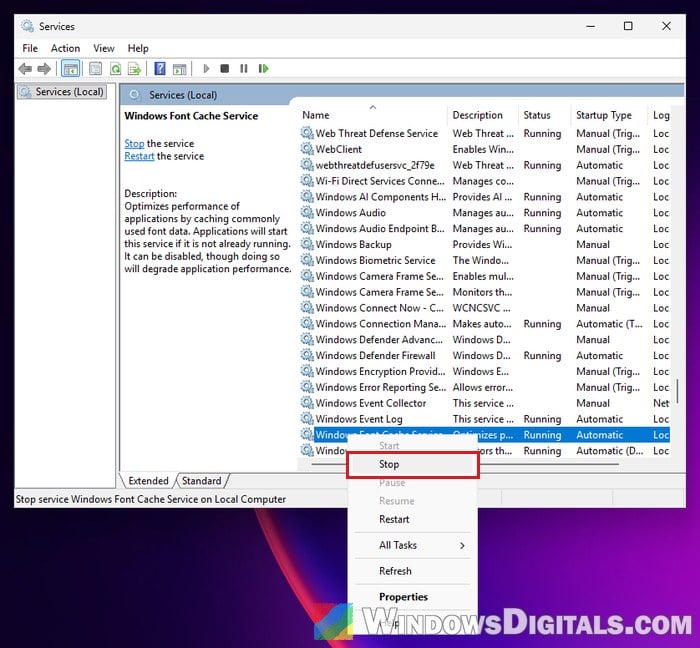
- Try searching again.
- Go back to Services, right-click Windows Font Cache Service and select Start.
Linked issue: Windows Font Cache Service Failed to Start and High CPU
Switch between light and dark mode (if the panel is white)
Sometimes the panel isn’t really empty: it’s plain white, or the results are there but the text is white on a light background. Switching to light mode made the text readable again for some people, and switching between light and dark a few times has brought it back too.
- Open Settings > Personalization > Colors.
- Under Choose your mode, switch to Light. If search looks normal now, you can stay on it. Otherwise, switch back to Dark and repeat a few times.
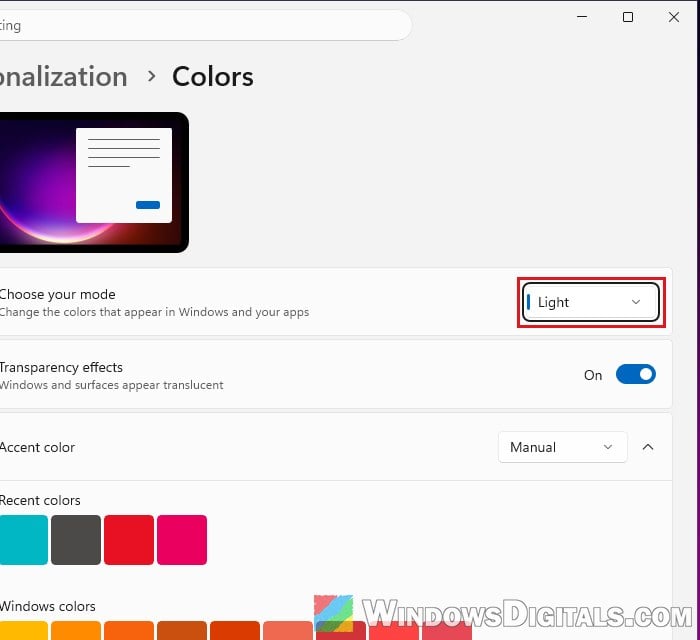
- Open search and check if it looks normal.
Reset Windows Search with Microsoft’s script
Microsoft has a PowerShell script that resets Windows Search. It doesn’t touch your files, though results may be less relevant for a while. You need admin rights for it.
- Right-click the Start button and select Terminal (Admin).
- Run the following command. If it says Unrestricted, skip to step 4. Otherwise, write down what it says.
Get-ExecutionPolicy
- Run the following command, then type Y and press Enter to accept:
Set-ExecutionPolicy -Scope CurrentUser -ExecutionPolicy Unrestricted
- Go to Microsoft’s Reset Windows Search PowerShell script page and download ResetWindowsSearchBox.ps1.
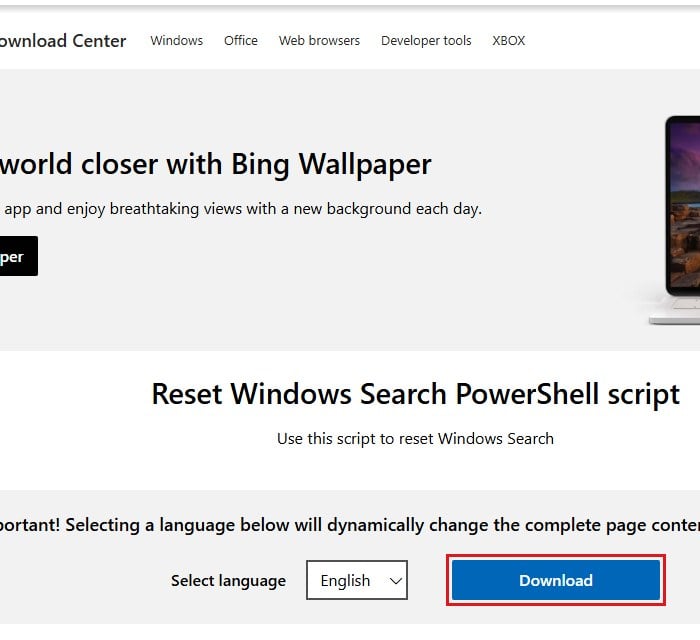
- Right-click the downloaded file and select Run with PowerShell. Select Yes if Windows asks whether to allow the app to make changes.
- Wait until the word Done appears.
- If you changed the execution policy in step 3, set it back with the value you wrote down:
Set-ExecutionPolicy -Scope CurrentUser -ExecutionPolicy <PreviousValue>
After that, try searching again.
Rebuild the search app’s data folder
If search works in another user account but not in yours, the search app’s data in your profile is probably damaged. Microsoft’s fix is to delete that data and register the search app again. This involves deleting a registry key, so create a system restore point first, and if you’re not comfortable with this, get someone who knows to help you instead.
- Sign in to another account with admin rights (or create a local admin account for this).
- Copy and paste the following path to File Explorer’s address bar, using the affected account’s user name, and delete the folder it opens:
C:\Users\<your user name>\AppData\Local\Packages\MicrosoftWindows.Client.CBS_cw5n1h2txyewy
- Sign back in to your own account, press Win + R, type “regedit” and press Enter.
- Copy and paste the following path to the address bar, then right-click the Search key and delete it:
HKEY_CURRENT_USER\SOFTWARE\Microsoft\Windows\CurrentVersion\Search
This also removes the BingSearchEnabled value from earlier, if you added it.
- Right-click the Start button, select Terminal (Admin) and run:
Add-AppxPackage -Path "C:\Windows\SystemApps\MicrosoftWindows.Client.CBS_cw5n1h2txyewy\Appxmanifest.xml" -DisableDevelopmentMode -Register
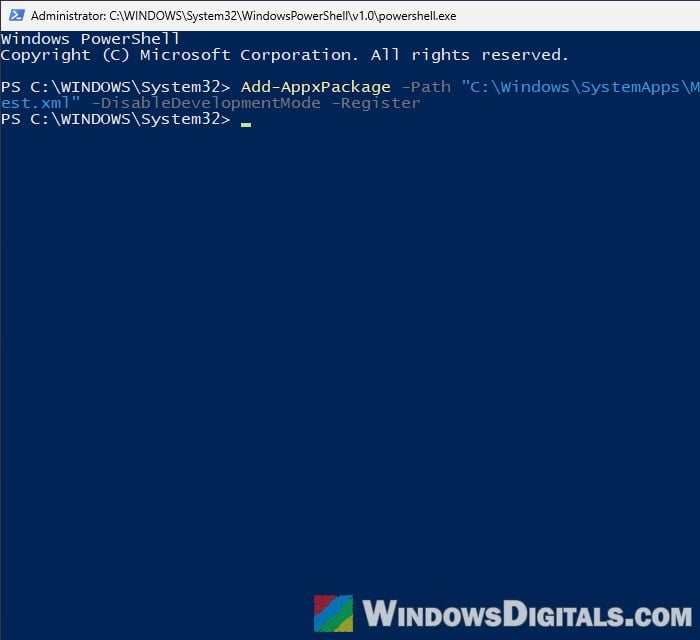
- Restart your PC. Windows rebuilds the folder and the registry key, and search indexing starts again.
Repair system files with DISM and SFC
Damaged system files can break search too. To be honest, this rarely fixes a blank search panel, but it’s harmless and worth a go:
- Right-click the Start button and select Terminal (Admin).
- Run the following command and wait for it to finish:
DISM /Online /Cleanup-Image /RestoreHealth
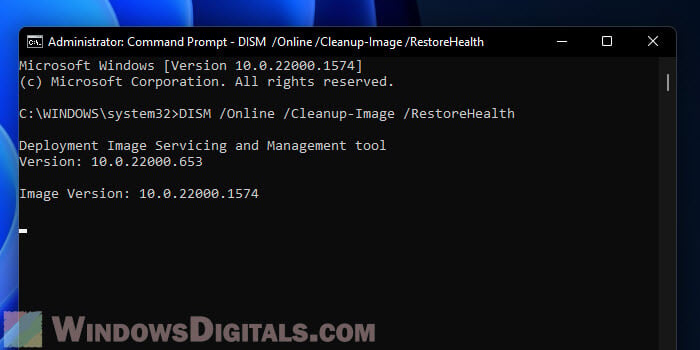
- Then run:
sfc /scannow
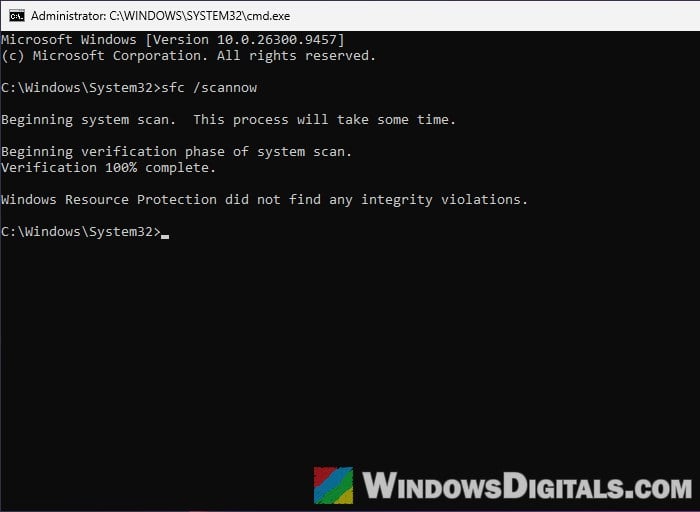
- Restart your PC and test search again.
Install pending updates
Microsoft lists missing updates among the causes of search problems. Go to Settings > Windows Update, click Check for updates, install whatever is there and restart. When the problem is on Microsoft’s side, like the Bing issue in April, the fix may arrive by itself. If nothing here works, report it in the Feedback Hub under Desktop Environment > Search.