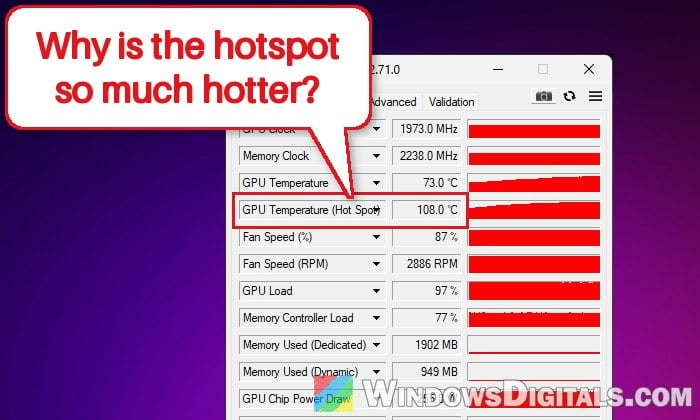
When you check your AMD Radeon graphics card’s temperatures while gaming, you might see the hotspot (or junction) reading sitting 30°C or more above the normal GPU temperature, sometimes creeping toward 100°C or higher. This guide will explain what the two readings actually mean, how big a gap is normal, and what you can do when yours is too big.
Also see: Why is my CPU Overheating and How to Fix it
What is the GPU hotspot temperature?
The hotspot is the hottest single point on the GPU chip at that moment. AMD’s GPUs have a whole network of temperature sensors spread across the die, and the hotspot (AMD also calls it the junction temperature) is simply the highest reading from any one of them. Which part of the chip it comes from can change as the load moves around.
The normal “GPU temperature” works differently. AMD calls it the edge temperature, and it’s an average the card’s firmware works out from those same sensors. Because an average smooths out the hottest spots, it will always be lower than the hotspot. So two numbers that are far apart don’t mean one of the sensors is broken. They’re just measuring different things.
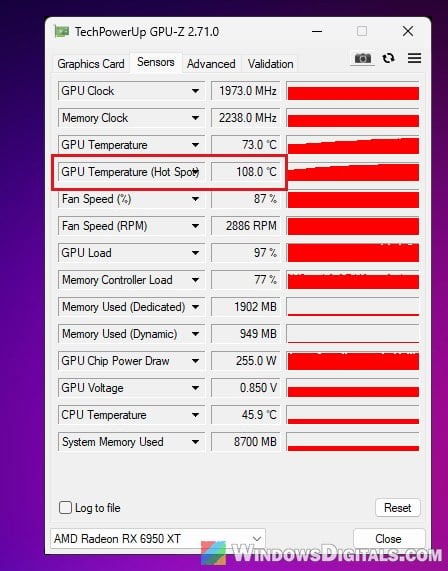
You’ll often see a third reading called memory junction temperature too. That one is the temperature of the video memory (VRAM) chips around the GPU, not the GPU itself, so don’t mix it up with the hotspot. Memory chips can run past 90°C under load, and that’s generally considered fine.
Where can you see the hotspot temperature?
Free monitoring tools like HWiNFO and GPU-Z show these readings side by side. You can also see the hotspot in AMD Software itself: go to Performance > Tuning, and the Fan Tuning panel shows the GPU Hotspot Temperature next to the GPU temperature. Older versions of AMD Software call it Junction Temperature instead.
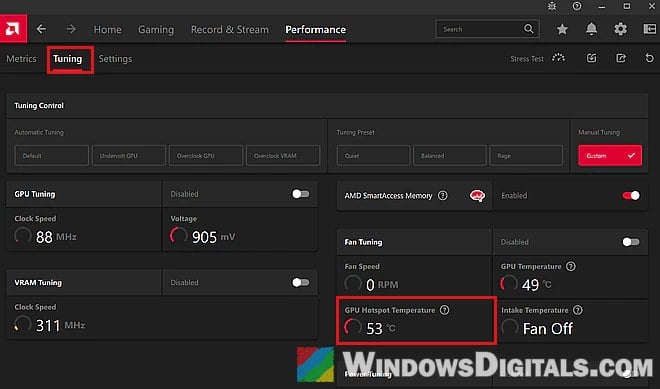
Always check the numbers while the card is under a real load, like a game you normally play, since idle temperatures don’t tell you much.
Related concern: GPU 100% Usage When Idle or Gaming (Good or Bad)
Is it normal for the hotspot to be much higher?
Yes, some gap is completely normal, and a high hotspot reading on its own isn’t a reason to panic. When AMD launched its RX 5700 series, it said that running at up to 110°C junction temperature during typical gaming is expected and within spec. The card keeps raising its clock speeds until one of its sensors reaches that limit, then holds itself there.
What really matters is how big the gap is. Measurements by Igor’s Lab put the difference between edge and hotspot on AMD cards at about 12 to 20°C, depending on the cooler and the load. A gap under about 20°C is generally nothing to worry about. Keep in mind that newer cards like the RX 9070 XT may read a bit warmer than older ones.
It’s a different story when the gap is 30°C or more, or the hotspot sits near 100 to 110°C in games that aren’t even that demanding. The card slows itself down when the hotspot gets to around 110°C, so you’ll lose performance and hear the fans run loud. It’s also a sign that something in the cooling isn’t right.
Why would the gap get too big?
A large gap usually means heat isn’t getting from part of the chip into the cooler. Some common reasons for this are:
- Thermal paste pump-out: after many heat and cool cycles, the paste between the GPU and the cooler can slowly get pushed out from the middle. Many Radeon RX 6000 and especially RX 7000 owners report it.
- Worn or damaged thermal pads: this can happen on used cards. Old pads can be brittle, ripped or crushed, and a pad that’s too thick or bunched up can stop the cooler from sitting flat on the chip.
- Uneven cooler contact: if the cooler isn’t seated evenly, one side of the chip gets cooled less.
- A faulty cooler: in early 2023, AMD confirmed that a limited number of its own reference RX 7900 XTX cards hit 110°C hotspots because of a problem with the reference cooler (the vapor chamber was reported as the cause). Partner cards with their own coolers and the RX 7900 XT weren’t affected.
Linked issue: Computer Fans Randomly Speed Up, Why?
What should you do if the hotspot runs too hot?
Clean the card and check the fans
Blow the dust out of the card’s cooler and your case’s fans, and make sure the case has enough air coming in. While a game is running, check that the card’s fans actually spin up. A dead fan can push the hotspot up a lot.
Use a stronger fan curve or lower the power
AMD Software lets you change how fast the fans spin at each temperature. The default curve is fine for most cards, but a slightly more aggressive one can help when the hotspot runs high. To get there:
- Open AMD Software and go to Performance > Tuning (or type “Tuning” in its search box and open Performance Tuning).
- Under Tuning Control, select Custom (under Manual Tuning).
- Turn on Fan Tuning.
- Turn on Advanced Control to show the fan curve.
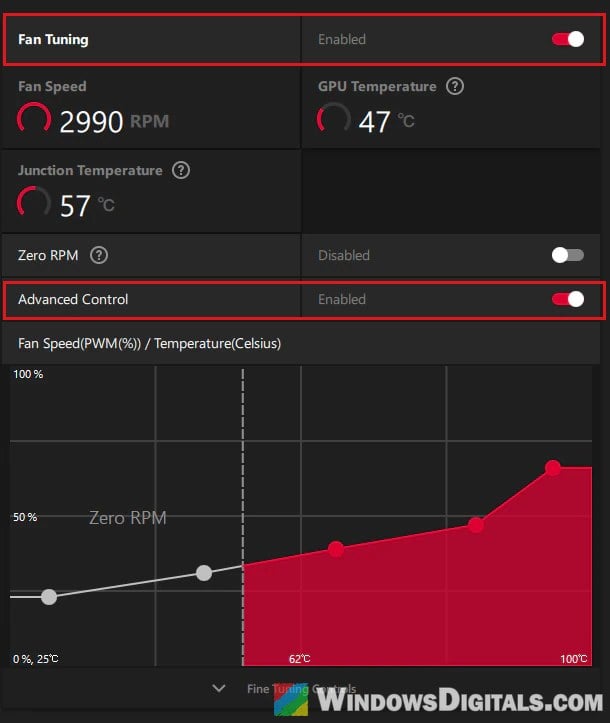
- Drag the points on the curve up to make the fans spin faster at the higher temperatures.
- Play for a while and check the hotspot again.
Using less power also means less heat. Instead of a custom fan curve, you can pick Undervolt GPU under Automatic Tuning on the same page to have the card lower its voltage for you, or stay on Custom and use Power Tuning to lower its power limit. Capping your frame rate in games does something similar. If anything goes wrong, the Reset (arrow) icon puts the tuning back to its defaults.
Use the warranty if you still have it
If your card is still under warranty and the gap is huge, contact the card’s maker before you open it, since taking the cooler off can void the warranty. For the reference RX 7900 XTX problem, AMD itself told owners to contact AMD Support.
Repaste the GPU and replace the thermal pads
When the card is out of warranty and you’re comfortable taking it apart, replacing the thermal paste and pads is the fix that works for most people. Users on Reddit widely recommend PTM7950 (a phase-change pad) or a graphite sheet like Thermal Grizzly KryoSheet instead of normal paste. Unlike normal paste, they don’t pump out over time. Buy them from a known seller, as fake PTM7950 is common. If you’ve never taken a graphics card apart, it’s better to get someone who has to do it for you.
Pro tip: Can you use old Thermal Paste? Does it expire?
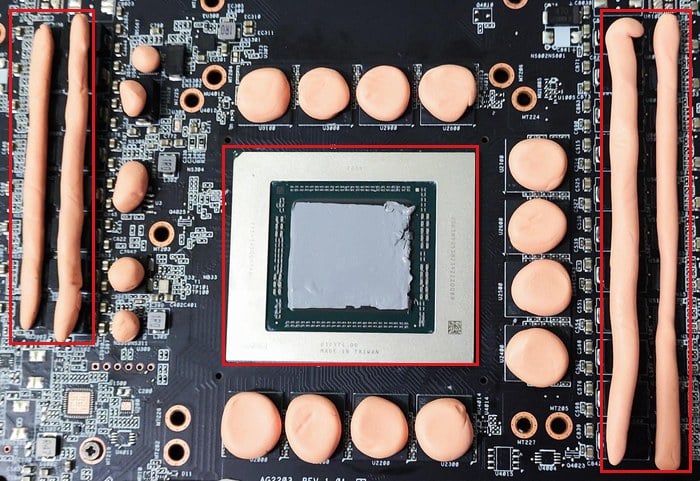
While the cooler is off, replace any pads that are ripped, brittle or flattened with new ones of the same thickness (or with thermal putty, which some people use instead, as in the photo above), and make sure none of them are bunched up so the cooler presses down evenly. If pump-out or worn pads were the cause, the gap should drop back to a normal range after this.