If you uninstalled Office 2021, installed Office 2024 from your Microsoft account and setup said it was done, but Word or Excel still opens as the old version and the File > Account page still shows Office 2021, this guide will explain why it happens and show you how to get Office to use your Office 2024 license.
Also see: Office 2021 Says Unlicensed or Expired After End of Support, What to do?
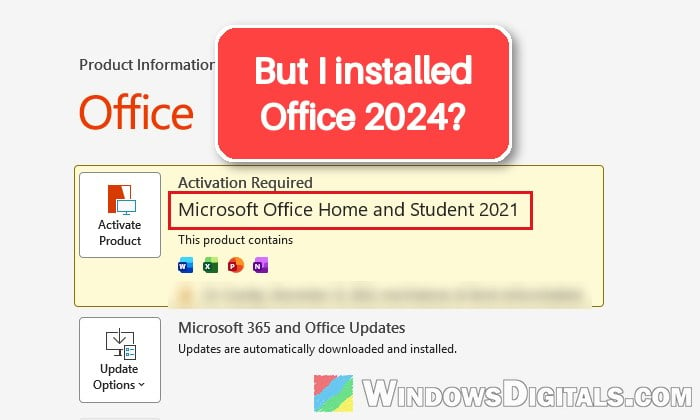
Why does Office 2024 still show as Office 2021?
Microsoft lists this as a known issue. It mostly happens when your Microsoft account has licenses for both Office 2024 and an older version such as Office 2021. After you install Office 2024, the Account page (what Microsoft calls the “backstage”) can still name the older product. It can also happen on work PCs that came with Office already installed.
In plain words, Office is still holding on to the old license. Uninstalling Office 2021 removes the apps, but the 2021 product key and the license Office cached on your PC can stay behind, and Office seems to keep picking them up instead of the new one.
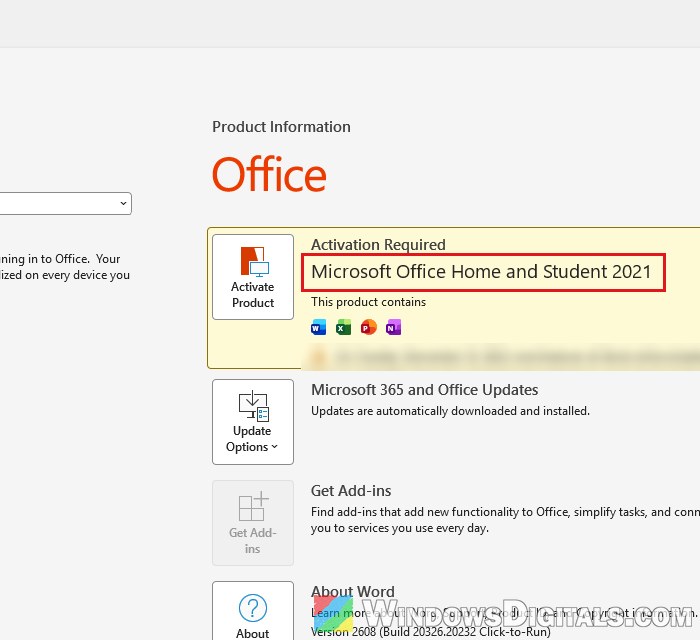
The fixes below get Office to drop the old license and pick up Office 2024. Check File > Account in Word after each one.
Install the latest Office updates first
Microsoft’s first step for this issue is to update Office. It’s quick, and it’s also what to do if you don’t see the Switch License button in the next section.
Here’s how to update Office:
- Open Word (or any Office app) and start a blank document.
- Click File > Account.
- Under Product Information, click Update Options > Update Now. If you only see Enable Updates, click it first.
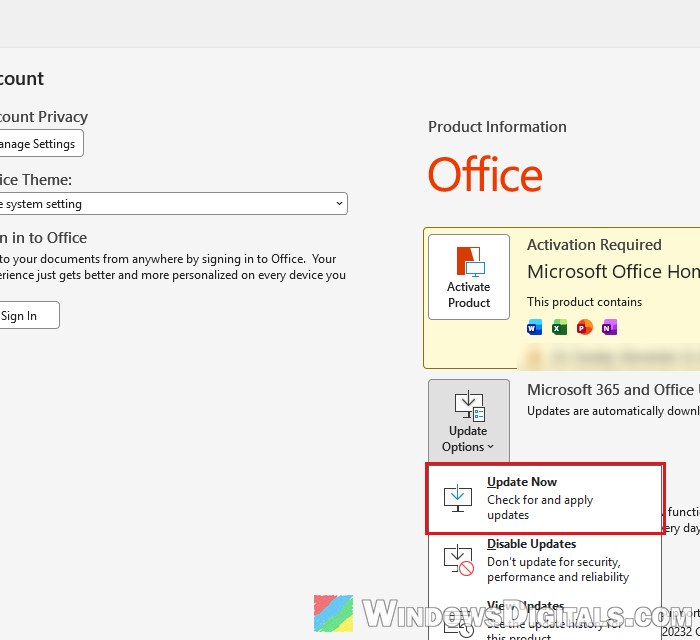
- Close the window once it says you’re up to date or that updates were installed.
Reopen Word and look at Product Information again. If there’s no Update Options button at all, only About, your copy is a volume license install or is managed by your company.
Use “Switch License” to pick Office 2024
The Account page has a button that lets you choose which of your Office licenses the installed apps use. When your account has both Office 2021 and Office 2024, this is how you tell Office to use the newer one.
Follow the steps below:
- Open Word and click File > Account.
- Under Product Information, click Switch License.
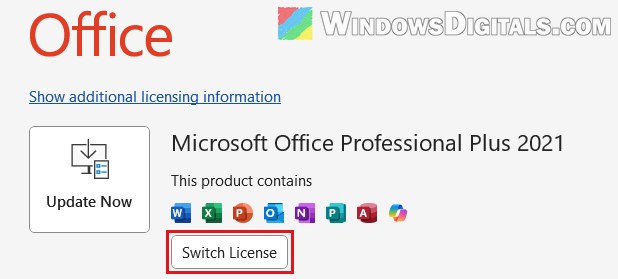
- If asked, sign in with the Microsoft account that has Office 2024.
- If Office lists several licenses, select Office 2024. If only one license fits, Office picks it by itself and starts updating.
- Close all Office apps. Office then finishes installing the apps for the license you chose.
Once you open Word again, Product Information should name your Office 2024 product. If Office says “Try another account“, the account you signed in with doesn’t have an Office 2024 license, so try the other Microsoft accounts you might have bought it with.
Please note that Switch License doesn’t work to or from a volume license edition of Office (the kind companies buy in bulk).
Delete Office’s cached license folder
If the Account page still shows Office 2021, Microsoft’s own fix is to delete the folder where Office caches the licenses it got from your Microsoft account. When you sign in again afterwards, Office asks which of your Office products to use, and you can pick Office 2024.
Here’s what you should do:
- Close Word, Excel and every other Office app.
- Press Win + R, copy and paste the following path, and press Enter:
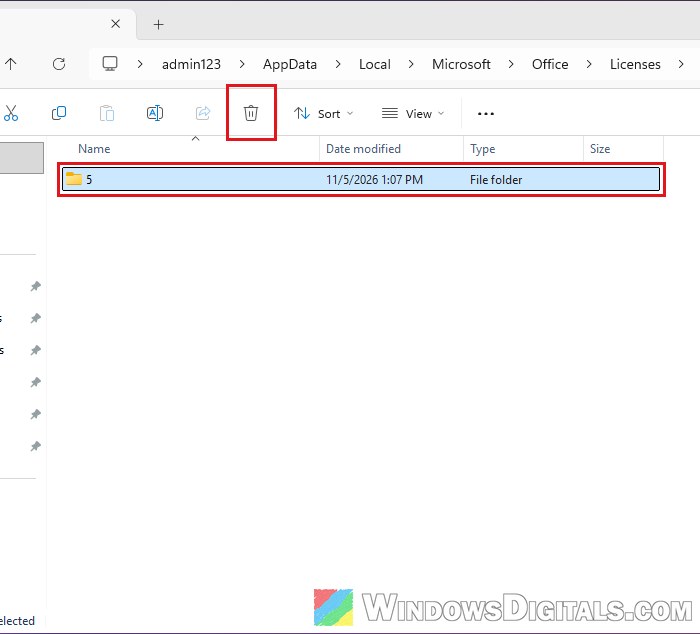
%LocalAppData%\Microsoft\Office\Licenses
- Delete the folder named 5.
- Open Word and sign in with the Microsoft account that has Office 2024.
- When Office lists the Office products on your account, select Office 2024.
Then go to File > Account and check that Office 2024 shows under Product Information.
Might be useful: How to Clean Up AppData Folder in Windows 11
Remove the old Office 2021 product key
If Office still shows 2021 after all that, the old Office 2021 product key may still be on your PC. The ospp.vbs script that comes with Office can list the installed keys and remove the old one.
To do this, follow the steps below:
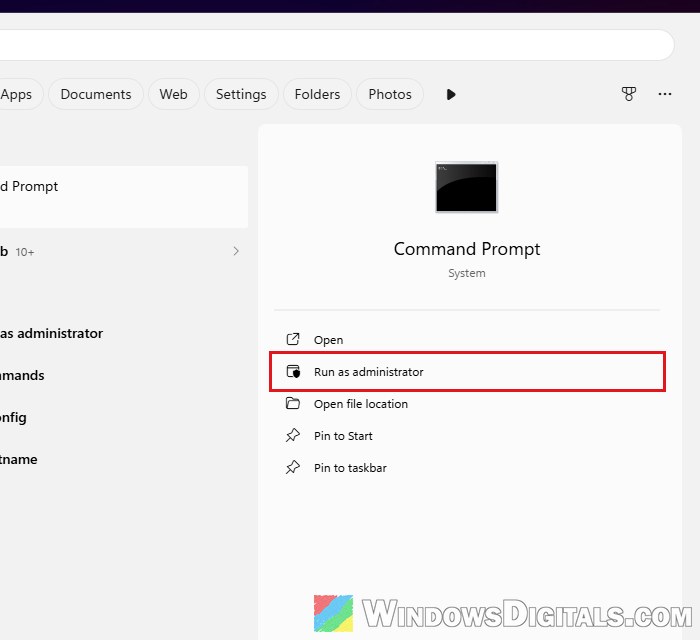
- Type “cmd” in the taskbar search, then click Run as administrator and Yes.
- Run the following command to list the product keys Office has installed:
cscript "C:\Program Files\Microsoft Office\root\Office16\OSPP.VBS" /dstatus
If it says the file can’t be found, you may have 32-bit Office. Use
C:\Program Files (x86)\Microsoft Office\root\Office16\OSPP.VBSinstead. On older installs the path may have no\root\, so try both paths without it too.
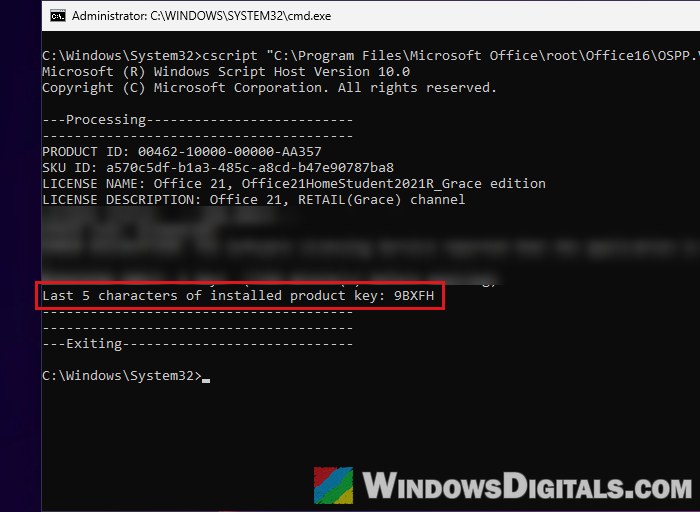
- Look for the license whose name or description mentions 2021, and note the value next to “Last 5 characters of installed product key“.
- Remove that key with the command below, replacing XXXXX with those five characters (use the same path that worked in step 2):
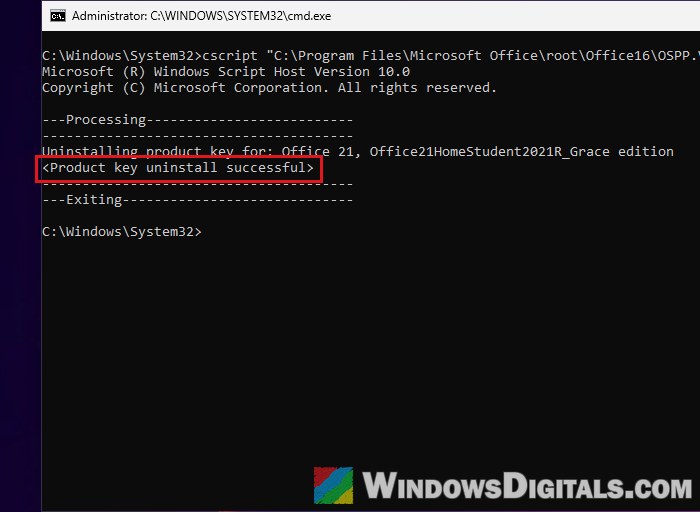
cscript "C:\Program Files\Microsoft Office\root\Office16\OSPP.VBS" /unpkey:XXXXX
You should see “Product key uninstall successful“.
- Repeat step 4 for any other 2021 key in the list. Leave your Office 2024 one alone.
- Restart your PC.
- Open Word, go to File > Account and click Switch License, then pick Office 2024 as in the earlier section.
After that, the Account page should show Office 2024.
Seeing “upgrade your plan” in Word or Excel?
Even when the Account page shows Office 2024, you may still see an “upgrade your plan” label at the top of Word and Excel. It doesn’t mean the fix failed. The label seems to show on other Office versions too, subscriptions included, as a way to offer you another plan. There doesn’t seem to be a way to hide it, so just ignore it.
Suggested read: How to Activate Microsoft Office 2021 or 2019 by Phone
Uninstall Office completely and reinstall Office 2024
If none of the above works, remove Office completely and install Office 2024 again while signed in with the right account. It takes the longest, which is why it’s at the end.
Here’s how to do it:
- In Word, go to File > Account and click Sign out under User Information.
- Open Control Panel and go to Programs > Programs and Features.
- Select each Office product in the list (2021 and 2024) and click Uninstall.
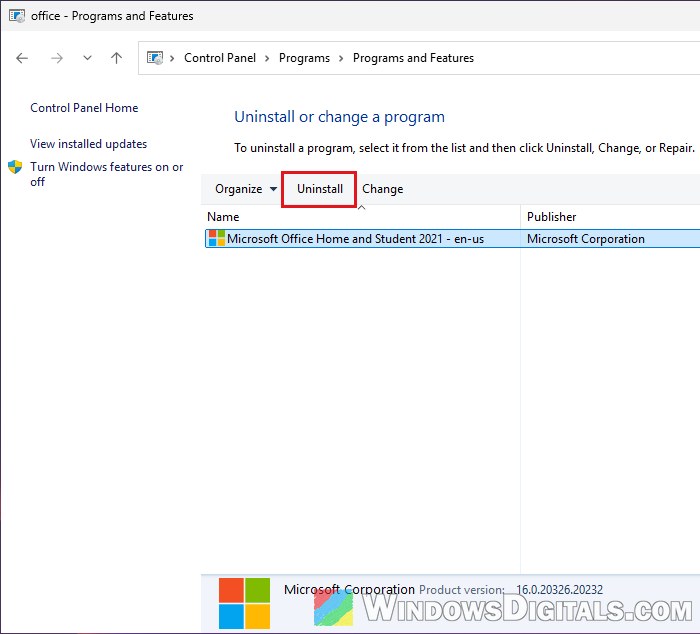
- Restart your PC.
- Sign in to your Microsoft account in the browser and install Office 2024 from the products on your account.
- Open Word and sign in with that same account.
If the normal uninstall leaves something behind, Microsoft also has an uninstall tool that runs in the Get Help app (open https://aka.ms/SaRA-officeUninstallFromPC). It can remove Office 2021, but it can’t uninstall Office 2024, so use Programs and Features for the 2024 copy. If Office still shows 2021 after a full reinstall, contact Microsoft Support.