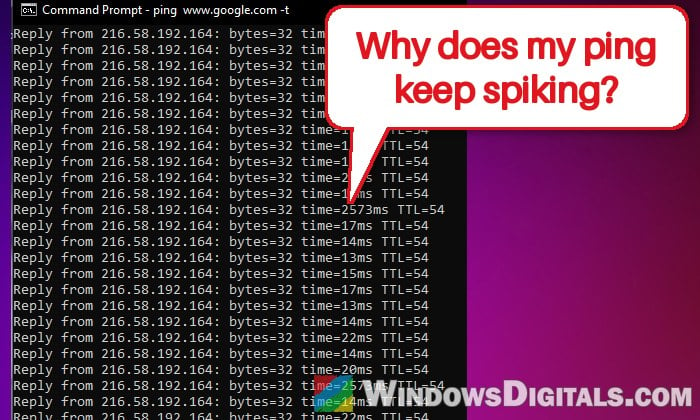
If your ping in online games sits nice and low most of the time but jumps to several hundred ms (sometimes over 1,000 ms) every few seconds, the game can feel unplayable even though speed tests look fine. When it happens in every game, the cause is usually your own PC or Wi-Fi, not the game servers. This guide will show you how to find out where the spikes come from and how to stop them on Windows 11 or 10.
Also see: How to Check Game Ping with Task Manager in Windows 11/10
Page Contents
Why does ping spike every few seconds?
Spikes on a regular rhythm usually mean something keeps interrupting your connection. Common reasons are:
- Windows scanning for Wi-Fi networks. Even while connected, Windows keeps checking for nearby networks. Each scan briefly pauses your traffic, which shows up as a spike in games.
- Location services, which also use the Wi-Fi networks around you.
- Something downloading or uploading in the background, such as game updates through the Xbox app (Gaming Services), Steam, Windows Update, Delivery Optimization or a sync app.
- Wi-Fi adapter settings, like an Intel card that scans for other access points too eagerly, or power saving on a USB Wi-Fi adapter.
- A crowded Wi-Fi channel or other devices on your network using a lot of bandwidth at the same time.
Most of these only affect Wi-Fi, so start with the quick test below.
First, check if it’s your PC or your internet
Ping your router and an internet server at the same time to see whether the spikes happen inside your home network or further out.
- Open Command Prompt, type
ipconfigand press Enter. Note the address with dots next to Default Gateway, such as 192.168.1.1. That’s your router.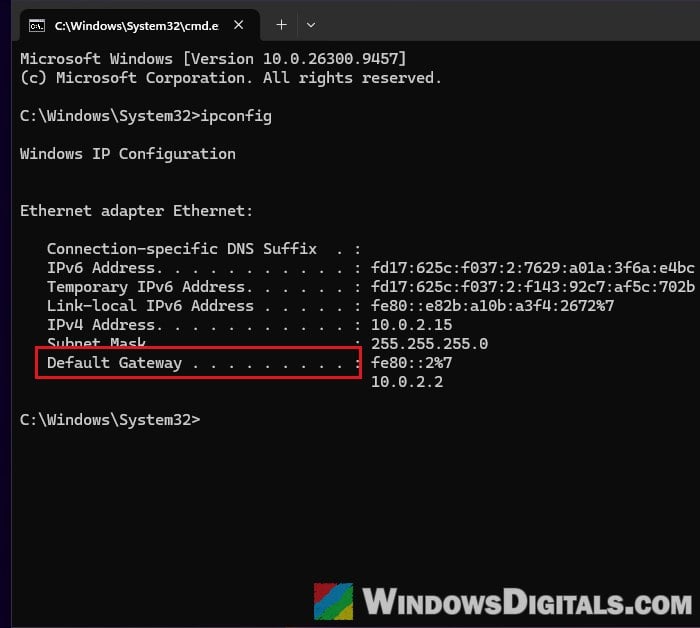
- Type the following command, replacing 192.168.1.1 with your router’s address, and press Enter:
ping -t 192.168.1.1
- Open a second Command Prompt window and run:
ping -t 8.8.8.8
- Watch both windows for a minute or two. Press Ctrl + C to stop each one.
If the time jumps in both windows at the same moments, the problem is between your PC and your router (usually Wi-Fi), and the fixes below should help. If only the internet ping spikes, it’s more likely your ISP. If a cable makes the spikes disappear, it’s the Wi-Fi side.
Turn off “Location services”
According to Microsoft, Windows uses nearby wireless access points and routers, along with GPS and other signals, to figure out where your PC is. To do that, the Wi-Fi card has to look at the networks around it, which can briefly interrupt your connection. On Wi-Fi, switching location services off can be enough to make the stutter stop.
- Open Settings and go to Privacy & security > Location.
- Turn off Location services.
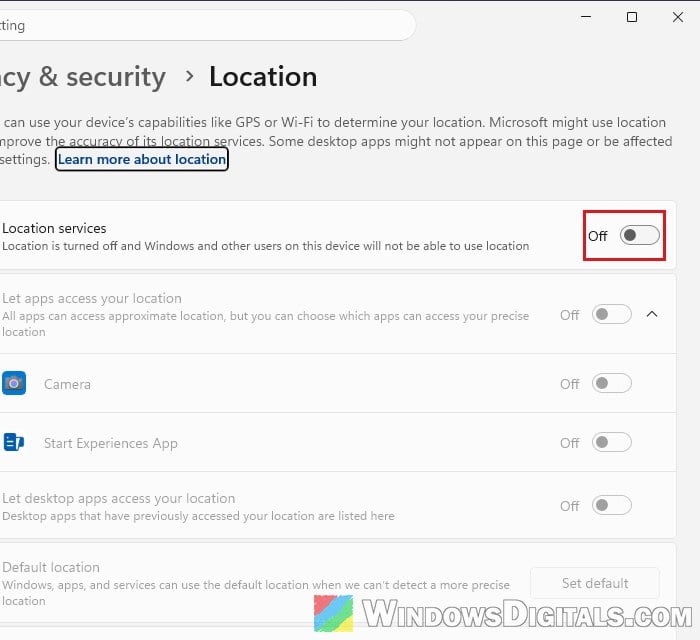
Then play for a while and see if the spikes are gone. Apps like Maps, Weather and Find my device can’t get your location while it’s off, so turn it back on when you need them.
Stop Windows from scanning for Wi-Fi networks
This is the fix that has worked for most people with Wi-Fi spikes like this, and it’s been talked about on Reddit and Microsoft’s forums for years. It turns off the automatic Wi-Fi configuration (WLAN AutoConfig) on your adapter, so Windows stops scanning for other networks in the background.
Please note that with this turned off, Windows won’t connect to Wi-Fi automatically, so after a restart or a dropped connection you’ll need to turn it back on. Here’s how to do it:
- Search for Command Prompt in the Start menu, right-click it and select Run as administrator.
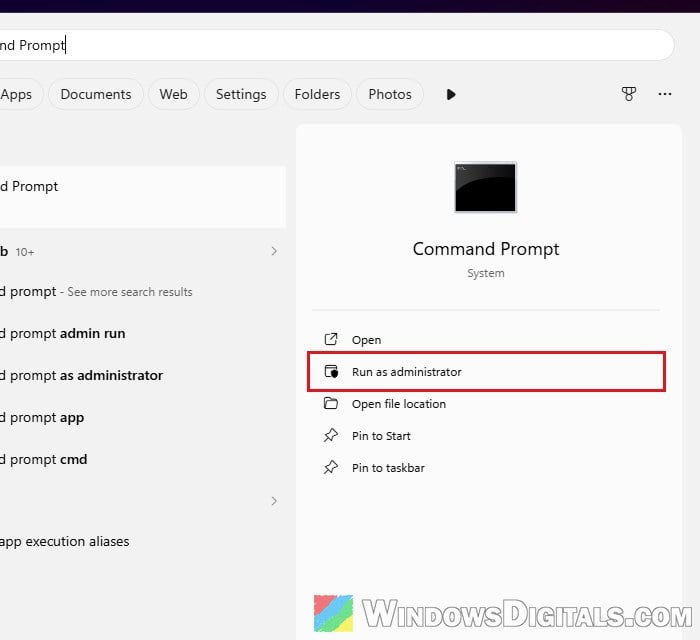
- Type the following command and press Enter to see your Wi-Fi adapter’s name (usually “Wi-Fi“):
netsh wlan show interfaces
- While connected to your Wi-Fi, run the command below. If your adapter has a different name, put that name between the quotes.
netsh wlan set autoconfig enabled=no interface="Wi-Fi"
- Play a game and check whether the spikes have stopped.
To turn it back on (after a restart, or when you need to connect to another network), run this in an admin Command Prompt:
netsh wlan set autoconfig enabled=yes interface="Wi-Fi"
Use the command rather than disabling the “WLAN AutoConfig” service itself. Turning that service off can leave Wi-Fi unable to connect even after you turn it back on, and you may end up reinstalling the Wi-Fi driver.
Check what’s using your connection in the background
If you’re on a cable, or the spikes come at random times, something on your PC may be using the connection while you play: a game launcher updating in the background (including the Xbox app’s Gaming Services), or a cloud sync app such as OneDrive.
- Press Ctrl + Shift + Esc to open Task Manager.
- On the Processes tab, click the Network column header to sort apps by how much they use the connection.
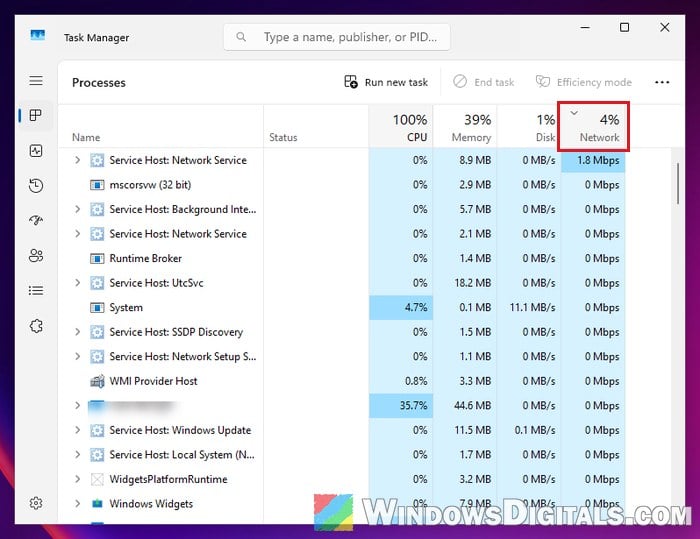
- For more detail, press Win + R, type
resmonand press Enter. Open the Network tab and look at Processes with Network Activity to see which apps send and receive the most.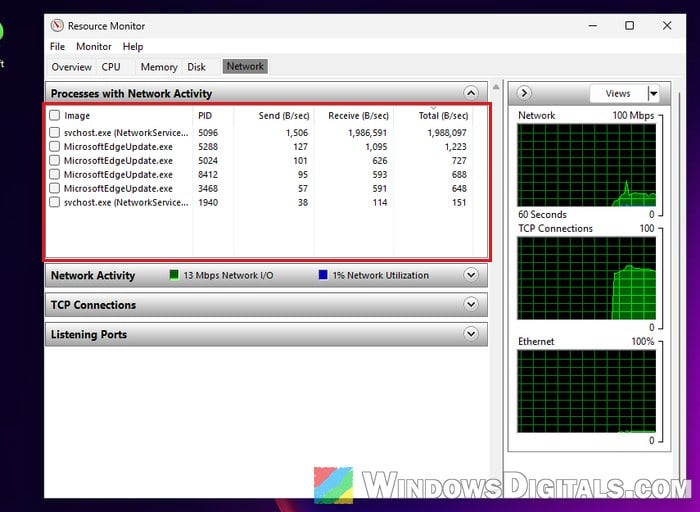
- Pause any downloads or updates you find in the Xbox app, Steam, Battle.net, Microsoft Store or Windows Update, and pause cloud sync while you play.
Then play again and see if the spikes are gone with those paused.
Related concern: What is GamingServices.exe in Windows 11 or 10?
Turn off Delivery Optimization
Delivery Optimization lets your PC share Windows updates with other PCs. On home internet with slow upload speeds, that sharing can fill up your connection. Here’s how to turn it off:
- Open Settings and go to Windows Update > Advanced options > Delivery Optimization.
- Turn off “Allow downloads from other devices“.
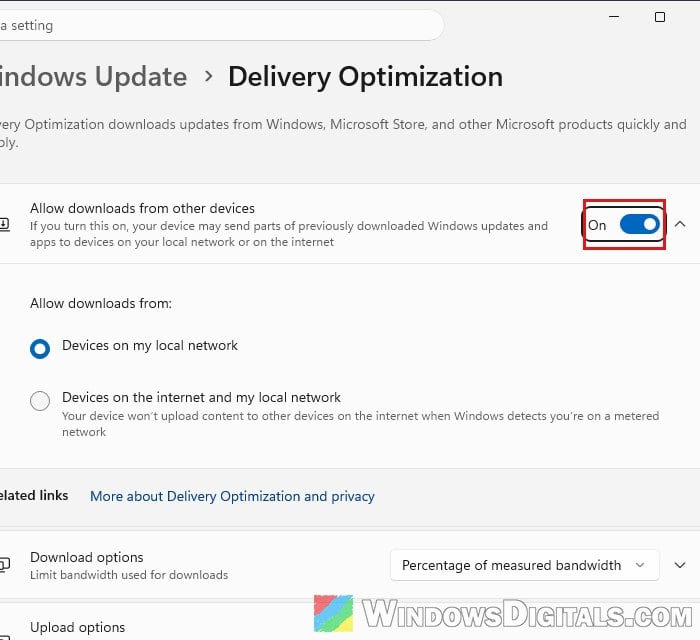
Restart your game and check whether the spikes still show up.
Linked issue: Windows 11 Delivery Optimization High Network Usage
Lower “Roaming Aggressiveness” (Intel Wi-Fi adapters)
Intel Wi-Fi adapters have a setting called Roaming Aggressiveness. Intel explains that it decides how weak your signal has to get before the adapter starts scanning for another access point. The default is Medium. At the lowest value, the adapter only starts that scan when the signal is very weak. Here’s how to change it:
- Right-click the Start button and select Device Manager.
- Expand Network adapters, right-click your Intel Wi-Fi adapter and select Properties.
- Open the Advanced tab and select Roaming Aggressiveness.
- Set the Value to 1. Lowest and click OK.
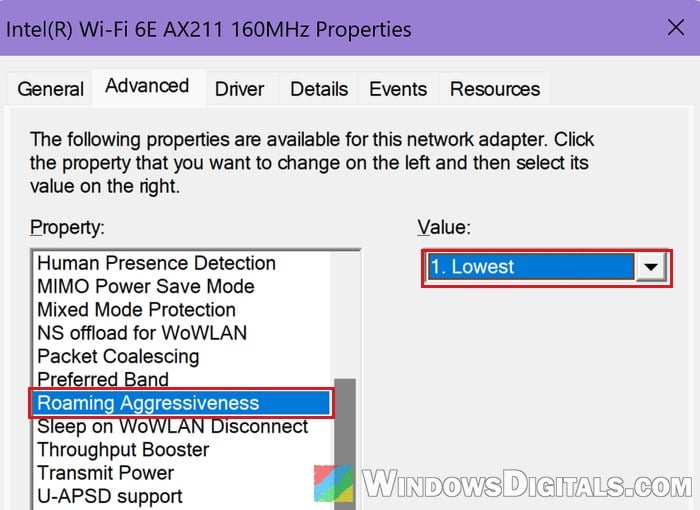
Then check your ping in game again.
Stop Windows from turning off the Wi-Fi adapter
Regular spikes are also common on USB Wi-Fi adapters, and power saving is one thing worth ruling out. Here’s what you should do:
- In Device Manager, expand Network adapters, right-click your Wi-Fi adapter and select Properties.
- On the Power Management tab, uncheck “Allow the computer to turn off this device to save power” and click OK.
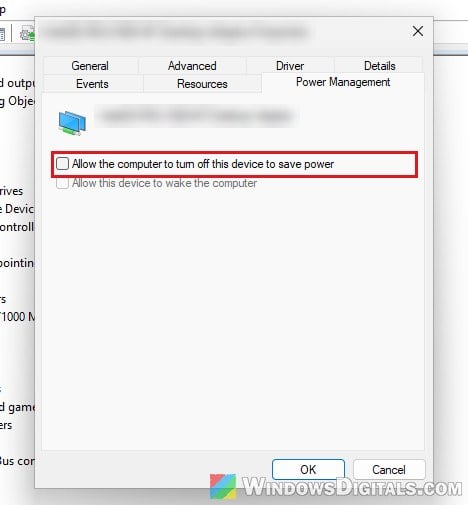
- If the Advanced tab has a Power Saving Mode option, turn it off as well.
Restart the PC and test your ping again.
Might be useful: NAT Boost vs QoS, Which is Better for Gaming?
Other things you can try
If the spikes are still there, these are worth a try:
- Use a cable if you can. A wired connection has no Wi-Fi scans or interference, so it’s the most reliable fix.
- Change your router’s Wi-Fi channel to a less crowded one (a Wi-Fi analyzer app shows which channels nearby networks use), and connect on 5 GHz instead of 2.4 GHz when your router supports it.
- Roll back or reinstall the Wi-Fi driver if the spikes started right after a Windows update. In Device Manager, open the adapter’s Properties > Driver tab and click Roll Back Driver, or install the driver from your PC or adapter maker’s website. See: How to Install or Update Driver in Windows 11.