If you’re seeing a #SPILL! error where your VLOOKUP formula should show a value, especially one that looks up a whole column like =VLOOKUP(A:A,Products!A:C,3,FALSE), there’s usually nothing wrong with your data. Newer versions of Excel simply treat that kind of formula differently than older ones did. This guide will explain why VLOOKUP spills and show you how to fix it.
Also see: How to Open XLSX or XLS File in Windows 11
Page Contents
Why does VLOOKUP return a #SPILL! error?
Excel for Microsoft 365, Excel 2024 and Excel 2021 support dynamic arrays. When a formula gets more than one value back, Excel no longer squeezes it into a single cell. It “spills” the results into the cells below or next to it, and you’ll see a highlighted border around that spill range when you click any cell in it.
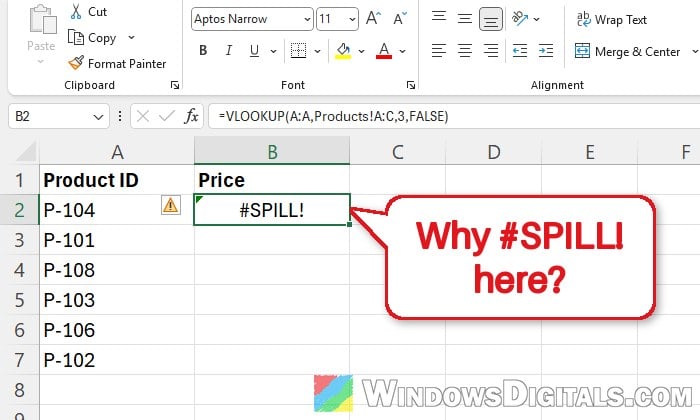
The first part of a VLOOKUP formula is the value to look up. If you give it a whole column, such as A:A, Excel now looks up every one of the 1,048,576 cells in that column and tries to spill that many results. Unless the formula sits in row 1, there isn’t enough room below it, so the results would run past the bottom of the sheet and you get #SPILL! instead. In the example below, the formula is in B2 and looks up the product IDs in column A.
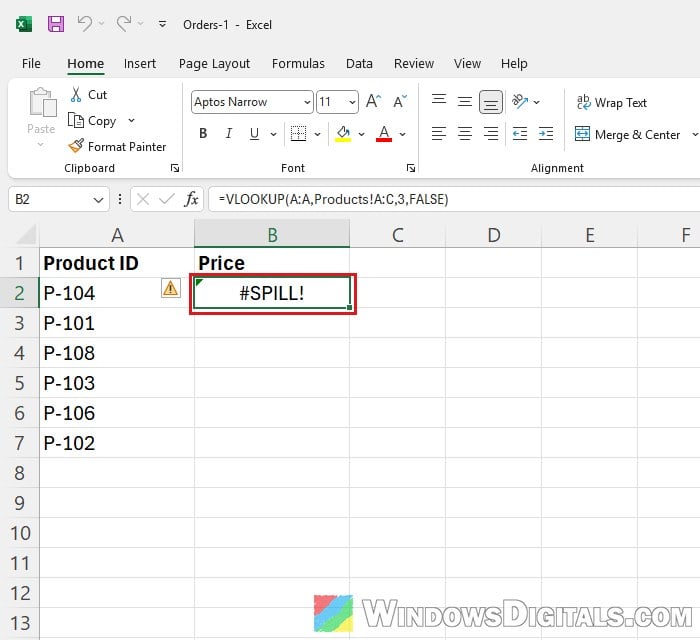
Older versions of Excel quietly used only the cell on the formula’s own row (this is called implicit intersection), which is why the same formula used to work. It’s also why formulas from older workbooks often show an @ in front of the column when you open them in a newer version of Excel.
To see exactly what Excel doesn’t like, select the cell with the error and click the small yellow warning icon next to it. The first line of the menu gives you the reason:
- Spill range is too big: the whole-column lookup explained above.
- Spill range isn’t blank: something is already in the cells the results need.
- Spill range in table: the formula is inside an Excel table.
- A message about merged cells: merged cells are in the way.
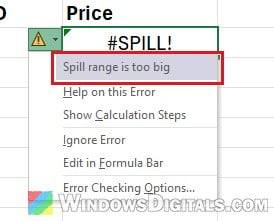
The fixes below go through each reason, starting with the one that fixes most VLOOKUP formulas.
Might be useful: Will Microsoft Office 2010 Run on Windows 11?
Look up one cell instead of the whole column
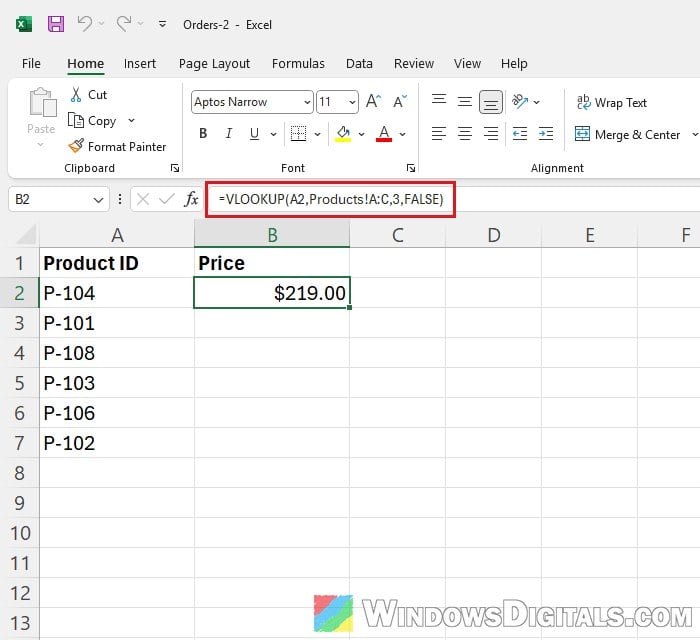
This is Microsoft’s own fix. Point the lookup value at the cell on the same row (for example A2), then copy the formula down. Each row then looks up only its own value, the way VLOOKUP has always worked. This version also works inside Excel tables.
Here’s how to do it:
- Select the cell with the #SPILL! error (B2 in our example).
- In the formula bar, change the whole-column reference to the first cell of your data. For example, change
=VLOOKUP(A:A,Products!A:C,3,FALSE)to:=VLOOKUP(A2,Products!A:C,3,FALSE)
- Press Enter. The cell should now show the value it’s supposed to find.
- Select the cell again and double-click the fill handle (the small square at the bottom-right corner of the cell) to copy the formula down to the rest of your rows. You can also drag it down.
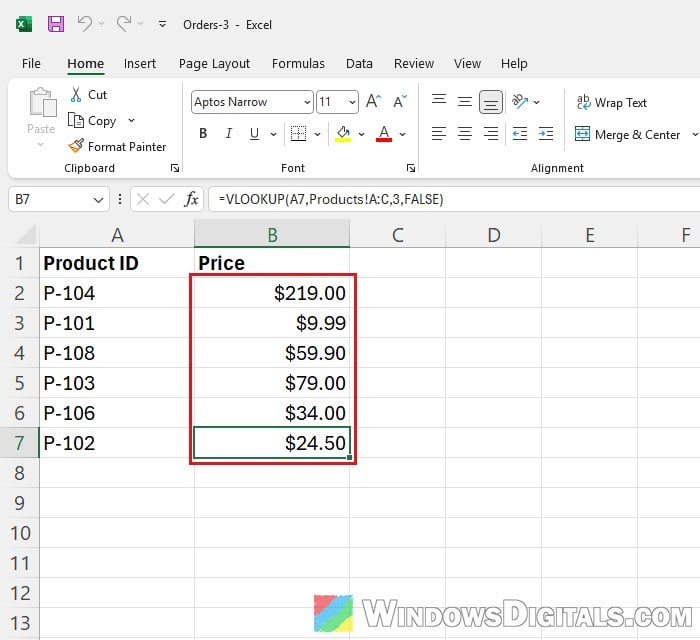
Excel changes A2 to A3, A4 and so on as it copies the formula, so every row gets its own result. If you also copy the formula across to other columns, lock the lookup table with $ signs (Products!$A:$C) so it doesn’t shift.
Add the @ operator before the column
If you’d rather keep the whole-column reference, put an @ in front of it. The @ is Excel’s implicit intersection operator. It tells Excel to take only the value on the formula’s own row instead of the entire column, which is exactly how older versions of Excel handled it.
Here’s what you should do:
- Select the cell with the #SPILL! error.
- Change the formula so the column has an
@in front of it:=VLOOKUP(@A:A,Products!A:C,3,FALSE)
- Press Enter, then copy the formula down with the fill handle.
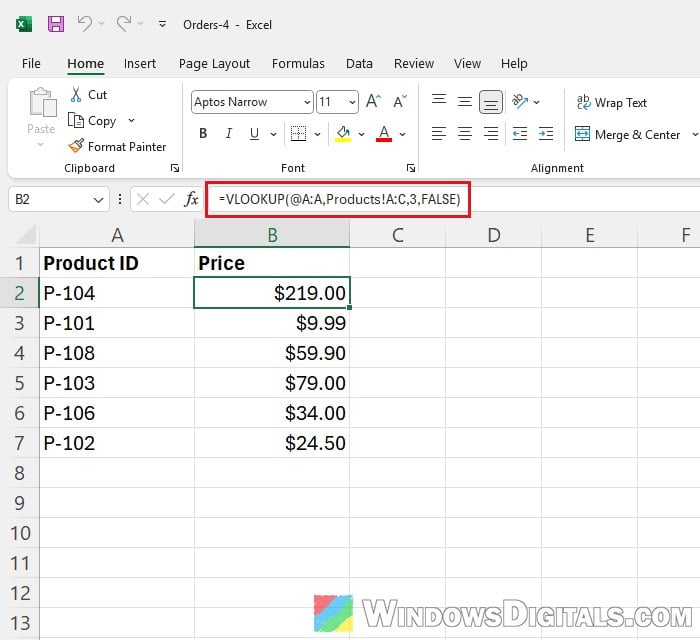
This works in tables too, but you still need one formula per row, since the @ turns off the spilling. If the error doesn’t go away even with the @, use the single-cell reference from the previous section instead and check the reason under the warning icon again.
Look up only the rows you need with one formula
If you like the idea of one formula filling the whole column for you, give VLOOKUP a range that covers only your data instead of the entire column. Excel then looks up just those values and spills one result per row below the formula.
To set it up, follow these steps:
- Clear any copies of the formula below the first one (B3 and down in our example), because the results need empty cells to spill into.
- In the first cell, type the formula with your own first and last row, for example:
=VLOOKUP(A2:A7,Products!A:C,3,FALSE)
- Press Enter. The results fill the cells below, with a blue border around them when you select one.
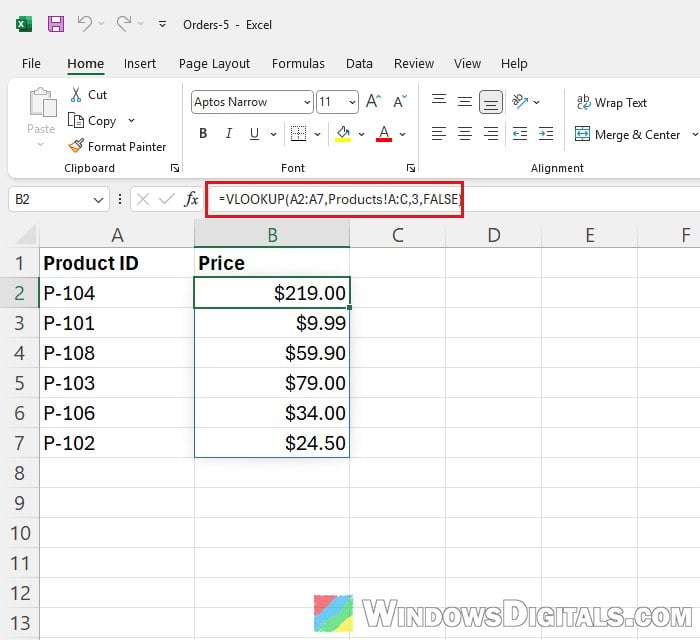
Keep in mind that this only works outside of Excel tables, and you’ll need to change the range when you add more rows.
Clear the cells blocking the spill range
“Spill range isn’t blank” means the results have room to go, but something is already sitting in one of those cells. It could be an old value or a leftover formula. When you select the cell with the error, Excel draws a dashed border around the cells the results need, so look inside that border. Clearing the cells in the way is also a fix that comes up a lot on Reddit.
Follow the steps below:
- Select the cell with the #SPILL! error.
- Look inside the dashed border for anything that isn’t empty.
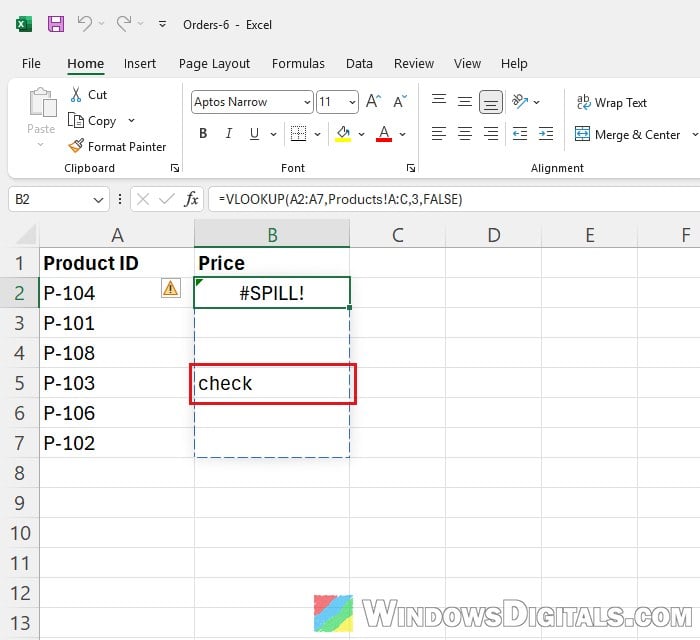
- Select those cells and press Delete, or move what’s in them somewhere else.
Note: According to Microsoft, the warning icon’s menu can also show a Select Obstructing Cells option that selects the cells in the way for you. It wasn’t in the menu of the Excel 2024 we tested, so if you don’t see it either, just check the dashed border by hand.
Once the cells are empty, the results spill in by themselves.
Related guide: How to Convert CSV or TXT to Excel in Windows 11
Is your formula inside an Excel table?
Spilled formulas aren’t supported in Excel tables. If your VLOOKUP sits in a table (the rows have the table’s colored style and a Table Design tab appears when you click inside it), the warning icon will say Spill range in table.
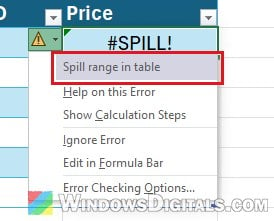
You have two options:
- Keep the table and use a formula that doesn’t spill: the single-cell reference (
A2) or the@version from the sections above. Both work in tables. - Keep the spilling formula and turn the table into a normal range:
- Click any cell in the table.
- Go to Table Design > Convert to Range.
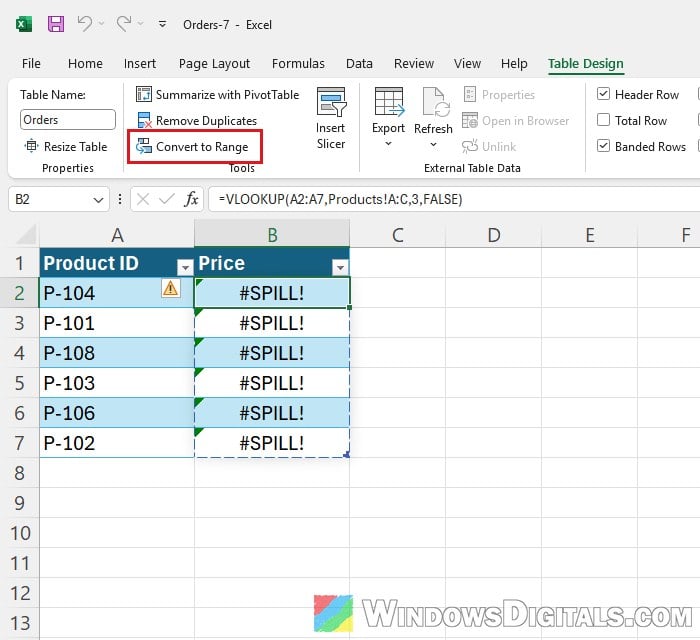
- Click Yes when Excel asks “Do you want to convert the table to a normal range?”.
- The table copied your formula into every row, so delete the copies below the first one (B3 and down). The first formula then spills its results into those cells.
Unmerge any merged cells in the way
A spill range can’t run into merged cells either. If the warning icon points to merged cells, select them and go to Home > Merge & Center (the small arrow next to it) > Unmerge Cells. You can also move the formula to a spot where there are no merged cells below it.