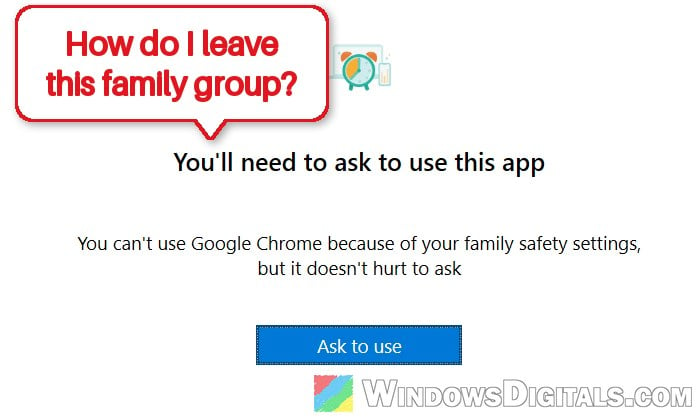
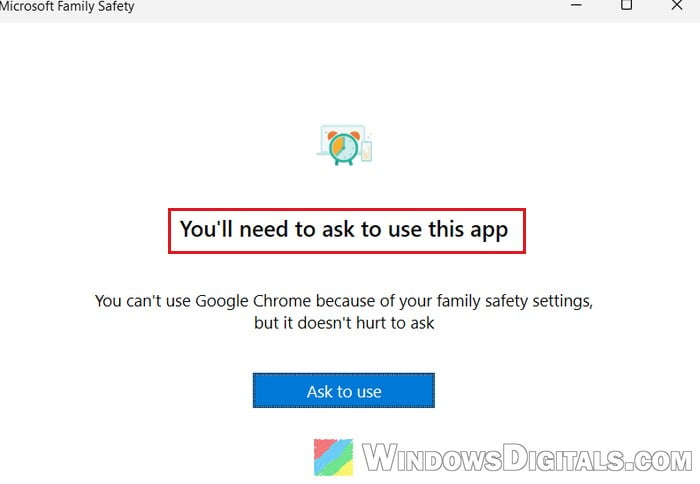
If you’re trying to open or install an app like Google Chrome on your Windows 11 or 10 PC and keep getting “You’ll need to ask to use this app“, while the family settings show no way to leave the family group or turn the restrictions off, your Microsoft account is most likely set up as a child account in a Microsoft Family group. This guide will explain why you can’t just leave it and what you can do about it.
Also see: How to Block Adult Websites in Windows 11
Page Contents
Why can’t you leave the family group yourself?
Microsoft Family lets parents (called organizers) add children to a family group and set limits for them. Only an organizer can add or remove people. If you sign in to your family page and there’s no Leave family group option next to your name, you’re not an organizer, so you can’t remove yourself.
It happens a lot with second-hand laptops and accounts that were set up years ago. Here’s why resetting the PC or changing your birth date doesn’t help:
- The restrictions belong to your Microsoft account, not the PC. Factory resetting the laptop or making yourself an administrator on it won’t remove them. They come back as soon as you sign in with the same account.
- A child can’t change their own birth date to become an adult. Microsoft blocks this so that children can’t get around family restrictions this way.
- A child can’t remove their own parental consent, even if the birth date on the account says they’re old enough.
As for Chrome, it’s blocked on purpose. When an organizer turns on the website filter in Family Safety, the filter only works in Microsoft Edge, so Windows blocks other browsers until a parent allows them.
So the change has to come from the organizer’s account. First, find out who that is.
Suggested read: “Microsoft Account Problem” Notification in Windows 10/11
Find out who the organizer of your family is
Here’s how to check who’s in your family group:
- Open a web browser and go to
https://account.microsoft.com/family. - Sign in with the Microsoft account that’s being restricted. This opens the Your family page in Family Safety.
- Look at the people in your family group. The organizer’s card usually says “(family organizer)” next to their name.
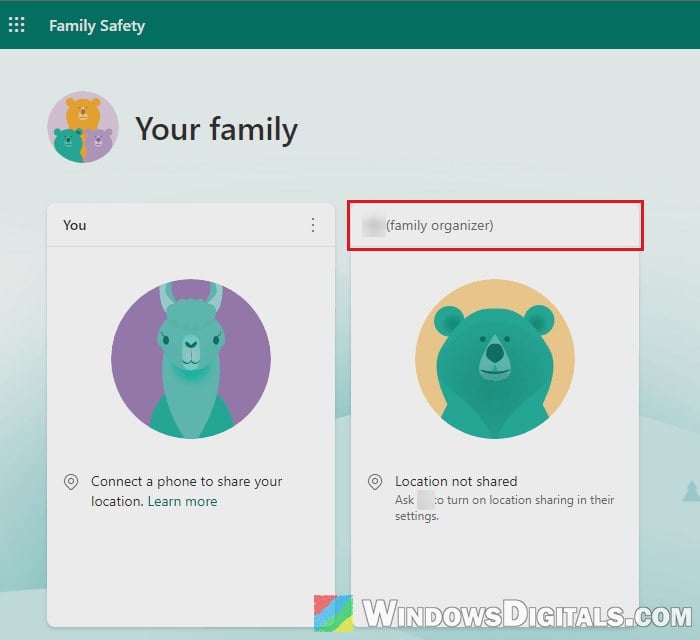
Once you know who it is, contact them. If you’re under 18, they’re usually a parent or guardian.
Ask the organizer to allow the app (if you only need Chrome)
If you’re still a minor and just want to use one app, the organizer doesn’t have to remove you from the family. They can allow that app instead.
The simplest way is to send them a request. On the “You’ll need to ask to use this app” message, select Ask to use. The organizer can approve it from the email Microsoft sends them, on the family website, or on your PC while they’re with you. Request emails don’t always arrive, so it’s worth telling them you’ve sent one.
The organizer can also allow a browser like Chrome from their side. Here’s what they need to do:
- Sign in to
https://family.microsoft.comwith the organizer’s account (or open the Family Safety app on their phone). - Select your name in the family group.
- Then do one of the following:
- Under Windows, go to App and game filters and unblock the browser.
- On the Edge tab, turn off “Filter inappropriate websites and searches“. This lets other browsers open again, but it also turns off the website filter in Edge.
Then open the app on your PC again and see if it works.
Related guide: How to Set Chrome as Default Browser in Windows 11
Ask the organizer to remove you from the family group
The organizer can also remove your account from the family group, for example once you’re 18. Your account isn’t deleted. It just stops being controlled by Family Safety. Here’s how the organizer can do it:
- Sign in at
https://account.microsoft.com/familywith the organizer’s account. - Select the three-dot menu next to your name.
- Select Remove from family group, and confirm with Remove.
If they can’t remove you that way, they need to remove the consent for your account first. The same three-dot menu has Manage consent, where they can choose “Remove consent for this child’s account“. Then they go back and remove you from the group.
Please note that only the adult who originally gave consent for the child account can remove that consent. Also, once you leave the family, you lose anything the family shares, such as a Microsoft 365 Family subscription.
When it’s done, try installing or opening the app again. The family restrictions should no longer apply to your account.
Already 18 but your account still says you’re a child?
This usually means the birth date on the account is wrong. Since you can’t fix it yourself while the account is a child account, the adult who gave consent has to. They can sign in at https://account.live.com/mykids.aspx and select “Edit this child’s personal info” to correct the birth date. With the right birth date in place, the organizer can then remove you from the family group as shown above.
What if the organizer can’t sign in to their account?
This can happen when the organizer’s account is an old one nobody uses anymore, or they’ve lost access to it.
If the organizer is your parent or guardian and they’ve lost access to their account, they can try Microsoft’s account recovery form at https://account.live.com/acsr. They enter their account’s email address and a different email where Microsoft can contact them. Note: the form doesn’t work for accounts with two-step verification turned on. Once they’re back in, they can remove you from the family as shown above.
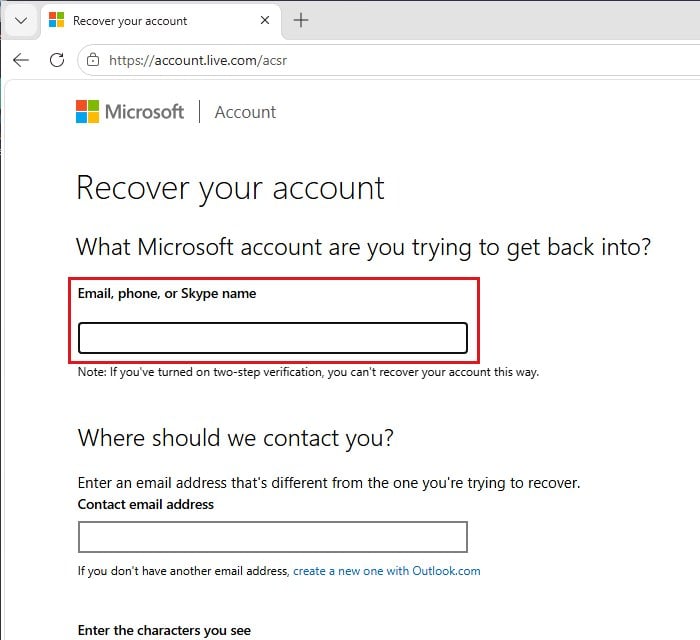
If that’s not possible, the last option is to contact Microsoft Support and explain the situation. If you’re under 18, ask the parent or guardian you live with to do this with you. Here’s how to reach Microsoft Support:
- Go to
https://support.microsoft.com/en-us/home/contact. - Type a short description of the problem, such as “Leave a Microsoft family group“, and select Get Help.
- Scroll down past the suggested articles and select Sign in to contact Support, then sign in.
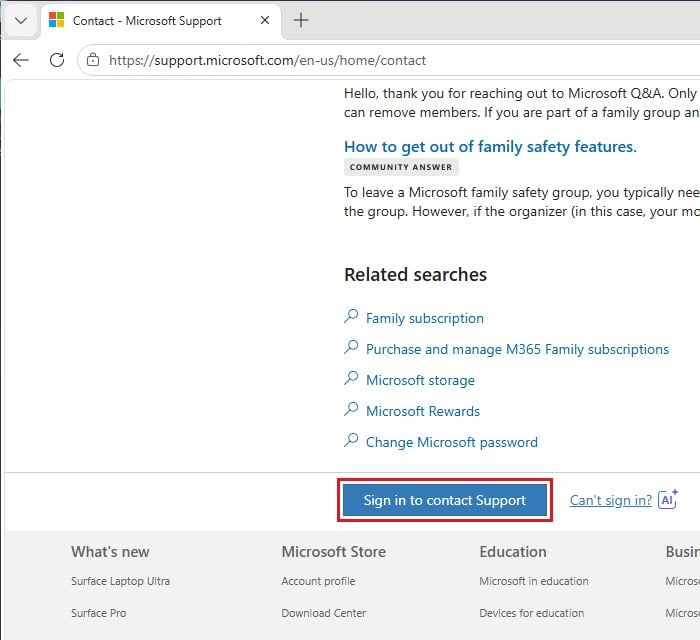
There’s no guarantee they’ll remove the account from the group, especially if it belongs to someone under 18, but it’s the only way left when no one can sign in as the organizer.