If you’ve updated to NVIDIA’s Game Ready driver 621.01 and now your screen or a video freezes for a second or two (sometimes going black) before carrying on, and Event Viewer shows an error with Event ID 153 from source nvlddmkm, you’re not the only one. This guide will explain what the error means, how it’s tied to driver 621.01, and what you can do about it.
Also see: LiveKernelEvent 141 or VIDEO_TDR_FAILURE Crashes on NVIDIA GPU
Page Contents
What does Event ID 153 from nvlddmkm mean?
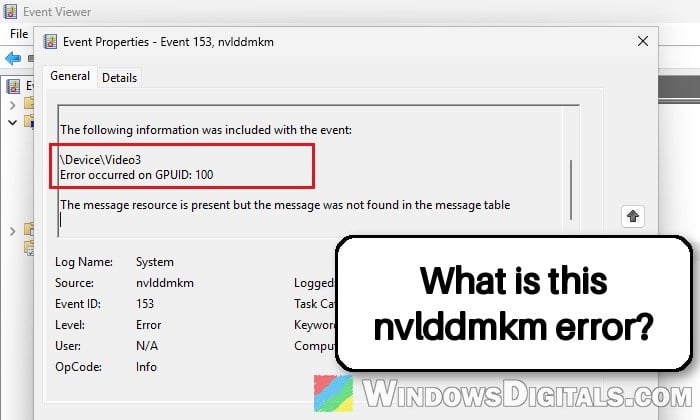
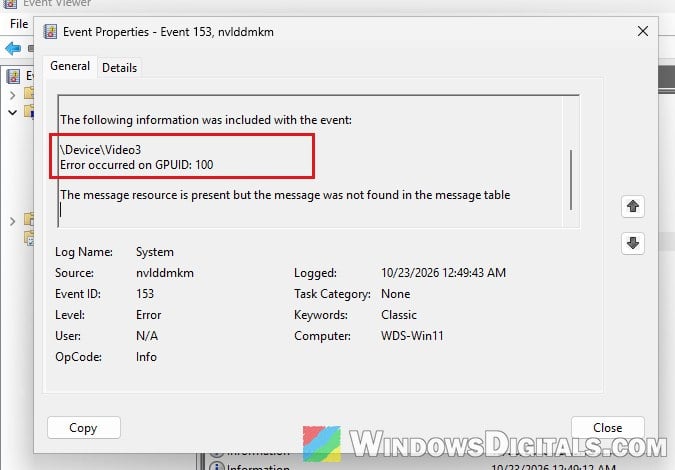
nvlddmkm is NVIDIA’s display driver (the part of it that runs in the Windows kernel). Event ID 153 is logged in Event Viewer under Windows Logs > System when that driver runs into an error, and it usually comes with a short freeze or black screen that recovers on its own.
That freeze is most likely Windows’ Timeout Detection and Recovery (TDR) at work. When the graphics card stops responding for about 2 seconds, Windows resets the driver to get the picture back, which is why the screen flickers or goes black for a moment. If the reset fails, you get a VIDEO_TDR_FAILURE blue screen instead.
The event’s text looks alarming but doesn’t tell you much. It says “The description for Event ID 153 from source nvlddmkm cannot be found”, followed by a line like \Device\Video3 and “Error occurred on GPUID: 100” (the numbers differ from PC to PC).
Please note that Event ID 153 from the source disk is a completely different error. That one is about a drive that had to retry reading or writing, not your graphics card, so check the Source column before following this guide.
Is driver 621.01 to blame?
NVIDIA released driver 621.01 on October 21, 2026. Within a day, users on NVIDIA’s forums started reporting the same thing: Event ID 153 from nvlddmkm, along with a short pause or a black screen for a second or two. Most of them hit it while playing a video: in Chrome or Edge, in VLC, or the clip preview in Twitch’s dashboard. Two of them had two monitors, and in at least one case Windows also logged a LiveKernelEvent 141 at the same time.
In those reports, it never happened on the previous Game Ready driver, 617.42, and going back to it made the pauses and the Event ID 153 errors stop. At the time of writing (October 23, 2026), NVIDIA hasn’t listed it as a known issue for 621.01.
Related problem: Black Screen on DisplayPort Monitor After NVIDIA Driver 617.42 Update
Go back to NVIDIA driver 617.42
That’s the fix to start with. The quickest way is to let Windows roll back to the driver you had before, if it kept a copy. Here’s how:
- Right-click the Start button and select Device Manager.
- Expand Display adapters, right-click your NVIDIA graphics card and select Properties.
- Go to the Driver tab and click Roll Back Driver.
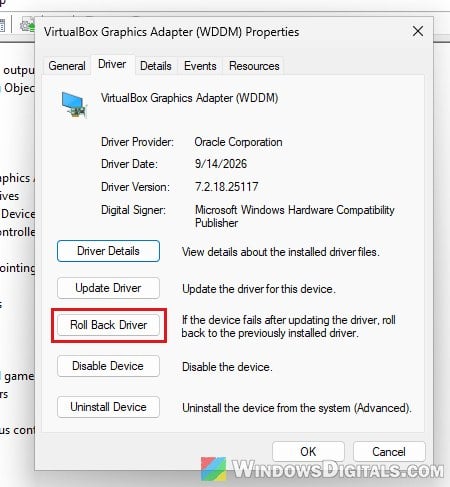
- Follow the prompts, then restart your PC.
If Roll Back Driver is grayed out, Windows has no older driver to go back to. In that case, download the 617.42 Game Ready driver for your card from NVIDIA’s drivers page at https://www.nvidia.com/en-us/drivers/ and install it. You can install it straight over 621.01, but you can also choose Custom (Advanced) in the installer and check “Perform a clean installation” for a cleaner result.
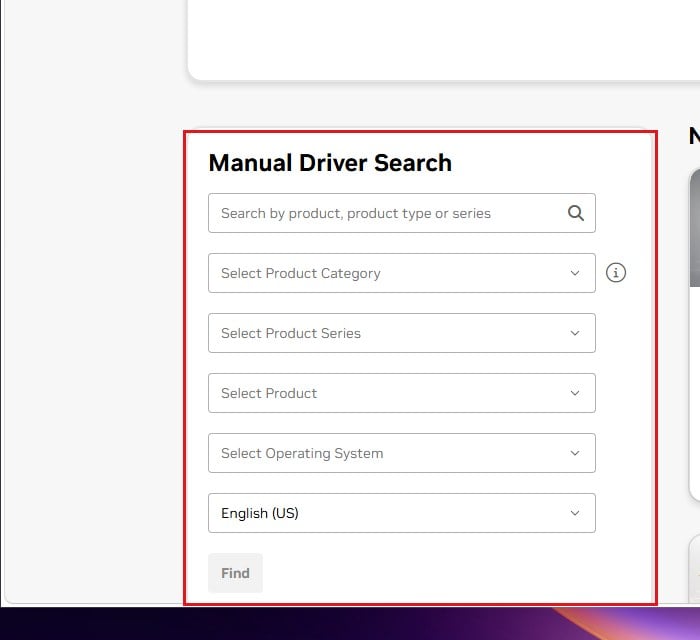
After you’re back on 617.42, use your PC as you normally would, play a few videos, and check Event Viewer again later to see if any new Event ID 153 errors show up.
Please note that the NVIDIA App will likely offer 621.01 again, and Windows Update can install an NVIDIA driver of its own too. Skip 621.01 for now, and wait for a newer driver that mentions this problem in its release notes, or that others say has fixed it.
Might be useful: “NVIDIA Display Driver Update (32.0.16.1088)” in Windows Update, What to do?
Turn off graphics acceleration in your browser
If you’d rather stay on 621.01, you can try a workaround. Since most of the pauses happen during video playback in a browser, turning off the browser’s graphics (hardware) acceleration is worth a try. It’s a common step for Event ID 153 in general, but nobody has confirmed it for 621.01 yet, so treat it as something to try rather than a sure fix.
In Microsoft Edge, follow the steps below:
- In Edge’s address bar, type
edge://settings/systemand press Enter. This opens Settings > System and performance. - Click System.
- Turn off “Use graphics acceleration when available“.
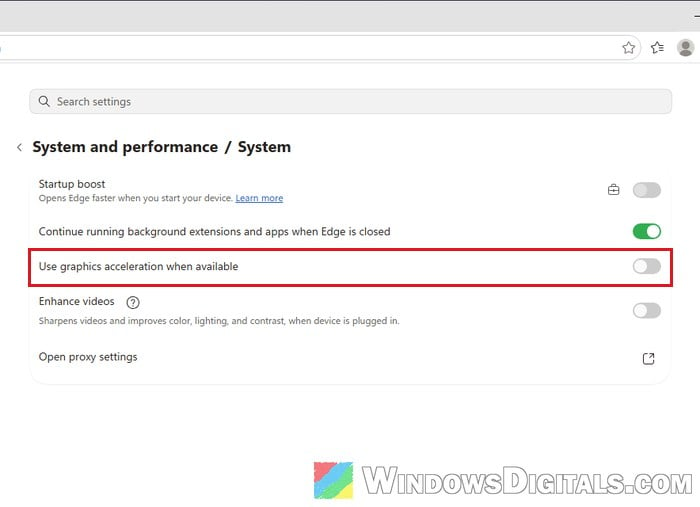
- Close Edge completely and open it again.
Chrome has a setting with the same name (type “graphics acceleration” in the search box of Chrome’s settings to find it), and apps like Discord and Steam have their own hardware acceleration options as well. Once NVIDIA fixes the driver, you can turn them back on.
Still getting Event ID 153 on the older driver?
If the errors keep coming back even on 617.42, the new driver probably isn’t the cause. Event ID 153 has been around long before 621.01, and other common causes are an unstable memory profile (XMP or EXPO), power delivery to the graphics card, or the card itself starting to fail. These are the same causes behind LiveKernelEvent 141 and VIDEO_TDR_FAILURE crashes, so see LiveKernelEvent 141 or VIDEO_TDR_FAILURE Crashes on NVIDIA GPU for how to check each one.