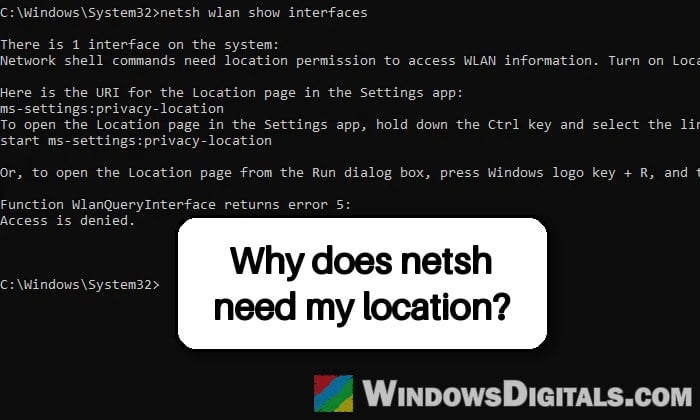
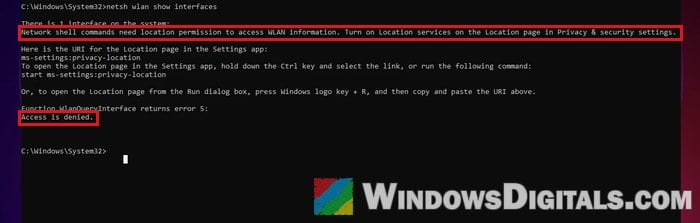
If you’re running netsh wlan show networks or netsh wlan show interfaces in Command Prompt and, instead of the list, you get “Network shell commands need location permission to access WLAN information. Turn on Location services on the Location page in Privacy & security settings.” followed by “Access is denied“, it doesn’t mean your Wi-Fi adapter is broken. Windows 11 now treats the Wi-Fi network list as location data, and this guide will show you how to get netsh working again.
Also see: What is Netsh.exe & its Popup and Crashes in Windows 11
Page Contents
Why does netsh wlan say access is denied?
The list of nearby Wi-Fi networks isn’t as harmless as it looks. Every access point has its own hardware address (the BSSID), and those addresses can be matched against Wi-Fi maps to work out where your PC is, quite precisely. So, according to Microsoft, Windows now only lets apps that are allowed to use your precise location read that information.
This change arrived with Windows 11 version 24H2 and is still there in 25H2. Any program that asks Windows for nearby networks, the current connection’s details or a Wi-Fi scan now gets “access denied” unless location access is allowed. That includes netsh, and also any network tool or script that calls netsh in the background.
A few things worth knowing:
- Running Command Prompt as administrator doesn’t help. It’s a privacy permission, not an admin rights problem, so you’ll get the same error in an admin window.
- You won’t get a pop-up asking for permission. Windows asks once for normal apps, but netsh is a built-in system tool, so it just fails with the message instead.
- If you’ve turned location off (many people do for privacy), that’s why you’re seeing it.
Pro tip: How to Use Netsh Interface IP Set Address or DNS in CMD
Turn on location services for desktop apps
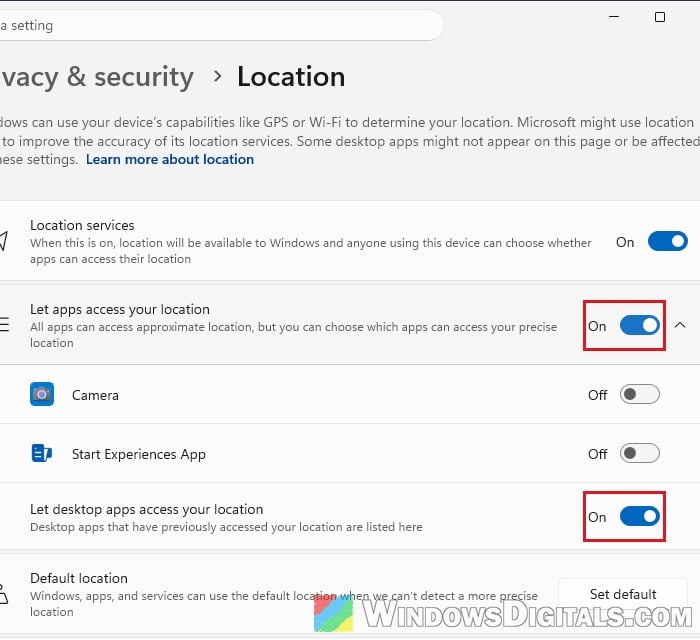
The fix that the error message itself points to is turning location access back on. You need Location services on, and since netsh is a desktop program (not a Microsoft Store app), the switch for desktop apps should be on as well. In current Windows 11 builds, that switch sits under Let apps access your location and stays grayed out until that one is on. Here’s how to do it:
- Press Win + I to open Settings.
- Go to Privacy & security > Location. You can also get there straight away by pressing Win + R, typing “ms-settings:privacy-location” and pressing Enter.
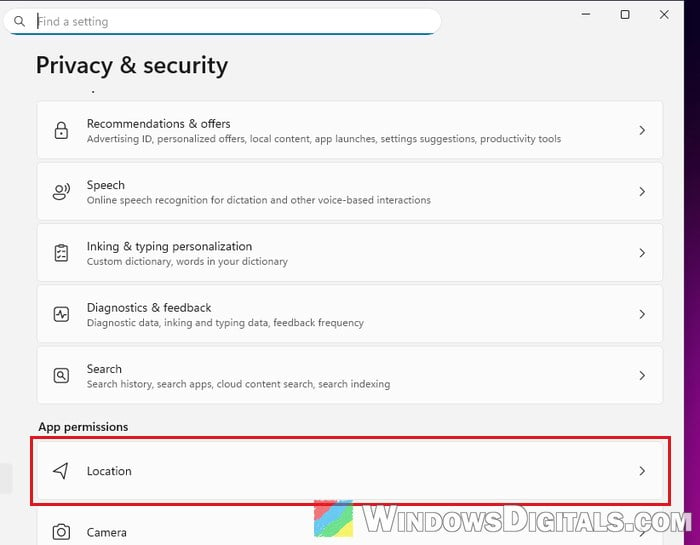
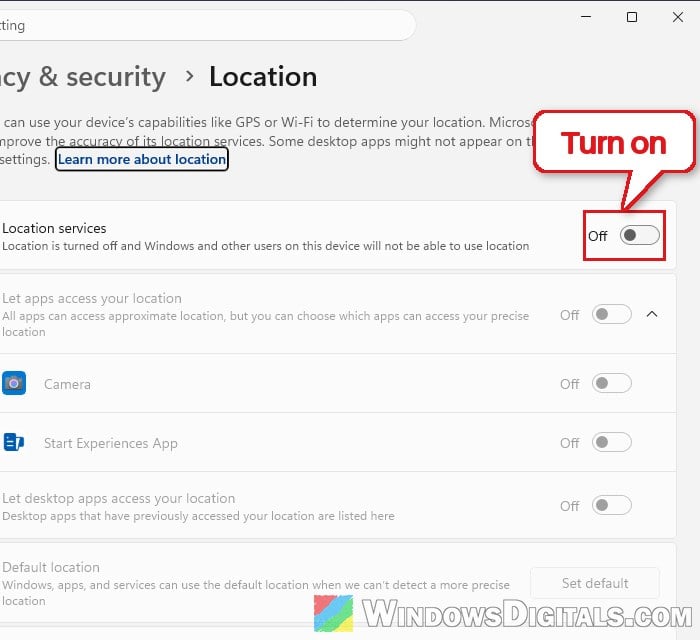
- Turn on Location services. Only an administrator account can change this switch.
- Turn on Let apps access your location, then make sure Let desktop apps access your location below it is turned on too.
- Close the Command Prompt window you were using, open a new one, and run the command again:
netsh wlan show networks
The list of nearby networks should now show up as usual. Keep in mind that with these switches on, apps that use location can also get your location. Microsoft Store apps each have their own switch on the same page, but desktop apps all share the one switch.
Might be useful: How to Check WiFi Password in Windows 11
Restart the WLAN AutoConfig service if it still says access is denied
Sometimes the error doesn’t go away right after you turn location on, even in a new Command Prompt window. In that case, restarting the Wi-Fi service (WLAN AutoConfig) can get netsh working.
Your Wi-Fi will drop for a few seconds while the service restarts, then reconnect by itself. To restart it:
- Press Win + R, type “services.msc” and press Enter.
- Look for WLAN AutoConfig in the list.
- Right-click it and select Restart.
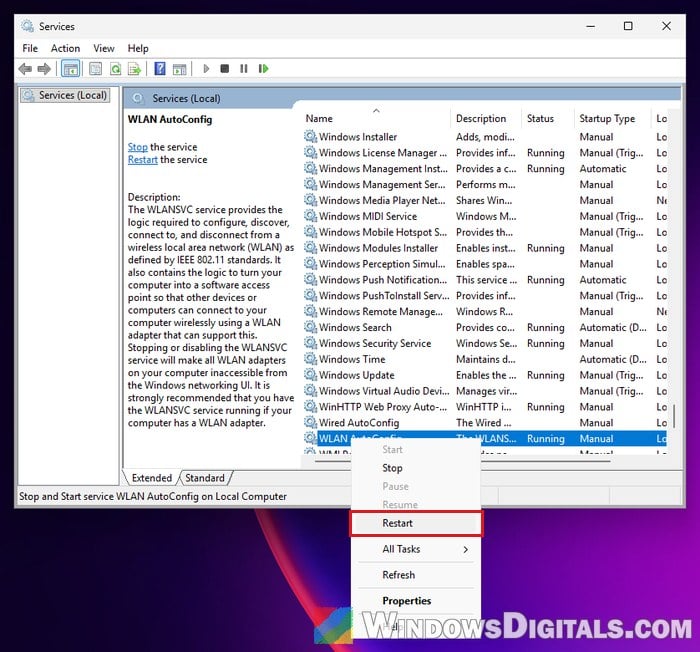
If you prefer commands, open Command Prompt as administrator and run these one by one, pressing Enter after each:
net stop wlansvc
net start wlansvc
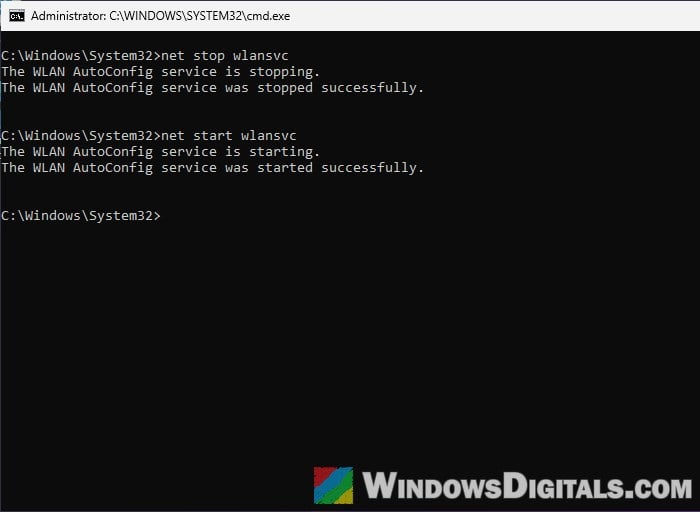
Then run netsh wlan show networks again. Restarting your PC should do the same thing if you’d rather not deal with services.
Suggested read: How to Connect to a Wi-Fi Network on Windows 11
Location settings grayed out? Check the app privacy policy
If you can’t turn the switches on because they’re grayed out, and the Location page says “Some settings are managed by your organization” at the top, a policy is deciding it for you. On a work or school PC, that’s your IT department’s call, so you’ll need to ask them.
On your own PC running Windows 11 Pro, you can check whether such a policy is set in the Local Group Policy Editor. On Home edition, which has no Group Policy Editor, use the registry command further below instead.
- Press Win + R, type “gpedit.msc” and press Enter.
- Go to Computer Configuration > Administrative Templates > Windows Components > App Privacy.
- Double-click Let Windows apps access location.
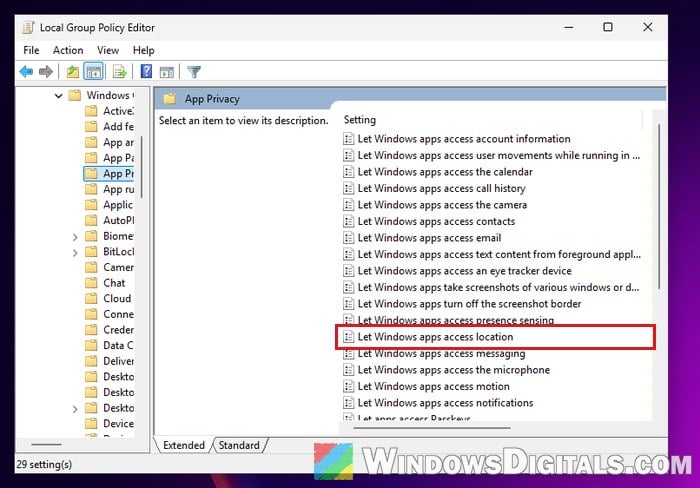
- Set it to Not Configured, then click Apply and OK.
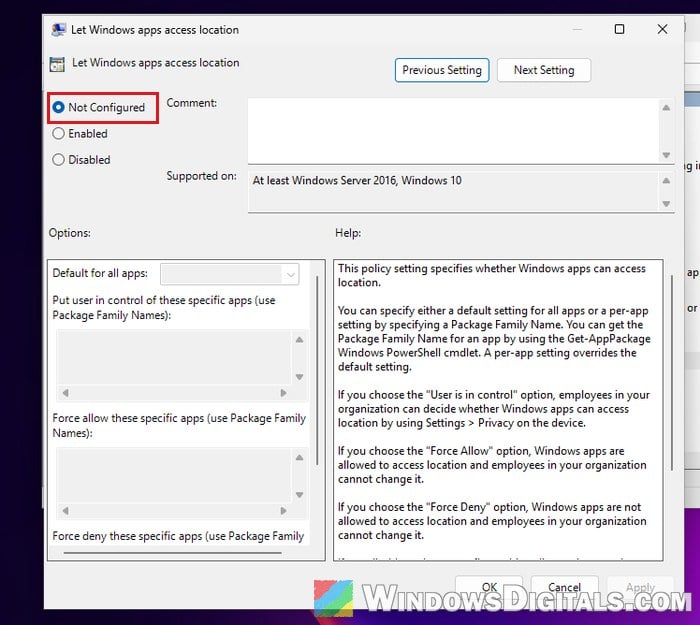
- Go back to the Location page and turn the switches on as in the first section, then restart WLAN AutoConfig (previous section) or your PC.
The same policy lives in the registry as a value called LetAppsAccessLocation, where 0 means you’re in control, 1 forces apps’ access to location on and 2 forces it off. Editing the registry the wrong way can cause other problems, so please at least create a system restore point first. If you’re not sure what you’re doing, get someone who knows to help you instead. To set it back to user control, run this in Command Prompt as administrator:
reg add HKLM\SOFTWARE\Policies\Microsoft\Windows\AppPrivacy /v LetAppsAccessLocation /t REG_DWORD /d 0 /f
Then turn the switches on as in the first section and restart WLAN AutoConfig or your PC.
Turn location on with a command (for scripts and many PCs)
If you’re setting up PCs with scripts, or netsh is part of a deployment or tool that has to run without anyone clicking through Settings, location can also be turned on from the command line. Microsoft doesn’t document this one, but admins use it in deployment scripts, and the commands ran without errors when we tried them on a current build.
Open PowerShell as administrator and run these commands one by one, pressing Enter after each:
Start-Process "$env:WINDIR\System32\SystemSettingsAdminFlows.exe" -ArgumentList "SetCamSystemGlobal location 1" -Wait
Set-Service lfsvc -StartupType Automatic
Start-Service lfsvc
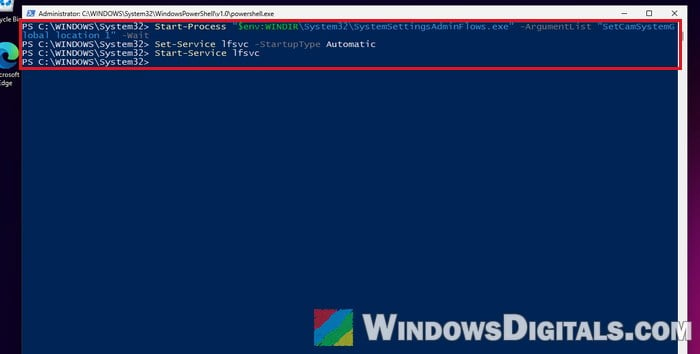
The first line turns on Location services for the whole PC, the same as the switch in Settings. The other two set the Geolocation Service (lfsvc) to start automatically and start it now. When we tried it, the Let apps access your location switch stayed off afterwards, so check the Location page once and turn it on as in the first section if netsh still says access is denied.
Can you use netsh wlan without turning on location?
Unfortunately, no. Windows treats the Wi-Fi network list as location data, so there’s no known setting that gives netsh the list while location stays off for everything else. If you only need netsh once in a while, the simplest way is to switch location on, run your command, and switch it back off afterwards. Just keep in mind that the error comes back as soon as location is off again.
If you do this often, leave the location switches in Settings on and use two small batch files instead. Save the reg add line from the policy section once with /d 2, which forces location access off for apps, and once with /d 0, which hands control back to your switches in Settings so netsh works again. Run either one as administrator, then restart WLAN AutoConfig (or add net stop wlansvc and net start wlansvc to the file).