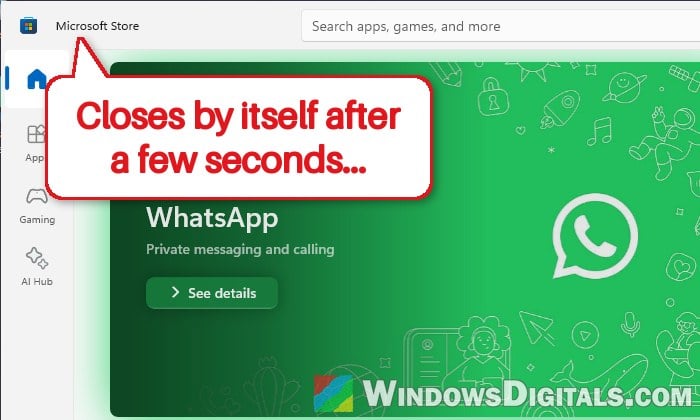
If you click on Microsoft Store and the window opens, starts loading for a few seconds, and then closes by itself without you touching anything, you’re not the only one. It sometimes starts right after a big update like Windows 11 26H2. This guide will show you how to find out what’s crashing it and how to get the Store working again.
Also see: Microsoft Store “Error encountered – One of the update services is not running properly”
Page Contents
Why does Microsoft Store keep closing by itself?
When the Store opens and then vanishes, its program (WinStore.App.exe) has crashed. There isn’t just one cause, but it’s usually one of these:
- A damaged Store cache or damaged Store app files.
- A broken Gaming Services or Xbox app install. A file that comes with Gaming Services can show up as the cause of the crash.
- Damaged Windows system files, for example after an update.
Windows logs the crash in Event Viewer, and the log names the file the Store crashed on. It’s worth a quick look before you start, because it can point you straight to the right fix:
- Press Win + R, type
eventvwr.mscand press Enter. - Go to Windows Logs > Application.
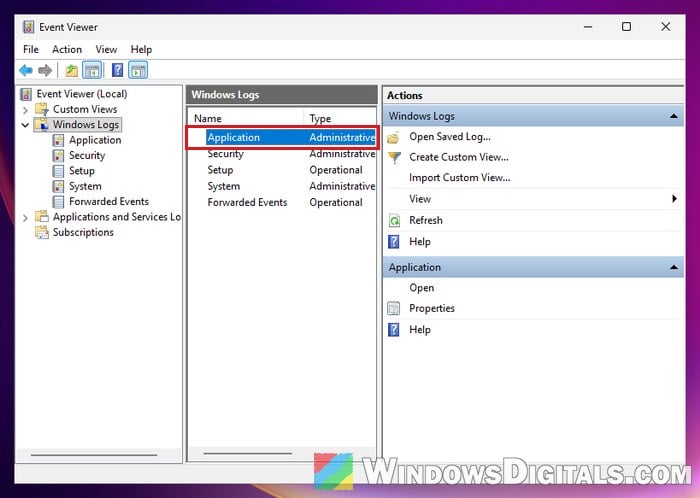
- Look for an Error with the source “Application Error” from around the time the Store closed, and click it.
- Check the “Faulting application name” (it should be WinStore.App.exe) and the “Faulting module name” below it.
If the faulting module is gameplatformservices.dll_unloaded (or just gameplatformservices.dll), skip ahead to the Gaming Services fix below. If it’s something else, or you can’t find the entry, just go through the fixes in order.
Learn more: What is GamingServices.exe in Windows 11 or 10?
Clear the Microsoft Store cache
The quickest thing to try is clearing the Store’s cache with Microsoft’s own wsreset tool. Here’s how:
- Press Win + R, type
wsreset.exeand click OK.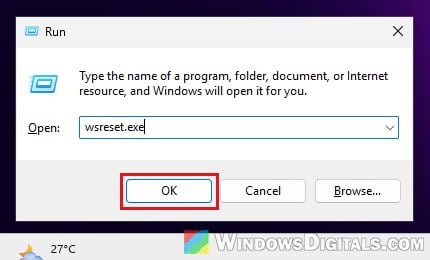
- A blank Command Prompt window opens. After about ten seconds it closes, and the Store opens by itself.
If the Store now stays open, you’re done. If it still closes after a few seconds, move on.
Repair or reset the Microsoft Store app
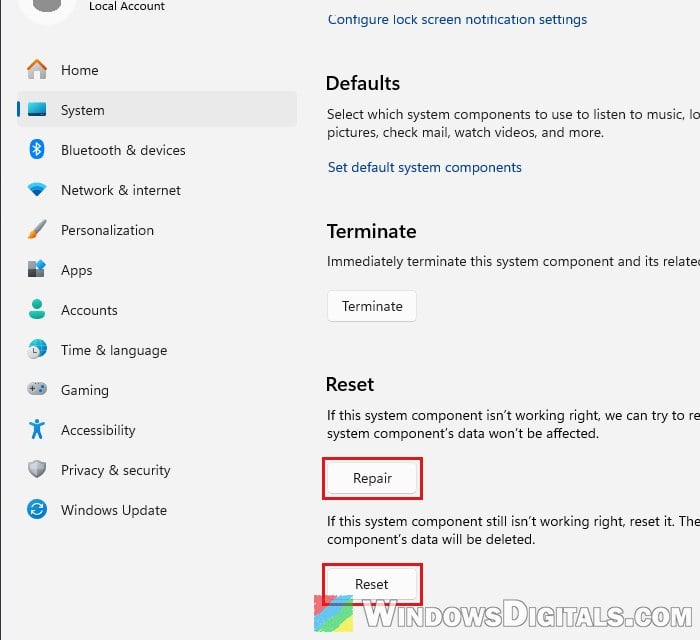
Windows can repair the Store’s app files, and if that’s not enough, reset the app back to how it was when freshly installed. Here’s how to do it:
- Press Win + I to open Settings and go to System > System components.
- Find Microsoft Store, click the … next to it and select Advanced options.
- Click Repair first and try opening the Store again.
- If it still closes, come back and click Reset. This deletes the app’s data.
- Open the Store again and see if it stays open.
Reinstall Gaming Services and the Xbox app
If Event Viewer named gameplatformservices.dll, this is the fix to go for. That file comes with Gaming Services and the Xbox app, and reinstalling both can stop this crash. It’s what fixed it after the 26H2 update. If Event Viewer named a different file, or you didn’t check, skip to the next section.
First, remove Gaming Services and install a fresh copy:
- Right-click the Start button and select Terminal (Admin), then click Yes.
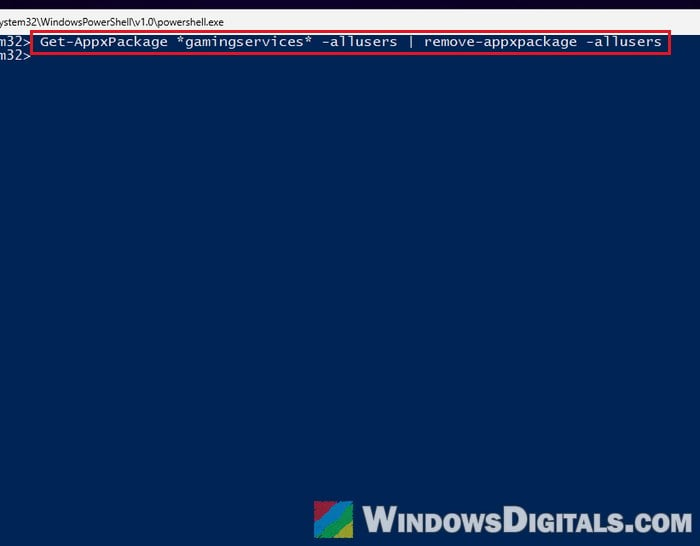
- Type the following command and press Enter:
Get-AppxPackage *gamingservices* -allusers | remove-appxpackage -allusers
- Restart your PC.
- Open Terminal (Admin) again and run this command to open Gaming Services in the Microsoft Store:
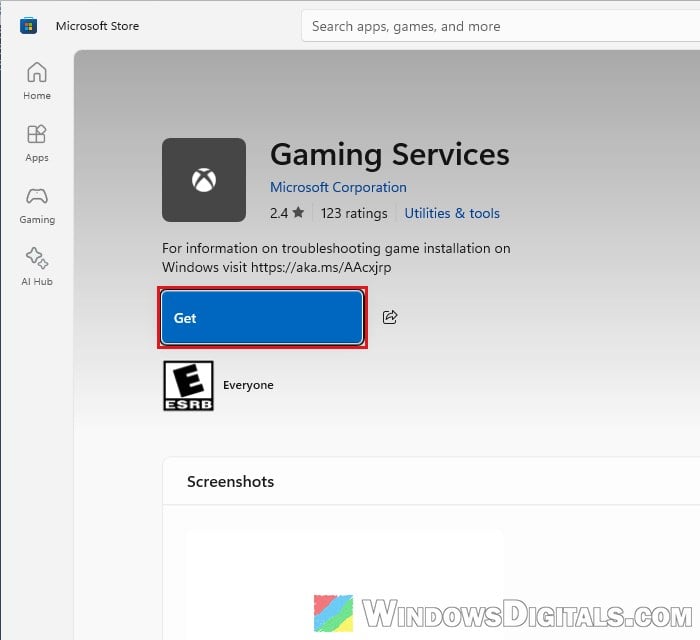
start ms-windows-store://pdp/?productid=9MWPM2CQNLHN
- Click Get and wait for it to install.
If the Store closes before you can click Get, install Gaming Services from the same Terminal window with winget instead, which doesn’t open the Store window:
winget install 9MWPM2CQNLHN --source msstore
If winget asks you to agree to the Store’s terms first, agree to them.
If the Store still crashes after that, reinstall the Xbox app too:
- Go to Settings > Apps > Installed apps, click the … next to Xbox and select Uninstall.
- Restart your PC.
- Open Terminal (Admin) and install the Xbox app again with this command:
winget install 9MV0B5HZVK9Z --source msstore
- Restart, then install Gaming Services once more as above.
- Restart one last time and open the Store.
Related problem: Microsoft Store Error 0x80248014 After “Verifying Dependencies”
Re-register the Microsoft Store with PowerShell
Re-registering tells Windows to set up the Store app again from its own files, which can fix a Store package that got damaged during an update. To do this:
- Right-click the Start button and select Terminal (Admin), then click Yes.
- Copy and paste the following command and press Enter:
Get-AppxPackage -allusers Microsoft.WindowsStore | Foreach {Add-AppxPackage -DisableDevelopmentMode -Register "$($_.InstallLocation)\AppXManifest.xml"}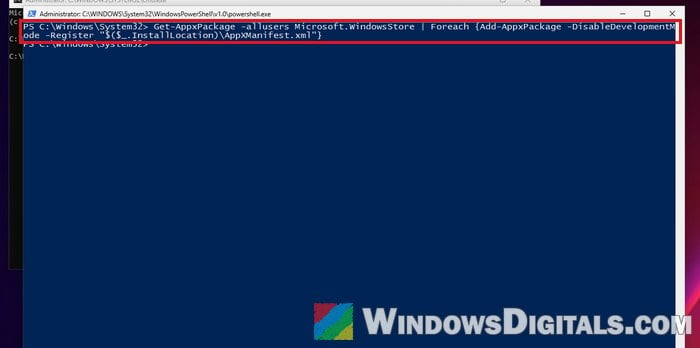
- Wait for it to finish, restart your PC and open the Store.
If you get a red error with 0x80073D02 that says the package “could not be installed because resources it modifies are currently in use”, the Store is still running in the background. Run this in the same window, then run the command again:
Stop-Process -Name WinStore.App -Force
Repair Windows files with DISM and SFC
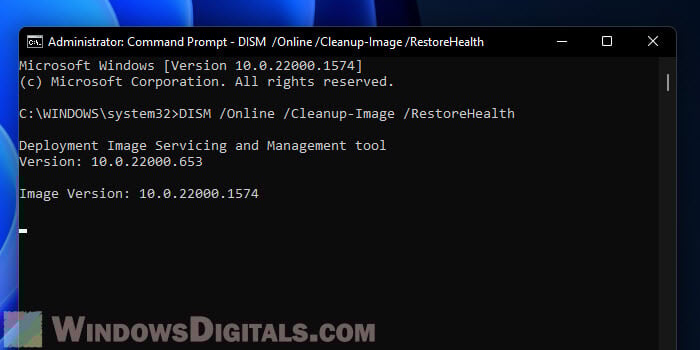
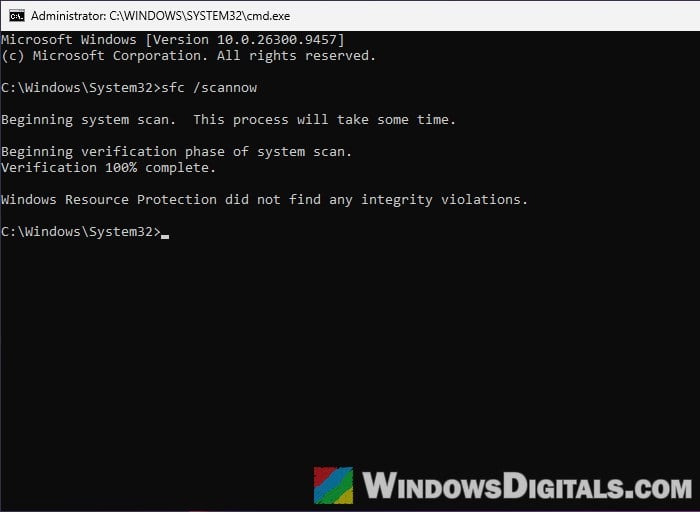
If the damage is in Windows’ own files rather than the Store’s, resetting the Store won’t help. DISM repairs the Windows image first, and SFC then fixes the system files from it. Follow these steps:
- Right-click the Start button and select Terminal (Admin), then click Yes.
- Type the following commands one by one, and press Enter after each:
DISM /Online /Cleanup-Image /RestoreHealth
sfc /scannow
- Restart your PC.
While you’re at it, go to Settings > Windows Update, click Check for updates and install everything that’s offered, then restart again. If an update caused this, a newer one may already fix it. Then open the Store and see if it stays open.
Pro tip: Can I cancel “SFC /scannow” while it’s running?
Try the Store in another user account
If none of this helps, create a new user account, sign in to it and open the Store there. If it works in the new account, the problem is in your own user profile rather than in Windows itself, and moving to the new account can be quicker than chasing it further. If the Store crashes in the new account too, it’s a Windows problem, and the last fix below is the one to try.
Reinstall Windows with “Reinstall now”
As a last resort, you can reinstall Windows 11 over itself. It replaces the Windows files but keeps your personal files and installed apps. It’s still a good idea to back up anything important first.
- Press Win + I and go to System > Recovery.
- Next to “Fix problems using Windows Update“, click Reinstall now and follow the prompts.
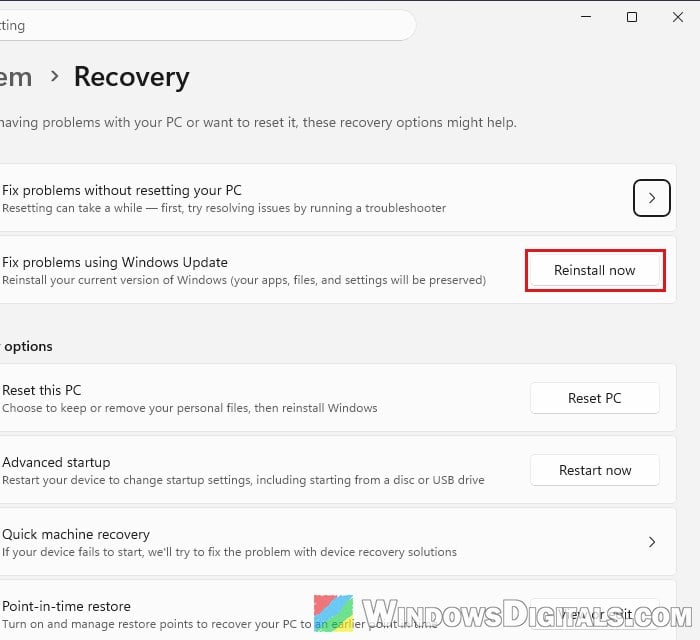
It downloads the current version of Windows and can take a while, so keep your PC plugged in. When it’s done, try opening the Store again.
Might be useful: “Reinstall your current version of Windows” Message