If an “ELAN FW Update Confirm” window keeps popping up every time you start or sign in to your Windows 11 laptop (often a Dell), and it comes right back even after you click to update, it’s the touchpad’s firmware updater, which most likely isn’t recording that it finished. This guide explains what the window is, whether it’s safe, and how to either let the update finish or stop it from showing up.
Also see: Unknown Program in Task Manager Startup Tab Windows 11/10
Page Contents
What is the “ELAN FW Update Confirm” window?
It’s the confirmation screen of a touchpad firmware update. ELAN is a company whose touchpads (as well as touchscreens and fingerprint readers) are used in many laptops. “FW” stands for firmware, the small piece of software that runs inside the touchpad itself.
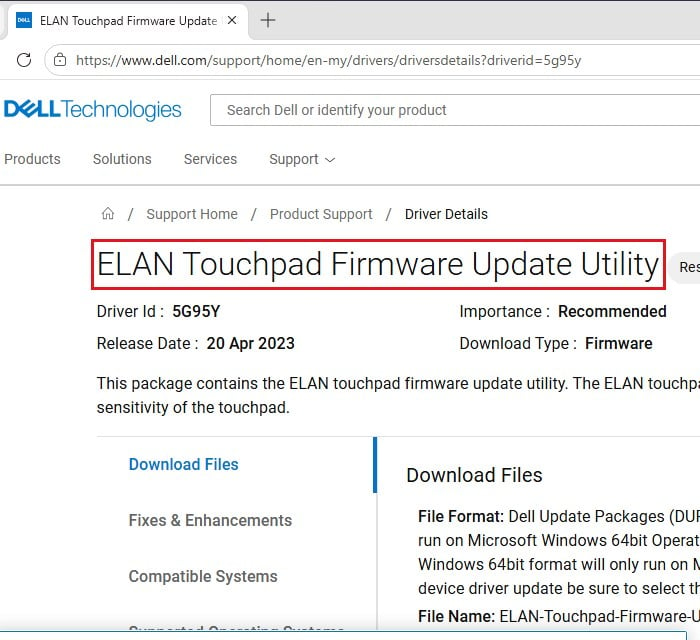
Dell publishes an “ELAN Touchpad Firmware Update Utility” for a number of its laptops, including some Inspiron 16, XPS 15, XPS 17 and Precision models. According to Dell, one version improves the touchpad’s stability and sensitivity, and another fixed the cursor getting stuck when the charger is plugged in. Dell marks these packages as recommended, and they need a restart.
You most likely didn’t install this yourself. According to Dell, its engineers saw Windows Update push this update once.
Why does it keep coming back?
The most likely explanation is that the updater never records that it finished, so it launches again at the next sign-in. You click the update button, the progress bar jumps from a few percent straight to 100%, and then the same window comes back, sometimes several times in a row and again after every restart.
The account you’re signed in with may also matter. A firmware update usually needs administrator rights, so on a standard account it may fail quietly. Running the update from an administrator account can stop the window for good.
Pro tip: Give Admin Permission/Rights to User in Windows 11/10
Is it safe, or could it be a virus?
The genuine window isn’t malware. It’s ELAN’s own firmware tool, published by Dell and delivered through Windows Update, and the endless pop-up has been reported on both Dell’s and Microsoft’s forums.
Like any program that pops up by itself, though, it’s worth a quick check if you’re unsure. While the window is open, press Ctrl + Shift + Esc to open Task Manager, right-click the process behind the window and select Open file location. It should belong to ELAN or to a driver or Dell folder. If it’s somewhere odd, run a full scan with Windows Security.
The one thing to avoid is interrupting a firmware update halfway, for example by closing the lid or letting the battery run out while it’s writing.
How to let the update finish properly
Since the update itself is meant to improve your touchpad, letting it finish is the cleanest way to get rid of the window. Here’s what you should do:
- Check your account type under Settings > Accounts > Your info. It should say Administrator under your name.
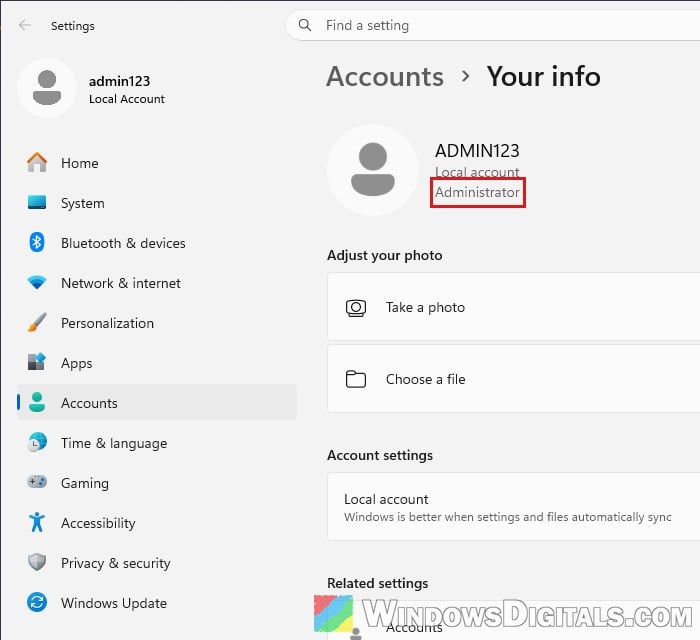
- If it doesn’t, sign out and sign in to an administrator account first.
- Save your work and plug the laptop into its charger.
- Select Restart from the Start menu (not Shut down and then power it back on), sign back in to the administrator account, and wait a few minutes.
- When the ELAN window appears, click its update button and leave it alone until it completes. It may take more than one try.
- Restart once more and see if the window still shows up.
Install the firmware package from Dell instead
If the window still won’t finish, you can install the same update yourself from Dell. Here’s how to do it:
- Go to
https://www.dell.com/support/home/and enter your laptop’s Service Tag. - Open Drivers & Downloads and look under Mouse, Keyboard & Input Devices for “ELAN Touchpad Firmware Update Utility“.
- Download it.
- Right-click the downloaded file and select Run as administrator.
- Click Install, follow the prompts, and restart the laptop when it’s done.
After the restart, see if the ELAN window still appears.
Note: Only install a firmware package that Dell lists for your exact model. Firmware made for another laptop can break the touchpad.
Stop it from opening at startup (if your touchpad works fine)
If your touchpad works normally and you just want the window gone, you can stop whatever launches it. Keep in mind that the touchpad then simply stays on its current firmware, so you won’t get the update’s fixes.
Startup apps in Settings or Task Manager
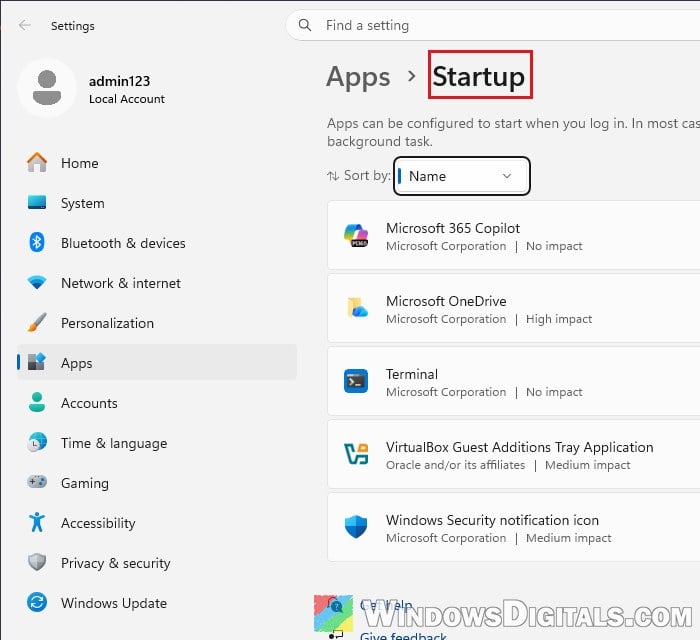
Open Settings > Apps > Startup and turn off any ELAN entry you see there.
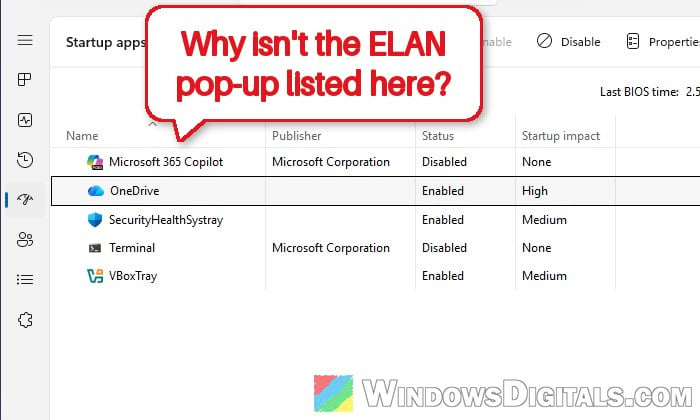
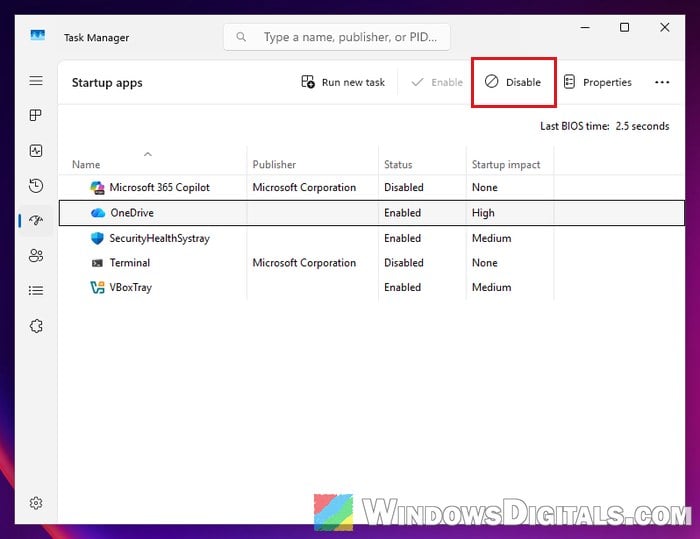
Task Manager shows the same list with a bit more detail. Press Ctrl + Shift + Esc, open the Startup apps tab, select the ELAN entry and click Disable.
The Startup folder and Task Scheduler
It may not be listed in Startup apps at all, because something else starts it. Check these two places.
Startup folder
- Press Win + R, type
shell:startupand press Enter.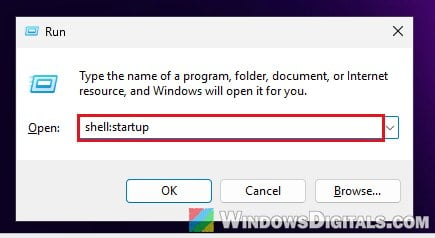
- Delete any ELAN shortcut in the folder that opens.
- Do the same with
shell:common startup, which is the startup folder for all users.
Task Scheduler
- Search for “Task Scheduler” in the Start menu and open it.
- Select Task Scheduler Library on the left.
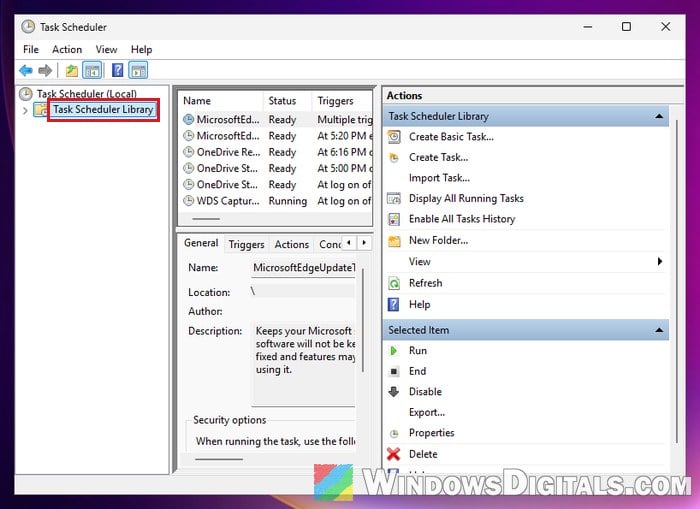
- Look for a task with ELAN or touchpad in its name.
- Right-click it and select Disable.
Use Autoruns to find it
If you still can’t find it, Microsoft’s free Autoruns tool lists everything that starts with Windows, including the registry Run and RunOnce keys and scheduled tasks. Here’s how to use it:
- Download Autoruns from
https://learn.microsoft.com/en-us/sysinternals/downloads/autorunsand extract the ZIP. - Right-click Autoruns64.exe and select Run as administrator.
- Open the Options menu and select Hide Microsoft Entries so mostly third-party items are left.
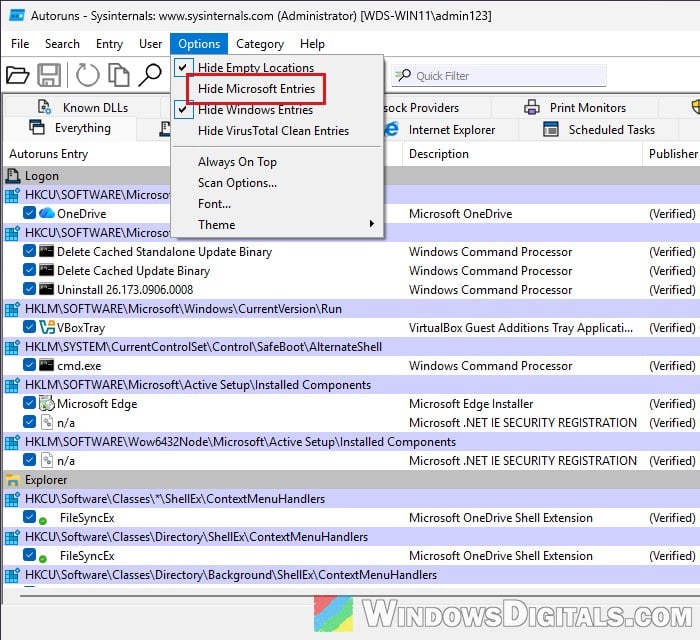
- Look on the Everything tab for an entry with ELAN in its name, description or publisher. You might also see entries such as ETDCtrl, which is ELAN’s touchpad helper. Leave those alone unless you’re sure they’re behind the window, since they can be needed for your touchpad’s gestures.
- Uncheck the entry’s box to disable it. This is safer than deleting it, since you can check it again later.
Whichever way you used, restart your laptop and see if the ELAN window still shows up.
Linked issue: What is this random AMDAutoUpdate.exe window?
Did Windows Update install it?
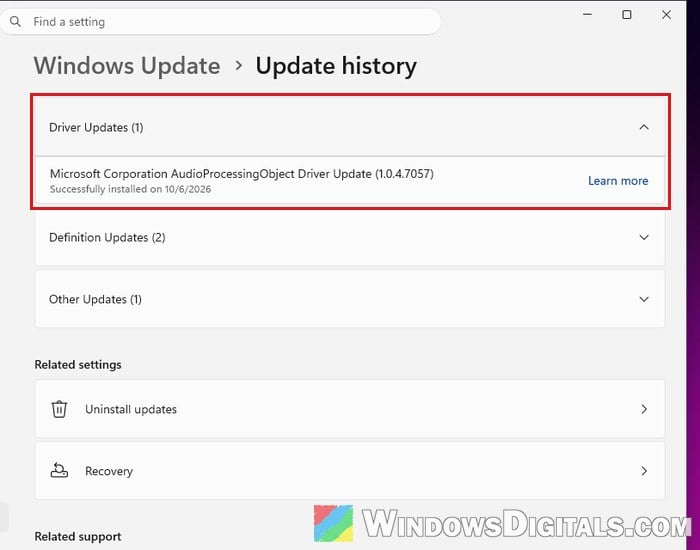
You can check what Windows Update installed in Settings > Windows Update > Update history, under Driver Updates. If an ELAN entry shows up there more than once, the update keeps being reinstalled, which is worth telling Dell.
What if the touchpad stopped working after the update?
Open Device Manager, find the ELAN device under Mice and other pointing devices or Human Interface Devices, and open its Properties. On the Driver tab, use Roll Back Driver if it’s available.
Related problem: HP.OMEN.SystemOptimizer UAC keeps popping up?
Things to know
As of mid-October 2026, Dell says it’s looking into the problem and has asked affected users for their laptop models. If none of the above helps, contact Dell support with your Service Tag, especially while your laptop is still under warranty.