A YouTube video in a desktop browser should just start playing when you click it, with nothing popping up on the page. Lately, though, many people get a small “Experiencing interruptions?” pop-up at the bottom left of the page, sometimes several times on the same video, even though the video itself seems to play fine. This guide will explain why the message keeps showing up and what you can do to stop it.
Also see: YouTube Video Lagging on Chrome When Full Screen (Fix)
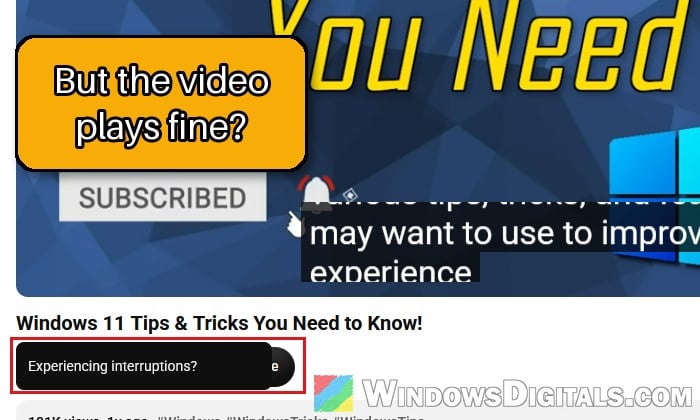
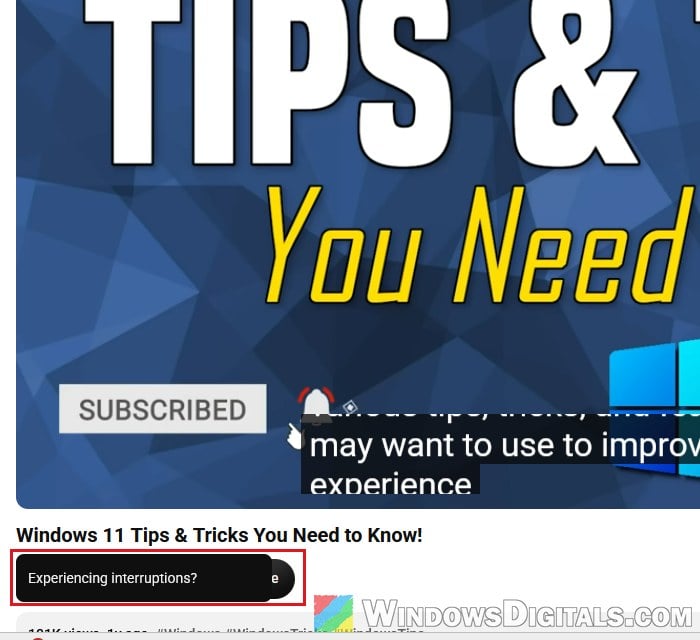
Why does YouTube say “Experiencing interruptions?” when nothing is wrong?
“Experiencing interruptions? Find out why.” is one of the playback messages listed in YouTube’s own help, next to its troubleshooting tips for videos that don’t play well. Those tips include checking your internet speed and checking whether browser extensions that block ads are affecting playback.
Most reports of it come from Firefox and Brave users with an ad blocker such as uBlock Origin, and some from Edge too. It’s a pretty common issue that you’ll find discussed on Reddit, where most people who get it have an ad blocker running. Some see nothing but the pop-up, while others also get a 1 to 2 second delay before the video starts, or a video that sits at 0:00 until the page is reloaded.
It isn’t only ad blockers, though. The same message can appear when the connection really is struggling, or when YouTube itself is slow to load, and it can show up even with YouTube Premium. Extra ad blockers or another extension can also be involved (more on that below).
Might be useful: High GPU Usage While Watching YouTube Videos
Check if the video is really being interrupted
Before changing anything, it’s worth checking whether the player is actually running out of video, or whether the pop-up is just a message. YouTube’s “Stats for nerds” panel shows how much video the player has ready. Here’s how to check it:
- Right-click the video while it plays and select “Stats for nerds“.
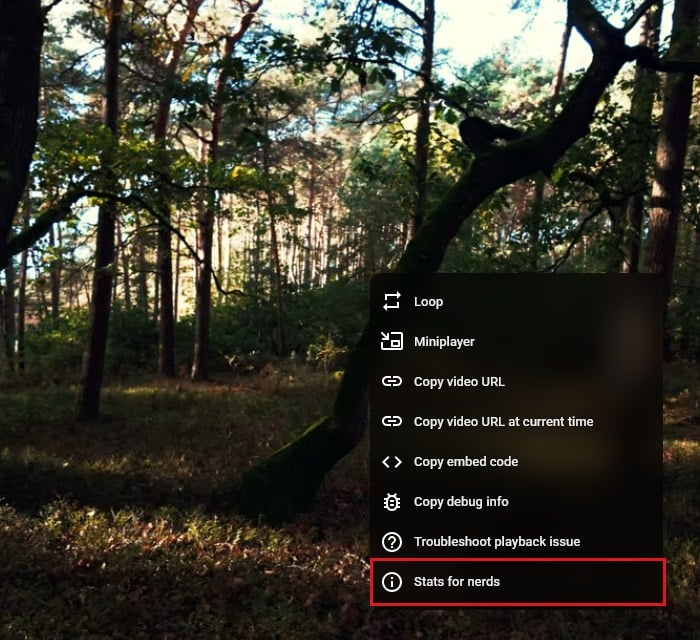
- Keep the panel open and look at “Buffer Health” the next time the pop-up shows. If it stays above zero, the player has video ready to play and nothing is really being interrupted.
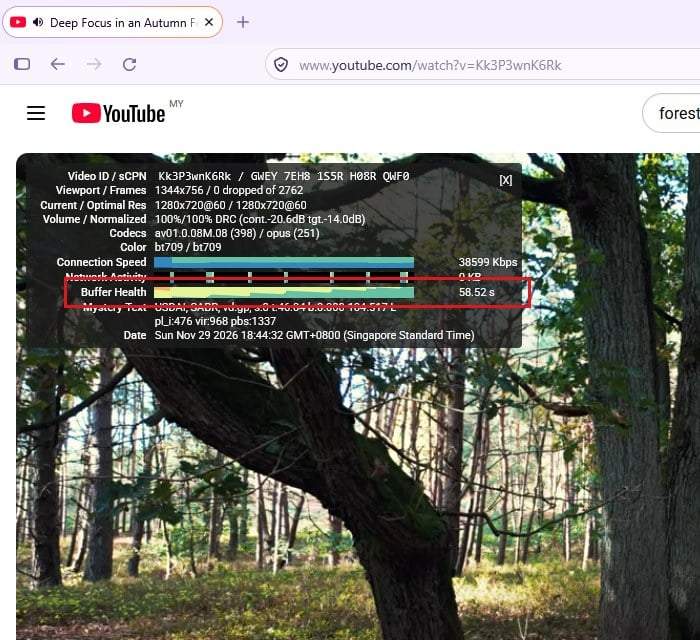
If the video does stutter or stop, check your connection. YouTube recommends a steady speed of about 20 Mbps for 4K, 5 Mbps for 1080p, 2.5 Mbps for 720p, 1.1 Mbps for 480p and 0.7 Mbps for 360p. If yours is lower than what the video plays at, lower the quality from the gear icon in the player.
Hard reload the YouTube page
When the video keeps looping at 0:00 and won’t start at all, a hard reload usually gets it going. It reloads the page fully and starts a fresh session with YouTube.
Press Ctrl + F5 on the YouTube page and let the video start again. YouTube’s own help also suggests simply reloading the page when playback errors appear.
Update uBlock Origin’s filter lists
YouTube changes its pages often, and ad blockers update their filters to keep up with those changes. So make sure your filter lists are fresh. Follow the steps below:
- Click the uBlock Origin icon in the toolbar, then the gears icon at the bottom right of its panel (Open the dashboard).
- Go to the “Filter lists” tab.
- Click “Update now“. If it’s greyed out, your filter lists are already up to date.
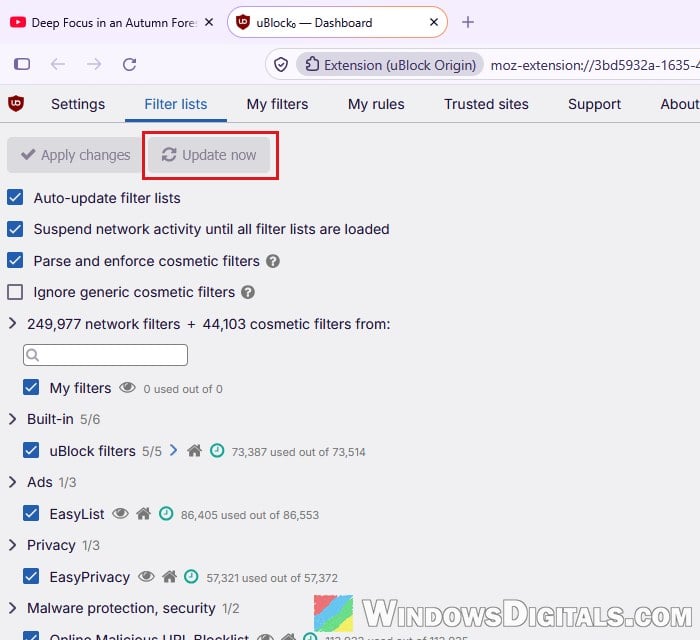
Reload YouTube afterwards and play a few videos to see if the message still shows up.
Turn on the “uBlock filters – Experimental” list
uBlock Origin comes with an “Experimental” filter list that’s turned off by default. The uBlock Origin team suggests it when YouTube acts up like this. It often clears the delay and the stuck video, though the pop-up itself may still show up. Here’s how to turn it on:
- Open the uBlock Origin dashboard and go to the “Filter lists” tab.
- Click the arrow next to “Built-in” so all its lists show.
- Tick “uBlock filters – Experimental“.
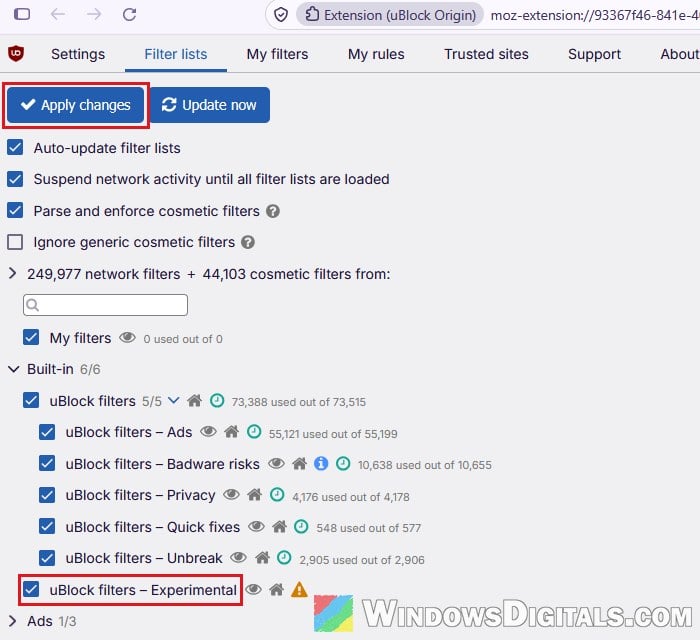
- Click “Apply changes” at the top.
Give it a few videos. If the delay is gone but the pop-up still shows, the next section hides it.
Hide the pop-up with “Block element”
If the video plays fine and only the message bothers you, you can simply hide it. uBlock Origin can block any part of a page you right-click, and the block stays for the next videos too. Keep in mind that this only hides the message and doesn’t remove any delay before the video starts. Here’s what to do:
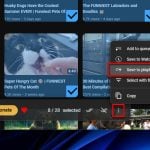
- Right-click the pop-up while it’s on the screen and select “Block element…“. The pop-up only stays for a few seconds, so open a new video if it disappears first.
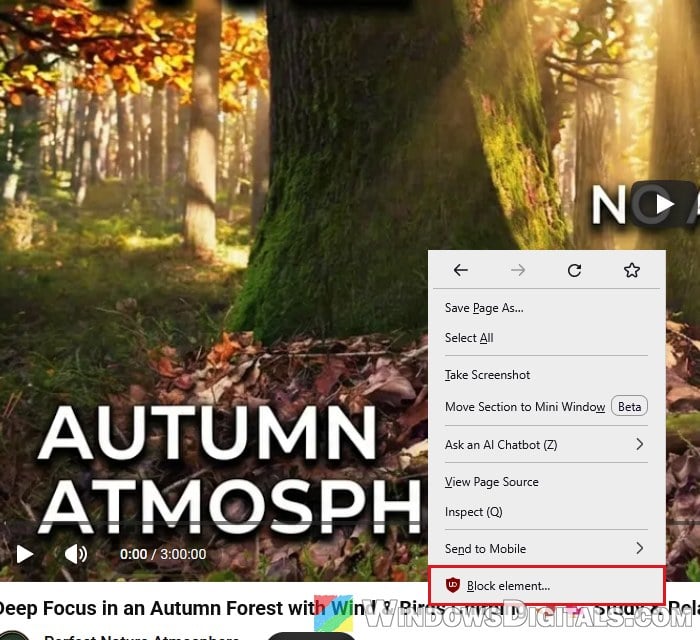
- Click “Create” in the small window that appears at the bottom right of the page.
You’ll also find custom filters for this pop-up posted around the web, but they’re tied to how YouTube’s page is built at the time and tend to break when it changes, so “Block element” is the easier way.
Use only one ad blocker
Running two ad blockers at the same time can actually make YouTube worse, not better. If you run uBlock Origin next to another one (AdBlocker Ultimate, Ghostery’s ad blocker and the like), they can get in each other’s way. Another extension can also show a pop-up of its own that looks similar.
In Firefox, here’s how to check:
- Open the menu (the three lines at the top right) and select “Extensions and Themes“.
- Select “Extensions” on the left.
- Use the switch next to each one to turn off every ad blocker except one, and any YouTube add-on you don’t need.
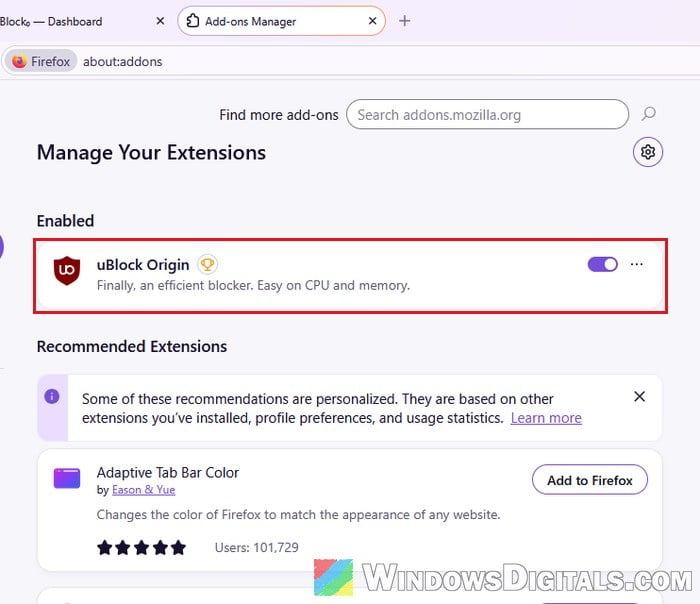
In Brave, Chrome or Edge, do the same on the browser’s extensions page. Then reload YouTube and see if the pop-up still appears.
Related concern: Is “AdBlock Next” Popup and Extension Safe or a Virus?
Test YouTube without any extensions
To find out whether an extension is behind the message at all, YouTube suggests opening it in a private (incognito) window with all extensions turned off. In Firefox, Troubleshoot Mode temporarily turns off your extensions, themes and custom settings for the whole browser. To use it:
- Open the Firefox menu and select “Help and Report“.
- Select “Troubleshoot Mode…” and confirm with “Restart“.
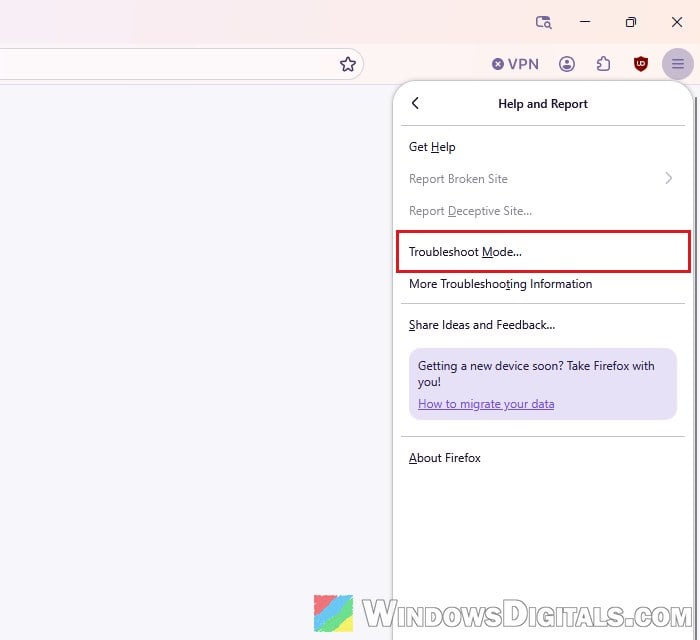
If the pop-up doesn’t show up there after a few videos, an extension is most likely behind it, and the steps above should help. If it still shows up with no extensions at all, it’s more likely your connection or YouTube itself.
Clear your browser’s cache and cookies, and update it
As a last step, YouTube’s help suggests updating your browser to its latest version and clearing its cache and cookies. For the steps, see how to clear cookies in Windows 11, which also shows how to clear them for one website only, so you won’t be signed out of every other site.