Excel normally recalculates your formulas the moment you change a cell, so it can be confusing when typing a simple SUM brings up “Excel ran out of resources while attempting to calculate one or more formulas“, especially when it starts happening in every workbook you open, even ones you’ve used for months. This guide will explain what usually sets it off and how to get Excel calculating again.
Also see: Force Close Program in Windows 11 without Task Manager
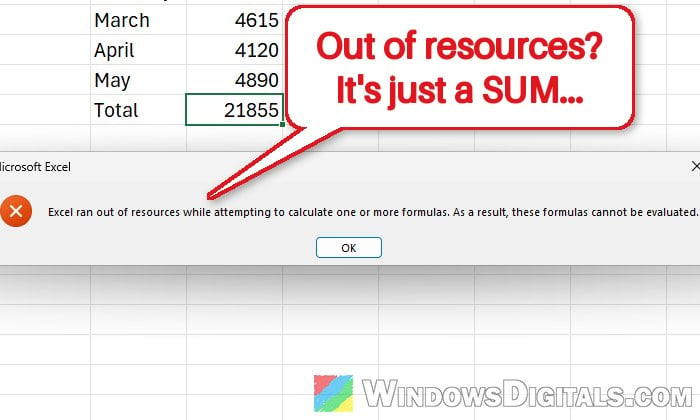
Why does Excel say it ran out of resources?
Despite the wording, this error usually isn’t about your PC running low on RAM. It can show up on small workbooks, and sometimes even in a new blank workbook. The most common reasons are:
- One formula that refers to a huge range by mistake. A typo like a colon instead of a period can turn a normal formula into something like
=30:294001or=D54:CBC351424, which asks Excel to work through hundreds of thousands of rows or columns. This is by far the most common cause. - A dynamic array formula that grows too big, such as a TRANSPOSE or SEQUENCE formula that spills far more cells than intended. One array can only hold so many items, and going over that limit triggers this exact error.
- A circular reference, where a formula depends on its own cell.
- An add-in, or 32-bit Excel, which is limited to 2 GB of memory no matter how much RAM you have.
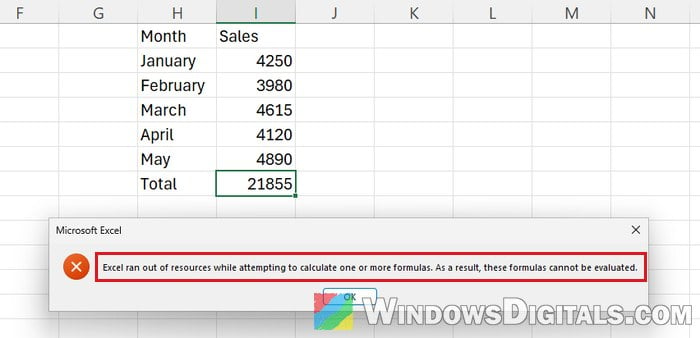
It seems to hit every workbook because desktop Excel recalculates all open workbooks together. One bad formula in one file can throw the error while you’re typing in a completely different one.
Find out which workbook is causing it
Before rebuilding anything, find out whether the problem is in one file or in Excel itself:
- Close every Excel window.
- Open Task Manager (Ctrl + Shift + Esc) and end any Microsoft Excel (Excel.exe) process that’s still running.
- Open Excel with only a new blank workbook, type “=2+2” in a cell and press Enter.
- If it works, open your workbooks one at a time, making a small change in each. When the error comes back, the workbook you just opened is very likely the one with the bad formula.
If the error shows up even in a blank workbook with nothing else open, the problem is more likely an add-in or a setting, so skip ahead to the add-ins section.
Switch calculation to Manual for now
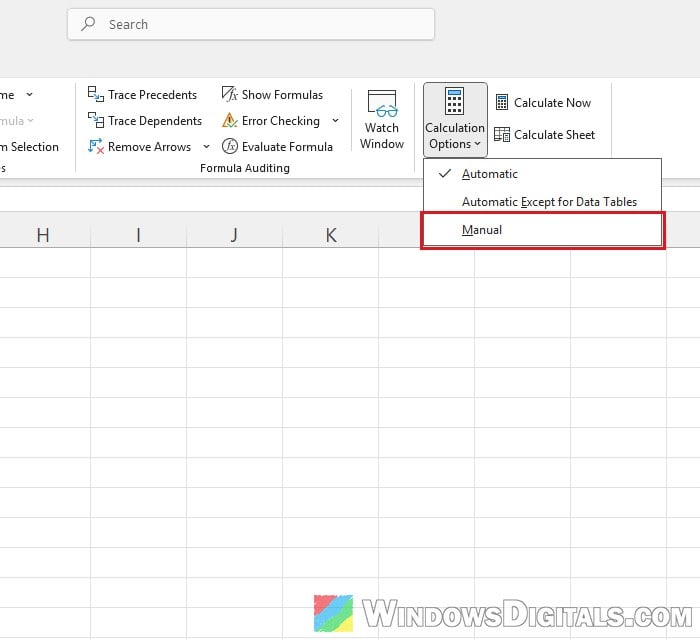
When the error pops up on every edit, it’s hard to fix anything in the file. Manual calculation stops Excel from recalculating every time you type, so the message stays away while you work. It doesn’t fix the cause, it just gets the pop-up out of the way.
- Go to the Formulas tab.
- Click Calculation Options and select Manual.
- Optionally, go to File > Options > Formulas and uncheck “Recalculate workbook before saving“, so saving doesn’t trigger the error either.
Press F9 whenever you want Excel to calculate. Once the bad formula is fixed, set Calculation Options back to Automatic.
Look for a formula that refers to a huge range
This is the fix that has worked for the most people on Microsoft’s own forums.
To find it, follow the steps below:
- Open the workbook that’s causing the error (with calculation set to Manual).
- On the Formulas tab, click Show Formulas (or press Ctrl + `
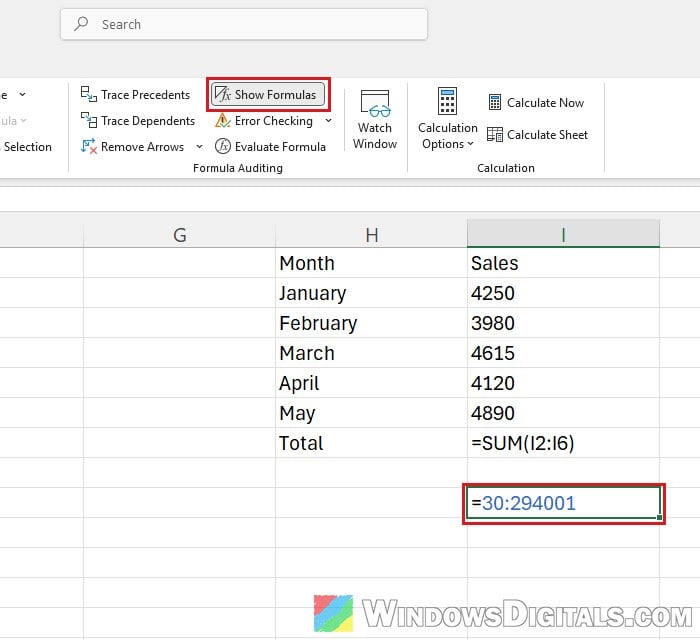
- Look through each sheet for a formula with an oddly large reference, such as whole rows (
=30:294001), a wide block of whole columns (=AX:VW) or a range that runs to a far-off column or row. - Check for circular references too: click the arrow next to Error Checking and point to Circular References. If it’s greyed out, there’s no circular reference. Otherwise it lists the cell that refers back to itself.
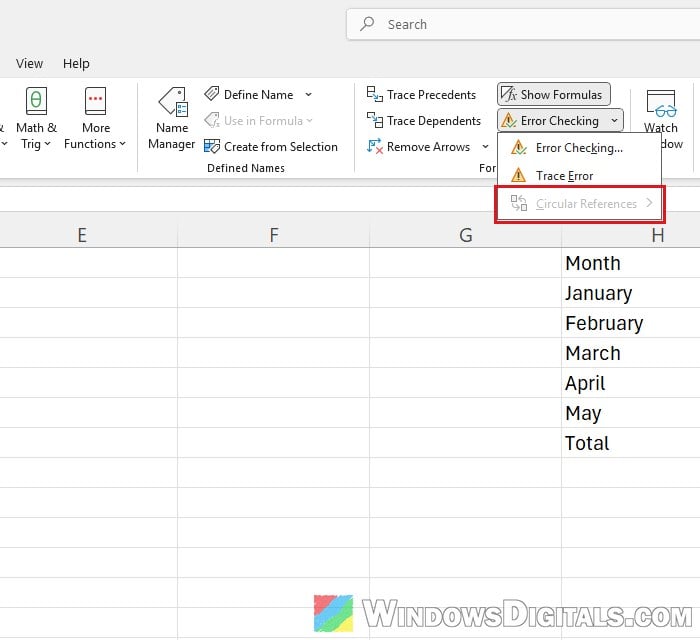
- Delete or correct the formula, then press F9 to see if the error is gone.
Also replace whole-column references in heavy formulas (like A:A) with a range that covers your data (like A1:A2000).
If you can’t find the bad formula
As a last resort, create a new blank workbook and paste your data into it as values only. This drops every formula, so you’ll have to rebuild them, but it gets rid of the broken one for sure.
Clean up unused cells with “Check Performance”
Empty cells that still carry formatting far below your data can make a workbook much heavier than it looks. Excel for Microsoft 365 has a tool that finds and removes them.
- Go to the Review tab and click Check Performance.
- Click Optimize Sheet for one sheet or Optimize All for the whole workbook.
Then save the workbook, reopen it and see if the error still shows up. If your Excel doesn’t have Check Performance (Excel 2024 doesn’t), press Ctrl + End on each sheet. If it jumps far below your data, delete those empty rows, then save, close and reopen the workbook.
Turn off your Excel add-ins
A misbehaving add-in can cause this error even in a blank workbook, so it’s worth ruling them out.
- Go to File > Options > Add-ins.
- Set Manage to COM Add-ins and click Go.
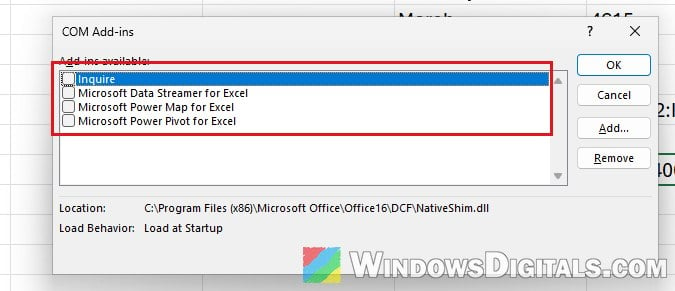
- Uncheck all the add-ins, click OK and restart Excel. Do the same for Excel Add-ins in the Manage list.
If the error is gone, turn them back on one at a time to find the culprit. You can also hold Ctrl while opening Excel and click Yes to start it in Safe Mode, without any add-ins.
Lower the number of calculation threads
Excel calculates on all your processor cores at once. Cutting that down to one thread is often suggested, but to be honest, it doesn’t work for everyone, and it can even stop formulas from calculating at all. Still, it’s worth a try if nothing above helped.
- Go to File > Options > Advanced and scroll down to the Formulas section.
- Under Number of calculation threads, select Manual and enter “1“.
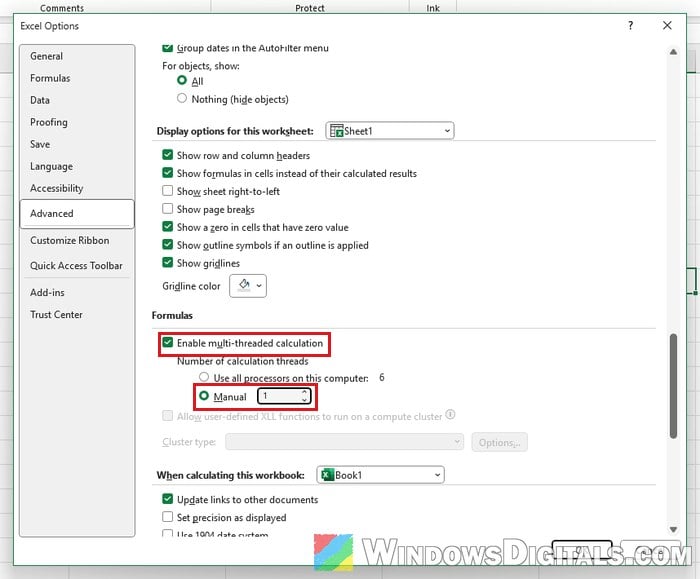
- Click OK and see if the error still appears.
If it makes no difference, set it back to “Use all processors on this computer“.
Use 64-bit Excel, then update or repair Office
32-bit Excel can only use 2 GB of memory, which large workbooks can easily hit, so switching to 64-bit Excel can help.
Related concern: Why is My Memory Usage So High When Nothing is Running?
To check yours, go to File > Account > About Excel. The top line says 32-bit or 64-bit.
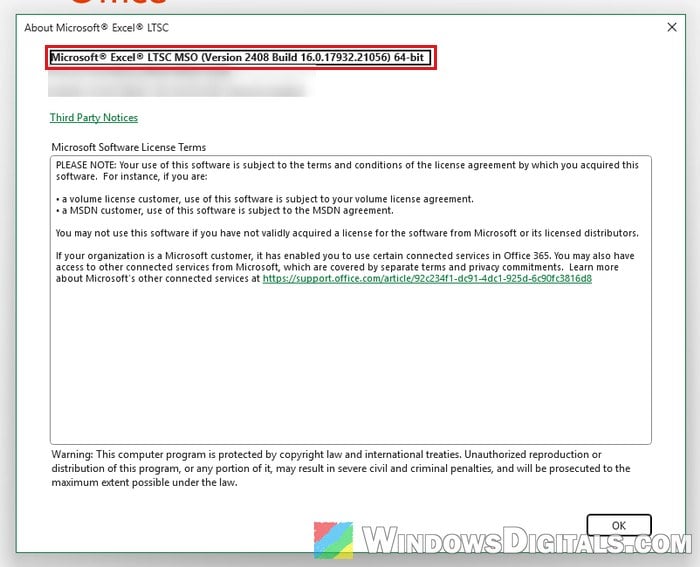
If it’s 32-bit and your Windows is 64-bit, uninstall Office and install the 64-bit version instead.
Related guide: How to Know If Windows 11 is 64-bit, 32-bit or ARM
Microsoft also recommends keeping Office up to date (File > Account > Update Options > Update Now). If the error still happens in a blank workbook after all of this, repair Office:
- Open Settings and go to Apps > Installed apps.
- Find your Microsoft 365 or Office app, click the three dots next to it and select Modify.
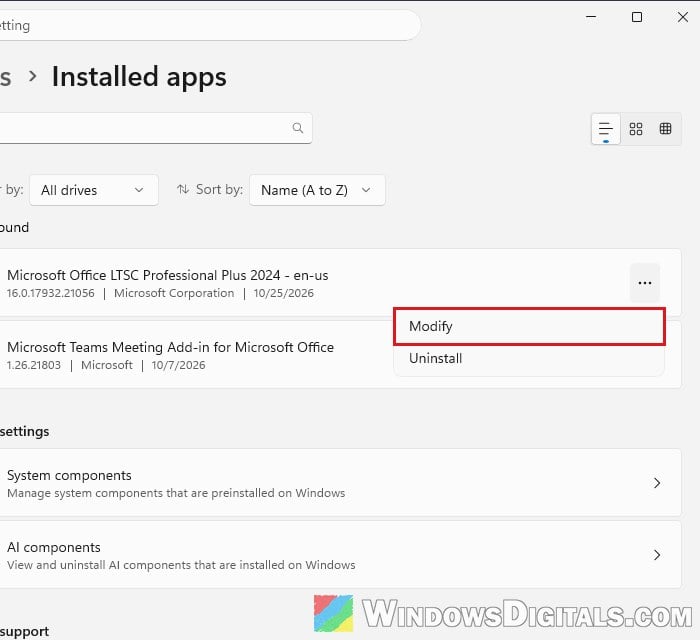
- Choose Quick Repair first. If that doesn’t help, run it again and choose Online Repair instead.
When it’s done, restart your PC and test a blank workbook before going back to your files.