Discord voice calls normally put everyone right in the middle of your headphones, so each friend sounds the same in both ears. After a Discord update in mid-November 2026, though, some people suddenly heard friends panned to the left or right, or most of the call coming from one ear. It’s a new setting called Spatial Audio, and for the people who’ve reported it, it came switched on by default. This guide will explain how to switch it off and what to check when the switch isn’t in your settings.
Also see: Discord Won’t Connect to Voice Channel (Fix)

What is Discord’s Spatial Audio?
Spatial Audio makes the people in a voice call sound like they’re sitting around you instead of all in the middle. When Discord tested it with a small group of Canary (test version) users for a few days in May 2026, it placed each person at a spot in a virtual room, so someone placed on your right was heard mainly in your right ear and someone farther away sounded quieter. It has now started showing up in the normal desktop app.
Some people like the idea, since it can make it easier to tell voices apart when several people talk at once. Many others found it odd. You’re probably hearing it if:
- Most of the call comes through just one ear.
- Voices seem to come from behind you.
- Friends sound shifted a little to one side, enough to make you check your headphones.
- Everyone sounds like they’re coming through some kind of surround sound effect.
If you play in big groups, it may be worth a try before you turn it off. People who used TeamSpeak, which had something similar for years, say it helps most when several people talk over each other, since each voice comes from its own direction instead of one blob in the middle.
If you’d rather have the old sound back, start with the switch below.
Might be useful: How to Change Output Device For Different Apps on Windows 11
Turn off Spatial Audio in Discord’s settings
The switch is in Discord’s voice settings, right below Echo Cancellation. Here’s how to turn it off in the Discord app on your PC:
- Click the gear icon (“User Settings“) next to your name at the bottom left of Discord.
- Select “Voice & Video” in the list on the left.
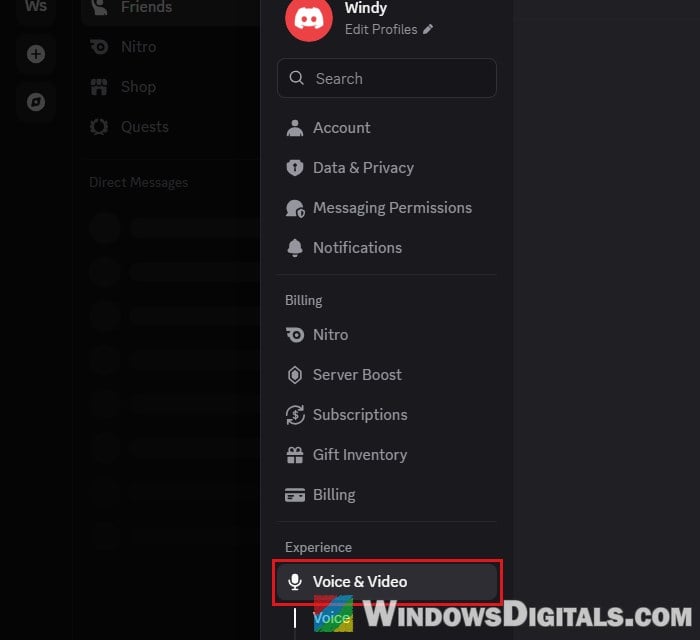
- In the “Voice” section, scroll down past “Noise Suppression” and “Echo Cancellation“.
- Turn off the “Spatial Audio” switch, the one just above “Push-to-talk“.
Close the settings and listen to your next call. Your friends should sound centered again. If the call was already going when you changed it and it still sounds off, leave the voice channel and join it again.
What if the “Spatial Audio” switch isn’t there?
Discord is still rolling the setting out, so not every account has it yet. On our test PC, Discord was fully updated and still had no Spatial Audio switch, even after a restart. Sometimes the switch only shows up after restarting Discord, and it can take more than one restart.
Closing Discord’s window doesn’t really restart it, since the app just hides in the system tray. To fully restart it:
- Click the “^” arrow at the right end of the taskbar to show the hidden icons.
- Right-click the Discord icon and select “Quit Discord“.
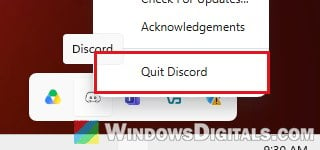
- Open Discord again from the Start menu or your desktop. Its updater checks for updates first.
- If an “Update Ready” button shows at the top right once Discord opens, click it to install the update.
- Go back to “User Settings” > “Voice & Video” and look for “Spatial Audio” again.
If there’s still no switch after a couple of restarts, your account most likely doesn’t have the feature yet. In that case, whatever is making the call sound off-center probably isn’t Discord’s Spatial Audio, so check Windows next.
Related guide: How to Turn Off Surround Sound in Windows 11
Turn off Windows’ own spatial sound for your headphones
Windows has its own spatial sound, separate from Discord’s. When it’s on for your headphones, through the built-in “Windows Sonic for Headphones” or the Dolby Atmos and DTS apps, it changes the sound of every app, Discord included. That can also make voices seem to come from around or behind you.
To check it and turn it off on Windows 11:
- Open “Settings” and go to “System” > “Sound“.
- Under “Output“, click the headphones or speakers you use for Discord.
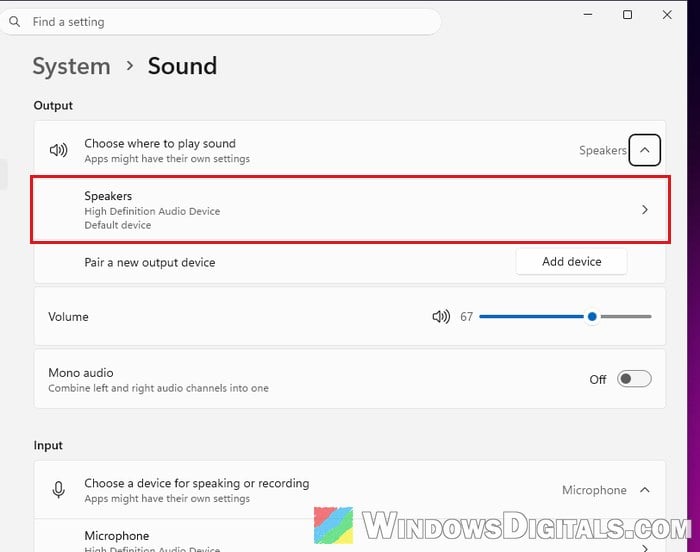
- Scroll down to “Advanced settings“, find “Spatial sound” and set its drop-down menu to “Off“.
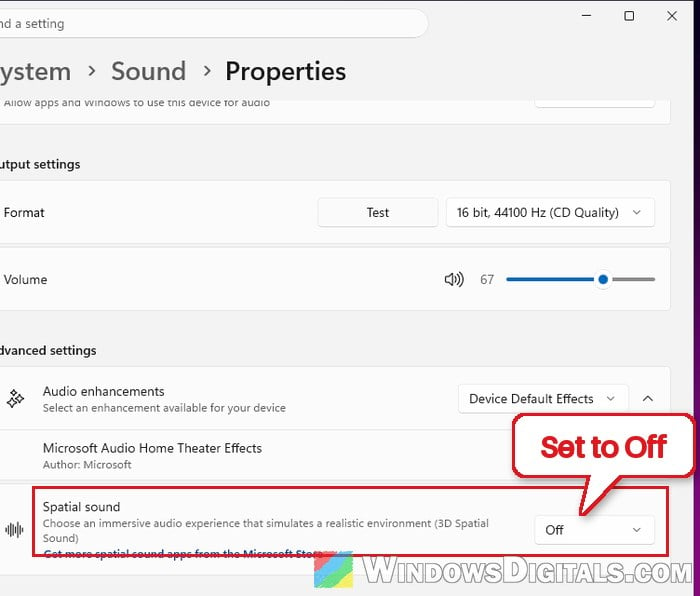
Join a call again and see if your friends sound normal now.
Your headset’s own software can do the same thing. Some gaming headsets come with an app that has a virtual surround, 7.1 or “spatial” switch of its own. If yours has one, turn it off and test a call again.