Deadlock’s network warning in the top right is meant to flag a shaky connection, but many players see it showing net jitter of 80 to 400 ms while their ping stays under 50 ms and every other online game runs fine. Heroes rubberband and shots don’t land, sometimes from the first minute of a match and sometimes only after a while. This guide will walk you through how to find what’s behind it and the fixes that have worked for other players.
Also see: Ping Spikes Every Few Seconds in Online Games on Windows 11
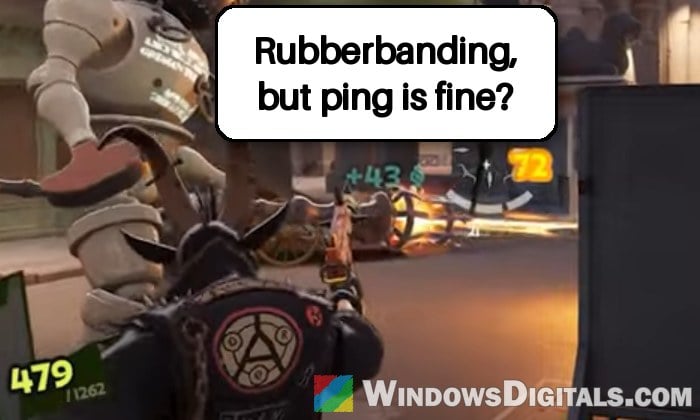
Why does Deadlock show high net jitter when ping is fine?
Ping is how long a packet takes to reach the server and back. Net jitter is how uneven that time is from packet to packet. Your average can look fine while some packets arrive late, and Deadlock (like Counter-Strike 2) reacts to that far more than most games, which is why it’s often the only game where you notice it.
Valve hasn’t named a single cause, and the problem has been around for a long time. The usual reasons are:
- Wi-Fi problems: interference, a router that merges its 2.4 GHz and 5 GHz bands into one network, or Windows 11’s Wi-Fi Dual Station (which Valve’s networking supports) misbehaving on some PCs.
- A busy or “bufferbloated” connection: something else downloading or uploading, and a router that lets the queue build up.
- Something on your PC using the connection in the background, such as a cloud backup.
- A stale DNS cache, or a network adapter saving power.
Since it can be any of these, start by narrowing it down.
First, check if it’s your connection or the game
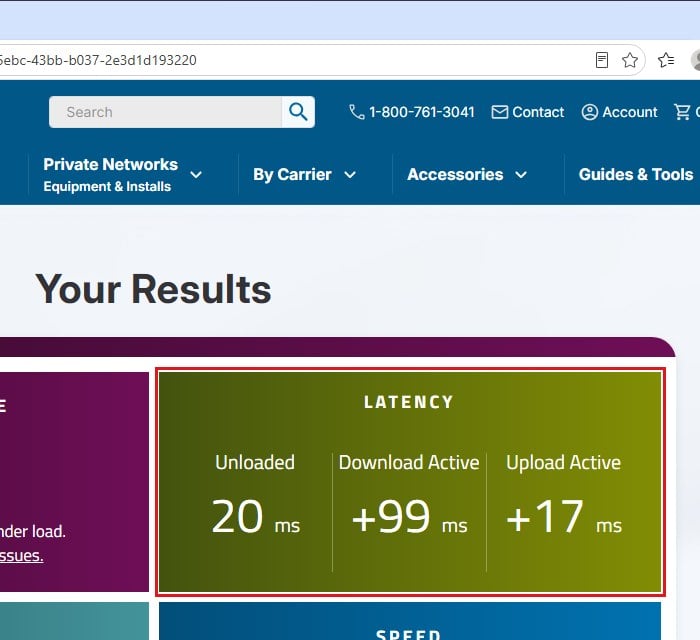
A normal speed test won’t show this, since it measures speed, not how steady the connection stays under load. A bufferbloat test does.
- Open
https://www.waveform.com/tools/bufferbloatin your browser and click “Start Test“. - When it finishes, look at how much the latency goes up during the download and upload parts. A big jump means your router or connection is the problem, not Deadlock. In that case, turning on SQM or QoS in your router’s settings (if it has them) can help a lot.
You can also run a continuous ping in Command Prompt while you play. Type the following and press Enter, then play a match with the window open:
ping 8.8.8.8 -t
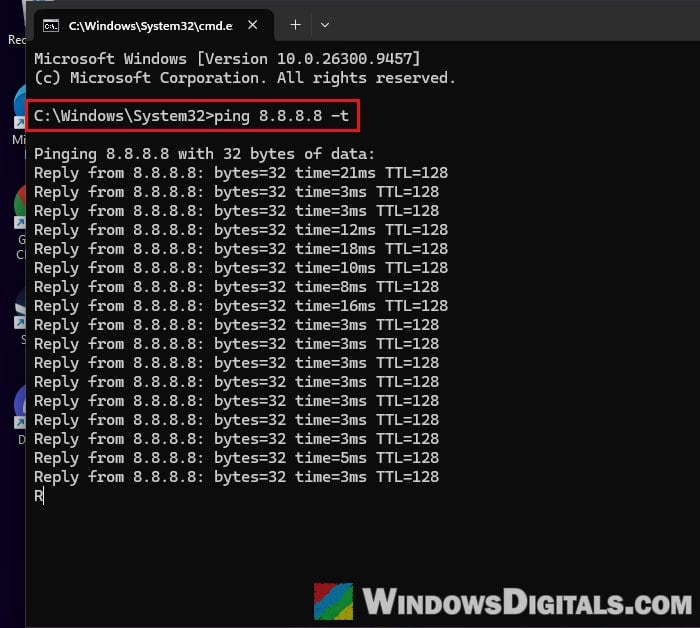
Do the same with your router’s address (the Default Gateway that ipconfig shows) in a second window. If both jump around, the problem is inside your home network; if only the internet one does, it’s further out. If both stay flat while Deadlock still shows jitter, keep going below.
Related guide: Ping IPv4 Address Instead of IPv6 in Windows 11/10 CMD
Use a wired connection, or fix your Wi-Fi
Switching from Wi-Fi to an Ethernet cable is the fix that has worked for the most players on Reddit and forums, though some still get jitter on a cable now and then. If you can’t run a cable to your PC, a powerline adapter (which carries the network through your power outlets) is the next best thing.
If you have to stay on Wi-Fi, these are worth checking:
- Split your router’s bands. Many routers merge 2.4 GHz and 5 GHz under one Wi-Fi name (often called Smart Connect or band steering). Turn that off in the router’s settings and connect to just one of the two networks.
- Change the Wi-Fi channel in your router’s settings, especially if neighbors’ networks are crowding yours.
- Move wireless devices away from the router. A wireless mouse or keyboard sitting right next to the router, or a Bluetooth controller trying to connect, can interfere with the Wi-Fi. Turning off Bluetooth for a test match is a quick way to rule it out.
Turn off Dual Wi-Fi with a launch option (Wi-Fi only)
Valve’s networking code, which Deadlock uses, supports Wi-Fi Dual Station, a Windows 11 feature that lets a Wi-Fi card use two bands at once. On some PCs, Windows keeps trying to connect the card’s second virtual adapter during the game, fails, and retries about once a minute, freezing the Wi-Fi for a moment each time. If your spikes come about once a minute on Wi-Fi, this is a good one to try.
To turn the feature off for Deadlock only, follow the steps below:
- Open “Steam” and go to your “Library” (or search for it at the top left).
- Right-click “Deadlock” and select “Properties“.
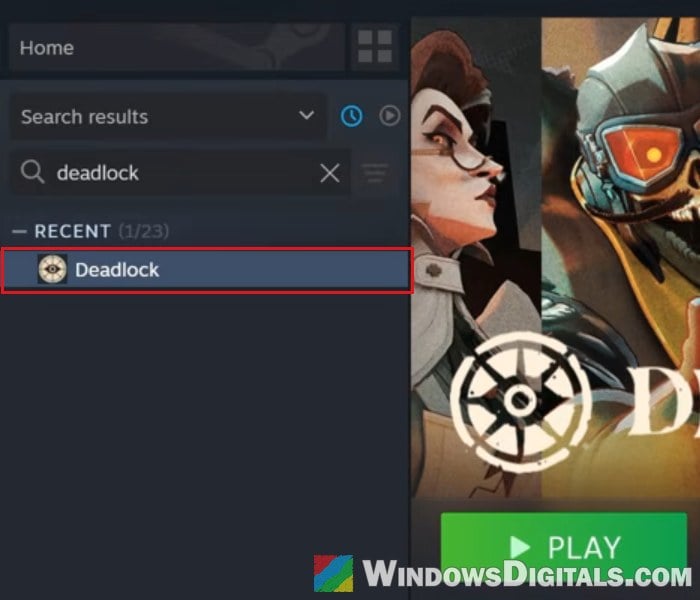
- On the “General” tab, find “Launch Options” and type the following in the box:
+net_option DualWifi_Enable 0
- Close the window and start Deadlock.
If you use the in-game console, typing net_option DualWifi_Enable should now show 0. Play a few matches and see if the spikes are gone. This option only affects Wi-Fi, so it does nothing on a wired connection.
Clear the DNS cache, or switch to another DNS
It’s not obvious why, but flushing the DNS cache has cleared the jitter for several players, and switching DNS servers fixed it for someone else. It takes seconds, so it’s worth a try.
- Search for “Command Prompt” in the Start menu and select “Run as administrator“.
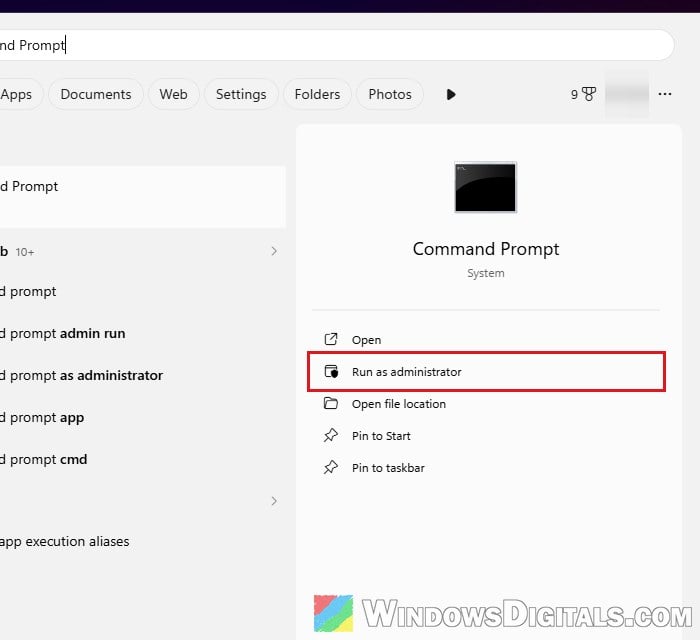
- Type the following command and press Enter:
ipconfig /flushdns
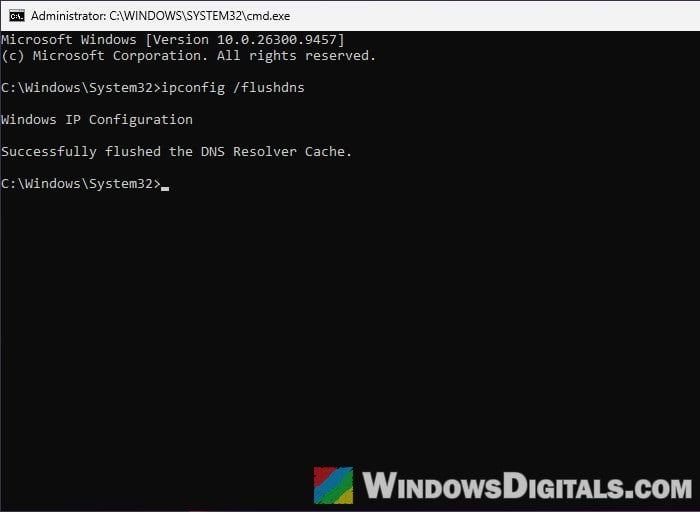
- Restart Deadlock and play a match.
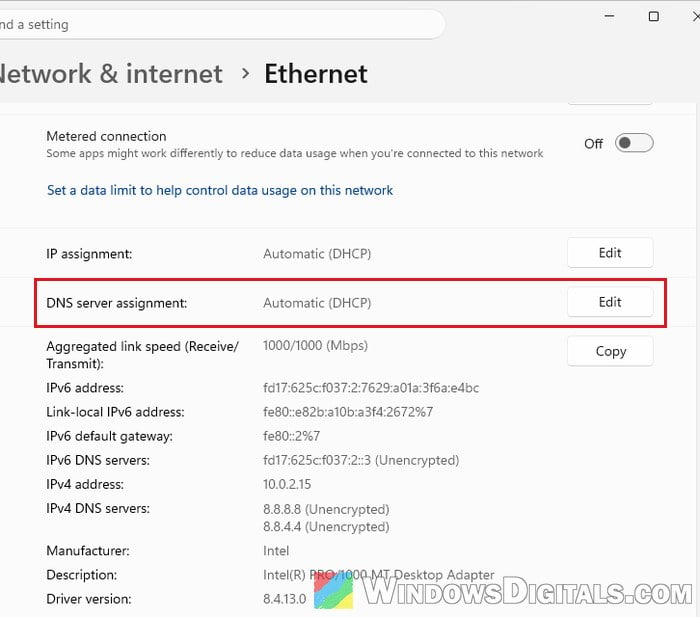
If that doesn’t help, try another DNS service. On a wired connection, open Settings > Network & internet > Ethernet and click “Edit” next to “DNS server assignment“, then switch it to manual and enter the DNS servers you want to use (the guide below lists some). On Wi-Fi, the same setting is in your Wi-Fi network’s properties.
Might be useful: DNS Servers to Unblock Websites and Possibly Everything
Check what’s uploading in the background
Deadlock reacts badly to a busy connection, uploads included. In one case, a capture app kept writing errors to a log file in Documents, and OneDrive uploaded that file nonstop, which was enough to cause constant jitter.
Open “Task Manager” (Ctrl + Shift + Esc), click the “Network” column on the “Processes” tab to sort by it, and see what’s using the connection while you play.
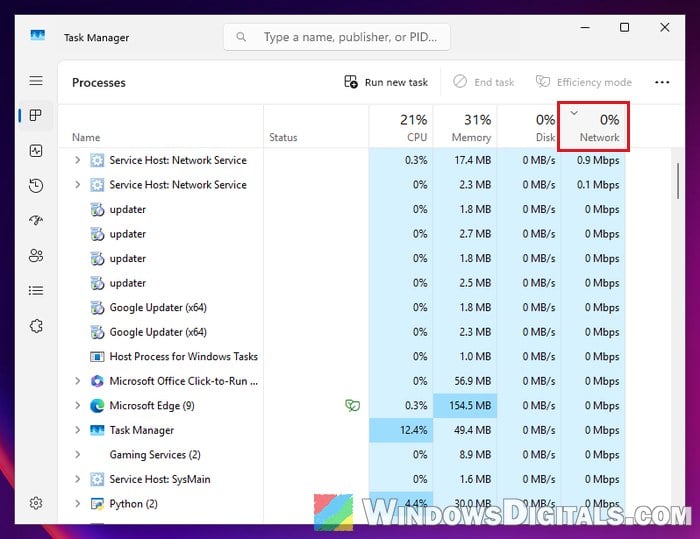
Pause OneDrive, other cloud backups and big downloads (Steam, game launchers, torrents) during matches.
Related problem: Game Lag When Watching YouTube or Twitch on Chrome
Stop your network adapter from saving power
Windows can turn down or switch off your network adapter to save power, and many wired adapters have a power-saving feature called Energy Efficient Ethernet. Both can cause short drops that show up as jitter. Here’s how to turn them off:
- Right-click the Start button and select “Device Manager“.
- Expand “Network adapters“, right-click the adapter you use (Wi-Fi or Ethernet) and select “Properties“.
- On the “Power Management” tab, uncheck “Allow the computer to turn off this device to save power“.
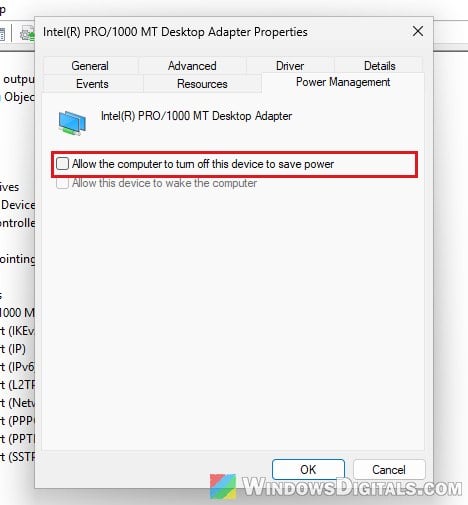
- For a wired adapter, go to the “Advanced” tab, select “Energy Efficient Ethernet” (some adapters call it “Green Ethernet“) and turn it off.
- Click “OK” and restart your PC.
If you don’t see a setting with either name on the “Advanced” tab, your adapter may not have it, so just skip that step.
Other things you can try
- Disable network adapters you don’t use, such as a second Ethernet port, a VPN adapter or a spare Wi-Fi card, in Settings > Network & internet > Advanced network settings. Deadlock’s connection has been known to drop when several adapters are on.
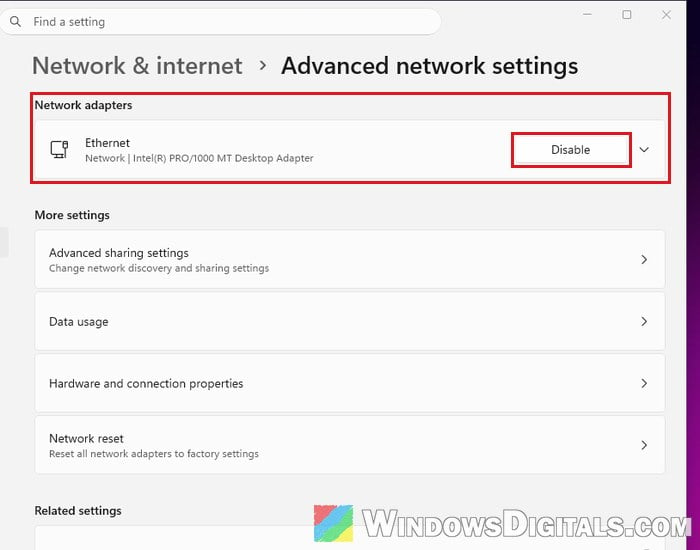
- Restart Deadlock between matches if the jitter only builds up after your first game. It’s only a workaround, but it clears it for a while.
- Report it to Valve on the official Deadlock forums at
https://forums.playdeadlock.com/with your match ID, whether you’re on Wi-Fi or Ethernet, and when the jitter starts.