If you’re trying to sign in to your Windows 11 PC and the PIN box won’t let you type anything, from your keyboard or sometimes even the on-screen keyboard, you can end up locked out even though you know your PIN. This guide will look into why the PIN box stops responding and how to get back into Windows.
Also see: No PIN or Password Box on the Windows 11 Lock Screen
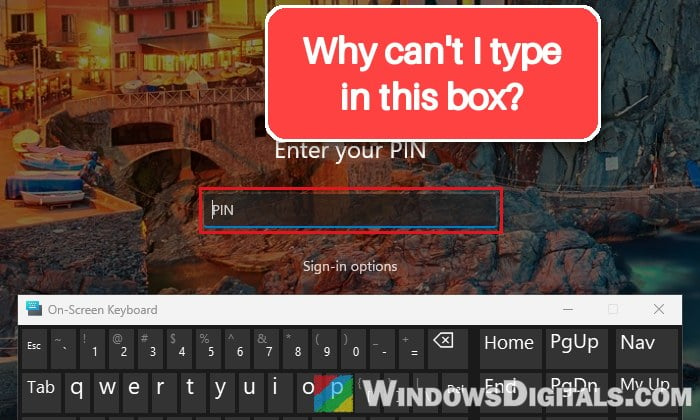
Why won’t the PIN box let you type?
Microsoft hasn’t named one cause for this, and the keyboard itself often works fine once you’re signed in. These are the likely reasons, going by what people have reported:
- A glitch on the sign-in screen, especially on handhelds and touchscreen PCs.
- A game controller or another USB device sending input that pulls the selection away from the PIN box.
- A PIN that’s numbers only, so letter keys do nothing, or Num Lock being off on the number pad.
- Filter Keys being switched on, which makes Windows ignore short key presses.
- A failing keyboard or a keyboard driver problem.
The first few fixes below only take a moment, so start there.
Use the On-Screen Keyboard
The On-Screen Keyboard gets many people past this problem, and it can even bring your physical keyboard back. Here’s how to open it from the sign-in screen:
- Click the Accessibility icon in the bottom-right corner of the sign-in screen.
- Select On-Screen Keyboard.
- Click inside the PIN box first, or the keys won’t type into it.
- Click your PIN on the on-screen keys.
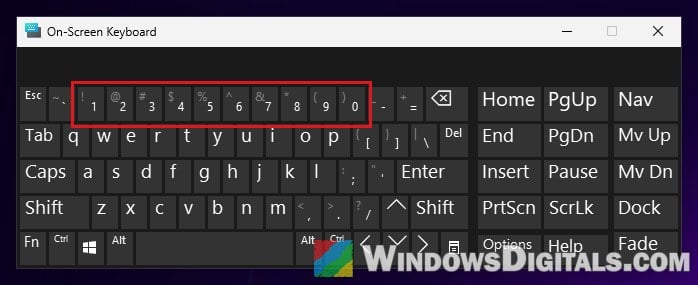
If you’d rather use your real keyboard, turn the On-Screen Keyboard on and then off again from the same menu, and try typing. That alone has restored normal typing for some people. It doesn’t work on every PC, though, so if clicking the keys puts nothing in the box either, move on.
Linked issue: Keyboard or Mouse Not Working After Windows 11/10 Update
Unplug game controllers and other USB devices
If the highlight keeps jumping from the PIN box to the icons in the bottom-right corner, a connected game controller could be the reason. A controller can send input by itself, especially a worn one, and Windows treats that as you moving around the screen.
Unplug any controller, drawing tablet or wireless USB receiver you don’t need, leaving only your keyboard and mouse connected. Then click inside the PIN box and try typing again.
Check Num Lock and whether your PIN has letters
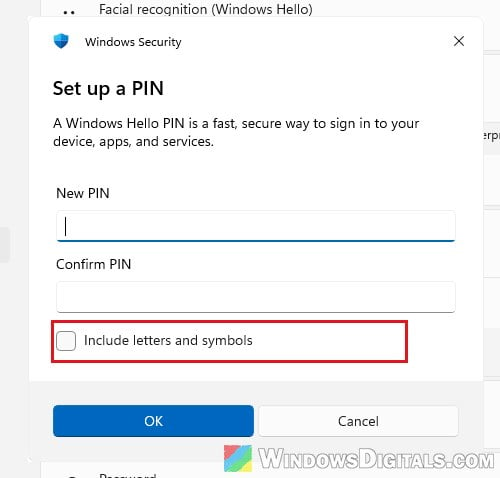
A Windows PIN is numbers only by default, so letter keys won’t put anything in the box unless the PIN was set up with letters. If you only use the number pad on the right side of your keyboard, make sure Num Lock is on, or try the number keys along the top row instead.
If you set up your PIN with “Include letters and symbols” ticked, you’ll need to type those same letters and symbols.
Click “I forgot my PIN”, then go back
This one sounds odd, but it has worked for several people on handhelds like the ROG Ally. Opening the forgot-PIN window and leaving it can get the PIN box working again. Here’s what to do:
- Click or tap the “I forgot my PIN” link under the PIN box. It’s only there for Microsoft accounts, so if you don’t see it, skip this fix.
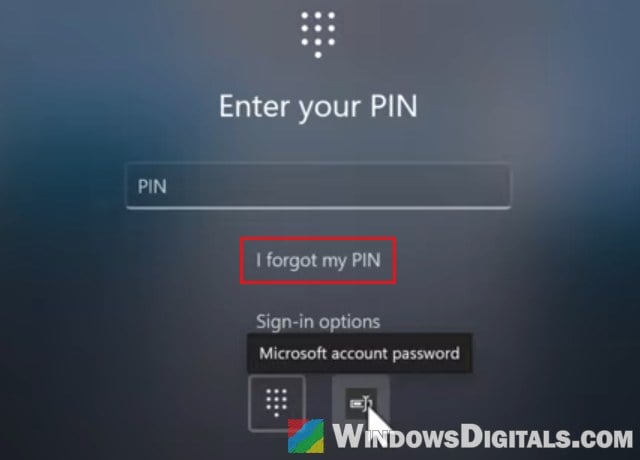
- If a Microsoft account window opens, close it without resetting anything.
- Back on the sign-in screen, click or tap the PIN box and try typing.
Waiting about 10 seconds after the sign-in screen appears before you click the box can also help.
Turn off Filter Keys
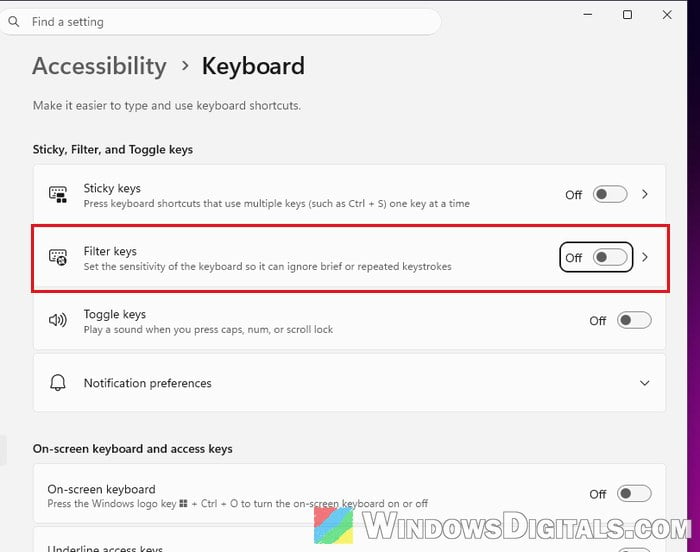
Filter Keys makes Windows ignore brief or repeated key presses, so quick taps might not register if it got switched on by accident. Holding the right Shift key for eight seconds turns it on or off, and you can try this at the sign-in screen, though it may not work there. If your PIN still won’t go in, hold the right Shift key for eight seconds again to put it back the way it was.
Once you’re signed in, you can check that it’s off for your account under Settings > Accessibility > Keyboard > Filter keys.
Force a full restart
If the box only stops working now and then, a full restart can clear it. Hold down your PC’s power button until it turns off, wait a few seconds, then turn it back on and try your PIN again. Anything unsaved in apps you left open will be lost. It won’t help on every PC, but sometimes it’s the only thing that works.
Test your keyboard
To rule out the keyboard itself, restart your PC and press its BIOS key as it starts. If the keys don’t work in the BIOS either, the keyboard is most likely the problem, so try another USB port or a different keyboard if you have one. On a laptop, an external keyboard should get you signed in. If the built-in one really has failed and the laptop is still under warranty, contact the manufacturer.
If you still can’t type anything
Click Sign-in options under the PIN box and see if you can use your account password instead. If that works, you’re in, and you can reset the PIN from Settings as shown in the next section.
If the password box won’t take input either, you can try Safe Mode, but it needs your account password and doesn’t help everyone with this problem. The recovery tools in No PIN or Password Box on the Windows 11 Lock Screen are the next step from there.
Related problem: Windows Hello PIN and Fingerprint Missing from Sign-in Options
Once you’re back in Windows
The problem can come back, so it’s worth doing a few things while you’re signed in. Install any pending Windows updates, and update your keyboard, touchpad and chipset drivers. If it mostly happens after sleep, turning off Fast Startup or updating the BIOS is worth testing too.
Be warned: A BIOS update can brick your motherboard if it goes wrong, so if you’re not sure what you’re doing, skip it or get someone to help you.
You can also set up your PIN from scratch. You’ll need your account password for this, so make sure you know it first.
- Go to Settings > Accounts > Sign-in options.
- Expand PIN (Windows Hello) and click Remove.
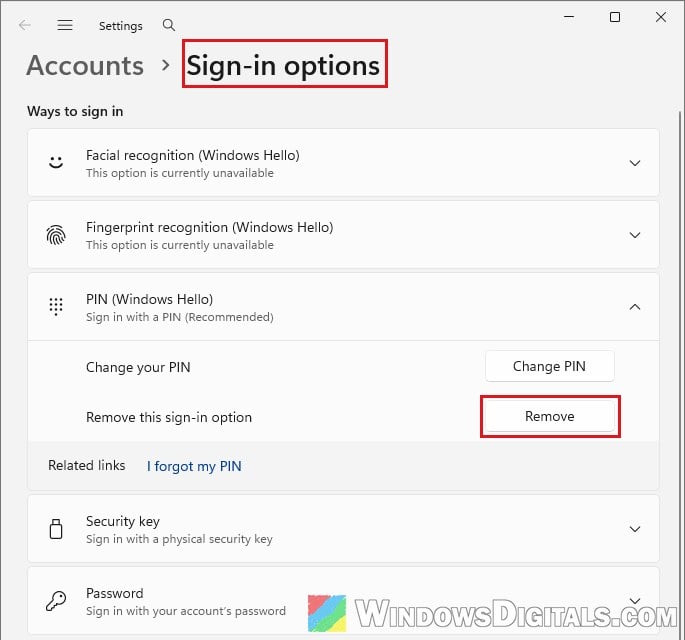
- Click Remove again to confirm, then enter your account password.
- Click Set up in the same section and create a new PIN.
Restart your PC afterward and check that the PIN box takes your typing normally.