Say you clicked the download button on Epic’s website, or tried the new launcher, and now you’re stuck with the Epic Games Launcher Preview instead of the old one you were used to. You can go back, but the uninstaller can also delete your installed games if you leave one box ticked. This guide will show you how to return to the old launcher and keep your games on your PC.
Also see: How to Uninstall Games on Windows 11
How to tell if you’re on the Preview
Epic released the new launcher as a Preview on October 14, 2026. It’s still in development, so Epic itself says you can expect bugs and that some features from the old launcher (which Epic calls the “legacy” launcher) aren’t there yet. If you already had the old launcher, the Preview offers to move your games over and then uninstalls the old launcher, which is why it’s suddenly gone.
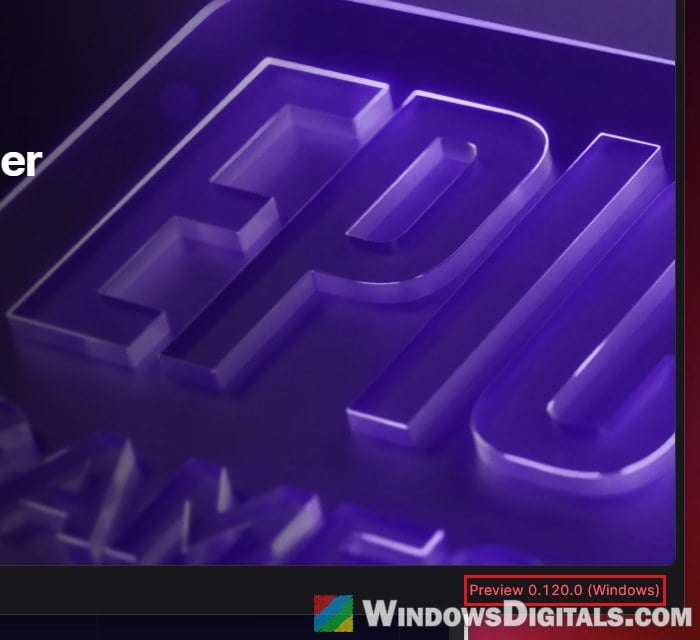
The quickest way to check is the version number. The Preview shows it at the bottom right of the launcher window, as “Preview 0.120.0 (Windows)” at the time of writing.
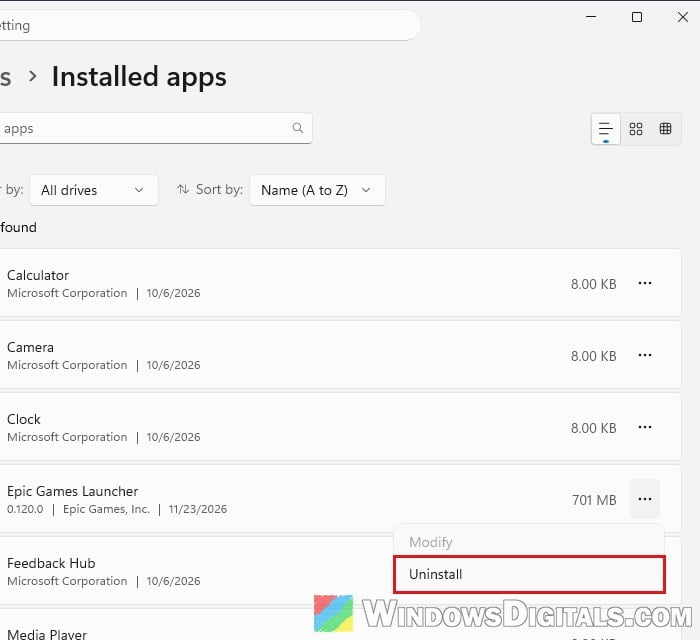
You can also check in Settings > Apps > Installed apps. Both launchers are simply listed as “Epic Games Launcher” there, but the Preview’s version starts with 0 (like 0.120.0), while the old launcher’s starts with 1 (like 1.3.210.0).
Uninstall the Preview without deleting your games
Uninstall the Preview first, before you install the old launcher. It might refuse to start if the Preview is still on your PC, because it can detect a newer version.
This is also the step where people have lost hundreds of gigabytes of games, so go slowly here. Follow the steps below:
- Open the launcher, click the Epic logo at the top left, and select Exit.
- Press Win + I to open Settings, then go to Apps > Installed apps.
- Find Epic Games Launcher, click the three dots next to it, and select Uninstall. Click Uninstall again to confirm.
- When the “Uninstall Epic Games Launcher?” window opens, untick “Delete games and apps“. It’s ticked by default, so make sure the box is empty before you go on. Older versions of the Preview call it “Also delete my installed games and apps”.
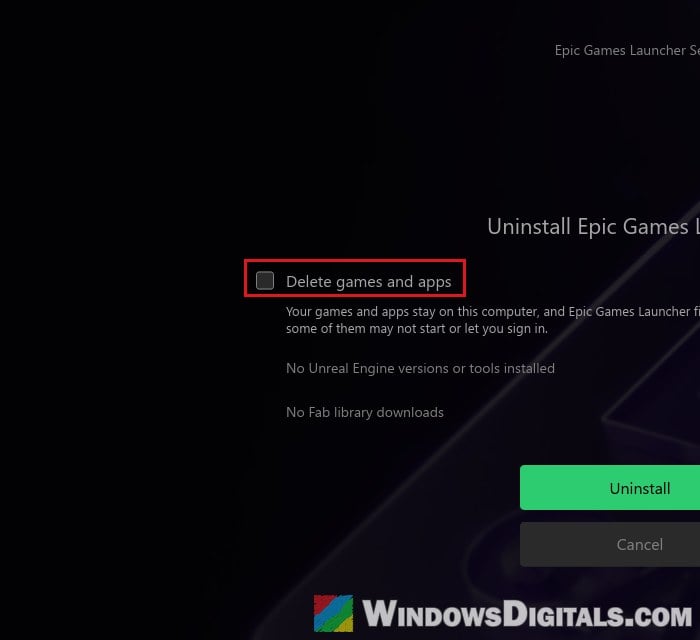
- Click Uninstall.
Your games stay on your PC after this, but some of them may not start or let you sign in until you’ve set them up in the old launcher (covered below).
Be warned: The keep-games option was only added in Preview version 0.100.0, and Epic’s own FAQ still says in one place that uninstalling the Preview removes your games. If you have games installed and you don’t see the checkbox, click Cancel and update the Preview first. If the checkbox still isn’t there, copy your game folders to another location before uninstalling. The Preview’s default game folder is C:\Users\<your name>\Epic Games, but games you installed with the old launcher may still be in C:\Program Files\.
Suggested read: How to Move Origin Games to Another Drive Without Redownloading
Install the old Epic Games Launcher
The regular download button on Epic’s site can give you the Preview again, so use the direct link from Epic’s own help page instead.
- Open Epic’s help page for the legacy launcher in your browser.
- Under step 2 on that page, click Windows (64-bit). The file you get is an installer named like
EpicInstaller-20.3.3.msi.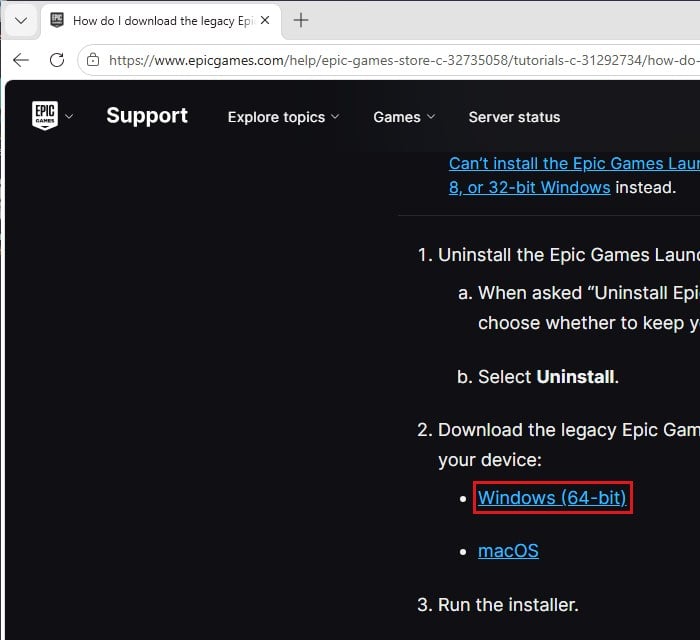
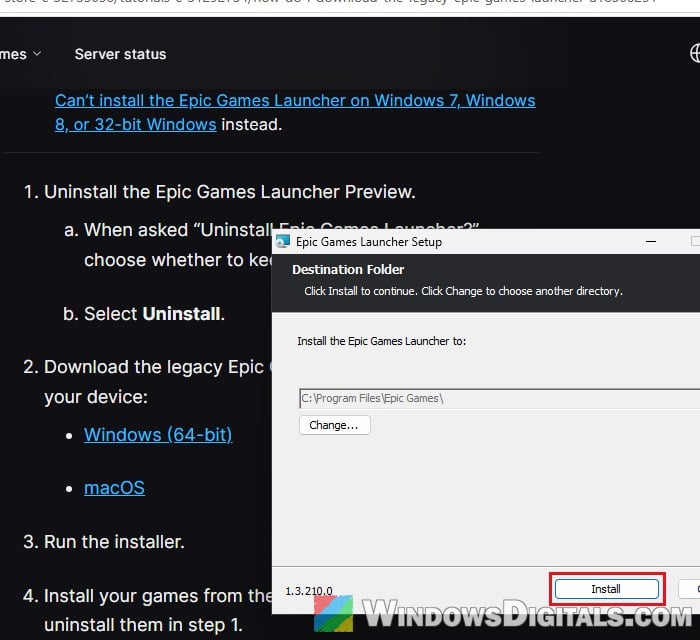
- Run the installer and click Install.
- Let the launcher finish “Installing Updates” the first time it opens, then sign in to your Epic account.
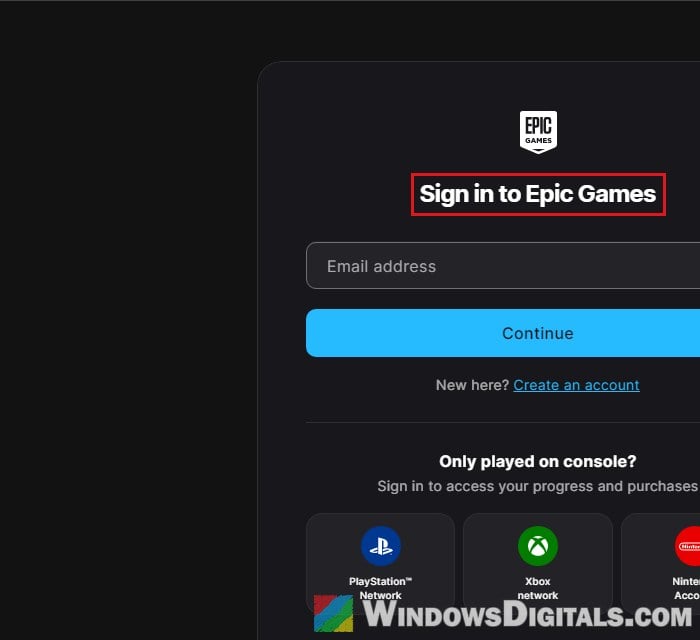
Once you’re signed in, your games will be in the Library tab, ready to install.
Get your kept games back into the old launcher
This is the annoying part. The games you kept are still on your drive, but according to Epic, the old launcher can’t detect games that are already installed. Only the Preview can do that. If a game is small or your internet is fast, the easiest way is to just install it again from the Library tab.
For big games, Epic’s support page lists a workaround that saves you the full download. Epic doesn’t officially support it, and it may not work for every game, so keep a copy of the game folder until the game runs. Here’s how the workaround goes:
- Open the old launcher and go to Library.
- Start downloading the game you already have on your drive.
- After a few seconds, pause the download.
- Right-click the Epic Games icon in the system tray and click Exit.
- In your kept copy of the game, delete the
.egstorefolder if there is one. - Copy the game’s files into the folder the new download started in (by default, somewhere under
C:\Program Files\). - Open the launcher again and launch the game.
You may still get a small download, but the launcher shouldn’t need to fetch the whole game again.
Might be useful: Can You Play Games From an External Hard Drive or SSD?
If you’d rather stay on the Preview
If what’s bothering you is one specific thing, you might not need to go back at all. One of the most common complaints is the Social panel on the right that you can’t hide from inside the app. Several users on Reddit have confirmed that a setting in the launcher’s config file hides it. It isn’t an official option, so a future update could change it.
To hide the panel, follow the steps below:
- Open the launcher, click the Epic logo at the top left, and select Exit. By default, just closing the window leaves it running in the system tray.
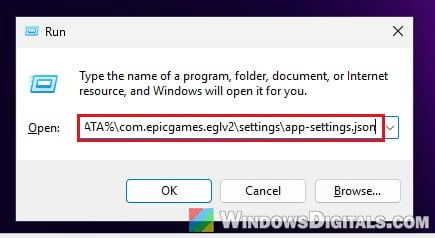
- Press Win + R, paste the following, and press Enter:
notepad %LOCALAPPDATA%\com.epicgames.eglv2\settings\app-settings.json
- Find the line
"hideSocialPanel": false,and change false to true.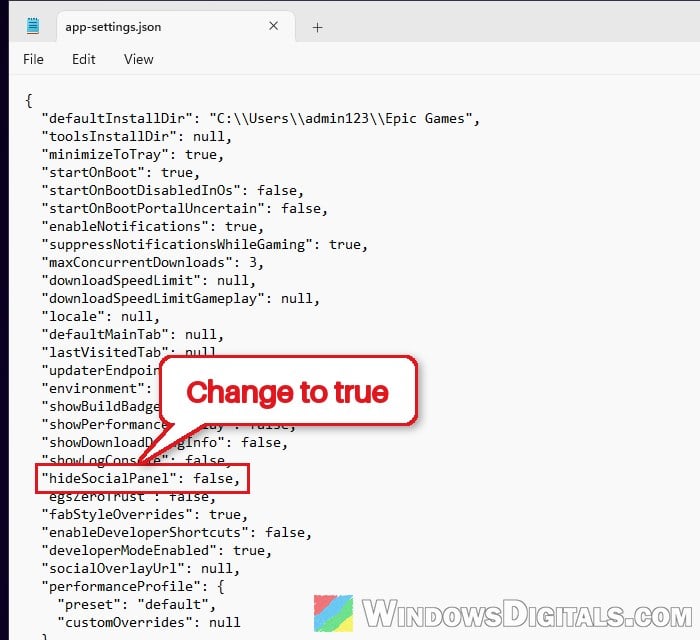
- Press Ctrl + S to save, then open the launcher again.
The Social panel on the right should be gone when the launcher opens.
Two other complaints have a fix inside the Preview. If your games aren’t showing, click the Epic logo at the top left, go to Settings > Library, and click Scan next to Scan for installed games. And since version 0.120.0, you can move an installed game to another folder from the three-dots menu on that game.