Many Sage 50 and Peachtree users have run into a problem since the November 10, 2026 Windows security update (KB5132061) where the program opens just fine, but closes by itself as soon as you open an invoice, a journal entry, a payment or a purchase order. This guide will walk you through Sage’s hotfix, Microsoft’s own fix, and how to remove the update for now if neither works for you yet.
Also see: PC Won’t Boot After KB5132061 (0xc0000001 or Boot Loop)
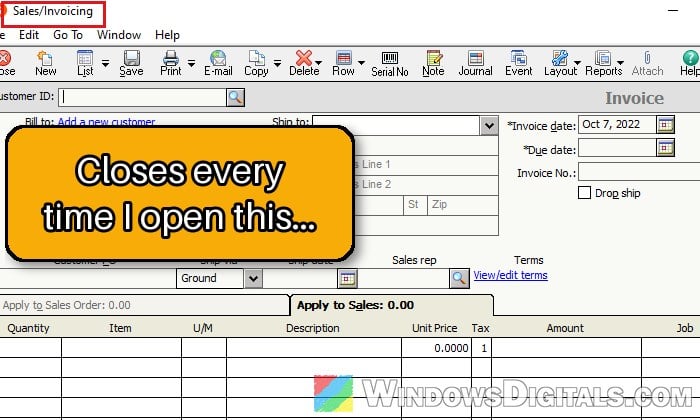
Why does Sage 50 crash after KB5132061?
The crash comes from a clash between Sage 50’s US edition (which is still Peachtree underneath) and the Windows security updates Microsoft released on November 10, 2026. On Windows 11 versions 26H2, 25H2 and 24H2 (Enterprise and Education), that’s KB5132061. Sage also names KB5132059 for Windows 11 version 26H1 and KB5131096 for Windows 10.
What makes it confusing is that Sage 50 itself still starts. The Maintain screens keep working too. It’s the Tasks windows, such as Sales/Invoicing, journal entries, payments, purchase orders and Enter Bills, that make it close the moment you open them.
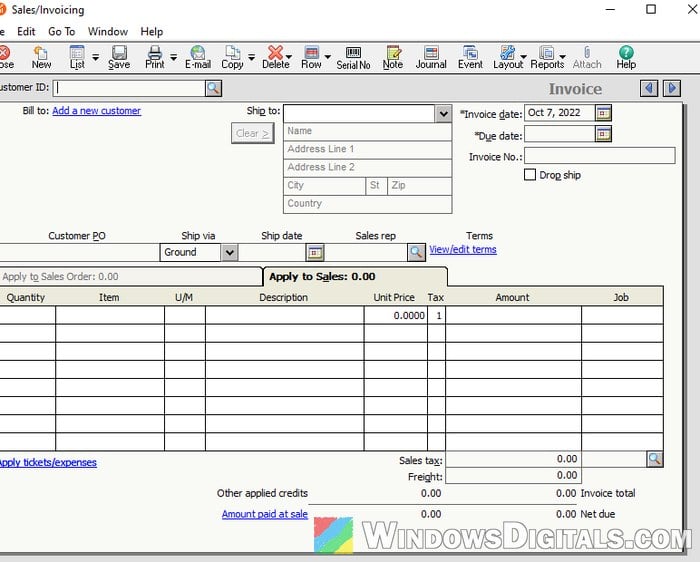
If you look in Event Viewer, the crash is logged as an Application Error for Peachw.exe, with Pchctls.dll as the faulting module. The old Peachtree Accounting 8 shows an access violation in Pchctl32.dll instead, usually when you enter an item on an invoice or purchase order line.
Sage confirmed the problem soon after the update came out, and says Microsoft has acknowledged it too. The good news is that there are now two proper fixes, a hotfix from Sage and a preview update from Microsoft. Removing the update is only the fallback.
Linked issue: KB5132061 Failed to Install With 0x800f0993, 0x800f0989 or 0x80070306
Install Sage’s hotfix (Sage 50 2026.2)
By November 20, 2026, Sage had released a hotfix that stops Sage 50 from closing after the Windows update, so you don’t have to remove the security update. It’s only for Sage 50 US 2026.2, so first check which version you have.
Here’s what you should do:
- Open Sage 50 and go to Help > About Sage 50 Accounting. The build should be 33.2.00.0234.
- If you have an older build, go to Services > Check for Updates > Check Now and install the 2026.2 update first. This needs an active Business Care plan.
- If you use Sage 50 Quantum (or Quantum Accountants Edition), stop the SmartPosting service before going on.
- In 2026.2, go to Services > Check for Updates and click Check Now again. The hotfix installs silently.
- If a SAGEMGR.EXE message pops up, select Yes.
- “There are no updates available at this time” is normal here. Click OK.
- Close Sage 50 completely and reopen it three times in a row, without doing anything else in between. According to Sage, this makes sure the hotfix finishes downloading.
- If you stopped SmartPosting, start it again.
Now open Tasks > Sales/Invoicing and see if it stays open. If you paused Windows updates earlier, you can go to Settings > Windows Update and click Resume updates once Sage works.
If the hotfix doesn’t seem to take
Here’s what Sage suggests:
- Restart your PC, then open Sage 50 again and check.
- Close Sage 50, right-click its shortcut, select Run as administrator, and repeat step 4.
- Close Paya Connect Desktop (right-click its “pcd” icon in the system tray and select Exit) and any add-ons that connect to your company data, like Satago Connector or AutoEntry, then repeat step 4.
Please note that a repair of Sage 50 doesn’t put the hotfix back. If you ever repair or reinstall it, run the hotfix steps again.
Install the optional KB5132057 preview update
If you’re not on Sage 50 2026.2 yet, Microsoft has its own fix. KB5132057 is an optional preview update for Windows 11 versions 26H2 and 25H2, released on November 19, 2026. Its release notes say it fixes an issue that might make Sage 50 Accounting close when you select options in the app.
It has worked for the few people who’ve tried it so far, with KB5132061 still installed. Since it’s a preview, Windows doesn’t install it unless you ask for it, and its fixes normally reach everyone later with a regular monthly update.
Here’s how to get it:
- Press Win + I and select Windows Update.
- Go to Advanced options > Optional updates.
- Under Windows updates, check the preview update with KB5132057 in its name and click Download & install.
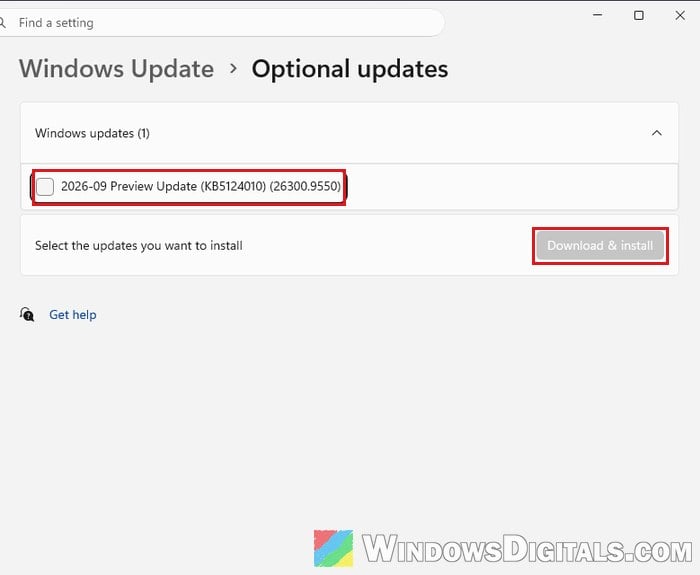
- Restart your PC when it asks you to, then open a Tasks window in Sage 50 again.
The preview may also show up at the top of the Windows Update page itself, with its own Download & install link.
There’s no KB5132057 for 24H2, and nobody has confirmed yet that it fixes Peachtree Accounting 8.
Uninstall KB5132061 for now
Removing the update was Sage’s first workaround, and it has worked for a lot of offices. But it also removes the month’s security fixes, so treat it as temporary. Some IT departments won’t allow it for that reason. If you’re on Windows 11 version 26H1, the update to remove is KB5132059 instead, and on Windows 10 it’s KB5131096.
Follow the steps below:
- Press Win + I and go to Windows Update > Update history.
- Scroll down to Related settings and click Uninstall updates.
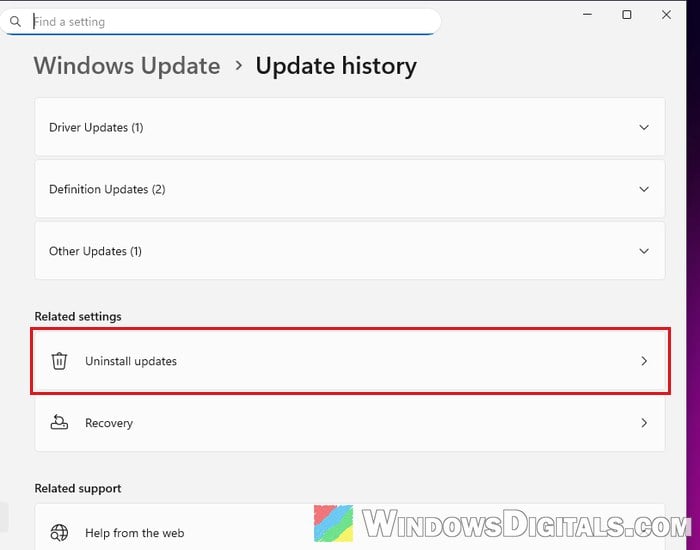
- Find KB5132061 in the list and click Uninstall, then confirm.
- Restart your PC, then try Sage 50 again.
Windows will put the update back by itself before long, so go back to Windows Update right away and pause updates with the button next to Pause updates (Pick a date on 26H2).
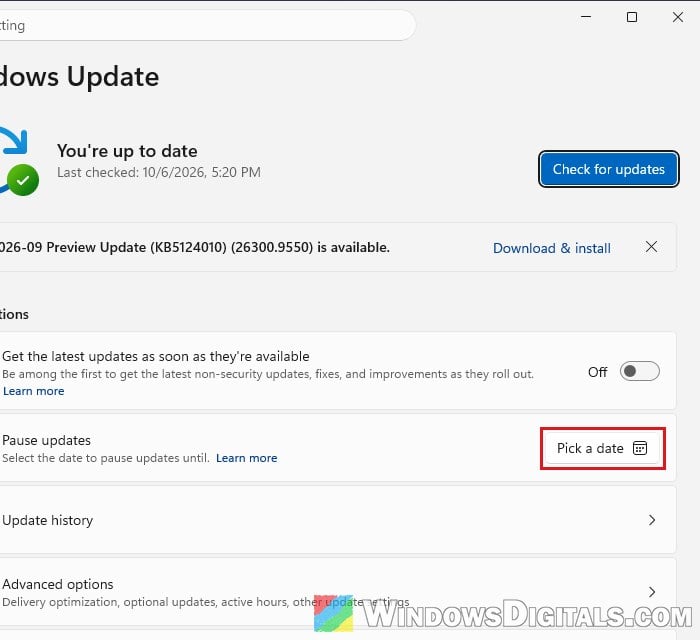
Even a pause doesn’t always hold, so check Update history now and then until you’ve moved to one of the fixes above. Once you have, click Resume updates on the Windows Update page.
Pro tip: Windows Update Service Disabled Keeps Changing Back to Manual
If printing stops working after you remove the update, remove the printer, reinstall its driver, add it back, and restart.
If it won’t uninstall or isn’t in the list
Sometimes the update won’t even uninstall, or doesn’t show up there at all. You can remove it from the recovery screen instead:
- Open the Start menu and click the power button.
- Hold Shift and click Restart.
- Go to Troubleshoot > Advanced options > Uninstall Updates.
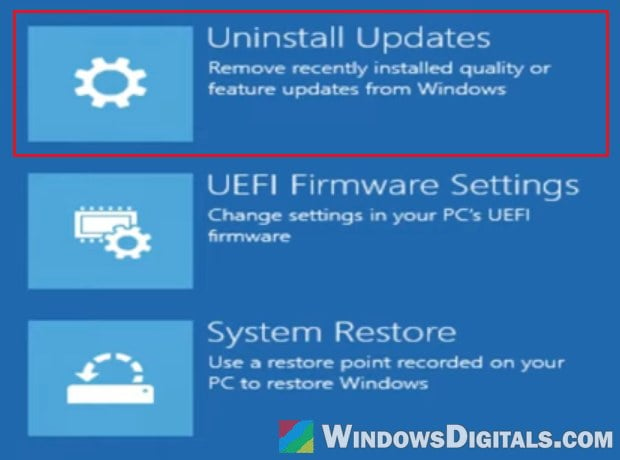
- Pick Uninstall latest quality update and follow the prompts. If BitLocker is on, it may ask for your recovery key.
Once Windows starts again, try Sage 50, then pause updates as shown above so the update doesn’t come back.
Using hosted Sage or an old Peachtree?
If your Sage 50 is hosted (you open it through a remote desktop or a cloud provider), removing the update on your own PC won’t change anything, because Sage runs on the provider’s server. Contact your hosting provider instead, as the fix has to happen on their end.
If you’re still on Peachtree Accounting 8 (or a similar old Peachtree), Sage’s hotfix isn’t an option, and Microsoft’s preview hasn’t been confirmed to fix it. So far, removing KB5132061 is the only thing confirmed to work. Older Sage 50 releases on 26H2 or 25H2 can try the KB5132057 preview first. Since Peachtree Accounting 8 isn’t supported on Windows 11 or 10, moving to a current Sage 50 is the only lasting way out.