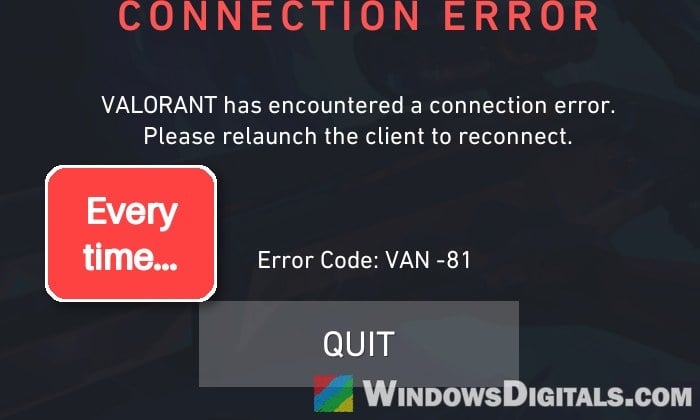
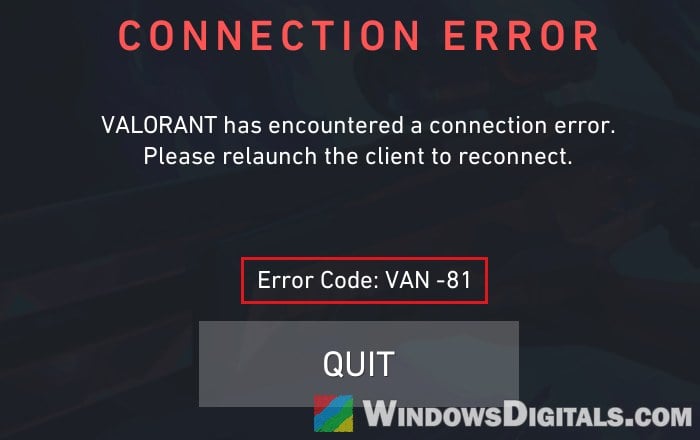
If Valorant freezes at launch and then shows a “Connection Error” with “Error Code: VAN -81“, even though the Riot Client, chat and everything else work fine, the problem is usually Riot Vanguard not starting properly rather than your internet. This guide will help you get Vanguard running again so the game actually opens.
Also see: Valorant VAN -83 Error and Riot Vanguard Won’t Install
What VAN -81 is telling you
The full message reads “VALORANT has encountered a connection error. Please relaunch the client to reconnect.” Riot says VAN -81 usually means Vanguard is having trouble starting, staying connected, or confirming it’s ready while the game launches or runs. VAN -79 has the same meaning and the same fixes, and some players get both codes together.
Vanguard has two parts: a driver called vgk that loads when Windows boots, and a Windows service called vgc, which is what the game checks for. When either one isn’t running, you get VAN -81. League of Legends and 2XKO use the same Vanguard, so the same error can show up there too.
If Vanguard is missing from your PC altogether (no red icon in the system tray and no vgc service), that’s the install problem covered in the VAN -83 guide linked above.
Restart your PC and check the clock
The Vanguard driver only loads while Windows boots, so Riot’s first step is a full restart of the PC, not just the Riot Client.
- Close Valorant, then right-click the Riot Client icon in the system tray and select Exit.
- Restart your computer.
Riot also lists wrong date, time or time zone settings as a cause. While you’re at it, make sure Windows sets them for you:
- Open Settings > Time & language > Date & time.
- Turn on Set time automatically, and Set time zone automatically too if it isn’t grayed out.
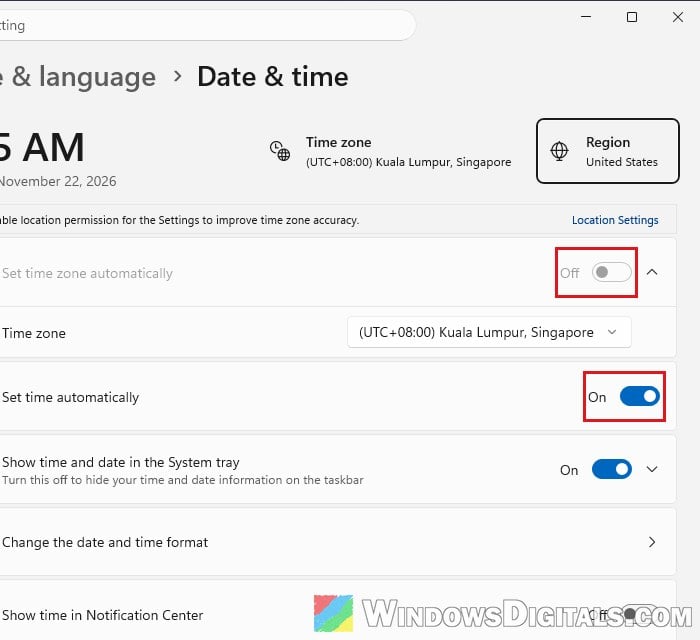
- Click Sync now.
Then launch Valorant again and see if the error is gone.
Might be useful: Sync Time or Change NTP Server in Windows 11 using CMD
Start the vgc service and see what it says
Unless you use Riot’s optional Vanguard Pre-Check (which starts Vanguard only when a game opens, and needs Windows 11 25H2 or newer), the vgc service has to start along with Windows. Starting it by hand also helps, because if it fails, the error it shows tells you where to go next.
- Press Win + R, type “services.msc” and hit Enter.
- Double-click vgc in the list of services.
- Change Startup type to Automatic and, if the service shows Stopped, click Start.
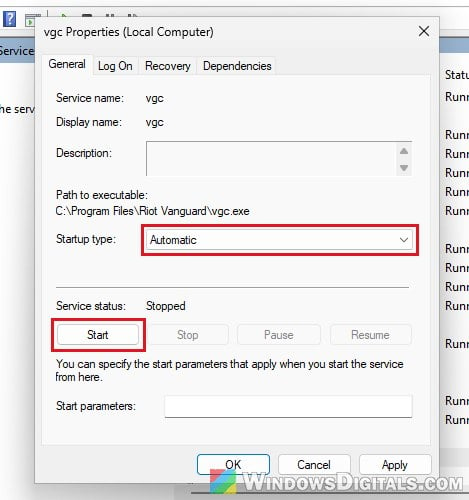
- Click OK and restart the PC.
If vgc starts without complaining, try the game again. If Start throws an error instead, the error points you to the next step:
- Error 2 (“The system cannot find the file specified”): Vanguard’s files are broken or missing. Skip to the reinstall section below.
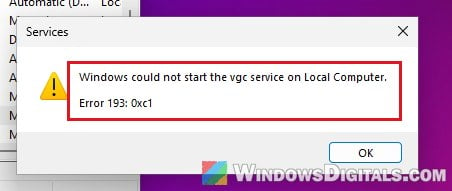
- Error 193: 0xc1: see the next part.
- No vgc in the list at all: Vanguard isn’t installed. Follow the VAN -83 guide instead.
If vgc fails with “Error 193: 0xc1”
Error 193 for a Windows service is usually a path problem, not a broken file. The vgc service points to C:\Program Files\Riot Vanguard\vgc.exe without quotes around it, and that path has spaces in it. If a stray file named Program (with no extension) sits directly in your C: drive, Windows tries to run that file instead of the real vgc.exe, and it fails with Error 193.
To check for it:
- Open File Explorer and go to
C:\. - Look for a file (not a folder) named Program.
- If it’s there, rename it to something like Program.old, or move it into another folder.
- Go back to Services and try starting vgc again.
No such file? Move on to reinstalling Vanguard.
Reinstall Vanguard, then restart twice
Reinstalling Vanguard is Riot’s own fix for VAN -81, but the order you do it in matters. After a reinstall, the Riot Client often says you’re ready to play right away. The Vanguard driver still hasn’t loaded at that point, so pressing Play just brings the error back, or makes the client reinstall Vanguard again in a loop. Several players who were stuck on VAN -81 even after reinstalling everything got past it with a second restart.
- Close Valorant and exit the Riot Client from the system tray.
- Right-click the red Riot Vanguard icon in the system tray, select Exit Vanguard and click Yes.
- Open Task Manager (Ctrl + Shift + Esc) and end any Riot process that’s still running.
- Open File Explorer, go to
C:\Windowsand delete the file vgkbootstatus.dat if it’s there. It stores Vanguard’s last boot state and can get stuck.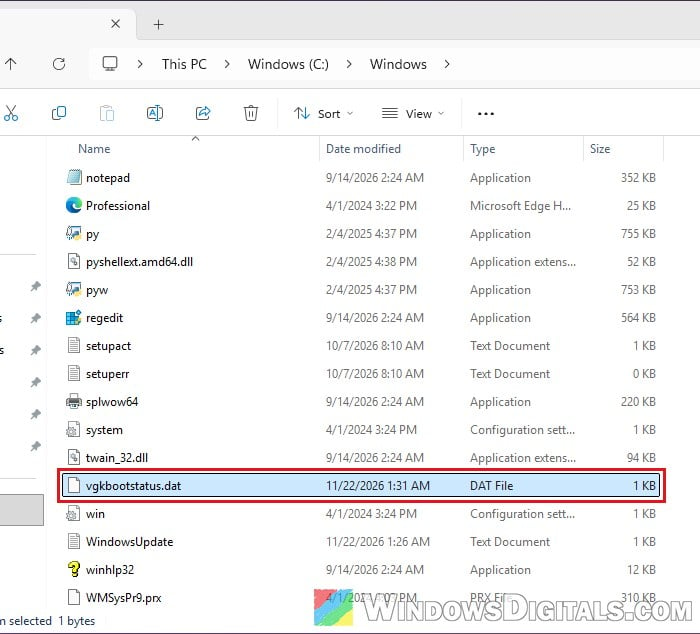
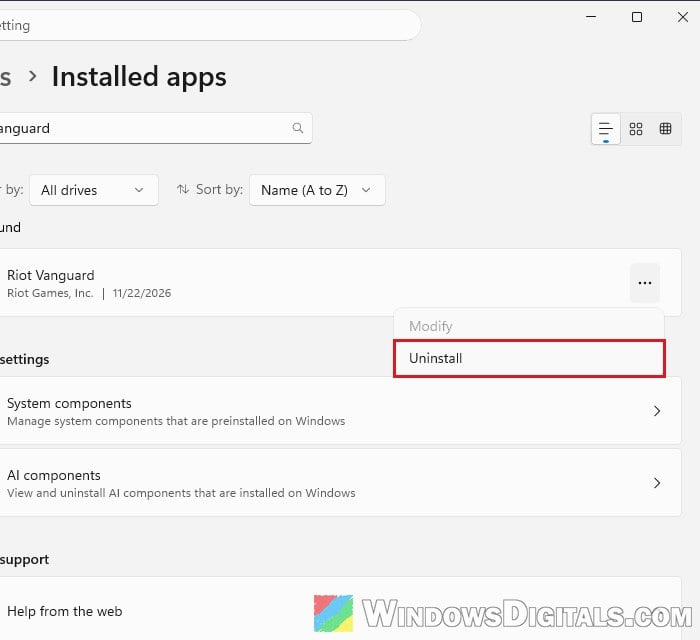
- Open Settings > Apps > Installed apps, find Riot Vanguard, click the three dots and select Uninstall.
- Restart your computer.
- Open the Riot Client and launch Valorant. Vanguard reinstalls by itself.
- When it’s done, don’t press Play yet. Restart your PC again, even if the client doesn’t ask you to.
- Now open the Riot Client and launch the game.
If Vanguard refuses to uninstall, Riot’s manual way is to remove its two services with sc delete vgc and sc delete vgk in an administrator Command Prompt, restart, and delete the leftover Riot Vanguard folder in C:\Program Files. See: Valorant VAN -83 Error and Riot Vanguard Won’t Install.
Related problem: vgk.sys Blue Screen (Riot Vanguard) in Windows 11
Rule out a program that gets in Vanguard’s way
Riot also suggests a clean boot, since a background app or service can stop Vanguard from starting properly. You start Windows with only Microsoft’s services and no startup apps, and see whether Valorant opens then. Open msconfig, go to the Services tab, check Hide all Microsoft services and click Disable all, then disable everything under Startup apps in Task Manager and restart.
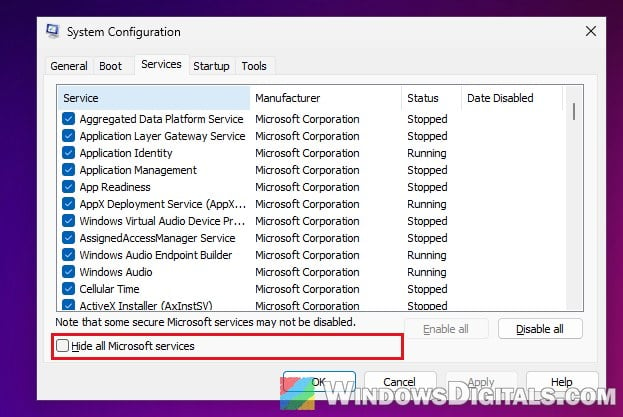
Please note that “Disable all” also unchecks vgc, since it isn’t a Microsoft service. Check it again before you click OK, or Vanguard can’t start at all. The VAN -83 guide has the full clean boot steps. If the game opens after the clean boot, turn your services and startup apps back on a few at a time to find the one causing it, and click Enable all in msconfig once you’re done.
Still VAN -81? Reinstall the game or send Riot your logs
Riot’s last two steps are reinstalling the game and checking your internet connection. If the error survives both, submit a ticket to Riot Player Support with your logs (Riot’s support site shows how to collect them with its Riot Repair Tool). In the ticket, mention what vgc’s Start button showed you, whether it was Error 2, Error 193 or no error at all, since that helps support narrow it down.