If someone on Steam or Discord messages you to say they accidentally reported your account for an illegal purchase or a scam, and that you have to contact a “Steam admin” before your account gets banned, DO NOT add that admin or follow any of their steps. It’s one of the oldest and most common Steam scams, and it’s after your account and anything you can pay for with it. This guide explains how the scam works, how to tell it’s fake, and what to do if you already went along with it.
Also see: “Windows locked due to unusual activity” Scam
What is the “I accidentally reported you” scam?
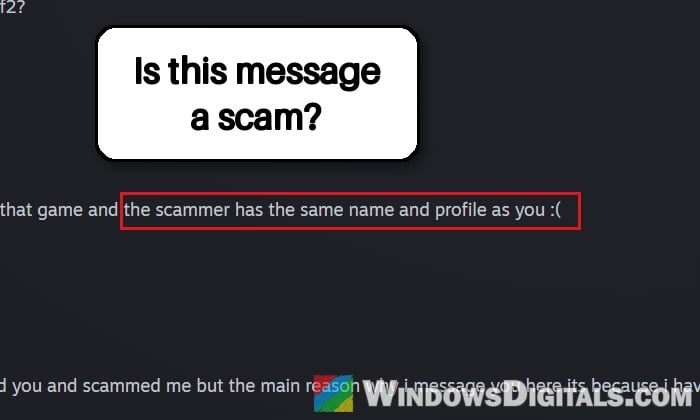
It starts with a message from a stranger, or sometimes from a friend whose account has already been taken. They say someone with a name or profile picture like yours cheated them, so they reported you by mistake for an illegal purchase, a scam or duped items. Now, they say, your account will be suspended unless you sort it out quickly.
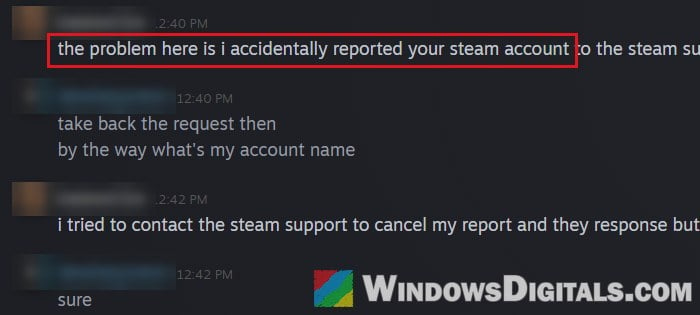
To make it look real, they usually send a screenshot of a “support ticket”, often with a deadline like 12 hours. Then they give you the name of a “Steam admin” or a “Valve official” to add, mostly on Discord, sometimes on Steam itself or by email at an address that isn’t Steam’s. That second person is part of the same scam.
These messages often come through Discord servers you share with the scammer, and a Steam account linked to your Discord profile seems to be one way they pick you out.
Why is it clearly a scam?
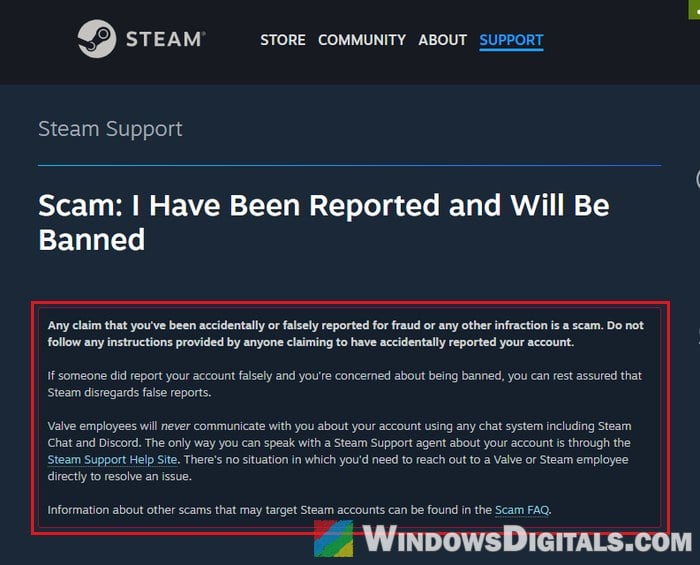
Steam has its own support page about this exact message. According to Steam, any claim that you’ve been accidentally or falsely reported is a scam, and you don’t need to do anything to protect your account from false or mistaken reports, because the Steam team simply disregards them.
A few more things give it away:
- Valve employees never talk to you about your account in Steam Chat, on Discord or in any other chat app. The only way to reach Steam Support is through the Steam Support site, and there’s no situation where you’d need to contact a Valve or Steam employee directly.
- A report doesn’t need your help. Steam disregards false reports, so there’s nothing for you to sort out with anyone.
- The pressure. They rush you, tell you not to tell anyone and threaten that your account will be deleted if you don’t answer within minutes.
- What they ask for, which no real support team would ever need (see below).
Some versions also come with malware that makes Steam itself show a fake “library blocked” alert telling you to chat with an agent. A real Steam alert only points you to help.steampowered.com, and if you see the fake one, treat the PC as infected and follow our guide on what to do when your Steam account is hacked.
Similar scamming tactic: Installed ScreenConnect From a Scam Email? How to Uninstall It
What do the scammers actually want?
Once you add the fake admin, they walk you through a list of “checks” that hand them your account bit by bit. They may ask you to:
- Send a screenshot of your chat and of your purchase history.
- Sign out of Steam on your devices so they can “scan” your account.
- Give them the email address on your account and the code Steam emails you, or your Steam Guard code.
- Remove the Steam Guard mobile authenticator.
- “Verify” that the account is yours by buying something, sending them a Steam Gift Card code or another gift card, paying for a skin, or trading them a “duplicate” item.
With the code and your email, they can change the account’s email and password and lock you out. Then they use your account to run the same scam on your friends. Items that left your account and gift cards bought from it usually aren’t returned.
What should you do if you get this message?
Stop answering, don’t click any of their links or scan any QR code they send, and don’t add the “admin”. You don’t need to fix anything: even if someone did report you, Steam disregards false reports. Then do the following:
- Block both accounts on Steam, the one that messaged you and the fake admin. Open their profile, click “More…“, and select “Block All Communication“.
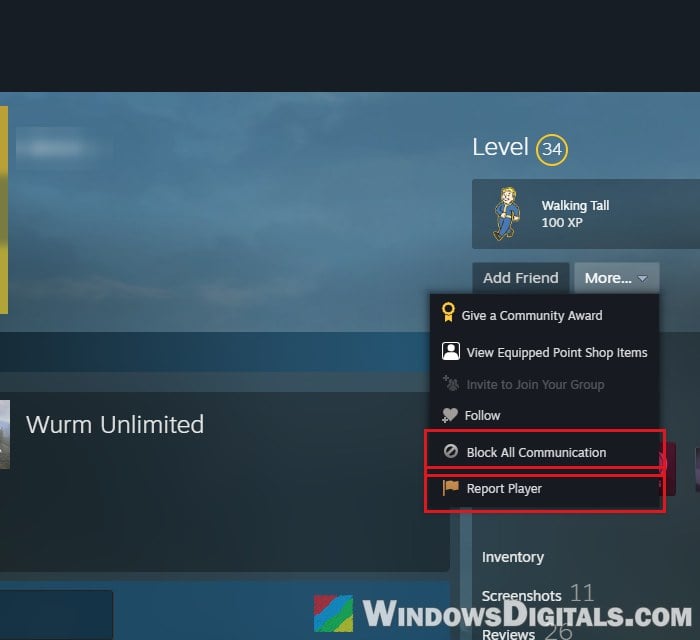
- Report them from the same menu with “Report Player“. If the account belongs to a friend, it’s most likely stolen, and the report helps Steam lock it down until its owner gets it back.
- Block and report them on Discord too, if that’s where it happened, with Discord’s own reporting tools.
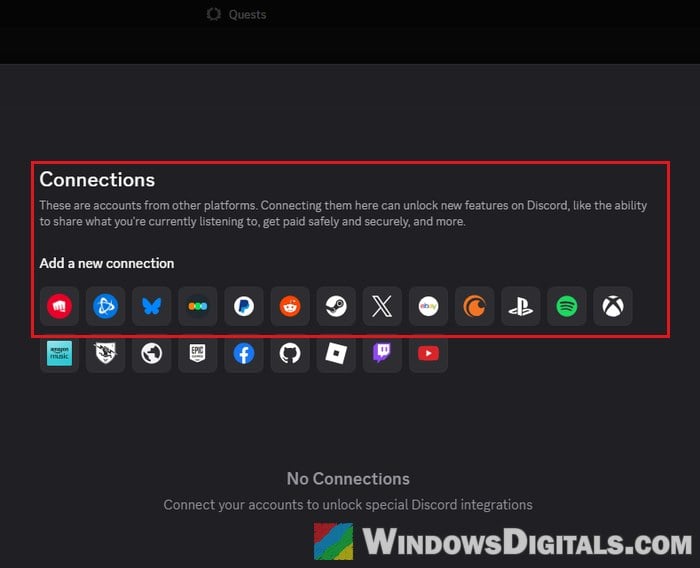
- Remove the Steam link from Discord if you don’t need it there, so you’re harder to pick out from a shared server. It’s in User Settings > Connected Apps > Connections.
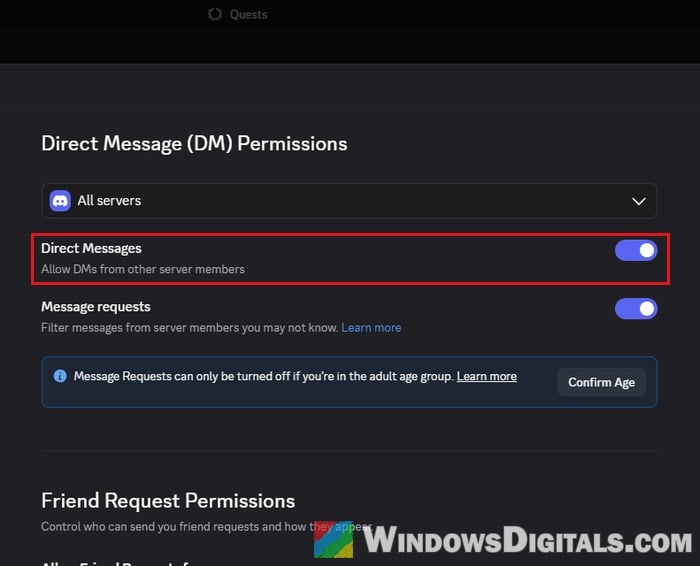
- Stop strangers in shared servers from messaging you. In User Settings > Messaging Permissions > Direct Messages, turn off “Direct Messages” (Allow DMs from other server members). Further down, under “Friend Request Permissions“, you can switch off “Everyone” or “Server members“.
- Check your account yourself, in the Steam app or by typing the address into your browser, never through a link someone sent you. If you can sign in and Steam doesn’t ask you to do anything, there’s no problem.
In Steam, you can also click your account name at the top right, select Account Details, and open Security & Devices on the left. Its Authorized Devices list shows every device where your account is signed in. If you see one you don’t know, or if friends disappeared from your list without you removing them, someone may already be in your account, so follow the next section.
What to do if you already fell for the scam?
Move fast, and do it from Steam itself, not from anything the scammers sent you. If you can still sign in, here’s what you should do:
- If you signed in on a link they sent or ran any file from them, first run a full scan with Windows Security or your antivirus, so a password stealer can’t grab the new passwords.
- Change the password of the email address linked to your Steam account.
- In Steam, open Account Details > Security & Devices, click “Change password“, and set a new one.
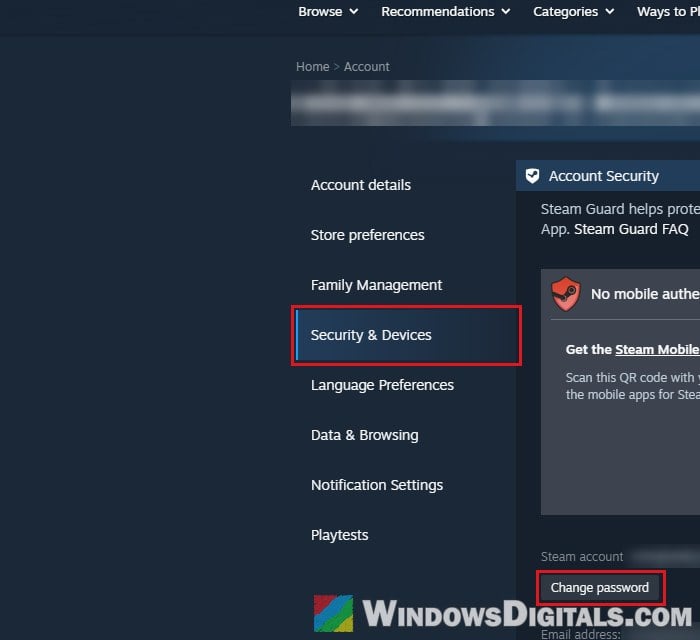
- Further down on the same page, click “Sign out everywhere” to end every session, including theirs.
- Turn Steam Guard back on with the Steam Mobile app’s authenticator if they had you remove it.
- Warn your friends, since your account may have been used to message them.
Might be useful: How to Remove Virus Using CMD in Windows 11 or 10
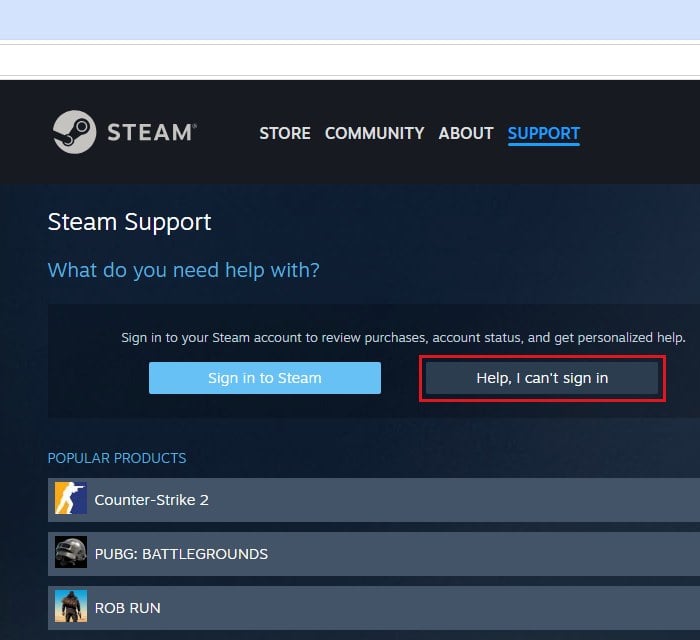
If the scammers already changed your email or password, go to the Steam Support site and choose “Help, I can’t sign in” to recover the account. Have proof that the account is yours ready, such as receipts of your purchases or the card you used.
Don’t pay the scammers anything more, even if they offer to give the account back, and ignore anyone who messages you offering to “recover” it for you. Only Steam Support can do that, and the recovery offers are just another scam.