If your Discord app now opens on the Quests page every time you start it, instead of your friends list or the server you had open last, nothing is wrong with your PC. Discord changed the page its app lands on in mid-November 2026, and there’s no setting to switch it back. This guide will show you a simple shortcut that makes Discord open on Friends again, including when it starts with Windows.
Also see: Discord Stuck on “Starting…” and Won’t Open on Windows 11
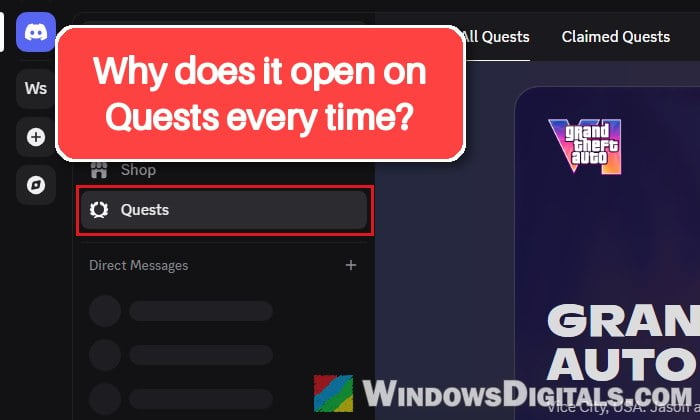
Why does Discord open on the Quests page now?
Quests are Discord’s sponsored tasks, where you watch a video or play a game for a while to earn Orbs or other rewards. Since around 16 November 2026, the desktop app opens straight on the Quests page (with its “All Quests” and “Claimed Quests” tabs and a sponsored banner at the top), no matter where you were when you closed it. Fully quitting Discord and opening it again doesn’t change it, and it happens on Windows, Mac and Linux alike.
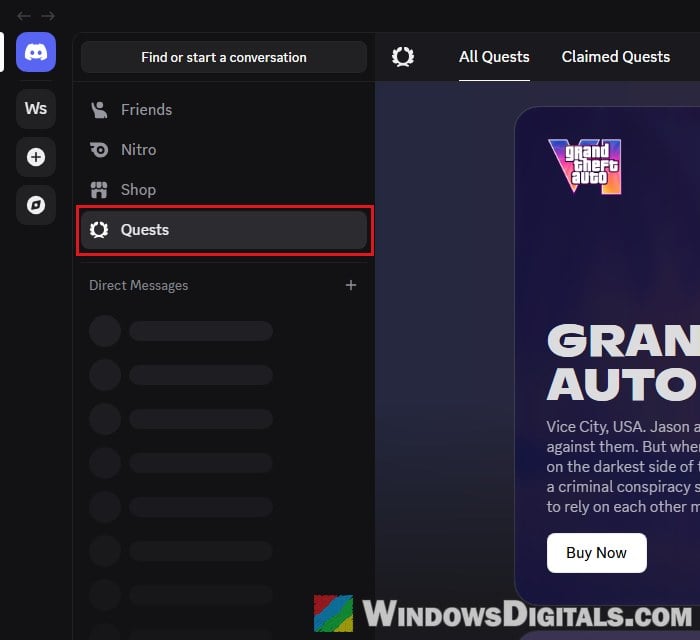
Lots of users on Reddit have complained about it, some saying it even opens to an empty page in regions where Quests aren’t offered. Discord hasn’t said anything public about whether it will stay, and there is no option in Discord’s settings to pick the page it opens on. Searching the settings for “quest” turns up nothing for the start page, only a couple of privacy options, which we’ll get to at the end.
The quick way out is to click “Friends” at the top of the list on the left each time. If you’d rather not do that every time, you can make Discord open on Friends by itself, as shown below.
Make Discord open on Friends with a shortcut of its own
Discord has its own links that start with discord://, and the app opens wherever they point. The link discord://-/channels/@me points to your friends and direct messages page, the same page you get at discord.com/channels/@me in a browser. A shortcut can hand this link to Discord as it starts, and the app then opens on Friends instead of Quests. It works whether Discord is closed or already running in the background.
Please note that you should make a new shortcut for this instead of editing Discord’s own. When Discord installs an update, it resets any shortcut simply called “Discord” (on your desktop, in the Start menu, even a copy you put in the Startup folder), and the link you added is gone. When we tested it, a shortcut with a different name was left alone by the update and kept working.
Here’s how to make one:
- Right-click an empty spot on your desktop, select “New” and then “Shortcut“.
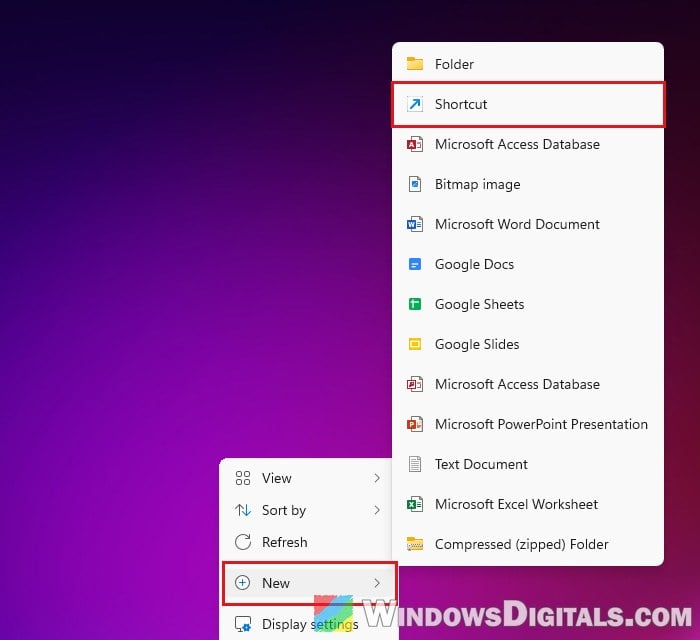
- Copy and paste the following into the “Type the location of the item” box, then click “Next“:
%LocalAppData%\Discord\Discord.exe --processStart Discord.exe --process-start-args discord://-/channels/@me
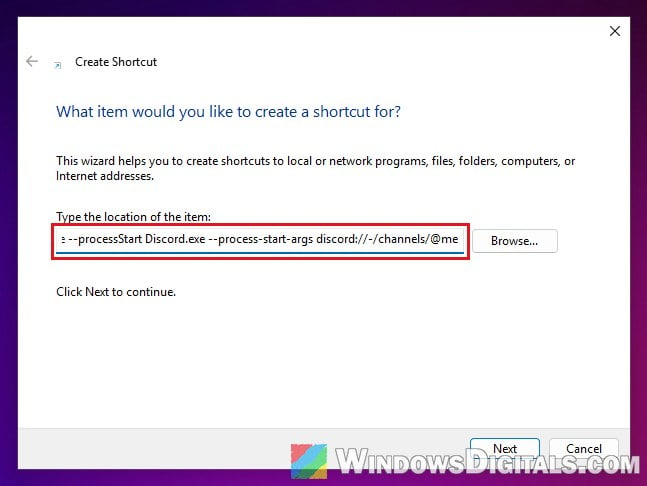
- Name it something other than just “Discord”, for example “Discord Friends“, and click “Finish“.
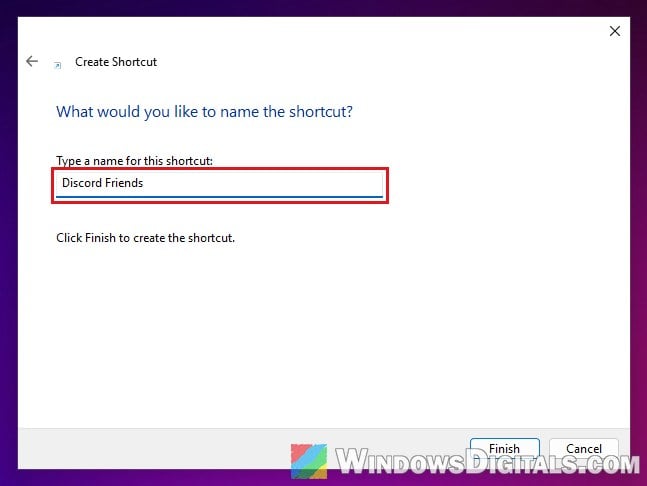
- Double-click the new shortcut to open Discord.
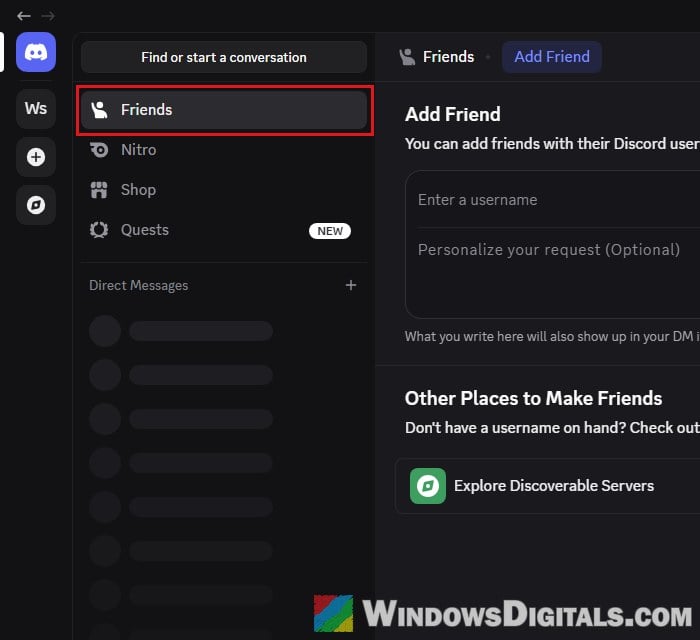
Discord should now open on your friends list. If it was already open on Quests, the shortcut switches it over to Friends within a few seconds. From now on, open Discord with this shortcut instead of the old one.
For older Discord installs, Discord’s own shortcut may point at Update.exe instead of Discord.exe. If yours does, or if step 2 doesn’t work, use this line instead:
%LocalAppData%\Discord\Update.exe --processStart Discord.exe --process-start-args "discord://-/channels/@me"
Pin the new shortcut to the taskbar
If you usually open Discord from the taskbar, the old pinned icon will still open Quests. Pin the new shortcut instead:
- Right-click the “Discord Friends” shortcut on your desktop, select “Show more options” and then “Pin to taskbar“.
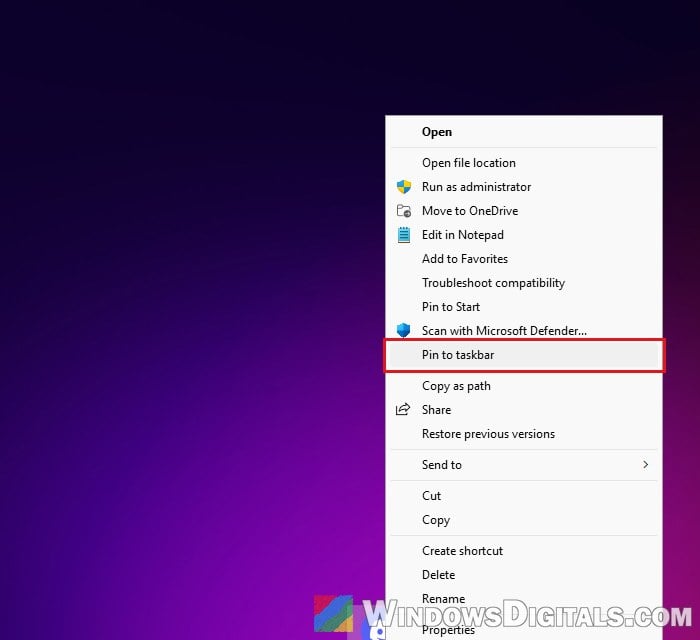
- If you had Discord pinned before, right-click the old icon and select “Unpin from taskbar“.
Clicking the new taskbar icon opens Discord on Friends, and Discord’s updates leave it alone too.
Might be useful: Pin Batch File or CMD (Admin) to Taskbar in Windows 11
If Discord starts with Windows
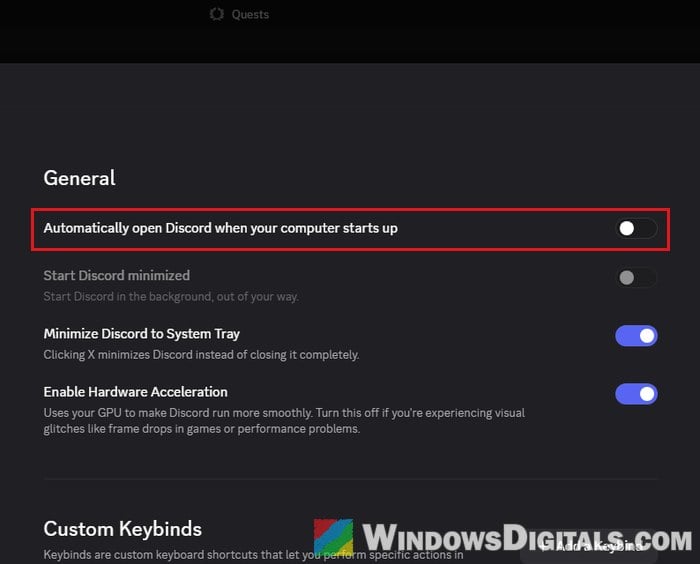
When Discord opens by itself as Windows starts, it doesn’t use your new shortcut, so it can still land on Quests. To get around this, turn off Discord’s own start-up option and let Windows start your shortcut instead.
- In Discord, click the gear icon (“User Settings“) next to your name at the bottom left.
- Go to “System” and turn off “Automatically open Discord when your computer starts up“.
- Press Win + R, type
shell:startupand press Enter to open your Startup folder. - Copy the “Discord Friends” shortcut from your desktop and paste it into this folder. Keep its name, since a shortcut called just “Discord” here gets reset by Discord’s updates as well.
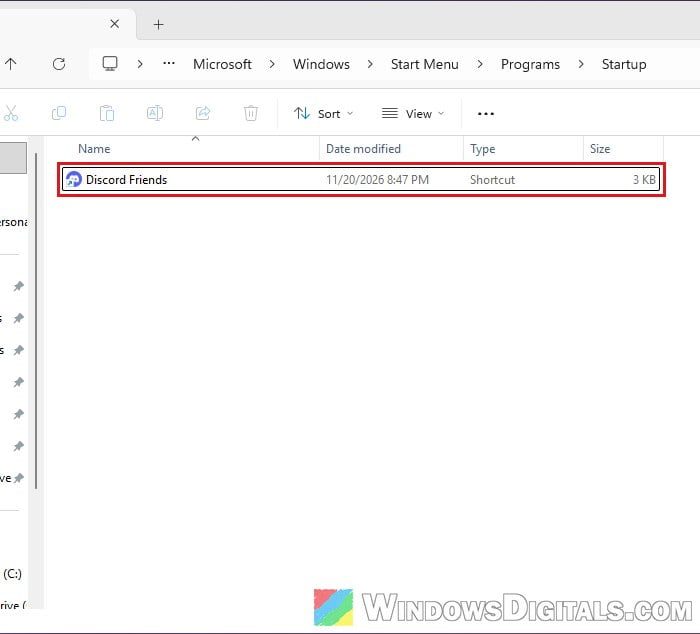
The next time you sign in to Windows, Discord will start through your shortcut and open on Friends.
Related guide: Where is the Startup Folder in Windows 11/10 for All Users
Does turning off Quest personalization help?
It won’t change the page Discord opens on. The options in Discord’s settings that are about Quests are under User Settings > Data & Privacy: “Use my Discord activity to personalize Sponsored Content” and “Use third-party data to personalize Sponsored Content“. Turning them off only stops Discord from picking Quests based on things like the games you play, and Discord itself says you may still see Quests after opting out.
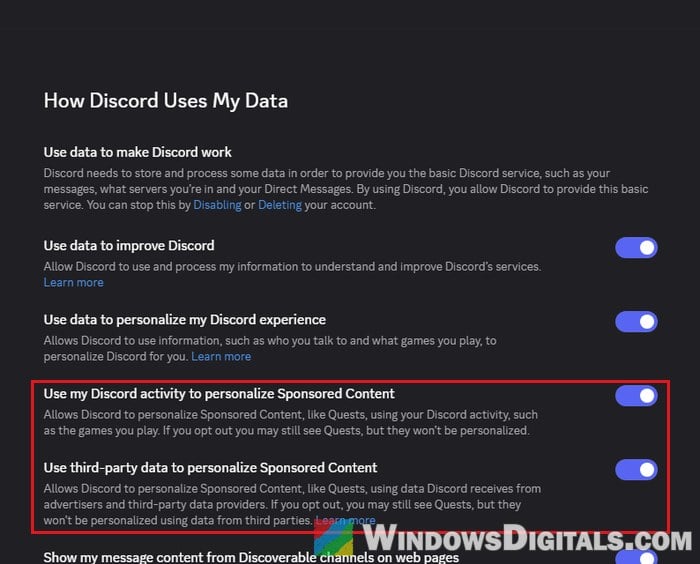
You can still turn them off if you don’t want your activity used for ads. If you’d like Discord to change the start page back, sending them feedback is the only other thing you can do for now.