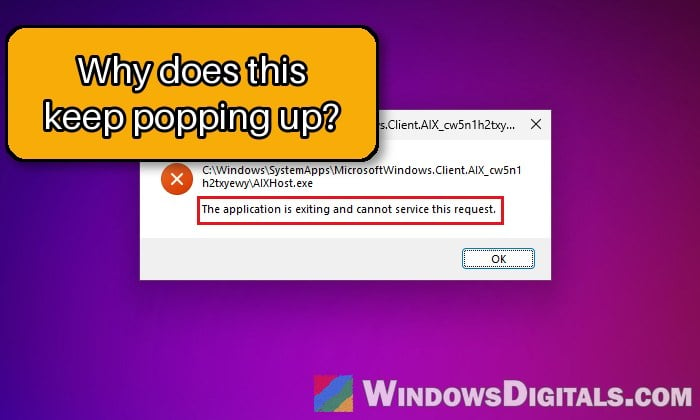
When you’re using your Windows 11 PC (often a fairly new laptop), you might see an error box pop up over and over with the path C:\Windows\SystemApps\MicrosoftWindows.Client.AIX_cw5n1h2txyewy\AIXHost.exe and the message “The application is exiting and cannot service this request.” It’s a Windows file, not a virus, and it’s part of Windows’ AI features such as Recall. This guide will explain what AIXHost.exe is and what you can do to stop the pop-up.
Also see: “Application Error” Won’t Go Away on Windows 11
What is AIXHost.exe and why does it keep crashing?
AIXHost.exe sits in the C:\Windows\SystemApps folder as part of a built-in Windows package called MicrosoftWindows.Client.AIX. This package is tied to the on-device AI features in Windows 11, and the crashes people report are linked to Recall, the feature that saves snapshots of your screen so you can search them later.
When AIXHost.exe crashes, Windows shows the error box with the file’s path as its title. The same problem can also come with slightly different messages, such as:
- “Windows cannot find ‘MicrosoftWindows.Client.AIX_cw5n1h2txyewy\AIXHost.exe’“
- “The parameter is incorrect.“
Microsoft hasn’t published a cause or a fix for this error so far. Reports go back to early 2025 and still come in now, and many of them are from people with brand-new laptops, including HP OmniBook models, on Windows 11 24H2 and 25H2.
Please don’t delete AIXHost.exe or its folder, and don’t download a “replacement” file from a random website. It’s a protected part of Windows.
Why removing the AIX package with PowerShell doesn’t work
You may come across a PowerShell command that removes the package with Remove-AppxPackage. It fails with error 0x80073CFA and a message saying that the app is part of Windows and can’t be uninstalled for a single user. So there’s no point trying it.
Install the latest Windows updates
Since AIXHost.exe ships with Windows, a newer Windows update could fix the crash, and it’s the easiest thing to try. Here’s what to do:
- Open Settings and go to Windows Update.
- Click Check for updates and install everything it finds.
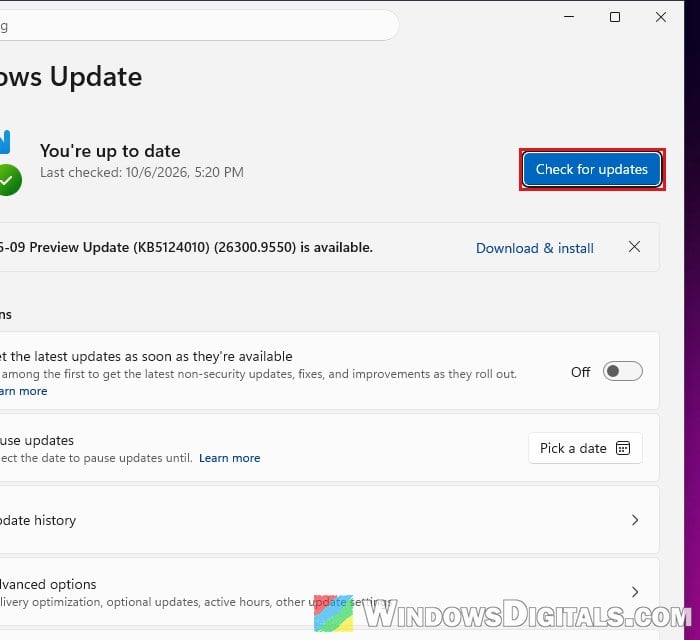
- Restart your PC, even if Windows doesn’t ask you to.
After the restart, use your PC normally for a while and see if the AIXHost.exe pop-up still comes back.
Might be useful: How to Check if a KB Update is Installed in Windows 11
Turn off Recall in Windows features
This is the fix that comes up most on Microsoft’s forums for this exact pop-up. Recall is an optional Windows feature, and switching it off in “Turn Windows features on or off” removes it from your PC. Since the crashes are linked to Recall, removing it can stop the pop-up. Microsoft itself says Recall can be removed this way.
To turn off Recall, follow the steps below:
- Click the Start button, type “control“, and open Control Panel.
- Set View by at the top right to Large icons.
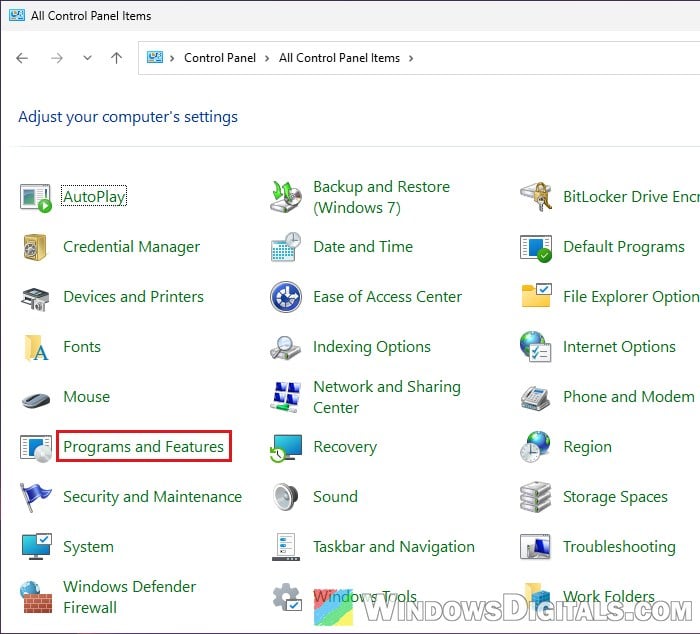
- Click Programs and Features.
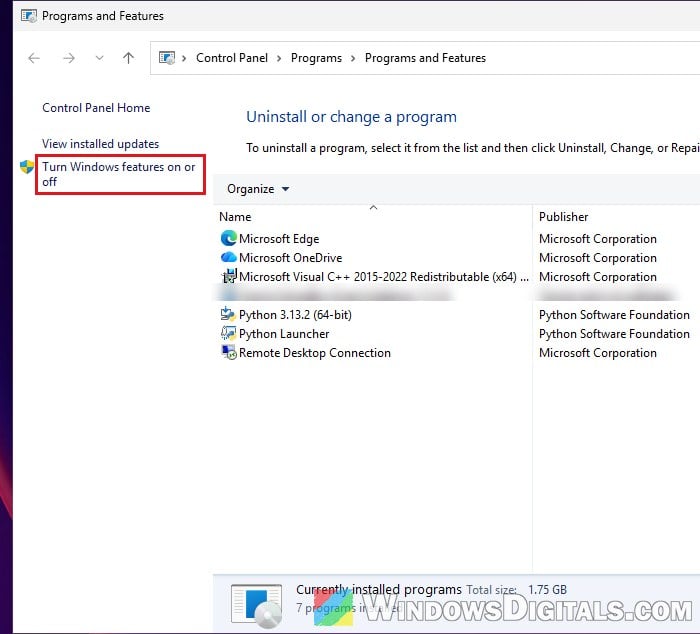
- On the left, click Turn Windows features on or off.
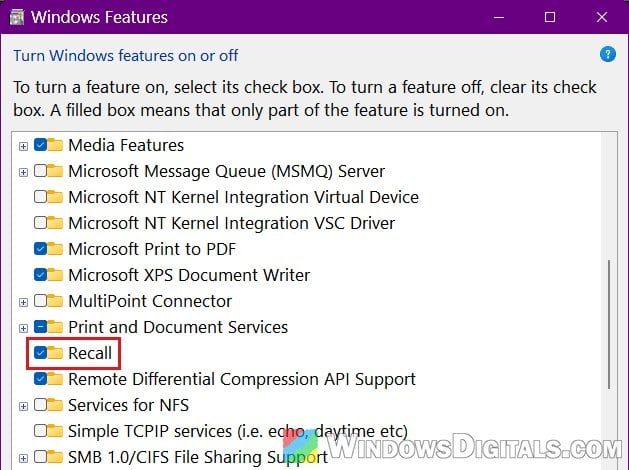
- Scroll down the list and uncheck Recall, then click OK. If Recall isn’t in the list at all, your PC doesn’t have it (it’s only on Copilot+ PCs), so skip to the next fix.
- When Windows has applied the change, restart your PC (use Restart, not Shut down).
If the pop-up doesn’t come back after the restart, you’ve found the culprit.
Linked issue: Turn Windows Features On or Off: “Please wait…”
What if you actually use Recall?
If you use Recall, keep in mind that removing it may also remove the snapshots it has saved, so you could lose your Recall history. You can bring the feature back later by ticking Recall again in the same window and restarting, in case a future update fixes the crashes.
If you prefer commands, you can do the same thing from PowerShell or Terminal opened as administrator. To remove Recall:
Disable-WindowsOptionalFeature -Online -FeatureName "Recall" -Remove
And to turn it back on later:
Enable-WindowsOptionalFeature -Online -FeatureName "Recall"
Restart your PC after the first command to finish removing Recall.
Repair system files with DISM and SFC
If the pop-up keeps coming back even after the fixes above, some of the files the AIX package depends on could be damaged. DISM repairs the Windows image itself, and SFC then checks and replaces broken system files from it. Neither touches your personal files. Here’s how to run them:
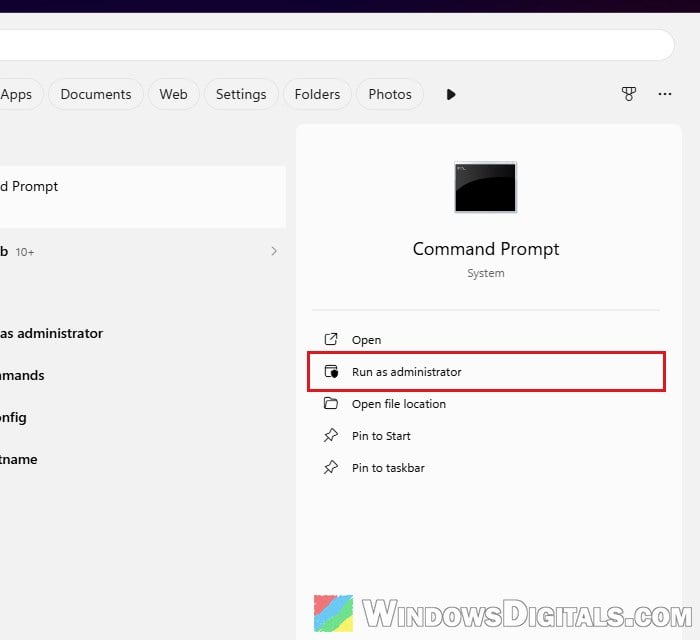
- Click Start, type “cmd“, and select Run as administrator on the right.
- Run the following command first, and wait for it to finish:
DISM /Online /Cleanup-Image /RestoreHealth
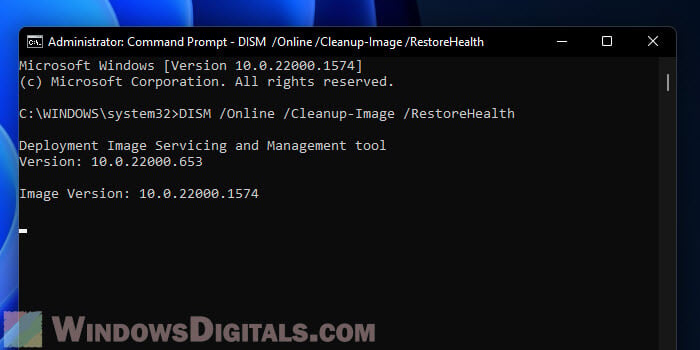
- Then run the following command, and don’t close the window until it reaches 100%:
sfc /scannow
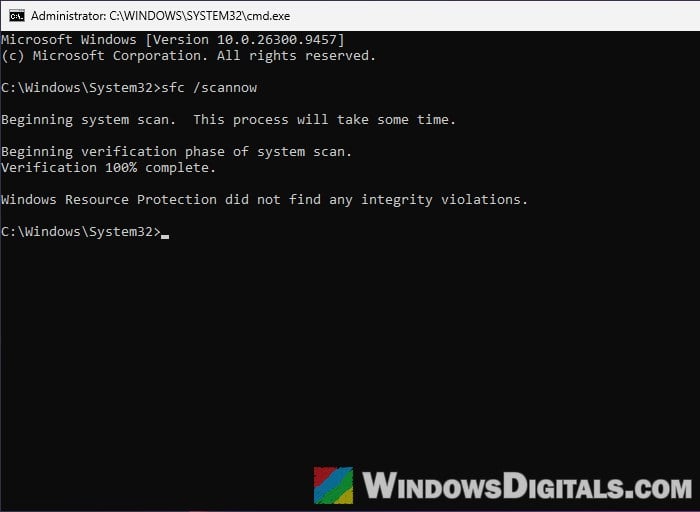
- Restart your PC when both are done.
Related guide: Can I cancel “SFC /scannow” while it’s running?
Check if it happens on another user account
Sometimes an error like this is tied to your own user profile rather than to Windows as a whole. A quick way to find out is to create a temporary local account with admin rights, sign in to it and use it for a while. If you need help with that, see: Create local admin account without password in Windows 11/10.
If the AIXHost.exe pop-up never shows up there, the problem is in your old profile. If the pop-up shows up there too, it’s a system-wide problem and the next fix is the one to try.
Reinstall Windows with “Reinstall now” as a last resort
When nothing else works, you can reinstall your current version of Windows on top of itself. This repair install replaces all the Windows system files, including the AIX package, while keeping your personal files and apps. It’s still a good idea to back up your important files first.
- Open Settings > System > Recovery.
- Under “Fix problems using Windows Update“, click Reinstall now.
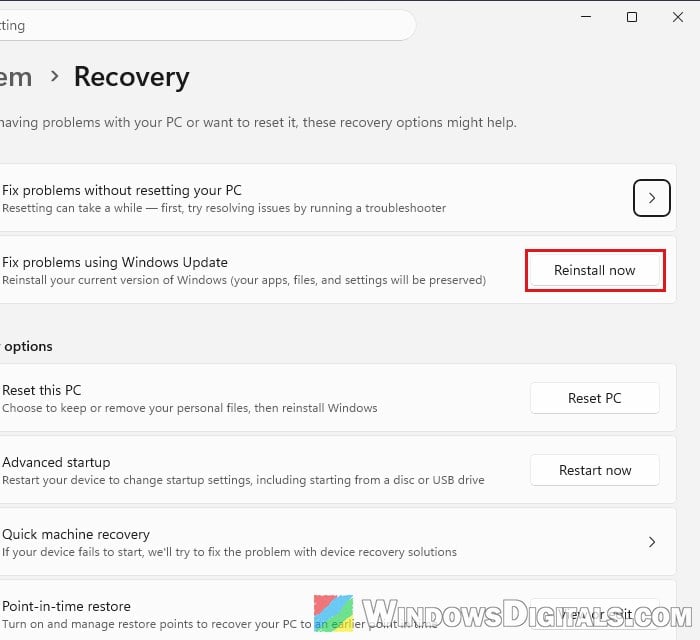
- Follow the prompts, and let your PC restart when it’s done.
If you don’t see the Reinstall now button, you can do the same repair by mounting the Windows 11 ISO, running setup.exe and choosing to keep your personal files and apps. For what happens during the reinstall, see: “Reinstall your current version of Windows” Message.
Be aware that a repair install doesn’t help everyone with this error. If the pop-up survives it, there’s no official fix yet, so keep Recall off if your PC has it and install Windows updates as they come out.