Many video editors who rely on a Logitech MX mouse have run into a problem where, after Premiere Pro updated to the 2027 version (27.0), the custom buttons and thumb wheel actions stop doing anything inside Premiere, while the very same Logi Options+ setup still works fine in Premiere Pro 2026. This guide will explain why this happens and what you can do until Logitech catches up.
Also see: Why Isn’t Logitech Options+ Flow Working on Windows 11?
Why did your Logitech mouse stop working in Premiere Pro 2027?
Adobe released Premiere 27.0, which most people call Premiere Pro 2027, on November 10, 2026. The Premiere-specific actions on your mouse come from Logitech’s Premiere Pro plugin, which Premiere has to load as a “control surface”.
The problem is that Logitech hasn’t released its plugin and profile for Premiere Pro 2027 yet. Logitech has confirmed the 2027 profile is being worked on and should arrive within a few weeks, but hasn’t given a date. Until then, Premiere 2027 simply doesn’t see the Logi plugin, so:
- Custom buttons and keybinds you set for Premiere do nothing in 2027.
- The thumb wheel may no longer change values like Scale in Effect Controls.
- Haptic feedback in Premiere can stop too, on mice that have it, such as the MX Master 4.
- LogiPlugin is missing from the Control Surface list in Premiere 2027’s preferences, even after updating Logi Options+.
On top of that, Logi Options+ treats Premiere Pro 2026 and 2027 as two different apps, so the custom shortcuts you made for 2026 don’t carry over to 2027 on their own.
The same thing happened with Premiere Pro 2026 earlier this year, when the Logi plugin went missing from the Control Surface list too.
Related problem: What is LogiOverlay.exe and How to Fix Its Errors
Keep using Premiere Pro 2026 for now
Since the buttons still work in Premiere Pro 2026 with the same Logi Options+ profile, the most reliable workaround right now is to edit in 2026 until Logitech’s 2027 update is out.
By default, Creative Cloud removes the older version when it installs a new major release, so unless you turned that off, you’ll need to install 2026 again from the Creative Cloud desktop app:
- Open the Creative Cloud desktop app, and select Your apps under the Apps tab.
- Find Premiere (Premiere Pro’s tile is now just called Premiere), and click the More actions (three dots) icon on it.
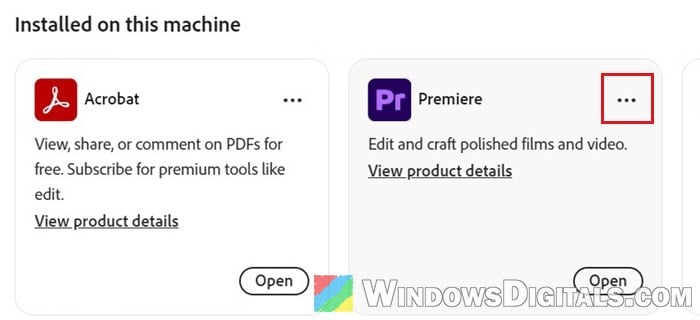
- Select Other versions.
- Pick the 2026 version from the list and install it.
Please note that a project you’ve already saved in Premiere Pro 2027 can’t be opened in 2026. The only way back is to export the sequence as an XML file from 2027 and import that into 2026. So for an ongoing project, keep working on it in 2026 and don’t open it in 2027 for now.
For future updates, you can keep the old version when Creative Cloud installs a new one by turning off “Remove older versions” in the update’s advanced options.
Suggested read: What is “Adobe IPC Broker” and How to Fix its Errors
Make sure LogiPlugin is added as a control surface
The Logi plugin only works after it’s added as a control surface in Premiere’s preferences. Logitech says you only need to do this once, but it’s the first thing to check whenever the buttons stop working, in 2026 now and in 2027 once Logitech’s update is out.
Here’s how to do it in Premiere Pro on Windows:
- In Premiere Pro, go to Edit > Preferences > Control Surface.
- Click Add.
- Select LogiPlugin from the list and click OK.
If LogiPlugin doesn’t show up in Premiere Pro 2026 either, reinstall the Premiere plugin from its Logi Marketplace page (see the next section). Logitech also notes that its Adobe plugins only work with apps installed through Creative Cloud, and that the Adobe app should be installed before the plugin. In Premiere Pro 2027, expect it to be missing from the list until Logitech’s update arrives.
Might be useful: Premiere Pro: “Screen Resolution Below Minimum 1024×768”
Update Logi Options+ and the Premiere plugin when Logitech’s 2027 fix arrives
The real fix is Logitech’s updated Premiere plugin. Once it’s out, update both Logi Options+ and the plugin, and then check the Control Surface list in Premiere Pro 2027 again.
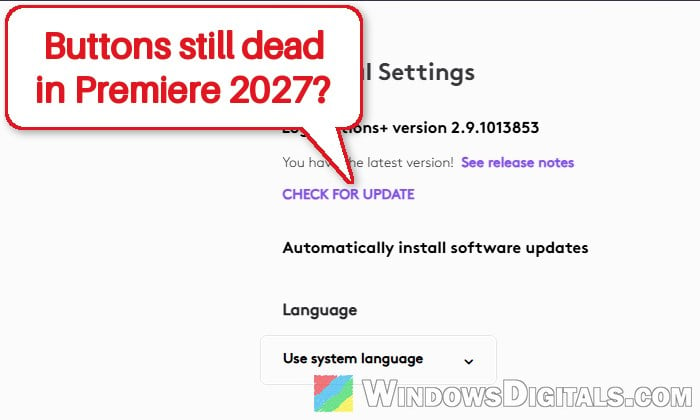
- Open Logi Options+, click the gear icon at the top right, and click CHECK FOR UPDATE under General Settings.
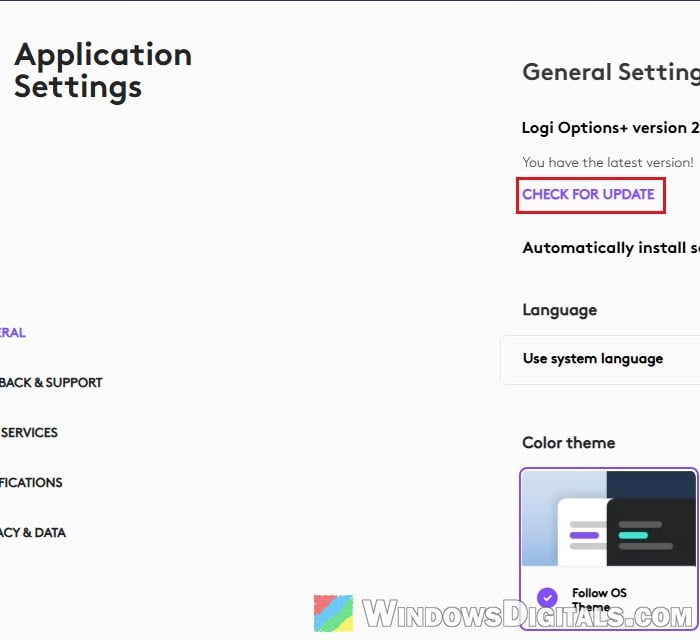
- If it won’t update, download the newest installer from Logitech’s official page at
https://www.logitech.com/en-us/software/logi-options-plusand run it.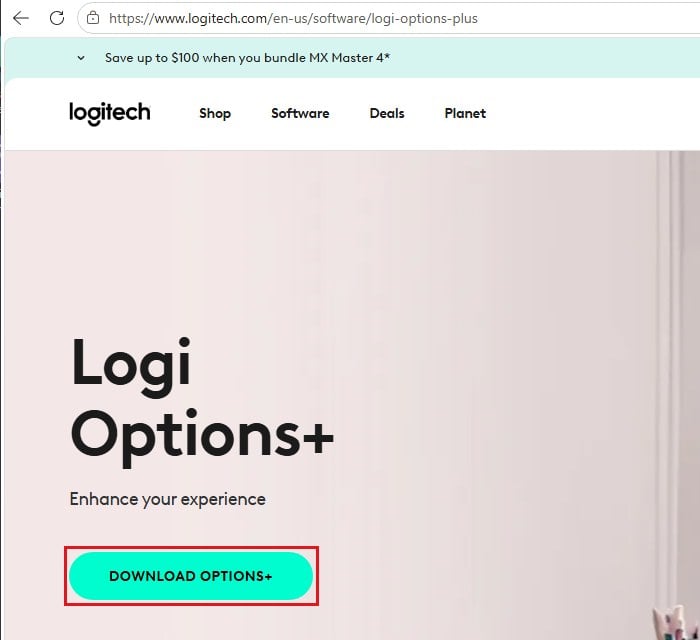
- Update the Premiere plugin to its latest version in Logi Marketplace. Its page is at
https://marketplace.logi.com/plugin/PremierePro/en, where you can click INSTALL to get the newest version.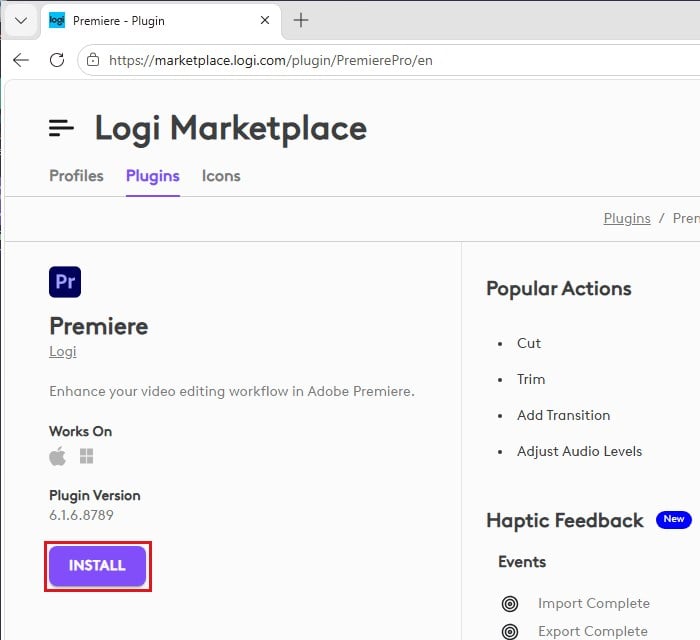
- Restart Premiere Pro 2027 and add LogiPlugin as a control surface, as described in the section above.
When the Premiere Pro 2026 version had the same problem, a plugin update from Logi Marketplace was what fixed it, so check the plugin’s page every now and then over the next few weeks.
Set up your buttons again for Premiere Pro 2027
Because Logi Options+ sees Premiere Pro 2027 as a separate app, you’ll likely need to assign your custom buttons and keybinds again for the 2027 version. There’s currently no option to copy a profile from one app to another.
Also be aware that the list of Premiere actions in Logi Options+ may look a little different for 2027. For example, the “Pan (hold and move mouse)” action may be missing from the 2027 action list. If one of your usual actions is missing, set the closest one for now and check again after the next plugin update.