When you try to join a game in Roblox on your PC, you might see the loading screen stop at “Joining server” and never go any further, while the same account plays fine on your phone or tablet. It’s most likely a problem on Roblox’s side, not your computer, so the usual reinstall rarely helps. This guide will explain what’s going on and which workarounds can get you into your games until Roblox fixes it.
Also see: How to Check Game Ping with Task Manager in Windows 11/10
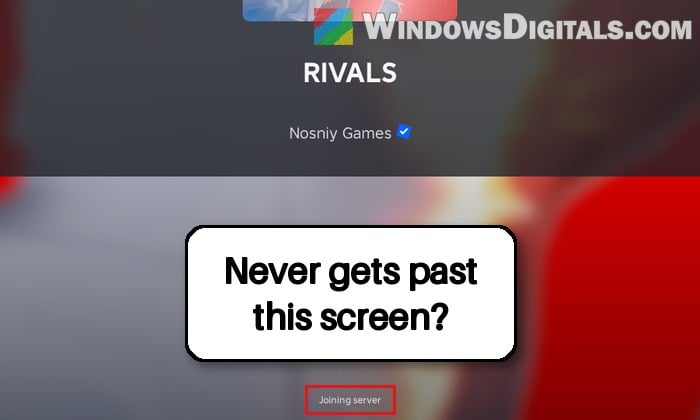
Why does Roblox get stuck on “Joining server”?
Roblox hasn’t said what causes it yet, but it’s most likely on Roblox’s end, since it comes and goes in waves, the usual PC fixes don’t help, and the same account works on a phone. A lot of players ran into it in early October 2026, it went away after about a week or so, and then it came back around November 10. Roblox has said a ticket was filed for it and asked affected players for their log files, but there’s no announced fix yet.
Here’s how it usually looks:
- Joining any game is a coin flip. Sometimes you get in after a few tries, sometimes it sits on “Joining server” forever.
- Games that move you to another server (a lobby that sends you into a match, a portal, a new area) get stuck again during the move, or leave you on a black screen.
- Your friends can sometimes see your avatar in the server while you’re still looking at the loading screen.
- It happens mostly on PCs and Macs. Phones and tablets on the same Wi-Fi usually work, although some Android users have it too.
- It doesn’t matter which Roblox you use. The Roblox Player from the website and the Microsoft Store version both do it, with or without Bloxstrap.
Many players on Reddit and Roblox’s developer forum have tried everything on their end: reinstalling Roblox, deleting its folder in %localappdata%, clearing temporary files, flushing DNS, firewall exceptions, new drivers, a different Windows user, and even a full factory reset, usually to no avail. Several of them use AT&T, but others are on different providers, so it isn’t only one internet provider either.
So instead of wiping your PC, try the workarounds below. None of them works every time, but each has gotten players back into their games.
Close the loading screen and join again right away
The quickest trick is to cancel the stuck join and immediately try again. For some reason, a quick second try sometimes gets through. Here’s what to do:
- Start the game as you normally would.
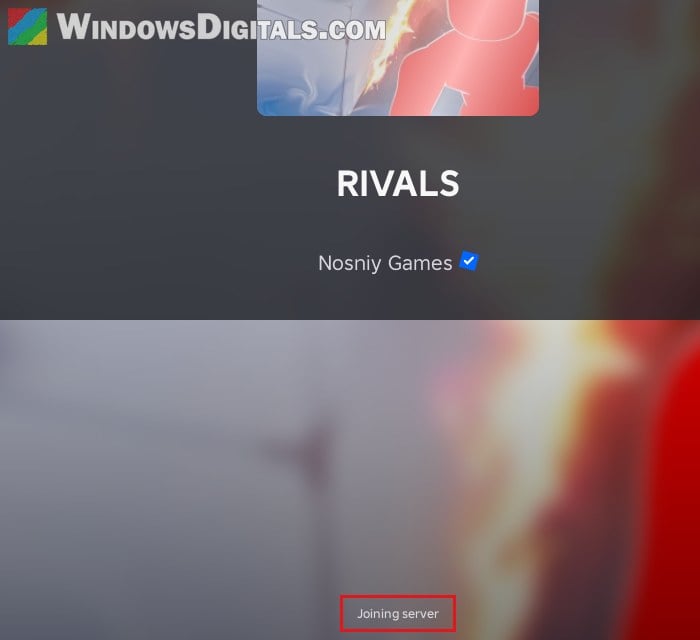
- As soon as the loading screen shows the X (close) button at its top-left corner, click it.
- Right away, click Play (or join the server) again.
- If it gets stuck again, repeat it a few times. Some players close the whole Roblox window with Alt + F4 the moment it loads and then rejoin quickly instead.
It’s down to luck, and it won’t help much with games that keep sending you to other servers, since every move is another chance to get stuck. But for a single game, it’s often enough.
Join a server from the “Servers” list
Instead of letting Roblox pick a server for you, you can pick one yourself from the game’s server list. Picking the server with the best connection (the lowest ping) gets some players in about half the time. Here’s how to do it:
- Open the game’s page on the Roblox website. Make sure you’re signed in there, or the server list stays empty.
- Click the Servers tab.
- Under Other Servers, open the Sort By list and choose Best Connection (Ping).
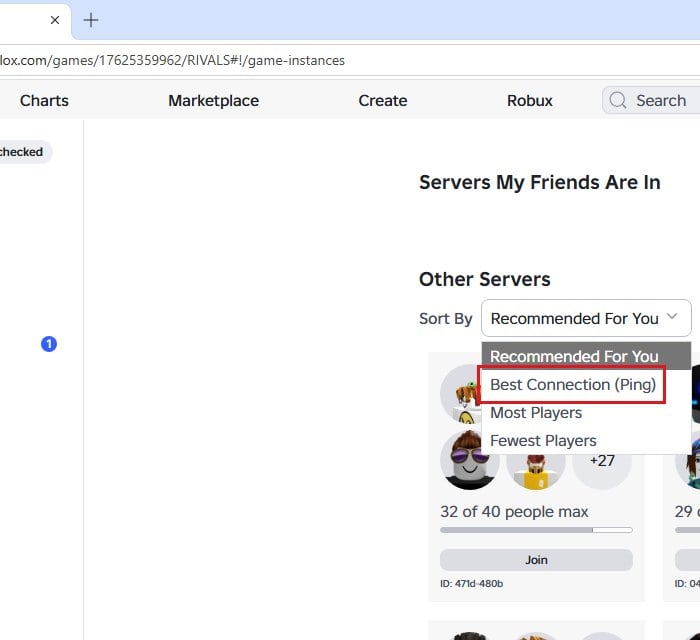
- Click Join on the first server in the list.
If the first one hangs too, close the loading screen and try the next server down.
Try another connection or a VPN
Some players found that Roblox joins fine on a phone hotspot but not on their home Wi-Fi. If you can, connect your PC to your phone’s hotspot for a moment and try joining a game. If it works there, your PC itself is fine, and the problem sits somewhere between your home connection and Roblox.
Might be useful: “Can’t connect to this network” WiFi/Hotspot Issue Windows 11/10
A VPN changes the path your connection takes too, and it has let several players join, although sometimes slowly. Cloudflare’s free 1.1.1.1 app is an easy VPN to try, since it needs no account. The catch is that a VPN can make the game feel laggy (a second or two of delay), and it can put you on servers far away from you. To try it:
- Go to
https://one.one.one.one/, download the Windows version of Cloudflare’s free app, and install it. - The app opens as Cloudflare One Client. Under Private browsing, click “Agree to terms & continue” (no account needed).
- Click Connect.
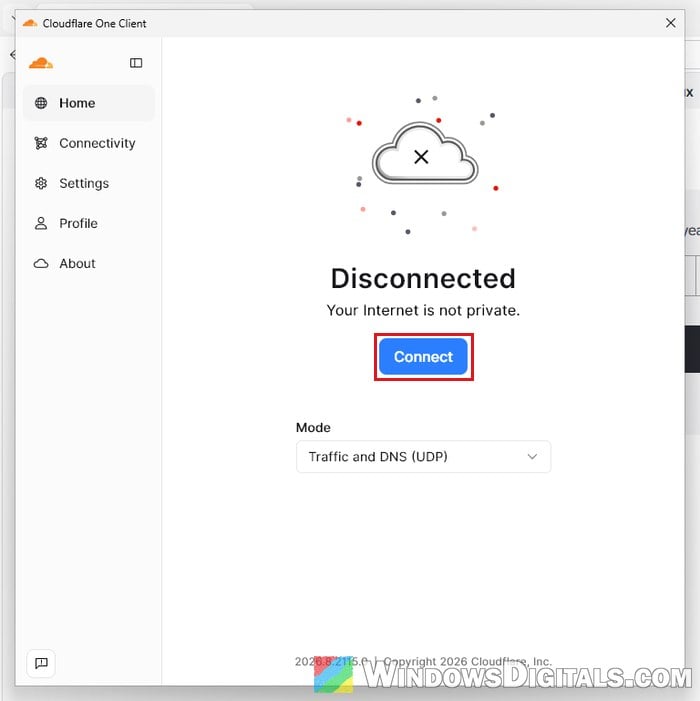
- Start Roblox and join a game.
When you’re done playing, or when the lag gets too annoying, open the app again and disconnect it.
Related guide: How to Disable VPN in Windows 11
Check Roblox’s status and report the problem
It’s worth a quick look at Roblox’s status page at https://status.roblox.com/ to see whether something bigger is down. Don’t be surprised if it shows everything working (even “Game Join”), though, since this joining problem hasn’t shown up there.
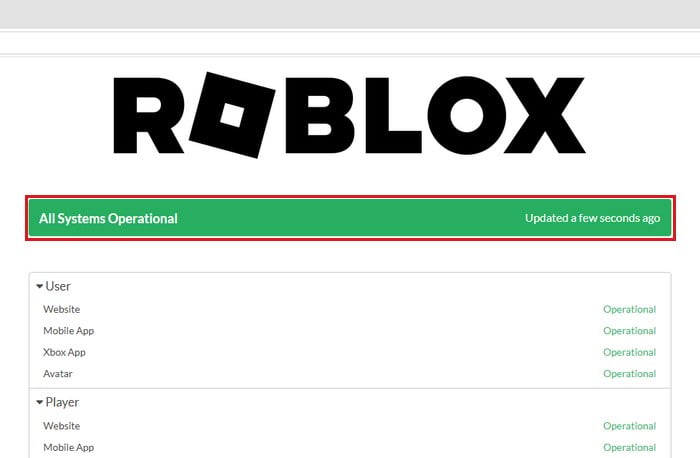
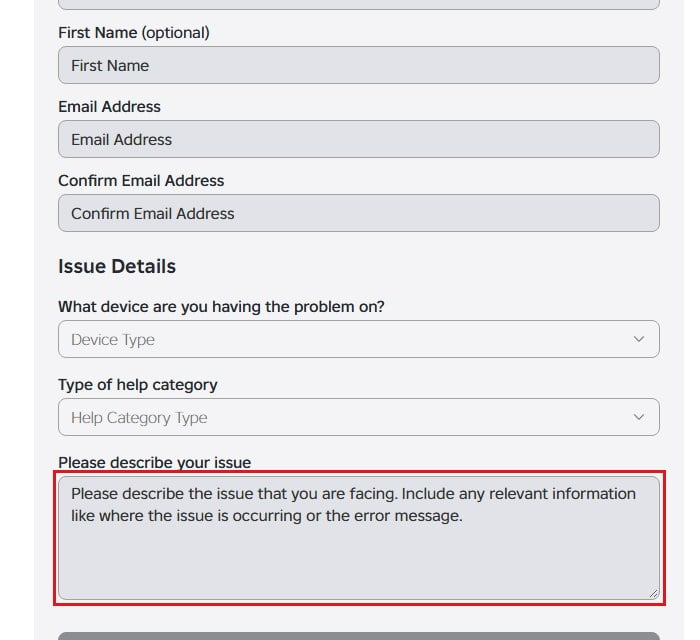
You should also report it, since Roblox has asked affected players for details. You can contact Roblox Support from https://www.roblox.com/support, say that you’re stuck on “Joining server” on PC while your phone works, and mention which games it happens in.
How long until Roblox fixes it?
There’s no date from Roblox yet. When the same problem hit in October, it cleared up after about a week to a week and a half, so there’s a fair chance this wave goes the same way. Until then, closing the loading screen and rejoining quickly, or picking a server yourself, is the least painful way to keep playing.