A YouTube or Twitch video playing in Firefox should look exactly the same as it does in Chrome or Edge, but sometimes the colors look washed out, faded, too bright, or just wrong, on every site. For some people, the colors even snap back to normal for a second when they scroll or hover over the player, then go wrong again. On Windows, this is usually down to HDR, an NVIDIA video enhancement, or how Firefox handles color with hardware acceleration. This guide will help you find which one is behind it and get the colors back to normal on Windows 11 or 10.
Also see: High GPU Usage While Watching YouTube Videos

Why do videos look washed out only in Firefox?
Firefox doesn’t draw video colors exactly the same way Chromium browsers do, so a setting that Chrome and Edge handle fine can throw Firefox off. Some common reasons are:
- HDR is turned on in Windows. Since version 153, Firefox can play HDR video on Windows, which needs HDR turned on for your display. With HDR on, normal (SDR) videos can come out faded and too bright, with less detail in dark areas.
- NVIDIA’s RTX Video HDR is on. It uses AI to turn normal videos into HDR in the browser, Firefox included.
- Hardware acceleration and the color profile of your monitor. Firefox hands video to the graphics card, and with some drivers and monitor color profiles, the colors get processed wrongly along the way.
The fixes below go from the quickest to the ones that change more of your system.
Restart and update Firefox first
It sounds too simple, but colors that went wrong right after an update sometimes go back to normal after a full restart of the browser. Updating to the latest version also matters, since Firefox’s HDR video support on Windows is fairly new (it arrived in Firefox 153).
- Close every Firefox window, then open Firefox again. To keep your tabs, see: How to Restart Firefox Browser Without Losing Tabs.
- Click the menu button (three lines) at the top-right, then go to Help and Report > About Firefox.
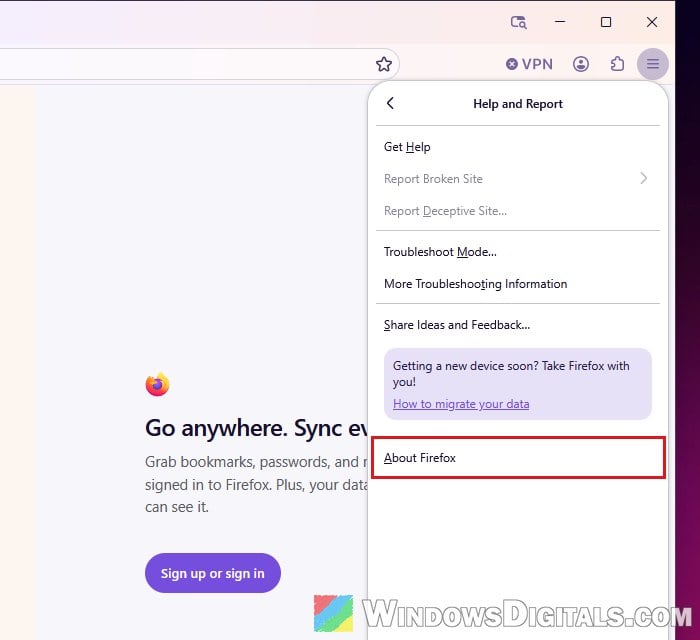
- Let it download any update, then click “Restart to update Firefox” if it shows up.
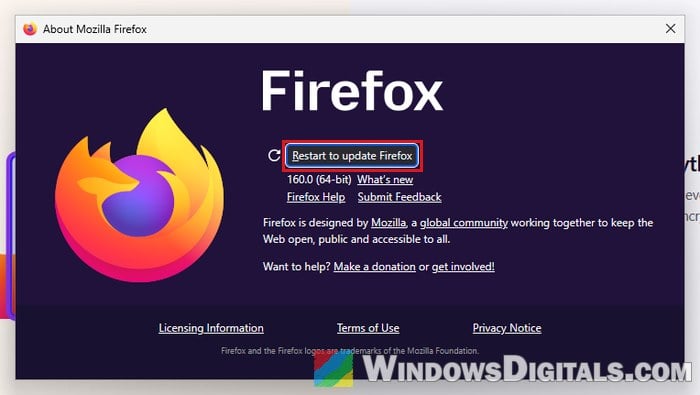
Play the same video again and compare it with another browser.
Turn off RTX Video HDR (NVIDIA RTX cards)
If you have an NVIDIA GeForce RTX graphics card and HDR is on in Windows, check this one before the others below. RTX Video HDR converts normal videos into HDR in your browser, which can make them look faded or too bright. It’s easy to forget about, and reinstalling the graphics driver can turn it on again.
Here’s how to turn it off in the NVIDIA app:
- Open the NVIDIA app and go to System > Video.
- Under RTX Video Enhancements, turn off High Dynamic Range.

- Restart Firefox and play the video again.
If you still use the older NVIDIA Control Panel, the same setting is under Adjust video image settings > RTX Video Enhancement, where you untick High Dynamic Range.
Related guide: How to Update Graphics Driver in Windows 11
Check the HDR setting in Windows
When HDR is on in Windows, your monitor reads HDR and normal content differently, and normal videos in Firefox are often the ones that end up looking faded. Turning HDR off is one of the workarounds listed in Mozilla’s own bug report for this exact problem.
- Press Win + I to open Settings, then go to System > Display.
- Select your monitor at the top if you have more than one, and open HDR.
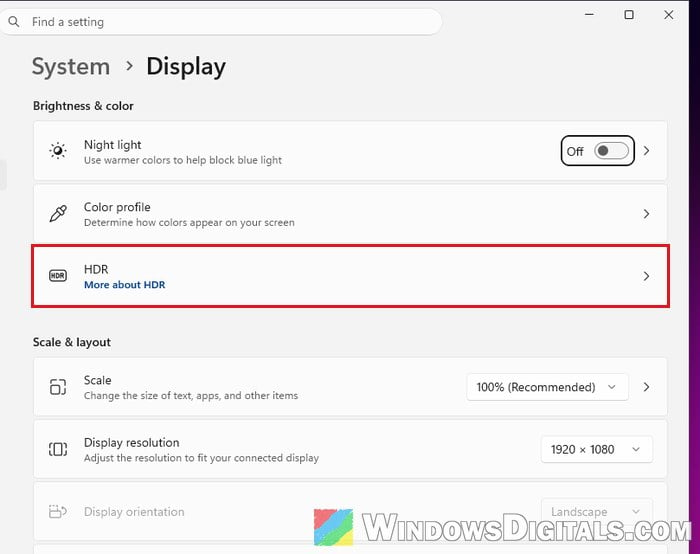
- Turn off Use HDR if you don’t really watch HDR content.
- If you want to keep HDR on, drag the SDR content brightness slider instead until normal videos and windows look right. With two monitors, extend the desktop instead of duplicating it, since Windows can’t use HDR on a duplicated display.
Play the video again in Firefox and see if the colors look right now.
Linked issue: Ideas to Fix Blurry and Washed Out Graphics in Games
Turn off hardware acceleration in Firefox
If HDR is off and the colors are still wrong, the problem is likely in how Firefox and your graphics driver process the video together. Turning off hardware acceleration makes Firefox decode the video with the processor instead of the graphics card. It’s one of the workarounds that work most often, but video can stutter on a slower PC, since the processor now does more of the work. Here’s how to do it:
- Click the menu button (three lines) and select Settings.
- Select Tabs and browsing on the left and scroll down to Performance (older versions have it in the General panel).
- Uncheck “Use recommended performance settings“.
- Uncheck “Use hardware acceleration when available“.
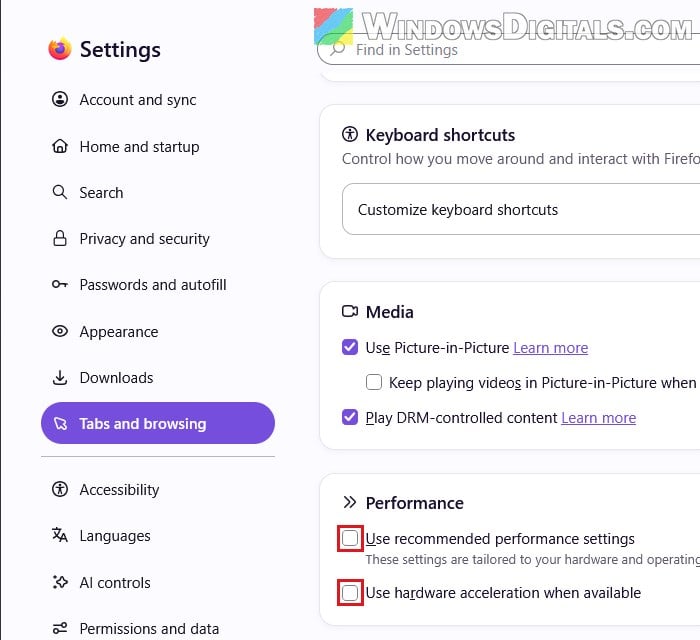
- Close Firefox completely and open it again.
If the colors are fine now but videos lag, turn it back on and try the next fix instead.
Change Firefox’s color management setting
If you’d rather keep HDR on, Firefox has a hidden color management setting that can help. Setting it to true fixed washed-out video for some people, while others saw no change, so it’s worth a quick try.
- Type “about:config” in the address bar and press Enter.
- Click “Accept the Risk and Continue“.
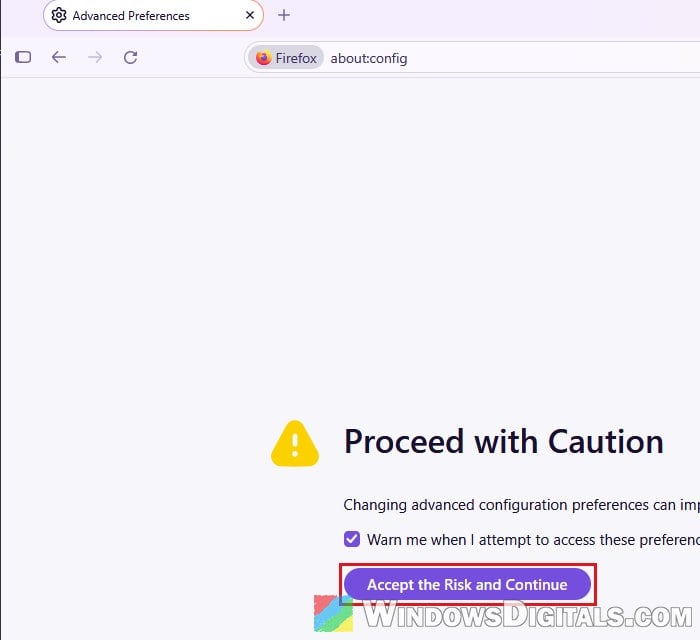
- Search for “gfx.color_management.native_srgb“.
- Click the toggle button on the right to set it to true.

- Restart Firefox and play the video again.
To undo it, go back to the same setting and click the toggle again to set it back to false.
Might be useful: YouTube or Facebook Video Won’t Play on Windows 11/10
Remove your monitor’s color profile in Windows
Some monitor drivers install a color profile, and with hardware acceleration on, browsers can apply it to video in a way that shifts the colors. Removing it can bring the colors back, but if you calibrated your monitor yourself, you’ll lose that calibration.
- Press Win + R, type “colorcpl” and press Enter to open Color Management.
- On the Devices tab, pick your monitor in the Device list.
- Check “Use my settings for this device“.
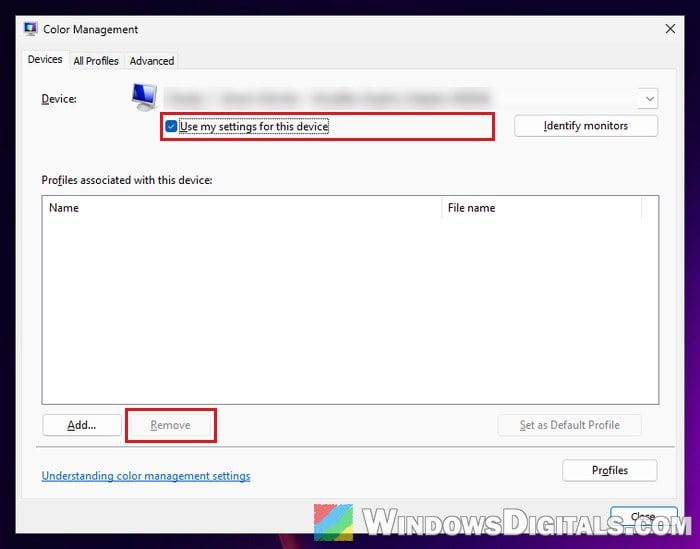
- Select the profile in the list and click Remove.
- Restart your PC and check the video again.
If none of this helps and the colors are only wrong in Firefox, you can watch in another browser for now and check again after the next Firefox update.