Many people who bought a new laptop or desktop with a free PC Game Pass offer (usually 3 months) have run into a problem where the offer isn’t under “Included with device” in Microsoft Store, or it was there and then disappeared before they could claim it, sometimes weeks before the deadline it showed. This guide will explain where the offer should be, why it can go missing, and what you can do to get it back.
Also see: Xbox PC Game Pass Stuck on Syncing Data in Windows 11
Check with the Microsoft account the PC was set up with
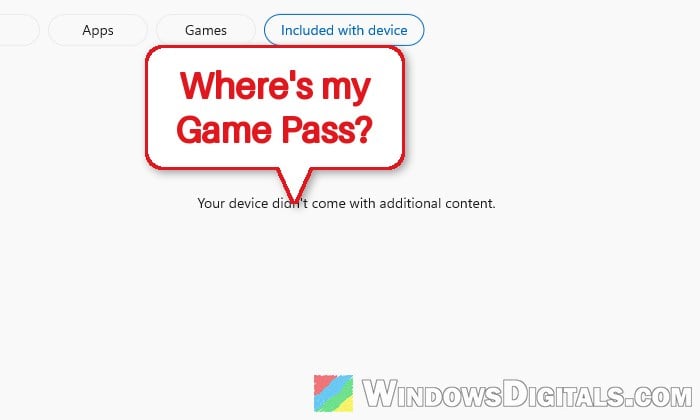
PC makers like Lenovo, ASUS, HP, Dell and MSI add the Game Pass offer to the PC itself, so it’s tied to the device. On some PCs it’s shown during the Windows setup when you sign in with a Microsoft account. If you skipped it there, it should be waiting in the Microsoft Store’s library, in a tab called “Included with device“.
Look for it while signed in with the Microsoft account the PC was first set up with. Here’s how:
- Open “Microsoft Store” from the Start menu or the taskbar.
- Click your profile icon at the top and make sure you’re signed in with the same Microsoft account you used when you first set up the PC. Sign out and sign in with that account if it’s a different one.
- Click “Library” in the lower-left corner.
- Open the “Included with device” tab and look for the PC Game Pass offer.
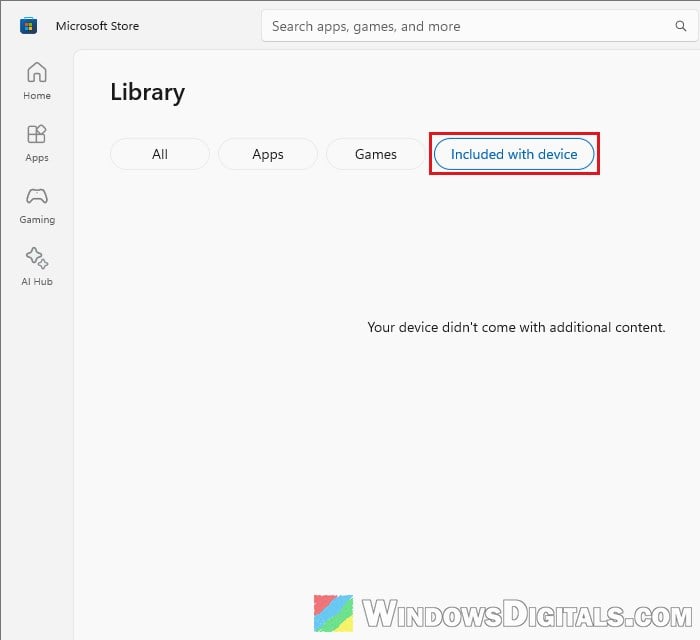
If the tab says “Your device didn’t come with additional content.“, don’t panic yet; that’s what several people with this problem have seen. It’s also worth a look in the “Xbox” app with the same account.
Check if it was already claimed
Make sure the offer wasn’t claimed already, for example during the Windows setup, or by someone else who set up the PC. If it was, it shows up as an active subscription on your Microsoft account. Here’s how to check:
- Open your browser and go to
https://account.microsoft.com/services, then sign in with your Microsoft account. It opens the “Subscriptions” page of your account. - Look for a PC Game Pass (or Game Pass Ultimate) subscription in the list. Without one, Game Pass only shows up there as an offer to join.
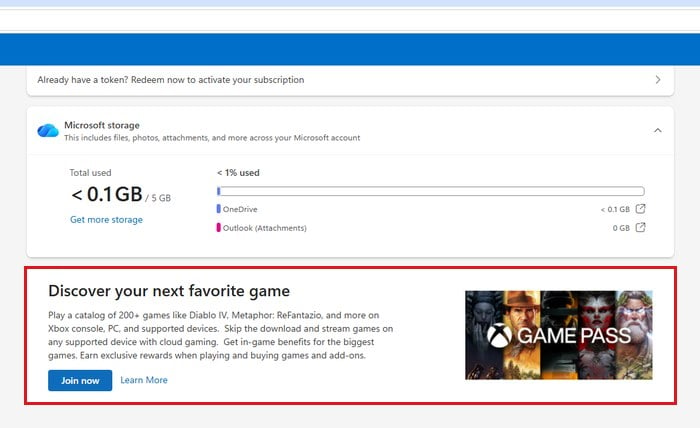
If it’s listed there as active, the free period is already running and you can start playing from the Xbox app. If you set up the PC with another Microsoft account, check that account too.
Might be useful: 0x8D050003 Microsoft Store Error on Windows 11 or 10
Update Microsoft Store and Windows, then restart
This is the first thing Microsoft suggests, and it only takes a few minutes. An offer that vanished has even been known to come back on its own, so it’s worth doing before you contact anyone. Here’s what to do:
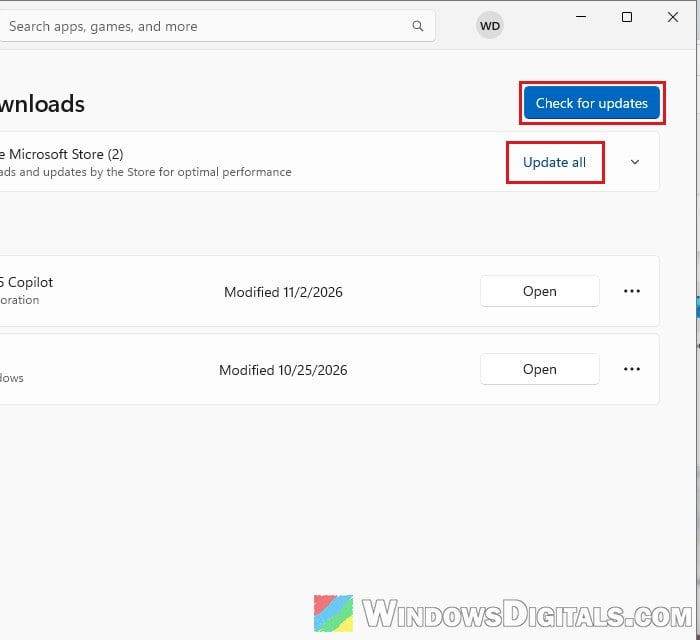
- In “Microsoft Store“, click “Downloads” in the lower-left corner (right above “Library“), then click “Check for updates” and “Update all“. Let it update everything, including the Store itself and the Xbox app if you have it.
- Open “Settings” > “Windows Update” and click “Check for updates“. Install whatever it finds.
- Restart the PC, open Microsoft Store again and check the “Included with device” tab.
Clear the Microsoft Store cache
Clearing the Store’s cache only takes a few seconds. Here’s how:
- Press Win + R to open the Run dialog box.
- Type
wsreset.exeand press Enter.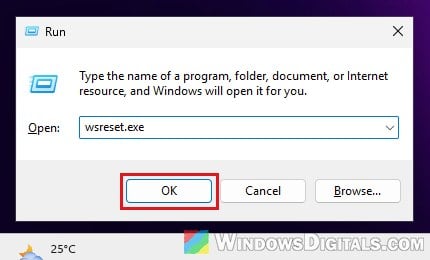
- A blank Command Prompt window will open. Leave it alone; it closes by itself after a few seconds, and Microsoft Store opens again.
- Go to “Library” > “Included with device” and check again.
To be honest, this doesn’t work for everyone, so if it does nothing, move on.
Repair or reset Microsoft Store
If clearing the cache didn’t help, you can also let Windows repair the Store app, and reset it if repairing doesn’t work. Here’s how:
- Open “Settings” > “System” > “System components“.
- Find “Microsoft Store” in the list, click the three dots next to it and select “Advanced options“.
- Click “Repair“, then open Microsoft Store and check the tab again.
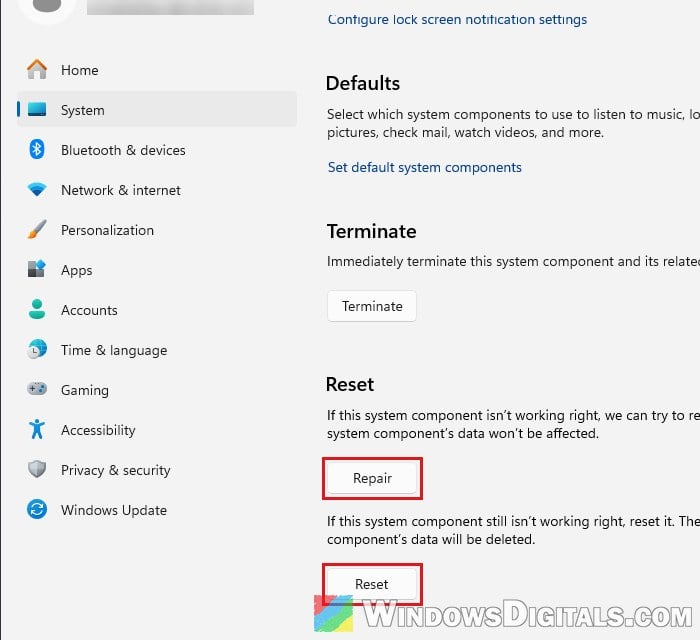
- If it’s still missing, go back and click “Reset“. This clears the Store app’s data.
Pro tip: Can’t Download or Install Apps on Microsoft Store
Make sure the region matches where the PC was sold
These offers are tied to the region the PC was sold in. If your Windows region, your Microsoft account’s country, or your billing address doesn’t match it, claiming it can fail with an incorrect region error after you pick a payment method. This is more likely with a laptop bought abroad or imported from another country.
To check the region in Windows 11:
- Open “Settings” > “Time & language” > “Language & region“.
- Under “Country or region“, make sure the country where you bought the PC is selected.
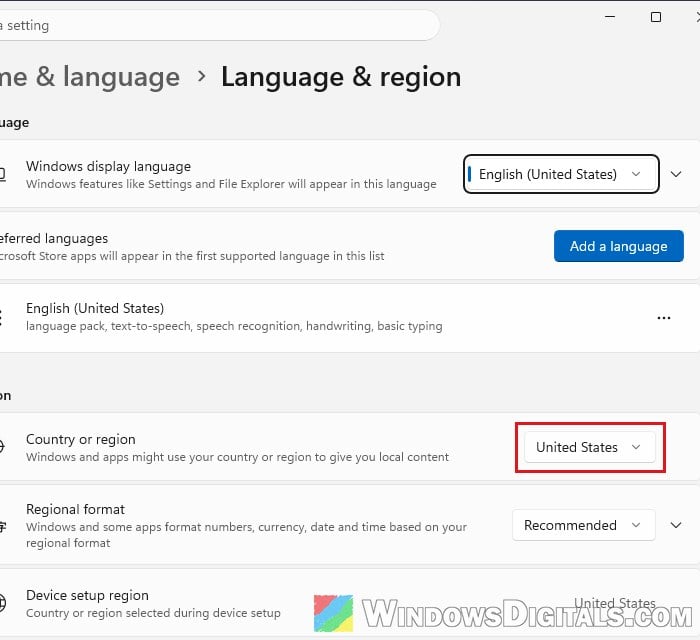
- Restart Microsoft Store and check “Included with device” again.
Your Microsoft account has its own country setting too, under “Your info” > “Edit profile info” on your Microsoft account page. Please be warned that you can’t change it again within three months of the last change. Money in your Microsoft account balance doesn’t move to the new region, and Game Pass bought in one region may not work in another. So think twice before changing your account’s country just for this offer, since the three-month lock still applies after the free months are over.
You’ll need a payment method to claim it
If the offer is there but you can’t get past the claim, it’s often the payment step. The free months can’t be claimed without a valid payment method, because the subscription is set to renew automatically once the free period ends. When you click “Claim“, you’ll be asked for a card or another payment method, and then “Subscribe“.
You won’t be charged for the free months. If you don’t want it to renew, go to https://account.microsoft.com/services right after you claim it, find the Game Pass subscription and turn off recurring billing. After that, you can remove the card under your account’s payment options if you want.
Contact your PC maker and Xbox support
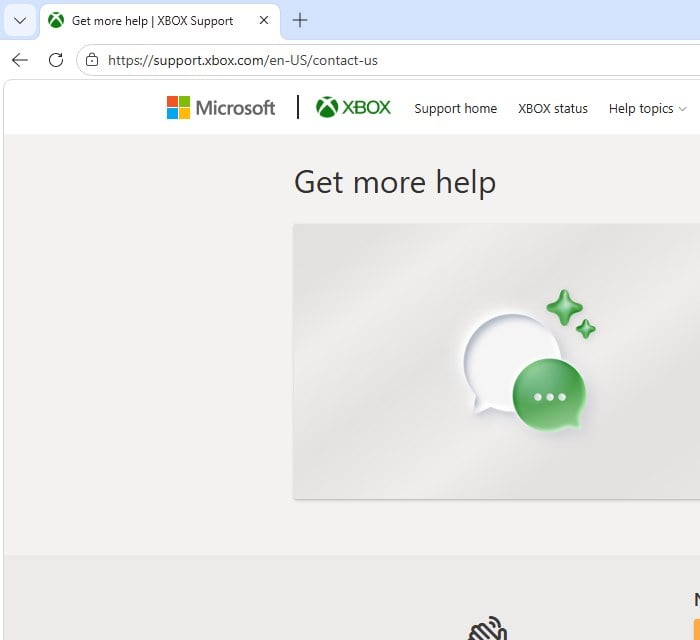
If nothing above brings the offer back, only the PC maker or Microsoft can check whether it’s still attached to your device. Start with the PC maker’s support, since the offer came with their device, and they may be able to issue a new code. If they send you to Microsoft, contact Xbox support on its “Get more help” page at https://support.xbox.com/contact-us.
Have these ready before you start, so you don’t have to go back and forth:
- your PC’s model and serial number
- proof of purchase, with the date
- a screenshot of the empty “Included with device” tab, and of the offer with its deadline if you took one before it vanished
- the Microsoft account you set the PC up with, and a note that you never claimed the offer
Don’t bother resetting or reinstalling Windows to bring the offer back, since there’s no sign it works. Be prepared for this to take a while. It’s a fairly common complaint on Microsoft’s forums and Reddit, and some owners got passed between the PC maker and Xbox support without getting the offer back.