When you close a game on your PC, you might see it shut itself off or restart a few seconds to a few minutes later, usually with no blue screen and no error message, even though it ran the game without a single hiccup. This guide will look into why the crash comes after the game instead of during it, and how to track down what’s causing it.
Also see: The system has rebooted without cleanly shutting down first
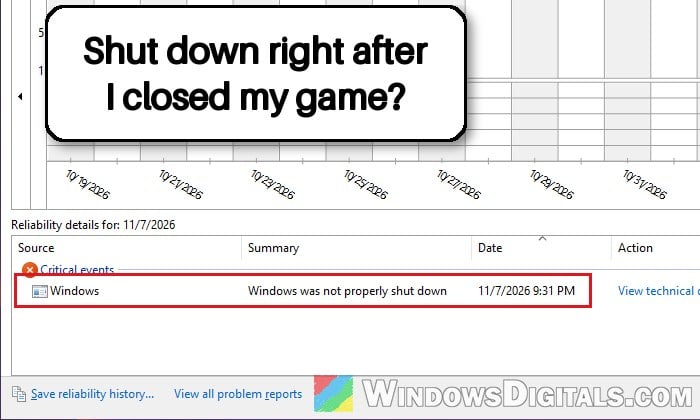
Why does the PC crash after the game and not during it?
Once a game closes, the CPU and graphics card drop from full load to almost nothing in a moment, along with their clocks and voltages. The usual explanation is that a PC can be stable under load and still fail at that moment. Some common reasons are:
- Settings that are unstable at idle: an overclock, an undervolt, or an XMP or EXPO memory profile that holds up in a game but not at idle.
- The power supply: a PSU that’s underpowered, aging or faulty. Closing or alt-tabbing out of a game can also make the graphics card pull a short burst of power that trips the PSU’s protection.
- Faulty RAM: a bad stick, which can also show up as a MEMORY_MANAGEMENT blue screen.
- The graphics driver: if the screen goes black first and the PC restarts after.
On Reddit, the fixes that worked for most people were about the hardware or its settings, not the game.
Check what Windows recorded about the shutdown
Windows usually logs an unexpected shutdown, and the record gives a good hint whether the PC crashed with a blue screen or just lost power. Reliability Monitor is the quickest place to look:
- Press Win + R, type
perfmon /reland press Enter. - Click the day it happened in the chart (the newest days are on the right; that day has a red X). In the list below, under Critical events, look for “Windows was not properly shut down“.
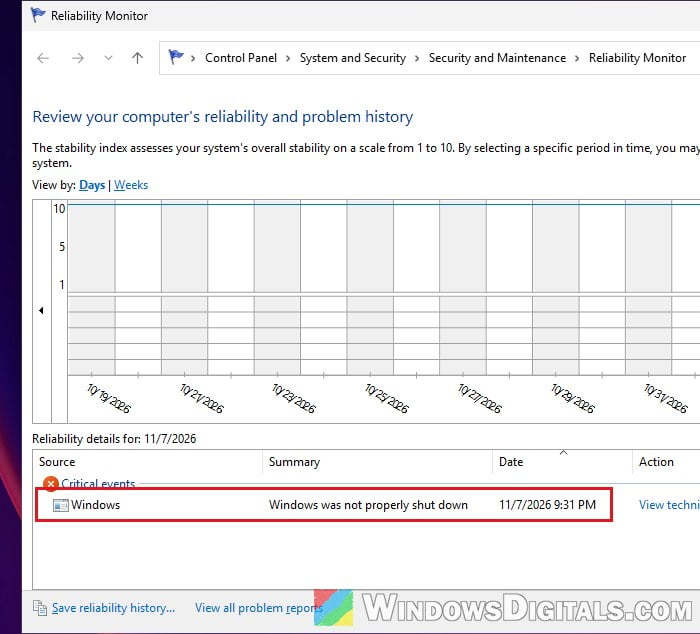
For more detail, check the event in Event Viewer:
- Press Win + R, type
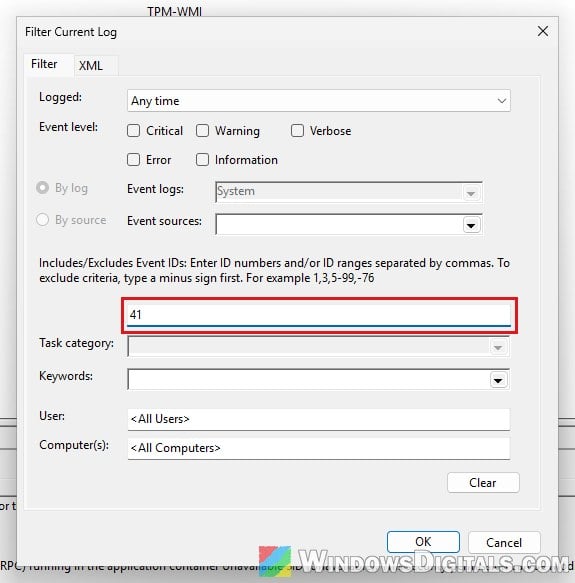
eventvwr.mscand press Enter. - Go to Windows Logs > System, then click Filter Current Log on the right.
- Type “41” in the event ID box and click OK.
- Open the Kernel-Power event from the time of the shutdown and select the Details tab. Look at BugcheckCode and PowerButtonTimestamp.
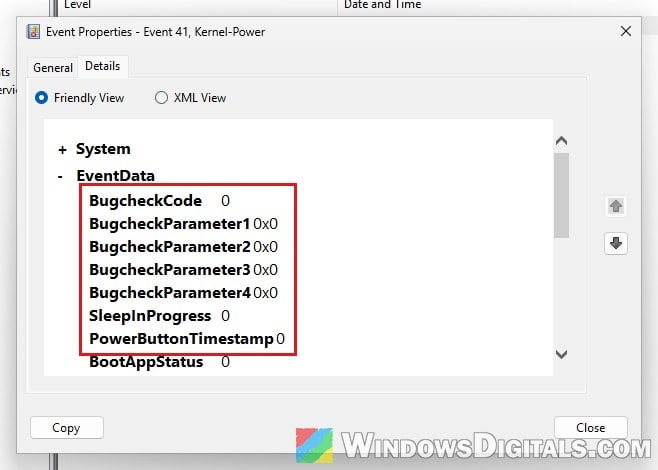
Here’s how to read it, according to Microsoft:
- BugcheckCode is not 0: it was a blue screen. The code is in decimal, so convert it to hex (159 is 0x9F, for example) and look up that stop code.
- BugcheckCode is 0 (or there’s no event 41 at all): Windows didn’t record a stop code. Microsoft says this might indicate a power supply problem and usually points to hardware.
- PowerButtonTimestamp is not 0: the power button was held down to turn the PC off, for example after it froze.
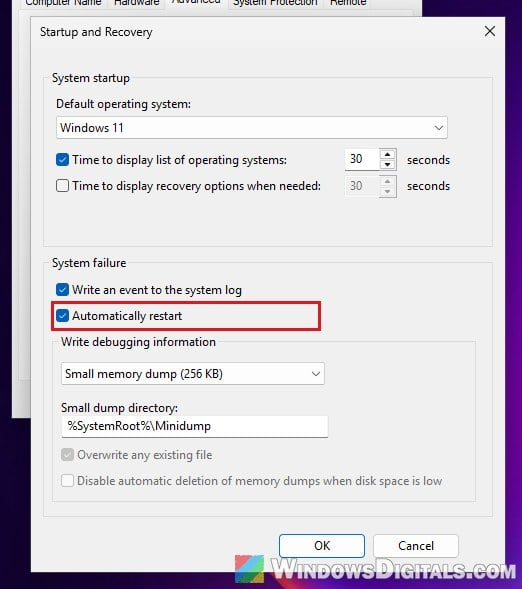
If a blue screen flashes by too fast to read, stop Windows from restarting by itself, so the next one stays up:
- Press Win + R, type
sysdm.cpland press Enter. - Go to the Advanced tab and click Settings under Startup and Recovery.
- Uncheck “Automatically restart” and click OK.
Related problem: Computer Restarts Randomly in Windows 11 (Fix)
Put the CPU, RAM and GPU back to stock settings
Microsoft’s first suggestion for an unexplained shutdown is to disable overclocking. Passing a stress test doesn’t rule this out, since the crash comes when the load drops. Try these one at a time:
- Turn off the XMP or EXPO memory profile in the BIOS for a few days.
- Remove any CPU undervolt or PBO / Curve Optimizer settings. An aggressive negative offset on all cores can cause reboots at idle and in games.
- Reset any GPU overclock or undervolt in your graphics card’s software.
- Load the BIOS defaults instead, usually called “Load Optimized Defaults” or similar.
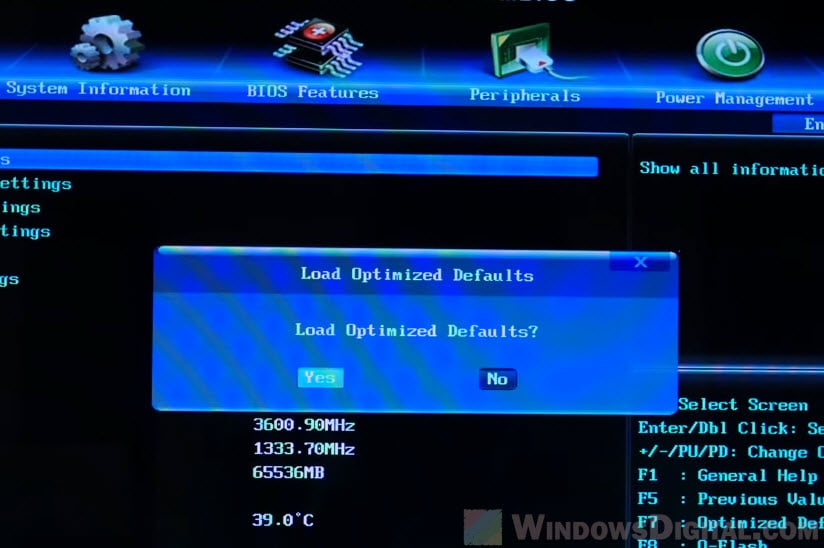
If the shutdowns stop, bring the settings back one at a time to find the culprit.
Related guide: Auto OC Ryzen 7000 or 5000 PBO2 (Curve Optimization)
Test your RAM for errors
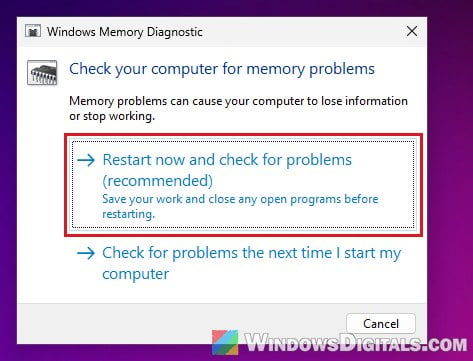
To rule out bad RAM, start with Windows’ built-in memory test:
- Press Win + R, type
mdsched.exeand press Enter. - Click “Restart now and check for problems (recommended)“. Save your work first, as the PC restarts right away.
For a more thorough test, run MemTest86 from a USB flash drive overnight. If it finds errors, test each stick on its own to find the bad one, and replace it.
Pro tip: How to See Windows Memory Diagnostic Results in Windows 11
AMD Ryzen: set “Power Supply Idle Control” to “Typical Current Idle”
At idle, a Ryzen processor can pull so little current that some boards and power supplies struggle. Setting Power Supply Idle Control to Typical Current Idle in the BIOS keeps it from going that low. It stopped idle and after-game reboots for a number of Ryzen owners, though not for everyone.
- Restart your PC and enter the BIOS.
- Look for Power Supply Idle Control. On most boards it’s in the AMD CBS menu, but each maker puts it in a slightly different place.
- Change it to Typical Current Idle, then save and exit.
Give it a few days to see if the restarts stop. Some people also had to disable Global C-state Control, which is worth trying too if your BIOS doesn’t have the first setting. Our guide on WHEA-Logger 18 restarts covers both in more detail.
Check the power supply and the graphics card’s power
If the Kernel-Power event shows a BugcheckCode of 0 and the PC just goes dark, the power supply is a likely suspect. Microsoft suggests checking that it has enough wattage for everything installed.
A simple test is to lower your graphics card’s power limit by 10 to 20 percent, with the Power Limit slider in AMD Software’s manual tuning or the Power Limit (%) slider in MSI Afterburner (NVIDIA and AMD). If the shutdowns stop, the PSU is most likely not keeping up with the card’s short power spikes. Also check these:
- Use a separate PCIe power cable for each power socket on the graphics card instead of one cable with two plugs.
- Reseat the 24-pin and the graphics card’s power cables.
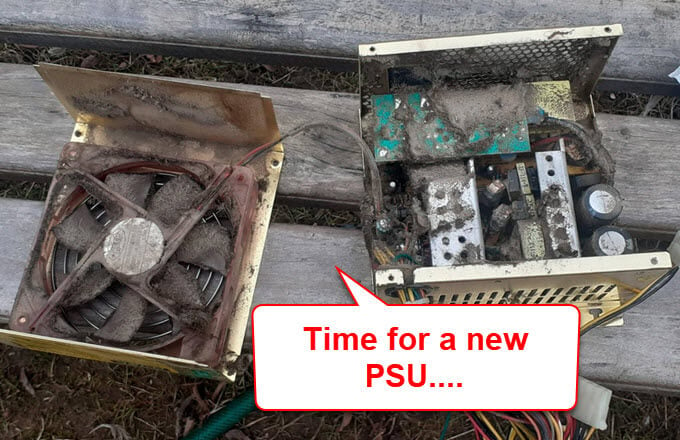
- Make sure the PSU’s fan spins while you’re gaming. An overheating PSU can shut itself off with no error.
Might be useful: How to Check Power Supply Wattage on Windows 11/10 PC
Reinstall the graphics driver cleanly
If the screen turns black right when you close the game and the restart follows, rule out the graphics driver with a clean reinstall: remove the current driver with DDU (Display Driver Uninstaller) in Safe Mode, then install the latest one from AMD, NVIDIA or Intel.
Updating the BIOS and chipset driver from your motherboard maker is also worth doing. A BIOS update can leave the board unable to start if it’s interrupted, so follow your board maker’s instructions exactly, or get help if you’re not sure. If Reliability Monitor also shows GPU errors, see our guide on LiveKernelEvent 141 and VIDEO_TDR_FAILURE crashes.
When it’s the hardware itself
If none of the above helps, a part is most likely failing: often the power supply, otherwise the RAM, the graphics card or the motherboard. The surest way to find out which one is to swap in parts you know work, one at a time, starting with the power supply if you can borrow one.
On a gaming laptop you can’t swap most parts yourself, so if it keeps shutting down after games with normal temperatures and it’s still under warranty, contact the manufacturer.