If a game in your Steam downloads shows “Stopping” (or “Stopping download“) and never gets past it, you probably can’t pause it, verify it or even uninstall the game, and any other game you try to download just sits behind it waiting for the stuck one to stop first. This guide will talk about how to get Steam to let go of that download so you can remove or reinstall the game.
Also see: Steam Cloud “Unable to Sync” Error When Starting a Game
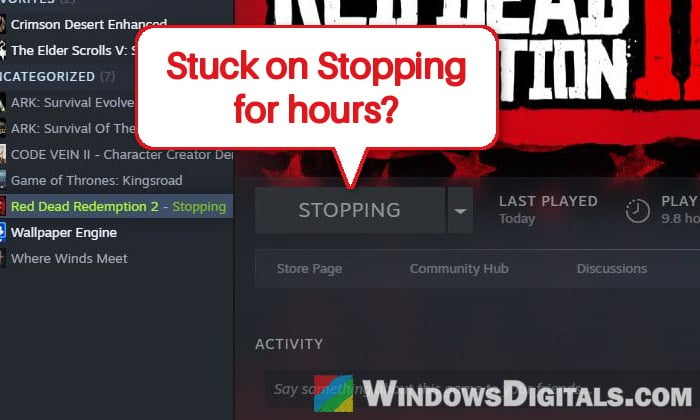
Why does a Steam download get stuck on “Stopping”?
Steam never tells you why, but what happens is almost always the same. Steam tries to wind down one game’s download, never finishes doing it, and keeps every other download in the queue waiting behind it. Sometimes Steam won’t even close normally, because it waits for that download to stop before it exits.
It tends to happen with:
- Very large updates, such as the Call of Duty update in October 2026 that left lots of Steam players stuck.
- A slow internet connection, especially when you try to uninstall a game while it’s still downloading.
- Huge Workshop downloads, like a big mod collection for Cities: Skylines.
- A drive that’s almost full, or one with problems. It’s a good idea to keep some free space on the drive your Steam library is on anyway.
Start with the first fix below, since it’s the one that has worked most often.
Put another game at the top of the download queue, then restart Steam
This is the fix that has worked for most people on Reddit. The idea is to give Steam a different download to work on, so it drops the stuck one when it starts again. After that, the stuck game can usually be uninstalled normally.
Here’s what you should do:
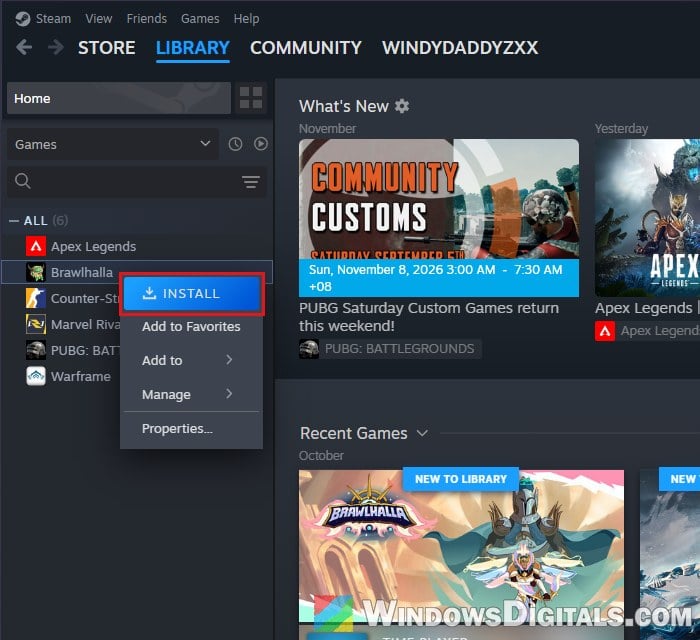
- In your Steam “Library“, right-click another game you own (a small one is best) and select “Install“. Go through the install window as usual.
- Click the downloads bar at the bottom of the Steam window to open the downloads page (it reads “Manage Downloads” or shows the download’s status).
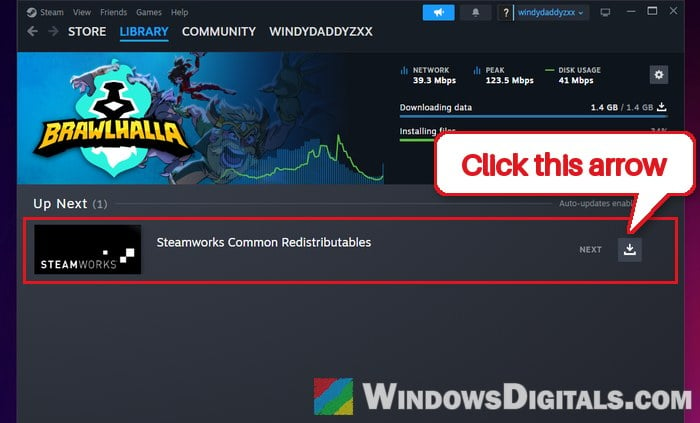
- Under “Up Next“, click the download arrow button on the right of the new game’s row to move it to the top, so it’s the one Steam should download first.
- Click the “Steam” menu at the top left and select “Exit“.
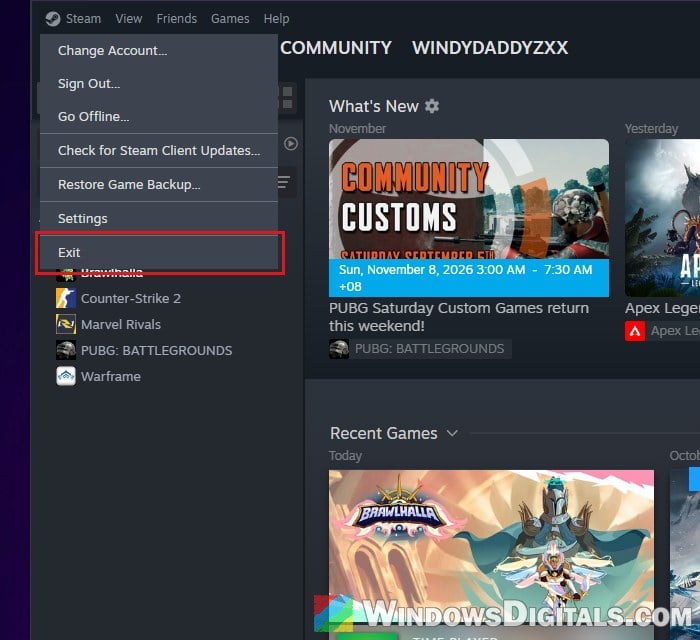
- Open Steam again. The other game should start downloading, and the stuck one should no longer say “Stopping”.
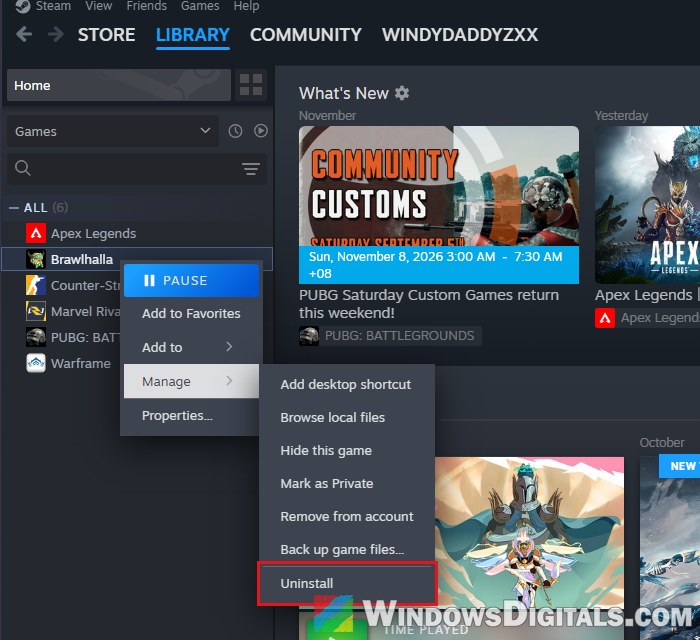
- Now go to your “Library“, right-click the game that was stuck, and select “Manage” > “Uninstall“.
If one game isn’t enough, queue two or three and move one of them to the top before you exit Steam. Sometimes the PC needs a restart before the new download actually starts. It doesn’t work for everyone, though. If the stuck game never lets go, try the next fix.
What if Steam won’t close?
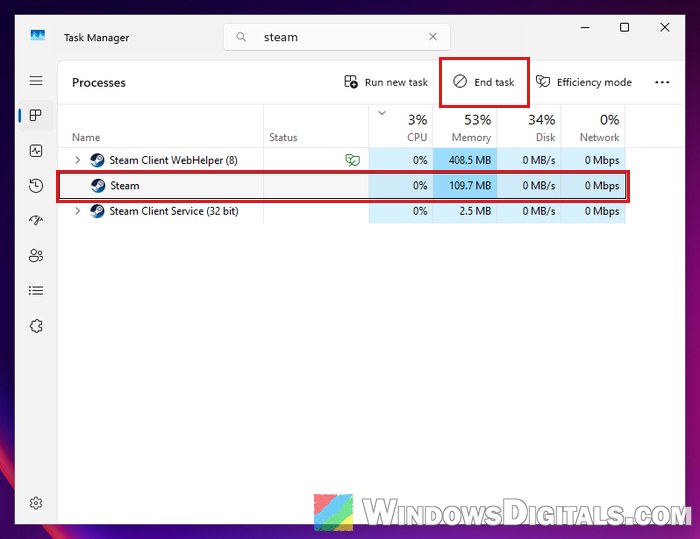
When Steam keeps waiting for the stuck download, “Exit” may do nothing. In that case, close it from Task Manager:
- Press Ctrl + Shift + Esc to open Task Manager.
- Type “steam” in the search box at the top, select “Steam” in the list and click “End task“.
- Open Steam again.
If Steam still hangs after that, just restart your PC, which closes everything Steam had running.
Related guide: Force Close Program in Windows 11 without Task Manager
Go offline, then uninstall the game
Another way is to take Steam offline, so it stops trying to download, and uninstall the game while it’s offline. Switching to offline mode (or cutting your internet for a moment) has let the download go right away in a few cases.
Follow the steps below:
- Click the “Steam” menu at the top left, select “Go Offline…” and confirm.
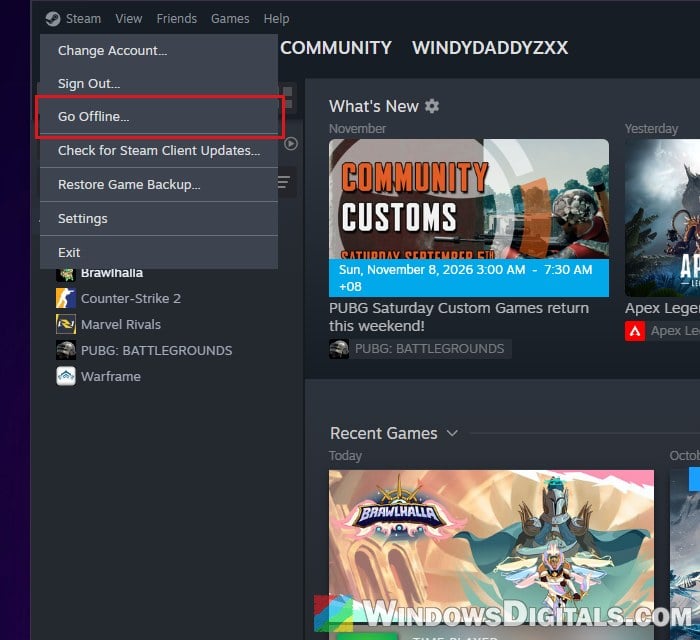
- Once Steam is offline, go to your “Library“, right-click the stuck game and select “Manage” > “Uninstall“.
- If anything hangs along the way, end Steam in Task Manager (as above), open it again and try once more.
- When the game is gone, go back online from the same “Steam” menu.
You can also simply unplug the network cable or turn off Wi-Fi before you uninstall the game, then turn it back on afterwards.
Clear Steam’s download cache
Steam keeps a cache for its downloads, and clearing it is the standard Steam fix for downloads that misbehave (Valve has its own support page for it). It doesn’t touch your installed games, but Steam restarts and you’ll have to sign in again, so have your password ready.
To clear it, do the following:
- Click the “Steam” menu at the top left and select “Settings“.
- Select “Downloads” on the left.
- Next to “Clear Download Cache“, click “Clear Cache“, and confirm.
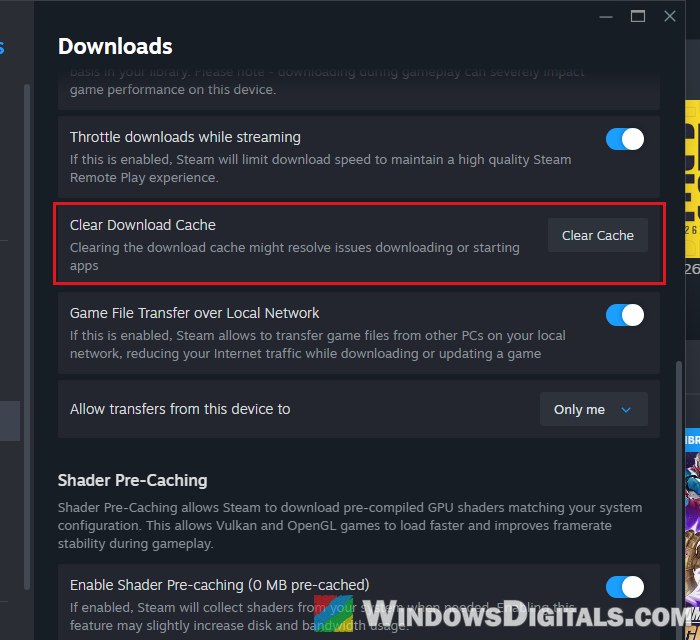
- Sign in to Steam again and check the downloads page.
This one doesn’t always work on its own, because the cache clear can get stuck behind the “Stopping” download too. If Steam still says “Stopping” afterwards, end Steam’s task in Task Manager while it shows that, then open Steam again.
Linked issue: How to Fix Steam “Missing Downloaded Files” Error – Game or Workshop
Move the game’s appmanifest file out of the steamapps folder
Every installed or downloading Steam game has a small file called appmanifest in your library’s steamapps folder. It’s how Steam knows the game is there and what state its download is in. When that file is taken away, Steam sees the game as not installed, so the stuck download simply disappears. For some, this is what finally freed the queue.
Instead of deleting the file, move it somewhere else first, so you can put it back if you need to. Here’s how to do it:
- Exit Steam completely (end it in Task Manager if it won’t close).
- Open File Explorer and go to your Steam library’s
steamappsfolder. For the default library, it’s:C:\Program Files (x86)\Steam\steamapps
If the game is in another library, it’s
<drive>:\SteamLibrary\steamappson that drive.
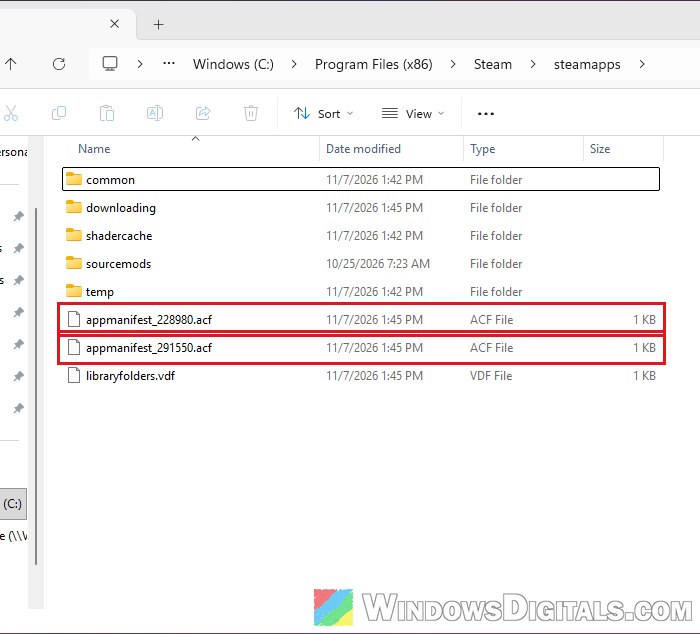
- Find the file named
appmanifest_<number>.acffor the stuck game. To be sure which one it is, right-click it and select “Edit in Notepad” (or open it with Notepad): the “name” line shows the game’s name. Close Notepad without changing anything.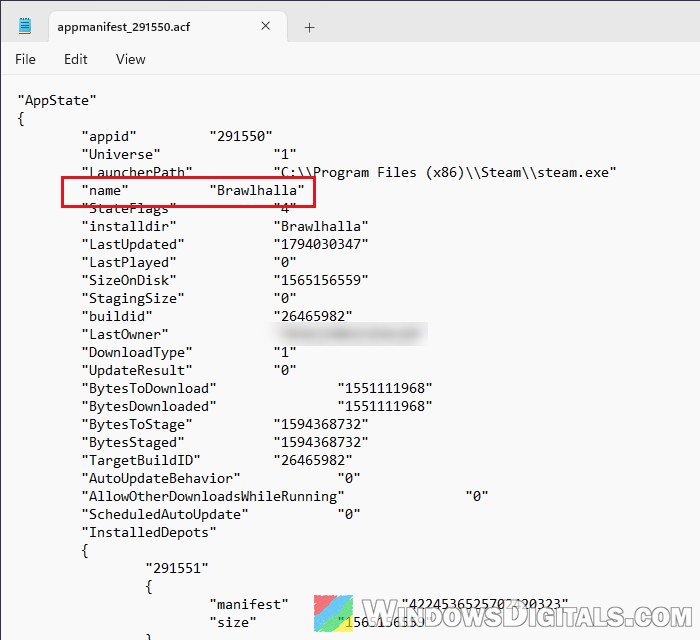
- Move that file to your desktop (cut and paste it).
- Open Steam. The game should now show as not installed, and other downloads should run again.
From here, you can install the game again into the same library: Steam finds the files already there and checks them instead of downloading everything from scratch. If you don’t want the game anymore, delete its folder in steamapps\common to free the space.
Reinstall Steam as a last resort (keep your games)
If nothing above works, reinstalling the Steam client itself has fixed it for a handful of people. Back up your steamapps folder first: copy it to another drive or folder, because uninstalling Steam can remove the games inside it, and you’d have to download all of them again.
After reinstalling Steam, put the steamapps folder back in the Steam folder before you open Steam. Your games should show up as installed again (Steam may check their files once). If it’s only one game that keeps getting stuck on every update, it’s also worth checking that the drive it’s on has enough free space and isn’t failing.