If your Windows 10 PC has installed KB5126256, the “ESU Licensing Preparation Package”, but there’s still no Enroll now link in Windows Update, or the enrollment window says “We can’t enroll you in Extended Security Updates right now” or just closes by itself, the update did its part and something else is blocking the enrollment. This guide will explain what KB5126256 actually does and show you how to get your PC enrolled.
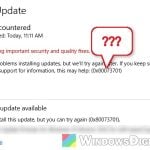
Also see: “Your device is missing important security and quality fixes” Even With Windows 10 ESU
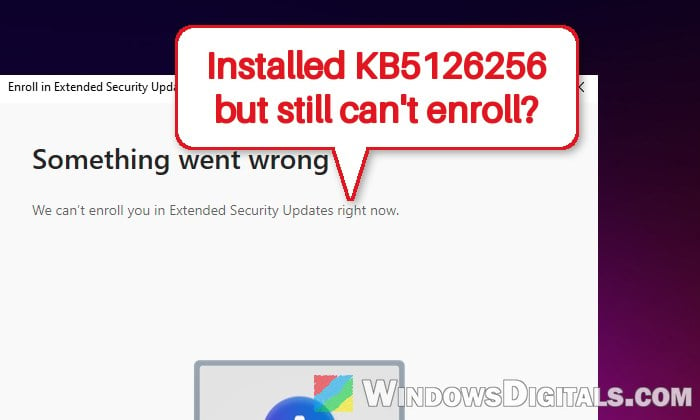
Why can’t you enroll even with KB5126256 installed?
A lot of people expect KB5126256 to enroll them, or to bring back security updates. It does neither. According to Microsoft, the package only prepares the licensing and enrollment parts of Windows for the Extended Security Updates (ESU) program, and only on PCs that aren’t enrolled yet. You still have to enroll yourself from Windows Update, and until you do, the PC gets no ESU updates.
The good news is that it’s not too late. Microsoft extended consumer ESU by a year, and you can enroll any time until the program ends on October 12, 2027.
For the Enroll now link to show up and work, Microsoft lists these requirements:
- Windows 10, version 22H2, in the Home, Pro, Pro Education or Workstations edition
- The latest Windows updates, plus KB5126256 itself
- A Microsoft account that’s an administrator on the PC, not a child account (a local account isn’t enough to enroll)
- A personal PC: not joined to a company domain, not managed through MDM, and not set up as a kiosk
If your PC isn’t eligible at all (the wrong edition, or a PC a company manages), the link may not appear. If it’s there but enrollment fails or the window closes, try the fixes below.
Install all pending updates and restart
KB5126256 only installs properly on top of a Windows 10 security update from October 14, 2025 or later, and the PC restarts by itself once it’s done. Microsoft also had to release an emergency update in November 2025, KB5071959 (OS build 19045.6466), because the enrollment wizard could fail during enrollment. If any of these are missing or still waiting for a restart, the wizard won’t go through.
Here’s what you should do:
- Open Settings > Update & Security > Windows Update.
- Click Check for updates and install everything it offers.
- Restart your PC, even if Windows doesn’t ask you to.
- Go back to the same page and click Enroll now.
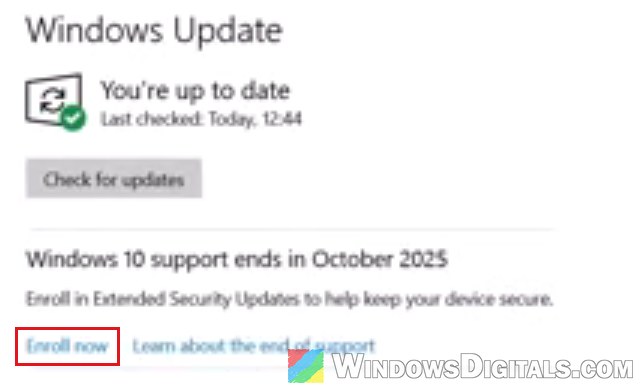
To check your build, press Win + R, type winver and press Enter. If it shows a build lower than 19045.6466, the November 2025 fix is missing, so go back to Windows Update.
If KB5126256 itself is stuck on Pending install, install the latest security update first and restart. If it still won’t go in, you can download the package from the Microsoft Update Catalog at https://catalog.update.microsoft.com/ by searching for KB5126256.
Linked issue: Windows Update Troubleshooter Not Working Windows 10/11
Sign in with an administrator Microsoft account
ESU can’t be enrolled from a local account or a child account, and the Microsoft account must be an administrator on the PC. If you use a local account, switch it to your Microsoft account:
- Open Settings > Accounts > Your info.
- Click “Sign in with a Microsoft account instead” and follow the prompts to sign in.
- Restart, then go back to Windows Update and click Enroll now.
If you’d rather keep your local account, you can also add your Microsoft account as a second user on the PC, make it an administrator, sign in to it, enroll from there, and switch back. Once any user on the PC enrolls, every other user on it is covered too.
Related guide: Give Admin Permission/Rights to User in Windows 11/10
Turn on Find my device (or turn it off and on again)
This sounds unrelated, but it’s the fix that has worked for most people on Microsoft’s forums for the “We can’t enroll you in Extended Security Updates right now” error. Microsoft hasn’t explained why it helps.
To do this on Windows 10, follow the steps below:
- Open Settings > Update & Security > Find my device.
- Click Change, then, in the window that opens, turn the switch to On. If it’s already on, switch it off, then on again.
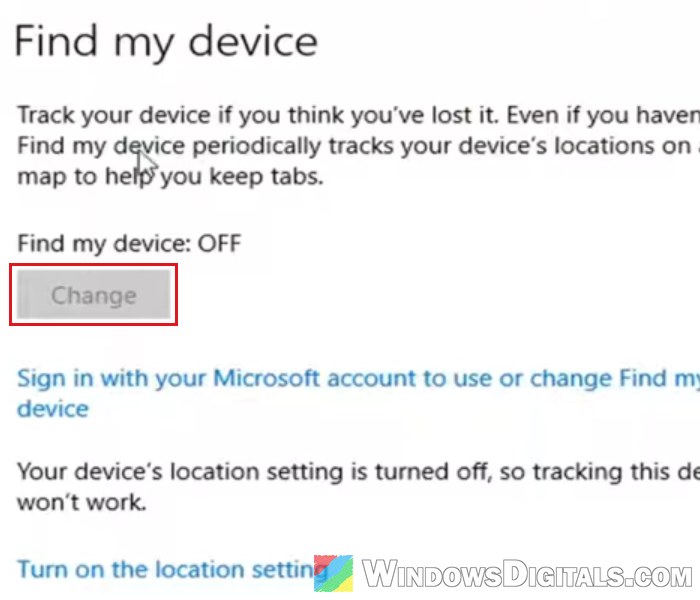 If Change is grayed out, as in the picture, the PC isn’t signed in with a Microsoft account yet. Do the previous section first.
- If Windows says location is off, turn location on as well, since Find my device needs it.
- Restart your PC. Once it’s back up, try enrolling again.
Disconnect old work or school accounts
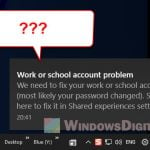
Microsoft doesn’t allow consumer ESU on PCs that are managed by a company or school. An old work or school account that’s still connected to Windows (from a past job or college, for example) can make the enrollment fail, even if nobody manages the PC anymore.
Here’s how to remove it:
- Open Settings > Accounts > Access work or school.
- Click the work or school account listed there, then click Disconnect.
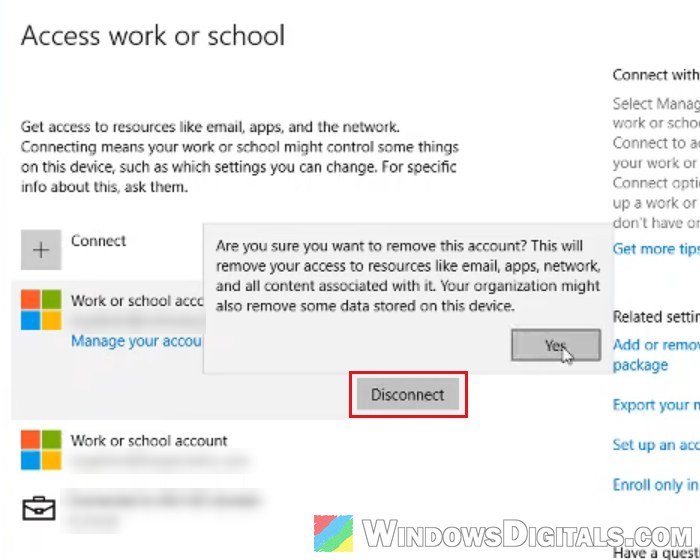
- Confirm when Windows asks if you’re sure.
- Restart your PC and try Enroll now again.
If the account won’t go away, see: Can’t Remove School or Work Email from Windows 11 or 10.
Turn the telemetry service back on and check eligibility again
Windows seems to need the Connected User Experiences and Telemetry service (DiagTrack) to check whether your PC can enroll. If a privacy or “debloat” tool turned it off, the Enroll now link may never show up or the wizard may close straight away. This fix turns the service back on and asks Windows to check the PC’s eligibility again.
Here’s how to do it:
- Open Command Prompt as administrator.
- Type the following commands one by one, and press Enter after each:
sc.exe config DiagTrack start= auto
sc.exe start DiagTrack
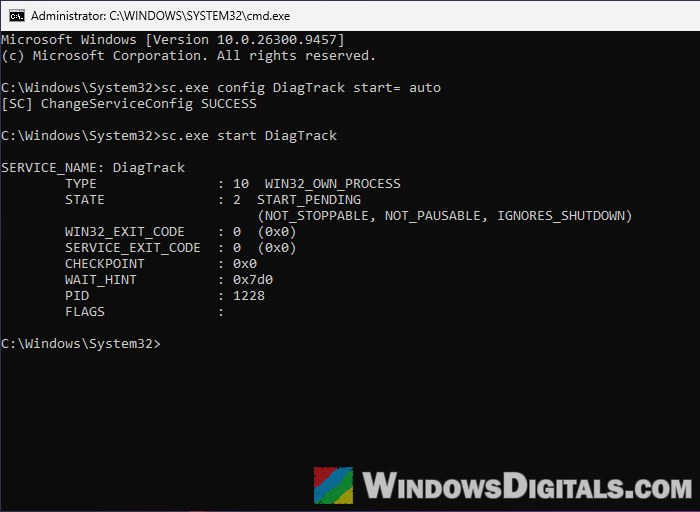
- Then run this command, which makes Windows check again whether the PC can enroll:
cmd /c ClipESUConsumer.exe -evaluateEligibility
- Restart your PC and see if Enroll now works this time.
To see what Windows decided, run this after the restart:
reg.exe query "HKCU\SOFTWARE\Microsoft\Windows NT\CurrentVersion\Windows\ConsumerESU"
The ESUEligibility and ESUEligibilityResult values it lists should change after the check, but Microsoft doesn’t document what the numbers mean. What matters is whether Enroll now works afterward.
Other things you can try
If the wizard still fails, a few more things have helped some people:
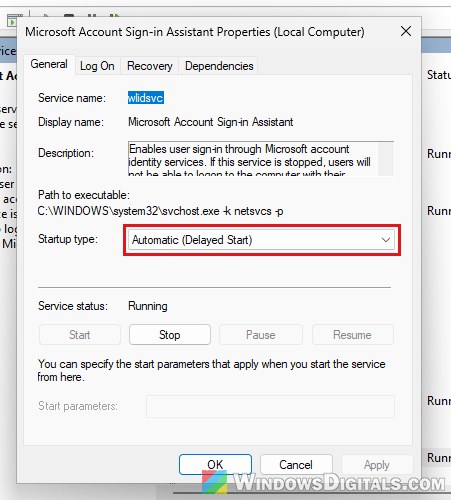
- Check the sign-in services. Open Services, double-click Microsoft Account Sign-in Assistant, set its Startup type to Automatic (Delayed Start), click Start, then OK. Do the same for Credential Manager.
- Try another network, such as your phone’s hotspot, and pause any third-party firewall or security app that blocks outgoing connections while you enroll.
- Repair Windows files. Open Command Prompt as administrator and run
DISM.exe /Online /Cleanup-image /Restorehealth, thensfc /scannow. Restart once both finish, and try again.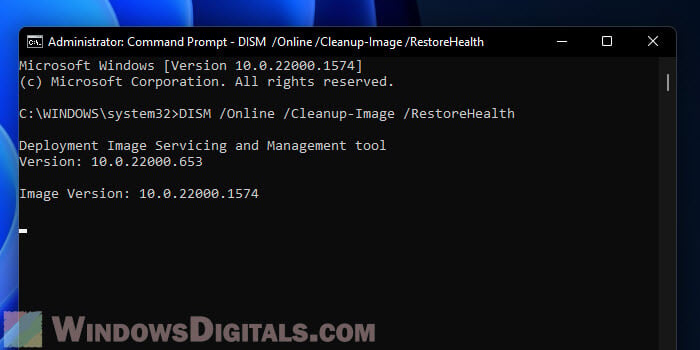
Might be useful: How to Run SFC Scannow Command At Boot in Windows 10/11
What if your PC isn’t eligible at all?
Some PCs will never see the Enroll now link, no matter what you fix. Consumer ESU isn’t available on Windows 10 Enterprise or Education, or on PCs joined to a company domain or managed through MDM; those get ESU through their organization instead. A PC activated through a company’s volume license (KMS) may run into the same wall, even if it’s your own laptop now.
In that case, the option Microsoft points to is upgrading to Windows 11. If your PC can run it, upgrading is the way to keep getting security updates.