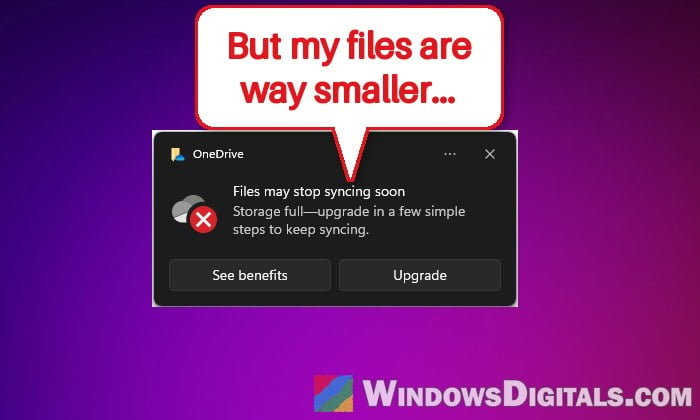
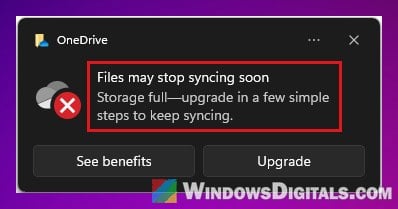
If OneDrive keeps showing “Storage full” or saying you’re over your storage limit, but the files you can actually see in OneDrive add up to only a fraction of it, the space is usually being taken by things that don’t show up in your file list. This guide will show you where that hidden usage comes from and how to get your storage back to normal.
Also see: OneDrive Not Syncing or Uploading Files in Windows 11 (Sync Paused)
Page Contents
Why does OneDrive say it’s full when your files are much smaller?
Your storage limit isn’t only about the files in your OneDrive folders. With a personal Microsoft account, the 5 GB of free cloud storage (or whatever your plan gives you) is shared by several things, and some of them are easy to miss:
- The OneDrive recycle bin. Deleted files still count against your storage until they’re permanently deleted. They stay there for 30 days on a personal account (93 days on a work or school account).
- Outlook.com attachments. Attachments and inline images in your Outlook.com email count toward your cloud storage, even though your mailbox has its own separate 15 GB limit.
- Other Microsoft apps. Teams message attachments and recordings, Loop workspaces and Designer projects use the same storage.
- Shared folders you added to your OneDrive, and files in your Personal Vault.
- A lower limit than you think. If a Microsoft 365 subscription expired or failed to renew, or some free bonus storage (like Samsung’s) ran out, your limit drops back down.
- A different account. The warning may be about another Microsoft account than the one you’re checking.
On work or school accounts, version history and your organization’s retention policy can also eat up the space (more on that below).
Don’t leave a full OneDrive for long: while you’re over the limit, you can’t upload, edit or sync new files, and Outlook.com can’t send or receive email. After 3 months, Microsoft freezes your OneDrive, and after 6 it might delete it.
See what’s actually using your storage
Before deleting anything, check the real breakdown on OneDrive’s website, since the OneDrive app on your PC only shows the total:
- Open your browser, go to
https://onedrive.live.com/?v=managestorageand sign in with the Microsoft account that shows the warning. - Under Storage summary, look at how the Total used is split between OneDrive and Outlook (Attachments).
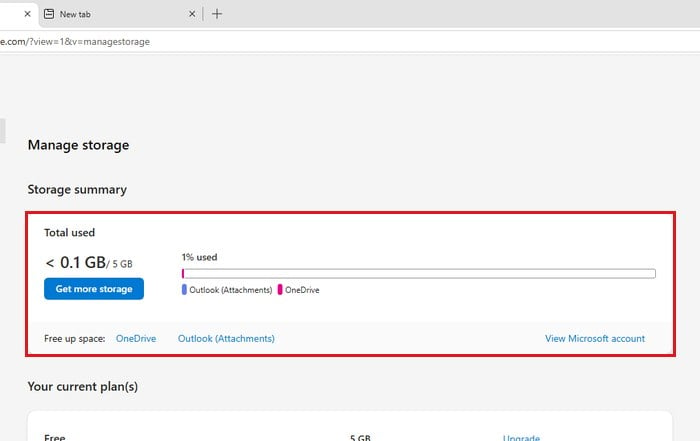
- Scroll down to Your current plan(s) to see which plan you’re on and how much storage it gives you.
The recycle bin isn’t listed on its own, so if OneDrive uses far more than your files add up to, the recycle bin is the first place to look. If it’s your email attachments, start there instead. If your limit is lower than you expected, skip to the section about your plan below.
Empty the OneDrive recycle bin
A full recycle bin is the most common reason, and the fix you’ll see suggested most on Reddit and Microsoft’s forums. Files you delete from OneDrive just move to its recycle bin, so your storage doesn’t go down at all. Online-only files you delete on your PC also end up there, not in your PC’s Recycle Bin.
Please note that once you empty it, those files are gone for good. Not even the “Restore your OneDrive” feature can bring them back after that. So restore anything you might still need first.
- On OneDrive’s website, select Recycle bin on the left.
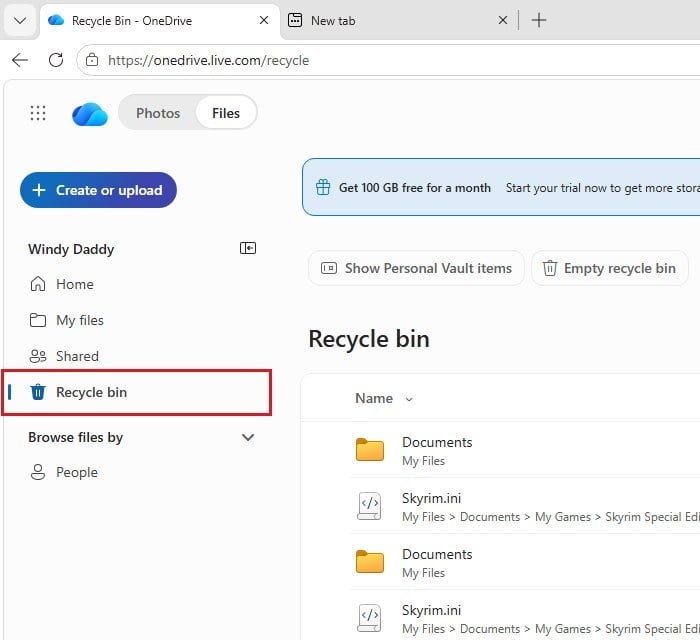
- Go through the list and restore any file you still want (if you’re over the limit, see the next part first).
- Select Empty recycle bin and confirm.
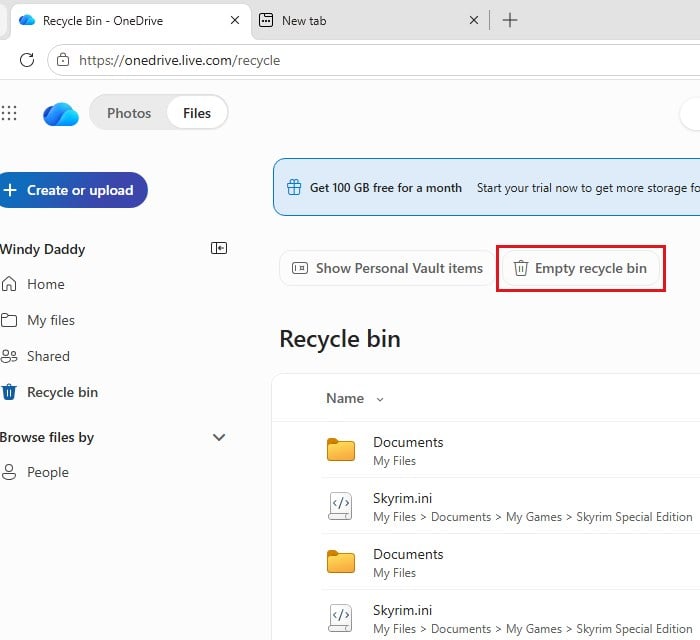
Your used storage can take up to 24 hours to drop.
Over the limit and can’t restore files?
Restoring files from the recycle bin needs free space, so OneDrive won’t restore them while you’re over the limit. You can still download and delete files, though. Download your largest files from OneDrive to an external drive or your PC, delete them from OneDrive, then remove them from the recycle bin too. Once there’s enough room, restore the files you need.
Note: “Restore your OneDrive” (which rolls your whole OneDrive back to an earlier date) only works with a Microsoft 365 subscription.
Check how much space your Outlook.com email uses
An inbox full of photos and PDFs can fill your storage even with an almost empty OneDrive. Here’s how to check it:
- Go to
https://outlook.live.comand sign in with the same account. - Select the Settings (gear) icon, then go to Account > Storage.
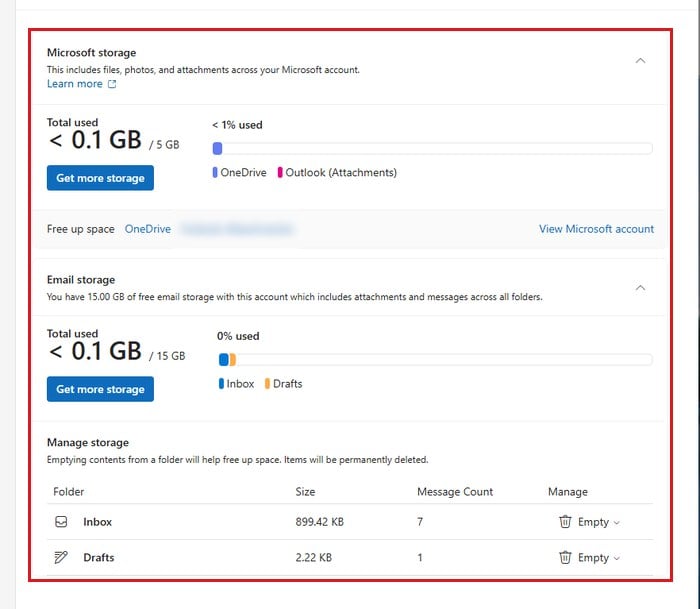
- Look at what’s using the space, and delete old emails with large attachments you don’t need anymore.
Might be useful: How to Disable or Remove OneDrive From Windows 11
Make sure it’s the right account and your plan is still active
The OneDrive app on your PC can be signed in with one account while you’re checking another in the browser. And if your Microsoft 365 subscription expired or failed to renew, your limit drops back to the free 5 GB.
To see which account the OneDrive app is using:
- Click the OneDrive (cloud) icon in the taskbar, select the gear icon, then Settings.
- Select Account. It shows the account’s email and how much storage is used at the bottom left.
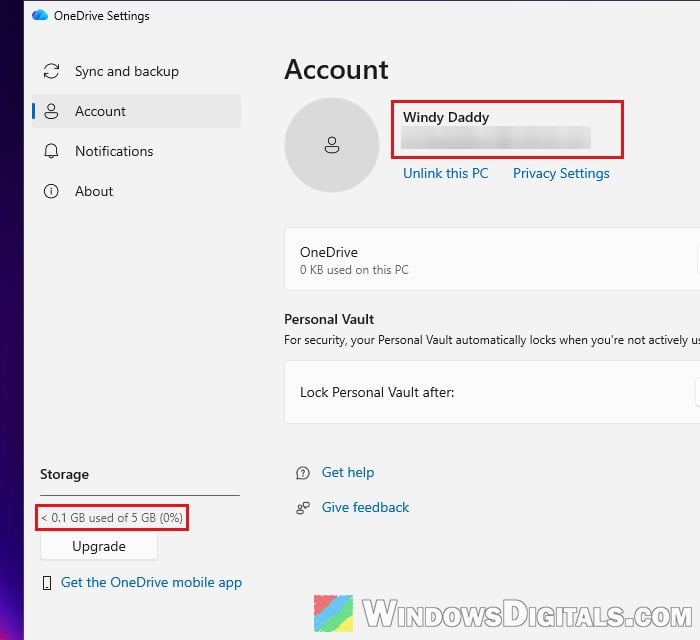
If it’s a different account, check that account’s storage instead.
Give it a day, then refresh the OneDrive app
If you just bought more storage, renewed your plan or deleted a lot of files, the new numbers can take up to 24 hours (48 for new storage) to show up. The OneDrive app on your PC can keep showing “storage full” and red X icons for a while after the website already shows the right amount.
So give it a day and restart your PC. If the app still disagrees with the website after that, reset OneDrive, or unlink and re-link your PC (OneDrive Settings > Account > Unlink this PC, then sign in again).
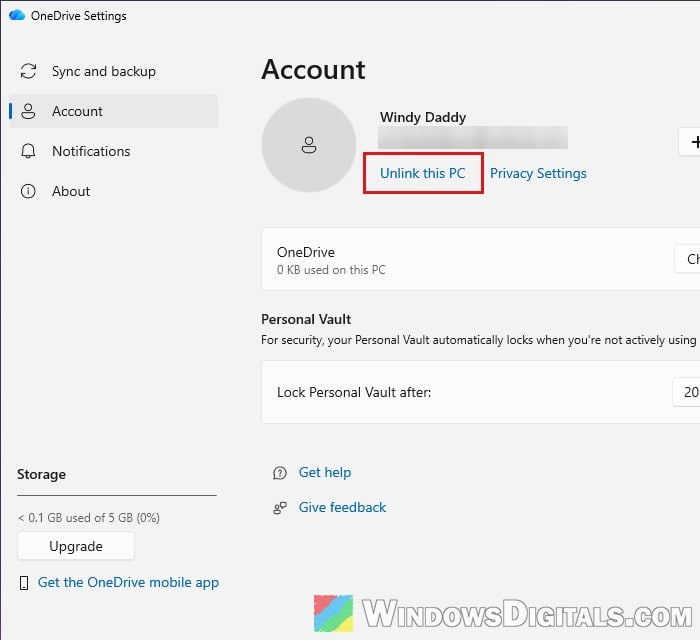
Pro tip: How to Reset or Reinstall OneDrive in Windows 11
Work or school account? Check version history and ask IT
On a work or school OneDrive, two more things can use up your storage without showing up as files:
- Version history. Every time you save a file, OneDrive keeps the older version, and these count toward your storage. On OneDrive’s website, go to Settings (gear) > OneDrive settings > More Settings > Storage Metrics, open a folder like Documents, and check how much is used by version history. You can delete old versions you don’t need from there.
- Your organization’s retention policy. If your organization keeps copies of files, the ones you delete or edit are kept in a Preservation Hold library, and they still count toward your storage. That’s why your usage can even go up after you delete files. You can’t remove those kept copies yourself. Only your IT admin can change the policy or give you more space.
Still doesn’t add up? Contact Microsoft support
If you’ve emptied the recycle bin, checked your email and waited a couple of days, the problem is probably on Microsoft’s side. Some accounts have shown the wrong usage with no hidden files at all, and only Microsoft support could fix them. Contact Microsoft support and tell them what you’ve already checked.