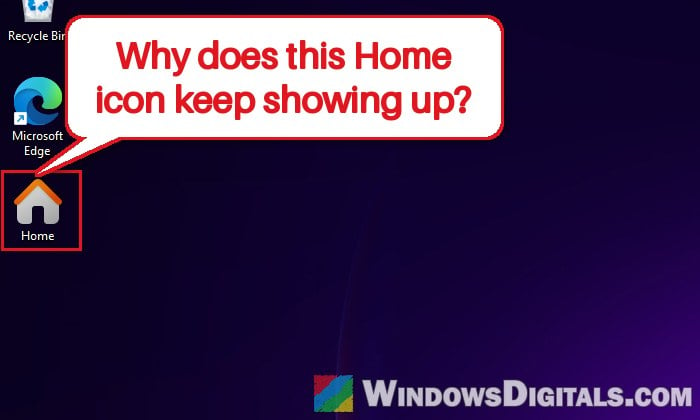
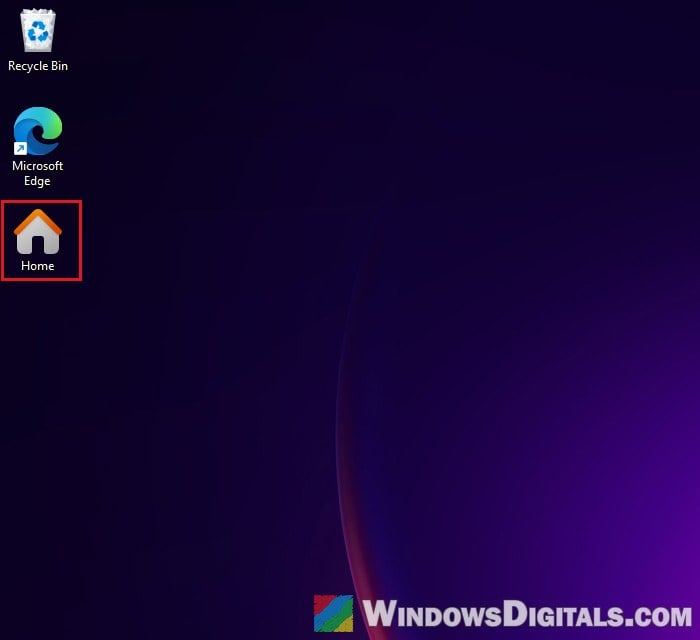
If a “Home” icon keeps showing up on your Windows 11 desktop, often right after you delete a file from the desktop or copy one to it, and it disappears when you press F5 only to come back later, it’s a known glitch. It’s File Explorer’s Home page showing up as a desktop icon, and it has been around since Windows 11 22H2. This guide will explain why it happens and show you how to stop it from coming back.
Also see: How to Stop Windows 11 from Rearranging Desktop Icons
Page Contents
Why does the Home icon show up on the desktop?
Home is the default page of File Explorer, the one you see when you press Win + E, with your Quick access folders, Favorites and Recent files. To Windows, it’s one of the special desktop icons, like This PC or Recycle Bin, and whether it’s shown on the desktop is controlled by a value in the registry.
When Microsoft added Home to File Explorer in Windows 11 22H2, it was also added to the list of these desktop icons. Normally it stays hidden. The likely reason it pops up anyway is the desktop not refreshing properly, especially when files are added or removed. It’s Windows’ own icon, not a virus, just annoying.
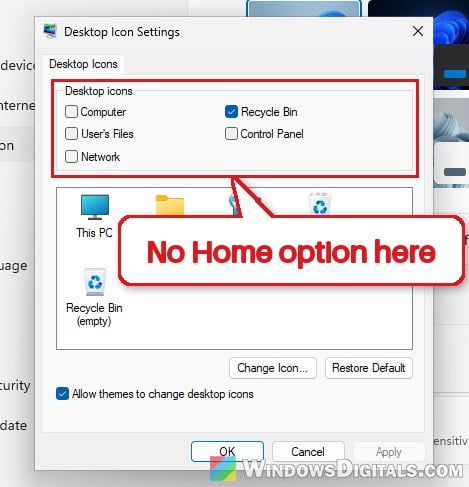
Unlike This PC or Recycle Bin, Home isn’t in the Desktop Icon Settings window, so you can’t just untick it there. You have to hide it in the registry instead.
Might be useful: How to Hide or Show All Desktop Icons in Windows 10
Refresh the desktop or restart Windows Explorer
The quickest way to get rid of it is to click an empty spot on the desktop and press F5. Opening a new File Explorer window sometimes clears it too. Note that the refresh can also move your desktop icons to the top-left corner of the screen.
If that doesn’t work, restart Windows Explorer:
- Press Ctrl + Shift + Esc to open Task Manager.
- Find Windows Explorer in the Processes list, right-click it and select Restart.
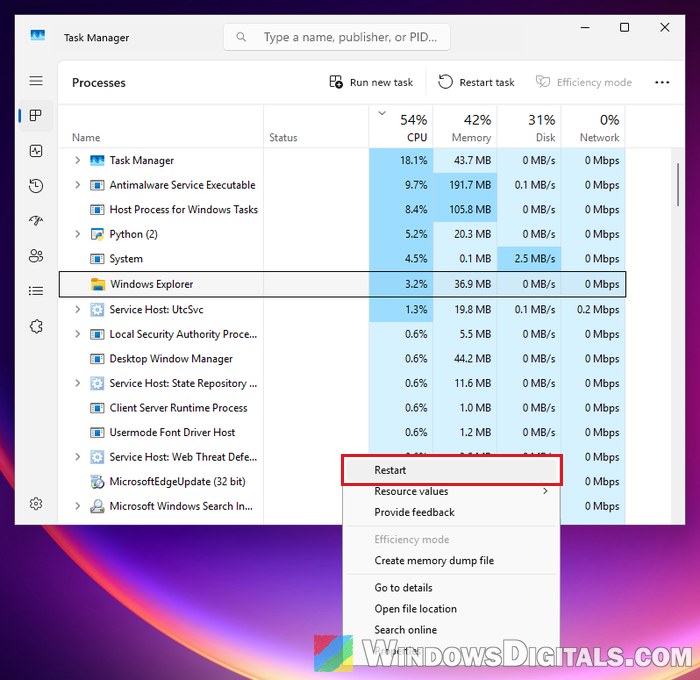
Both of these only hide the icon until the next glitch, though. For a lasting fix, go to the next section.
Pro tip: Restart Explorer.exe with CMD or PowerShell in Windows 11
Hide the Home icon in the registry
This hides the Home icon through the same registry key Windows uses for the other desktop icons. Incorrectly changing the registry can mess up Windows, so please at least create a system restore point first. If you’re not sure what you’re doing, ask someone who knows to help you instead.
Here’s how to do it:
- Press Win + R, type “regedit” and press Enter. Click Yes if asked.
- Copy and paste the following path to the address bar of Registry Editor and press Enter:
HKEY_CURRENT_USER\Software\Microsoft\Windows\CurrentVersion\Explorer\HideDesktopIcons\NewStartPanel
- Look for a value named
{f874310e-b6b7-47dc-bc84-b9e6b38f5903}. If it isn’t there, right-click an empty area on the right side, select New > DWORD (32-bit) Value, and give it exactly that name, curly brackets included.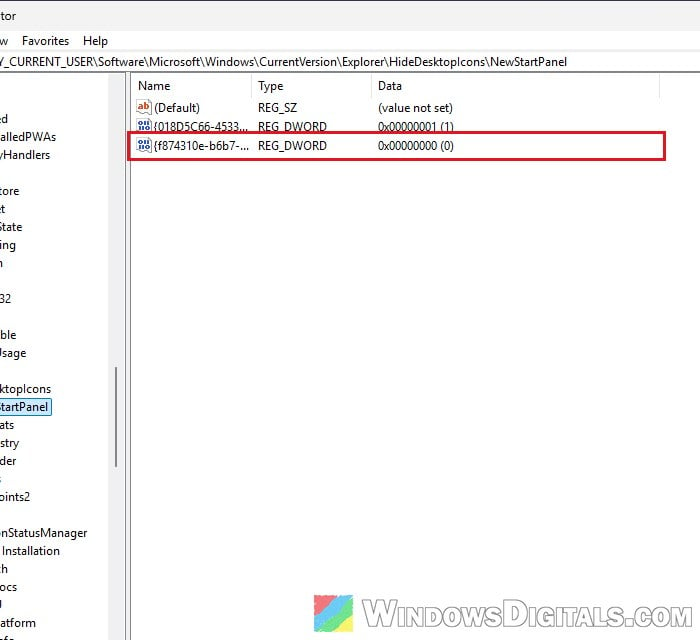
- Double-click the value, set Value data to 1 and click OK. (0 would show the Home icon on the desktop.)
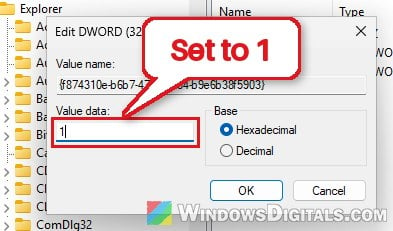
- Go back to the desktop and press F5.
If it still comes back, add a ClassicStartMenu key
Hiding it under NewStartPanel alone doesn’t always stick. Adding the same value to a second key, ClassicStartMenu, is the more thorough fix:
- In Registry Editor, look under HideDesktopIcons (one level above NewStartPanel). If there’s no ClassicStartMenu key yet, right-click HideDesktopIcons, select New > Key and name it ClassicStartMenu.
- Select the ClassicStartMenu key.
- Right-click an empty area on the right side, select New > DWORD (32-bit) Value, and name it
{f874310e-b6b7-47dc-bc84-b9e6b38f5903}. - Double-click it, set Value data to 1 and click OK.
- Press F5 on the desktop.
Related guide: How to Remove Recycle Bin From Windows 11 Desktop
Do the same with two commands instead
If you’d rather not click through Registry Editor, you can set both values from Command Prompt. Open Command Prompt normally (it doesn’t need to be run as administrator), then type the following commands one by one, and press Enter after each:
reg add "HKCU\Software\Microsoft\Windows\CurrentVersion\Explorer\HideDesktopIcons\NewStartPanel" /v "{f874310e-b6b7-47dc-bc84-b9e6b38f5903}" /t REG_DWORD /d 1 /f
reg add "HKCU\Software\Microsoft\Windows\CurrentVersion\Explorer\HideDesktopIcons\ClassicStartMenu" /v "{f874310e-b6b7-47dc-bc84-b9e6b38f5903}" /t REG_DWORD /d 1 /f
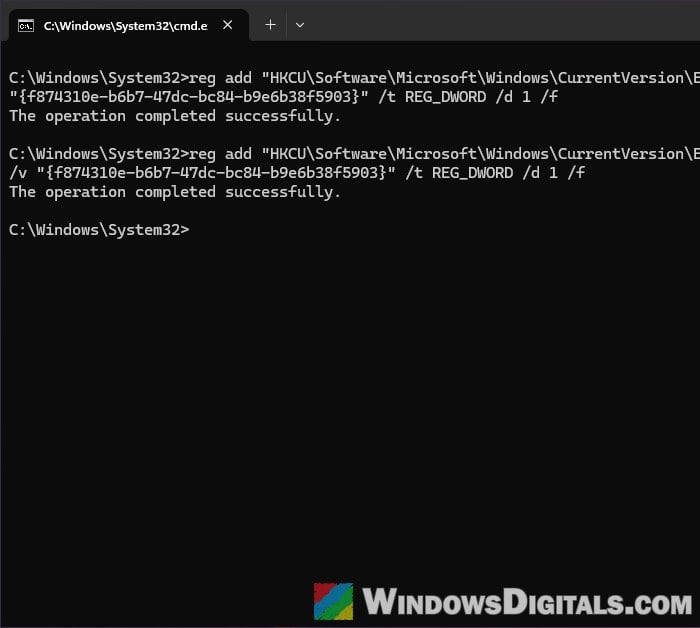
The second command creates the ClassicStartMenu key if it isn’t there yet. Then press F5 on the desktop.
Hide it for every user on the PC
The steps above only change your own account. If other people use the PC and see the same icon, set the same value under this key as well:
HKEY_LOCAL_MACHINE\SOFTWARE\Microsoft\Windows\CurrentVersion\Explorer\HideDesktopIcons\NewStartPanel
You’ll need to be signed in as an administrator for this one. From an administrator Command Prompt, the command is:
reg add "HKLM\SOFTWARE\Microsoft\Windows\CurrentVersion\Explorer\HideDesktopIcons\NewStartPanel" /v "{f874310e-b6b7-47dc-bc84-b9e6b38f5903}" /t REG_DWORD /d 1 /f
What about rebuilding the icon cache?
You may also see rebuilding the icon cache suggested for this. It has helped in some cases, but in others the Home icon came back anyway. It doesn’t hurt to try if the registry fix alone isn’t enough, but don’t expect too much from it.