If you’re using split screen in Microsoft Edge and every link you click on one side loads in that same half and replaces the page you wanted to keep, that’s just how split screen works by default. This guide will show you a few ways to keep your page and still open the links you need.
Also see: How to Split Screen Vertically in Windows 11
Page Contents
Why do links open in the same half of the split screen?
Edge’s split screen puts two pages side by side inside one tab. Each half works like its own little browser, so when you click a normal link in the left half, Edge simply loads it there, the same way it would in a regular tab. The page you were reading is replaced, and the other half doesn’t change (the address bar still shows both addresses side by side).
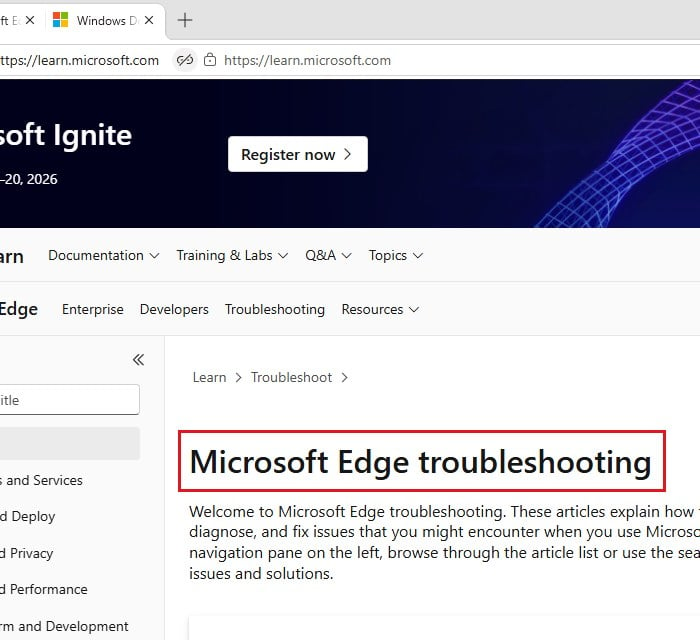
Edge doesn’t have a setting that sends links from split screen to a new tab automatically. What it does have is a switch that sends links from the left half to the right half, plus the usual ways to open a link in a new tab yourself. Extensions that force links into new tabs may not help inside split screen either, so stick to the options below.
Pro tip: How to Cycle Through Tabs in Chrome, Firefox or Edge
Open the link in a new tab yourself
The quickest fix is to tell Edge where to open the link each time you click it. These work anywhere in Edge, split screen included:
- Ctrl + click: Hold Ctrl and click the link. It opens the link in a new tab.
- Middle-click: Press the mouse wheel down on the link. It does the same as Ctrl + click.
- Right-click menu: Right-click the link and select “Open link in new tab“.
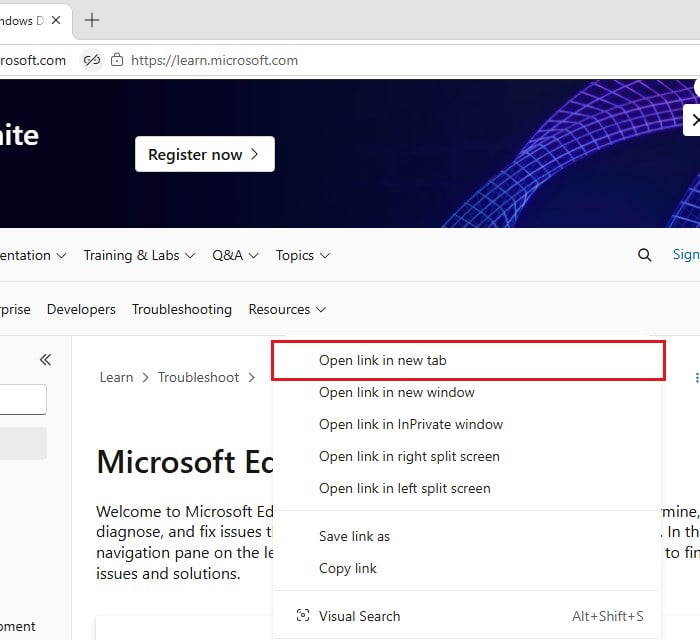
In split screen, the same right-click menu also has “Open link in right split screen” and “Open link in left split screen“, which are handy when you want the link next to your page instead of in another tab.
Might be useful: How to Set New Tab Page to Google in Microsoft Edge
Turn on “Open left links to the right”
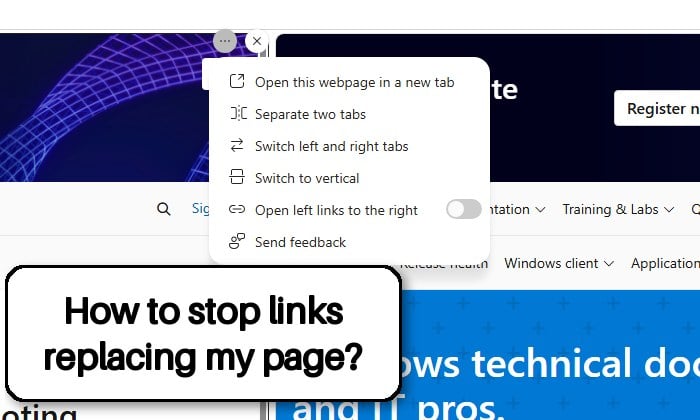
If you mostly read on one side and open links on the other (a list of results on the left, the pages on the right), Edge can do that for you. With “Open left links to the right” turned on, any link you click in the left half opens in the right half, and your left page stays put. It’s not a new tab, but you won’t lose the page you were reading, which is usually what matters.
Here’s how to turn it on:
- With split screen open, move your mouse over either half and click the More options (…) button at its top-right corner.
- Turn on the toggle next to “Open left links to the right“.
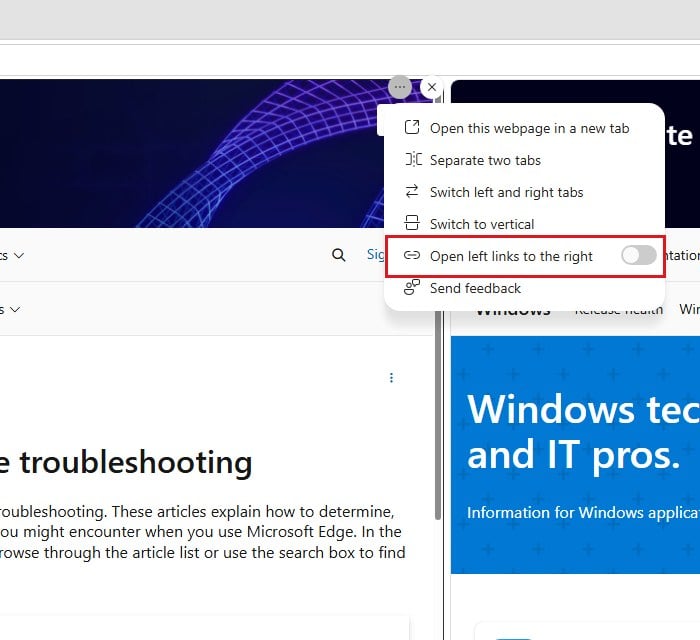
You can also click the small link icon between the two addresses in the address bar, which shows the same toggle. After turning it on, click a link in the left half, and it should load on the right while the left page doesn’t change. As the name says, it only covers links you click in the left half.
Move the page out of split screen
If you’d rather go back to normal tabs for a while, you don’t have to close anything. The same More options (…) menu has two items for that:
- “Open this webpage in a new tab“: opens the page from that half in its own tab.
- “Separate two tabs“: ends split screen and keeps both pages open as two normal tabs.
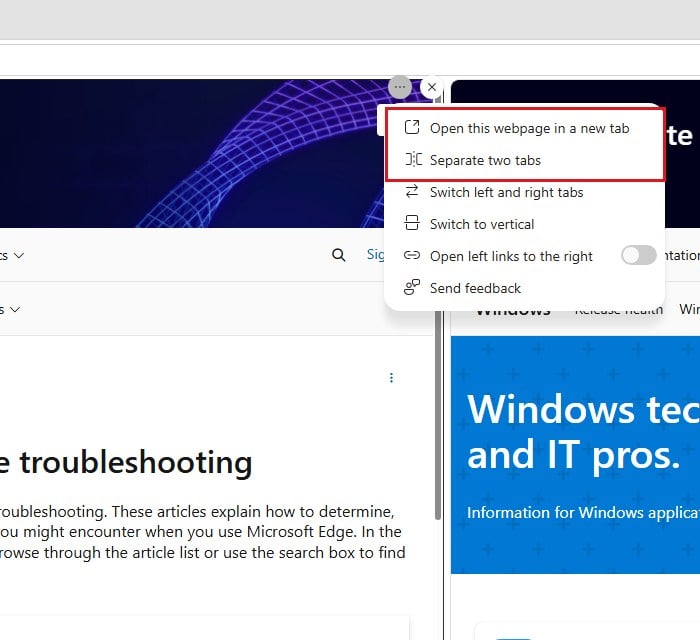
Clicking the Split screen button on the toolbar (next to Favorites) does the same as “Separate two tabs“. When you want them side by side again, open Settings and more (…) > Split screen and pick the other tab from “Tabs you’ve opened“.
Related guide: Windows 11: How to Use Snap Layouts to Snap Apps
Can you make split screen always open links in a new tab?
No, not in Edge 152. There’s no option for it in Edge’s settings or in the split screen menu, so Ctrl + click (or the mouse wheel) is still the most reliable way. If you want Microsoft to add it, click Send feedback at the bottom of the split screen’s More options menu and describe what you’d like. Edge has renamed this switch before (older versions called it “Link tabs“), so check that menu again after Edge updates.