If OneDrive stopped syncing on your Windows 11 PC, whether it keeps showing “Sync paused“, sits at 0% uploaded forever, or just never uploads your new files, this guide will show you what usually causes it and how to get OneDrive syncing again without losing your files.
Also see: How to Reset or Reinstall OneDrive in Windows 11
Page Contents
Why does OneDrive stop syncing?
Most of the time OneDrive isn’t broken at all. It has paused itself, or something is stopping it from finishing. Some common reasons are:
- Sync is paused. OneDrive pauses automatically when your PC goes into battery saver or you’re on a metered network, and it can also be paused by hand for 2, 8 or 24 hours.
- Your OneDrive storage is full. Once you’re over your storage limit, OneDrive can’t upload or sync new files at all.
- A file it can’t sync is holding things up, such as a file you still have open, a very large file, a name with characters OneDrive doesn’t allow, or a path that’s too long.
- OneDrive’s own sync state got stuck, for example after a Windows update or after you changed which folders it backs up.
Start with the quick checks below, and keep the reset and unlink steps for last.
Check if OneDrive is paused, and resume it
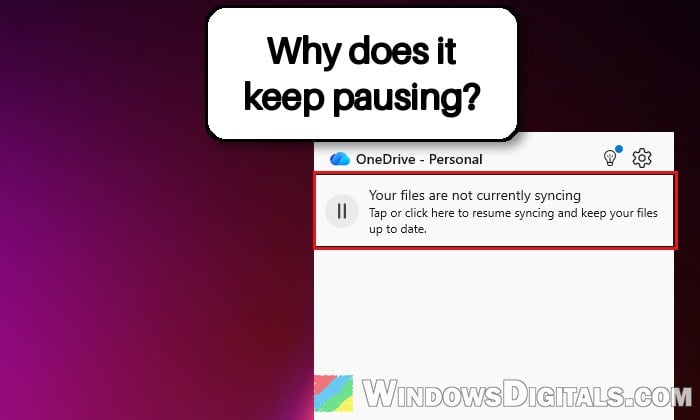
A gray cloud with a small pause symbol on it means syncing is paused. Here’s how to check and resume it:
- Click the OneDrive cloud icon in the notification area at the right end of the taskbar. If you don’t see it, click the small up arrow at the left end of the notification area first.
- If it says “Your files are not currently syncing“, click that message to resume syncing.
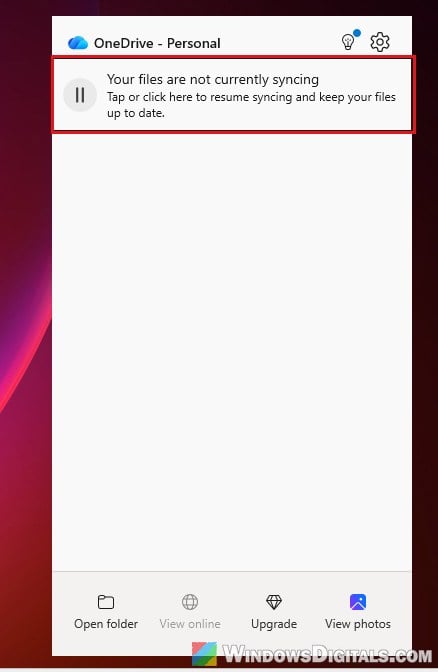
Give it a few minutes, then check if the icon shows your files as up to date.
Stop OneDrive from pausing on a metered network or battery saver
If OneDrive keeps pausing by itself, it’s probably one of its two automatic pause settings. They’re there to save mobile data and battery, but on a home PC they can just get in the way.
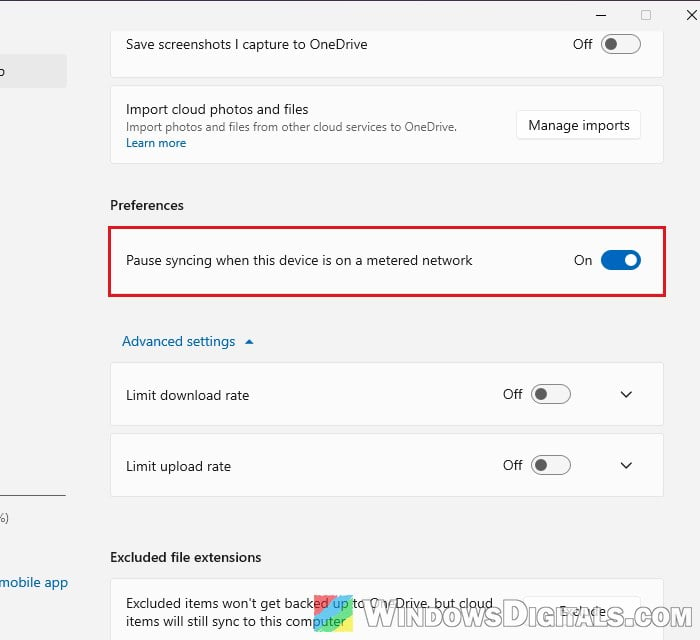
- Click the OneDrive icon, select the gear icon, then Settings.
- Go to Sync and backup and scroll down to Preferences.
- Turn off “Pause syncing when this device is on a metered network“. If you also see “Pause syncing when this device is in battery saver mode“, turn that off too.
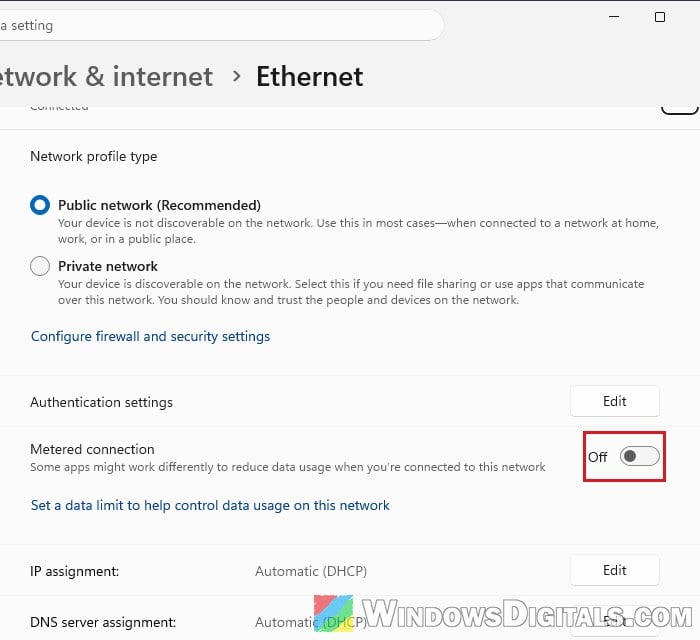
Windows can also mark your own internet connection as metered. If you’re on a normal home connection, press Win + I, go to Network & internet, select Wi-Fi or Ethernet (on Wi-Fi, then your network’s properties), and make sure Metered connection is off.
Please note that this doesn’t fix every case. Some people have both settings off and OneDrive still pauses now and then, so keep going if it comes back.
Make sure your OneDrive isn’t full
If your OneDrive storage is full, OneDrive can’t upload, edit or sync any new files, and the files already there become read-only. Microsoft also sends you an email when it happens, so check your inbox for it.
To see how much space you have, click the OneDrive icon, select the gear icon > Settings, and look under Storage at the bottom left.
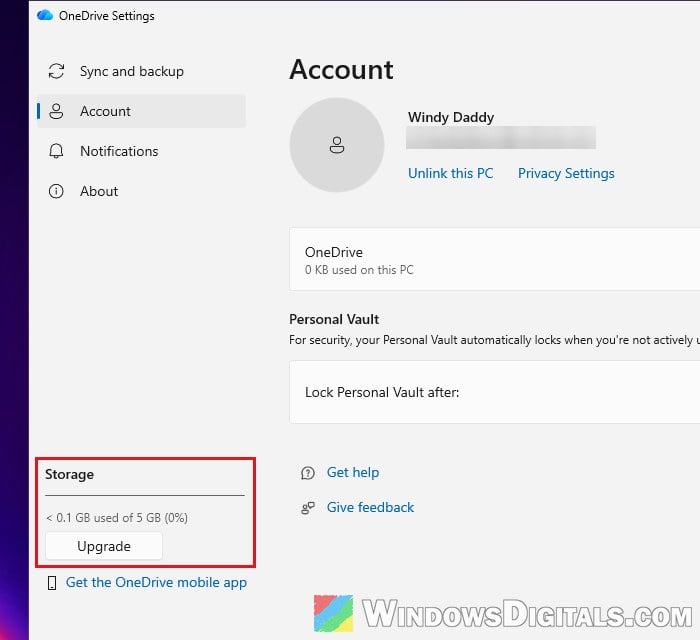
If it’s full, delete or move out large files you don’t need. Also check whether a Microsoft 365 subscription or some free bonus storage recently ran out, since your storage limit drops when that happens.
Look for files OneDrive can’t sync
Sometimes one file holds everything up, and OneDrive shows “Processing changes” for a long time or keeps an upload stuck. Click the OneDrive icon to see which files it’s working on, then check these:
- Close files you have open, especially Word, Excel or PowerPoint files saved in OneDrive.
- Very large files, like a ZIP archive, a long video or Outlook’s PST or OST data files. Move them out of your OneDrive folder, or choose not to sync the folder they’re in.
- Names OneDrive doesn’t allow. These characters can’t be used:
" * : < > ? / \ |, and neither can a space at the start or end of a name. Names like “CON”, “PRN”, “AUX” or names starting with~$aren’t allowed either. - Very long paths. OneDrive can only sync a file whose full path is 400 characters or less, so deeply nested folders with long names can be a problem.
Temporary .tmp files never sync, so don’t worry if those stay behind.
Might be useful: How to Stop Game Saves and Mods Syncing to OneDrive on Windows 11
Quit and restart OneDrive
If OneDrive is stuck on resuming (the spinning circle that never ends), closing it completely and starting it again can get it moving:
- Click the OneDrive icon, select the gear icon, then Quit OneDrive. If you don’t see it, click Pause syncing in that menu first to expand it (this alone doesn’t pause anything).
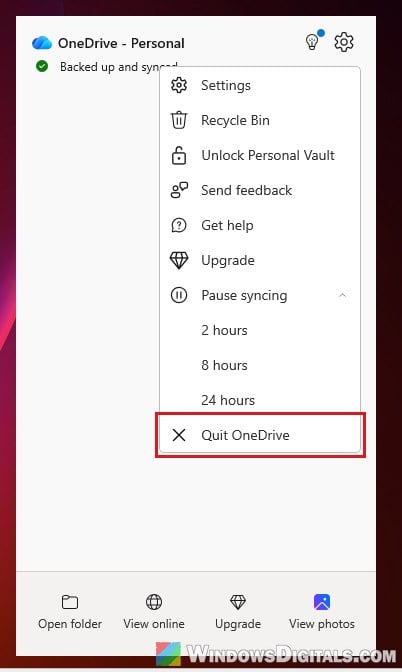
- Confirm with Quit OneDrive.
- Click Start, type “OneDrive“, and open the OneDrive app.
Once its cloud icon is back in the taskbar, click it and check if it starts syncing.
Folders look empty or files seem to be missing?
Before you reset or unlink anything, sign in at onedrive.com and check My files to see if your files are there. If they are, you can download anything you need right away from the website while you sort out the app on your PC.
Reset OneDrive
Resetting OneDrive clears its settings and sync connections and makes it sync everything again from scratch. According to Microsoft, you won’t lose any files by doing this. You’ll only need to choose your sync settings again if you had changed which folders sync.
- Press Win + R to open the Run dialog box.
- Copy and paste the following, then click OK:
%localappdata%\Microsoft\OneDrive\onedrive.exe /reset
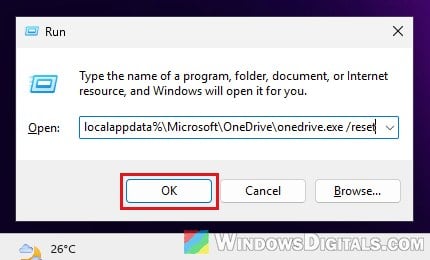
- If you see a “Windows cannot find…” message, try this one instead:
C:\Program Files\Microsoft OneDrive\onedrive.exe /reset
If that doesn’t work either, try
C:\Program Files (x86)\Microsoft OneDrive\onedrive.exe /reset. - If OneDrive doesn’t start again by itself after a few minutes, open it from the Start menu.
The first sync after a reset can take a while if you have a lot of files, so let it finish.
Unlink this PC and sign in again
If nothing above helped, Microsoft’s last suggestion is to unlink OneDrive from your PC and link it again.
- Click the OneDrive icon, select the gear icon, then Settings.
- Go to Account and click Unlink this PC, then confirm.
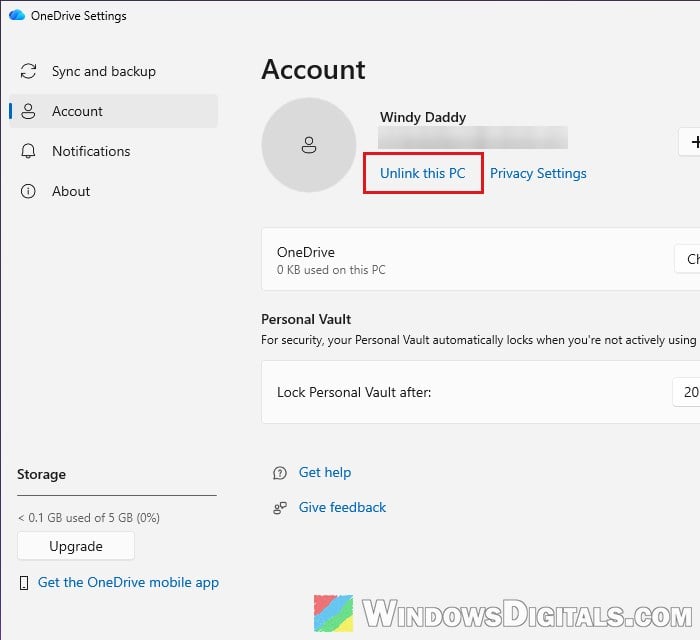
- Restart your PC, then open OneDrive and sign in with your Microsoft account again.
Once you’re signed in, OneDrive sets up your folders again and starts syncing.
Related guide: How to Disable or Remove OneDrive From Windows 11