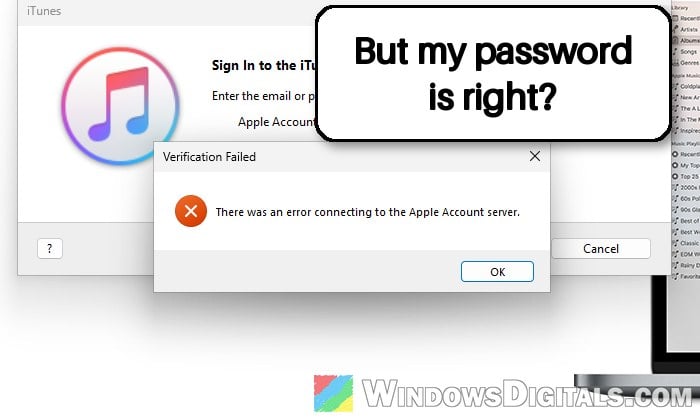
If you try to sign in to iTunes on your Windows 11 or 10 PC and right after typing your password you get “Verification Failed. There was an error connecting to the Apple Account server.“, even though the same Apple Account works fine on your iPhone or in a browser, you’re far from the only one. The error shows up right away, often without the usual two-factor code, and reinstalling iTunes often doesn’t help. This guide will explain why it happens and what you can do to sign in again.
Also see: Date and Time is Always Wrong on Windows 10
Page Contents
Why does iTunes say it can’t connect to the Apple Account server?
Despite what the message says, your internet connection and your account are usually fine. This error tends to come in waves: many Windows users suddenly get it at the same time, in iTunes and often in the Apple Music, Apple TV and iCloud apps for Windows too. That happened in late August and September 2026, and again from mid-October 2026. In those cases, it’s most likely a problem between Apple’s sign-in service and Windows, not something wrong on your PC.
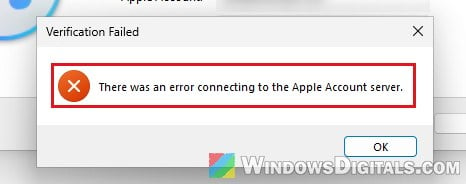
That said, a few things on your own PC can cause the same error:
- The date, time or time zone on your PC is wrong.
- A damaged adi folder, where iTunes keeps its authorization data.
- An outdated iTunes or missing Windows updates.
- Security software, a VPN or your network blocking iTunes from reaching Apple’s servers.
So first, find out whether it’s Apple’s side or your PC.
Make sure it’s not Apple’s side first
Open a browser and sign in to your account at https://account.apple.com/. If that works, your Apple Account and password are fine, and the problem is only with signing in from Windows.
Then check Apple’s System Status page. If Apple Account or iTunes Store shows a problem, there’s nothing you can fix on your PC. Just wait for Apple.
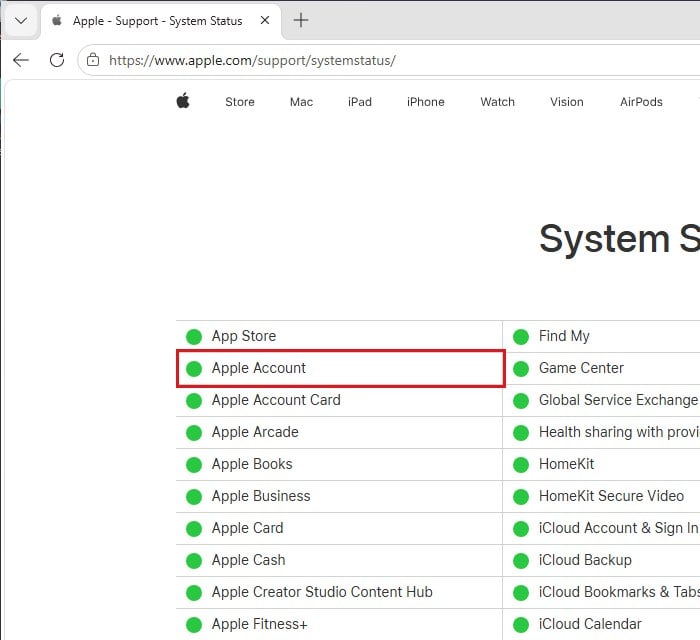
Even if everything shows green there, past waves have usually cleared up on their own within a few days. If you don’t need iTunes right now, waiting is an option too.
Install the latest Windows updates and restart
During these waves, several people found that installing the latest Windows updates, restarting and then trying again got them back in, sometimes only after two or three sign-in attempts. It doesn’t work for everyone, but it’s the thing that has helped the most people so far in the October wave.
- Press Win + I to open Settings and select Windows Update.
- Click Check for updates and install everything that’s offered.
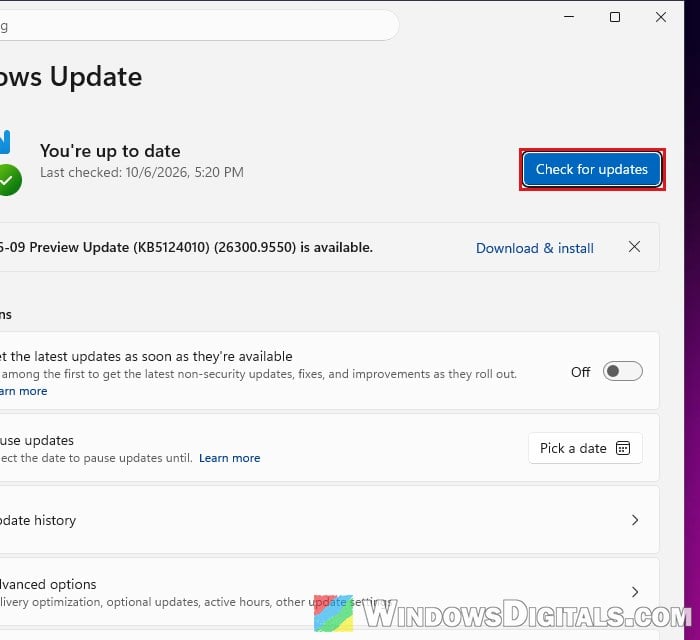
- Restart your PC, even if Windows doesn’t ask you to.
- Open iTunes and sign in again. If it fails, try once or twice more.
Might be useful: Windows 11 “Updates failed” with a “Retry” button
Check your PC’s date, time and time zone
If your PC’s clock is off, iTunes can fail to make a secure connection to Apple’s servers, and Apple lists the date, time and time zone among the things to check. Here’s how to do it:
- Press Win + I and go to Time & language > Date & time.
- Turn on “Set time automatically” and “Set time zone automatically“.
- If “Set time zone automatically” is grayed out, pick your time zone from the Time zone list below it instead.
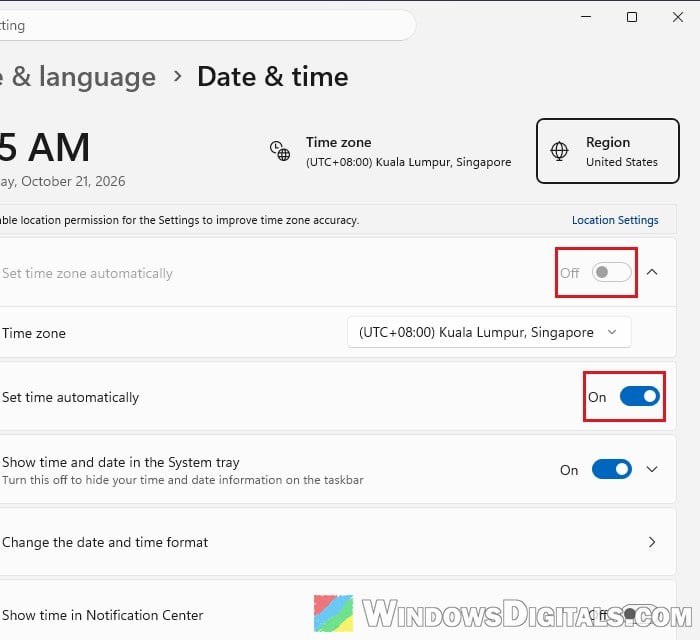
- Make sure the date, time and time zone shown are correct, then try signing in to iTunes again.
Related guide: Sync Time or Change NTP Server in Windows 11 using CMD
Rename the iTunes “adi” folder
iTunes keeps the data that ties your PC to your Apple Account in a folder called adi. When that data is damaged, sign-in can keep failing. Renaming the folder makes iTunes create a fresh one, which is often enough to get signed in again.
- Close iTunes completely.
- Open File Explorer, then copy and paste the following path into the address bar and press Enter (the ProgramData folder is hidden, so you won’t see it by clicking through):
C:\ProgramData\Apple Computer\iTunes
- Right-click the adi folder, select Rename and name it “adi.old“.
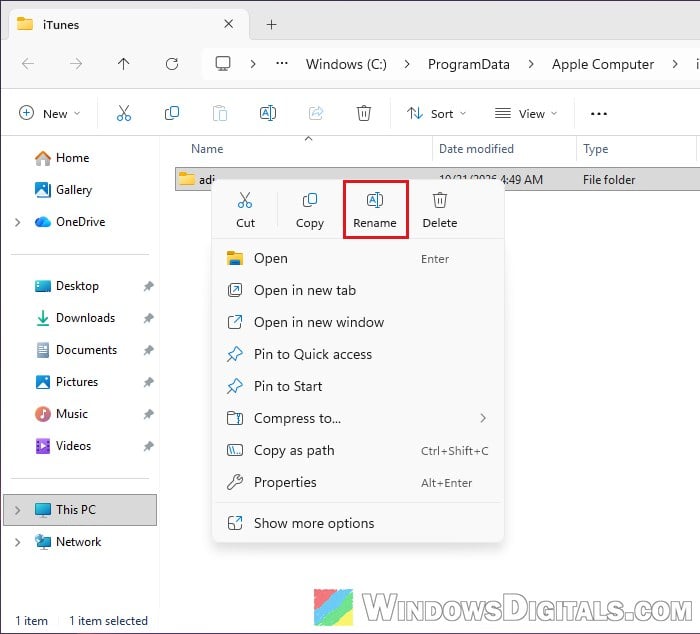
- Open iTunes and sign in again. If Apple asks for a verification code, enter the one sent to your iPhone or other Apple device.
If lots of people are getting the error at the same time, though, this probably won’t help, since the problem isn’t on your PC.
Update iTunes
Apple also recommends keeping iTunes up to date, so make sure you have the latest version. How you update it depends on where you got iTunes:
- If you installed iTunes from the Microsoft Store: open the Microsoft Store, select Downloads at the bottom left and click Check for updates.
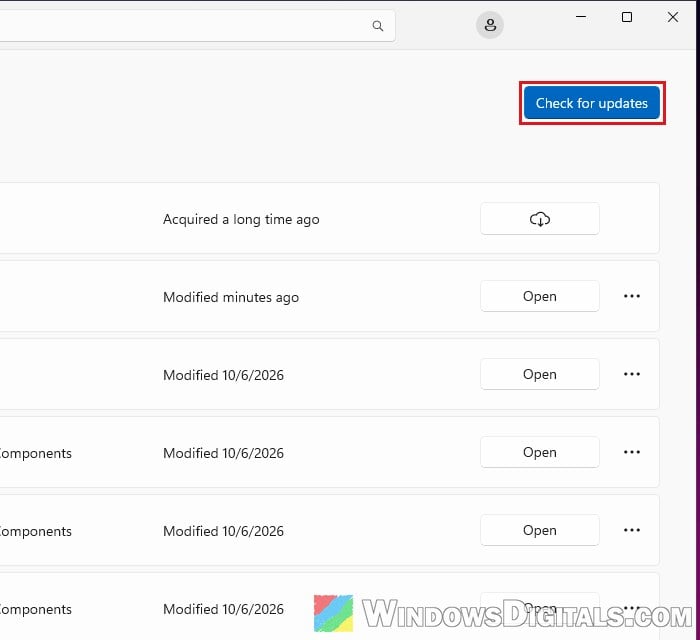
- If you installed iTunes from Apple’s website: download the latest version from Apple and install it.
Restart iTunes after updating and try again.
Turn off your VPN and test without your antivirus
According to Apple, security software from other companies can stop iTunes from reaching Apple’s servers. A VPN or your network can do the same.
- Turn off your VPN if you use one, then try again.
- Temporarily disable or uninstall third-party antivirus and test whether iTunes signs in.
- Try another network, such as your phone’s hotspot. If iTunes signs in there, the problem is your own network or router.
Pro tip: How to Disable VPN in Windows 11
Remove all Apple apps and reinstall iTunes
If none of this works, start clean. Reinstalling iTunes alone often isn’t enough, so remove every Apple app on your PC first.
- Press Win + I and go to Apps > Installed apps.
- Search for “Apple” and “iTunes“, then uninstall every Apple app you have, such as iTunes, Apple Music, Apple TV, iCloud and Apple Devices: click the … next to each one and select Uninstall.
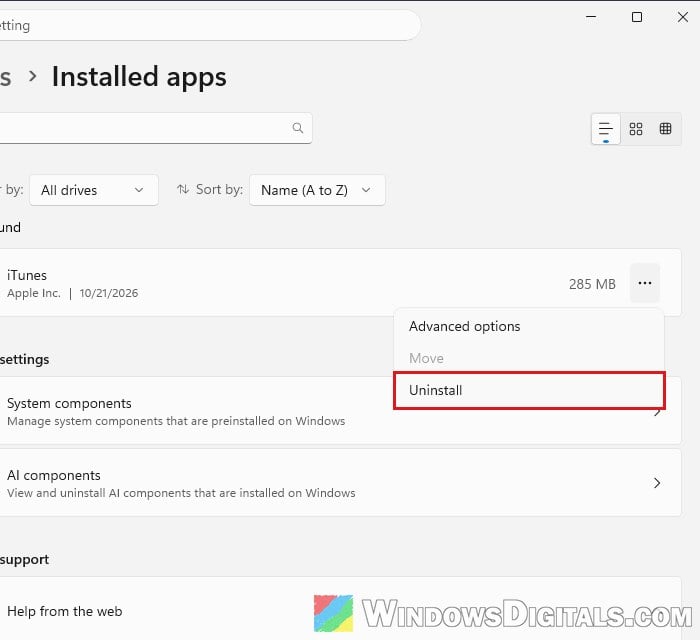
- Install the latest Windows updates and restart your PC.
- Install iTunes again and sign in, then reinstall the other Apple apps you need.
This clean reinstall got some people signed in again when nothing else worked. During the October 2026 wave, though, it didn’t help everyone. If it fails for you too, the problem most likely isn’t on your PC. Keep Windows updated and try again in a few days.