If you’ve noticed that File Explorer shows the right time for your photos, but the videos from the same camera are off by a few hours (often by exactly your time zone’s difference from UTC), the files aren’t broken and your PC’s clock isn’t wrong. This guide will explain why it happens and how you can correct the time stored in the videos.
Also see: How to Check the Date a Photo was Taken in Windows 11
Page Contents
Why are only the videos off by a few hours?
It’s because photos and videos store their time differently, and Windows treats each one its own way.
- Photos (JPG): the time comes from what the camera writes into the photo’s EXIF data, which Windows shows as “Date taken”. This time has no time zone, so Windows shows it exactly as the camera recorded it.
- Videos (MP4): Windows reads the video’s “Media created” date. The MP4 format says this date should be stored in UTC (universal time), and Microsoft’s own documentation for this property says the same. So Windows treats it as UTC and converts it to your PC’s time zone before showing it.
Phones usually follow that rule and store the video’s time in UTC, so their videos come out right. Many cameras don’t. They store their own local time instead, most likely because the camera doesn’t know which time zone it’s in. Windows then converts that local time as if it were UTC, and the video ends up shifted by your time zone’s offset.
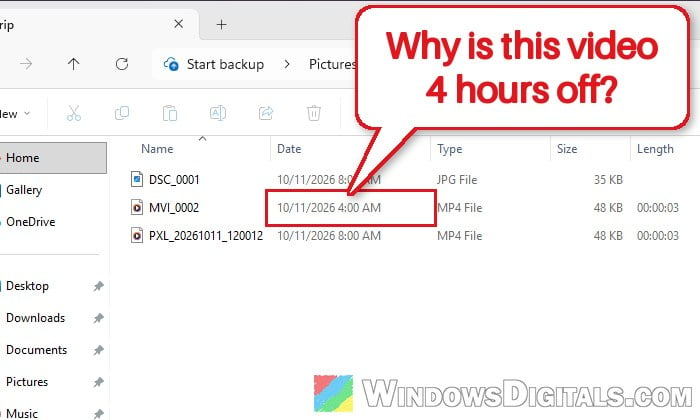
For example, on a PC set to US Eastern time (4 hours behind UTC in summer), a camera video recorded at 8:00 AM shows up as 4:00 AM, while a photo from the same camera and a phone video taken at the same moment both show 8:00 AM.
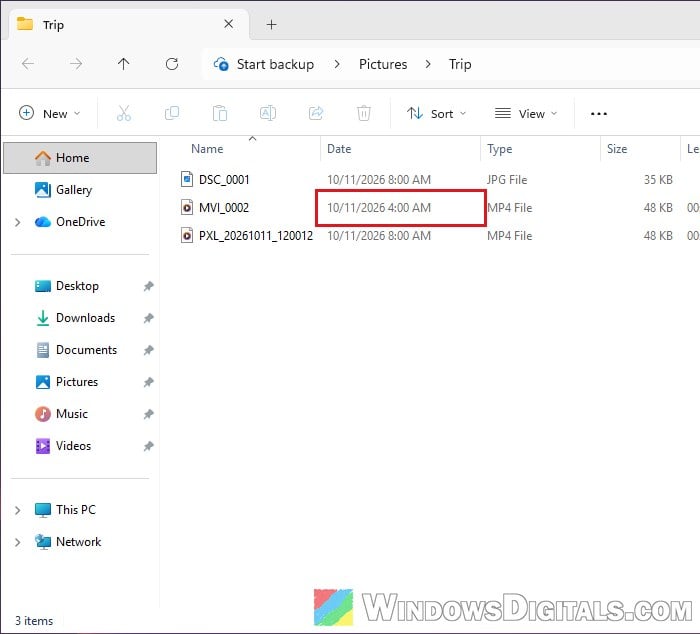
If you’re ahead of UTC (Europe or Asia, for example), the videos show a later time instead. Videos recorded close to midnight can even end up with the next or previous day’s date.
Might be useful: How to Add Multiple Time Zone Clocks in Windows 11
Is there a setting in Windows to change this?
No. According to Microsoft, there’s no setting in Windows that changes how File Explorer converts these dates or which date tag it uses for each file type. If you’d like Microsoft to handle it differently, you can send feedback through the Feedback Hub (press Win + F).
The time you see for a video in a photo or video folder is stored inside the video file itself, not in the file’s “Date created” or “Date modified”, so changing those isn’t the way to fix it.
How to correct the time stored in the videos
The fix is to shift the date inside each affected video by your time zone’s offset, so that what’s stored really is UTC. Windows will then convert it back to the correct local time. We’ll use ExifTool, a free tool (from https://exiftool.org/) that can read and edit the dates stored inside photos and videos.
Before you start, work out how many hours to shift. Compare the time File Explorer shows for a video with the real time it was recorded (a photo taken at the same moment is the easiest reference). The difference in hours is the number you need:
- If the video shows an earlier time than it should (you’re behind UTC, like in the Americas), you’ll add the hours.
- If it shows a later time (you’re ahead of UTC, like in Europe or Asia), you’ll subtract them.
Then follow the steps below:
- Open Terminal or Command Prompt from the Start menu, then type the following command and press Enter to install ExifTool:
winget install OliverBetz.ExifTool
- Close the window once it’s done. Installing ExifTool this way lets you run
exiftoolfrom any folder. - Open the folder with your videos in File Explorer, click the address bar, type “cmd” and press Enter. This opens Command Prompt right in that folder.
- Type the command below and press Enter, replacing the 4 with your number of hours and
MVI_0002.MP4with your video’s file name. To subtract hours instead, use-=(for example,"-QuickTime:Time:All-=8"). It shifts all the date tags the video has (when it was created and modified, for the video and its tracks) without adding new ones.exiftool "-QuickTime:Time:All+=4" MVI_0002.MP4
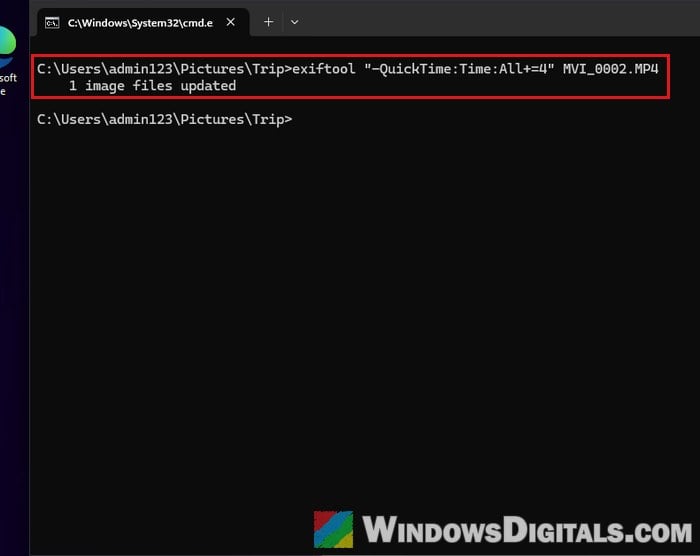
- Go back to File Explorer and press F5 to refresh. The video should now show the right time.
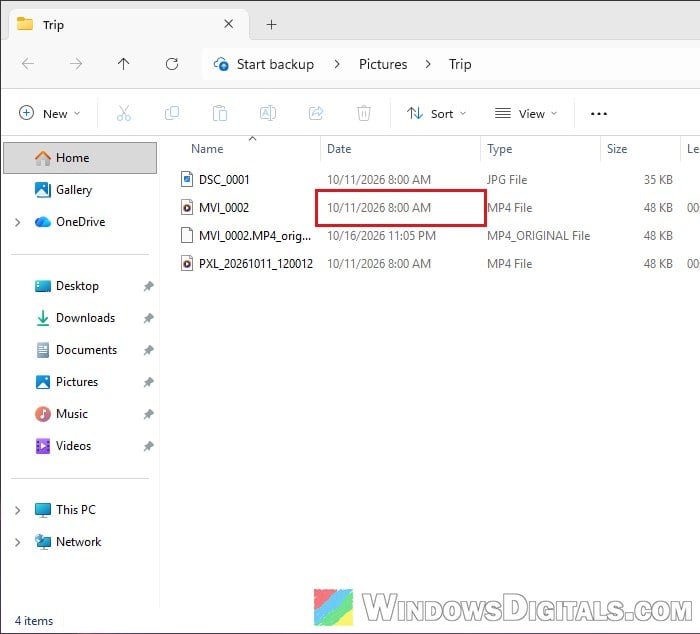
ExifTool keeps your untouched video as a copy with “_original” added to the end of its name (for example, MVI_0002.MP4_original). Once you’ve checked that the new time is right and the video plays fine, you can delete that copy.
Please note that you should only run the command once per video, since running it again shifts the time again. Also, only change the videos from the camera that’s off. Phone videos usually store UTC already, so leave them alone.
Pro tip: How to Open a File or Folder in Windows 11 Terminal (CMD)
Things to know
If you live somewhere with daylight saving time, videos from summer and winter can be off by a different number of hours (for example, 4 in summer and 5 in winter on US Eastern time). Check a video from each season before shifting the rest of your videos.
Photo and video editing apps don’t always read video dates the way File Explorer does, so a video that looks right here can still show a different time there. If you sort your library in another app, check the time there too after changing anything.
Windows will keep doing this with new videos from the same camera, so the easiest habit is to check them in File Explorer right after copying them to your PC, and shift them before they’re mixed in with your photos and phone videos.