Say you’re scrolling through the comments under a video and click someone’s name to check out their channel, but instead of the channel page, YouTube shows “This channel is not available“. Sometimes it’s just that one channel, and sometimes it happens with almost every channel you open, while the same channels load fine when you’re signed out. This guide will walk you through how to tell the two apart and what to do in each case.
Also see: YouTube Error Code 151 “This video isn’t available for your account”
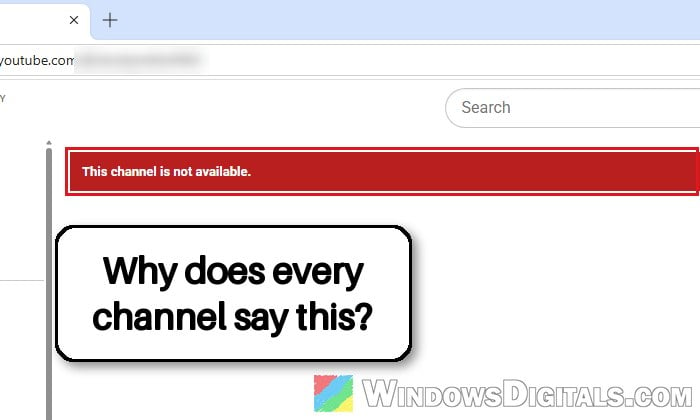
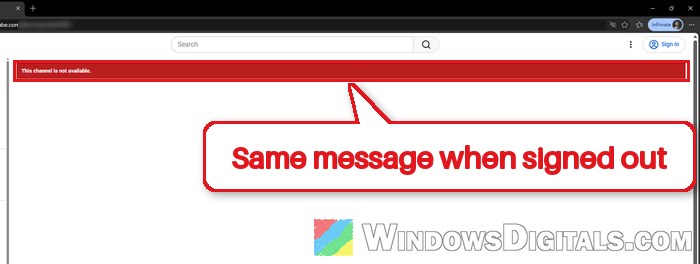
The page itself is empty except for a red banner across the top that just says “This channel is not available.” There’s no other explanation.
Is it one channel or almost all of them?
The message looks the same in both cases, but the cause is different. If only one channel won’t open, the problem is usually the channel itself. If nearly every channel you click shows it, the problem is more likely your signed-in account.
The quickest way to find out is to open the same channel without signing in:
- Copy the address of the channel that won’t open, or note its name.
- In Microsoft Edge, open the menu (the three dots at the top right) and click “New InPrivate window“, or press Ctrl + Shift + N.
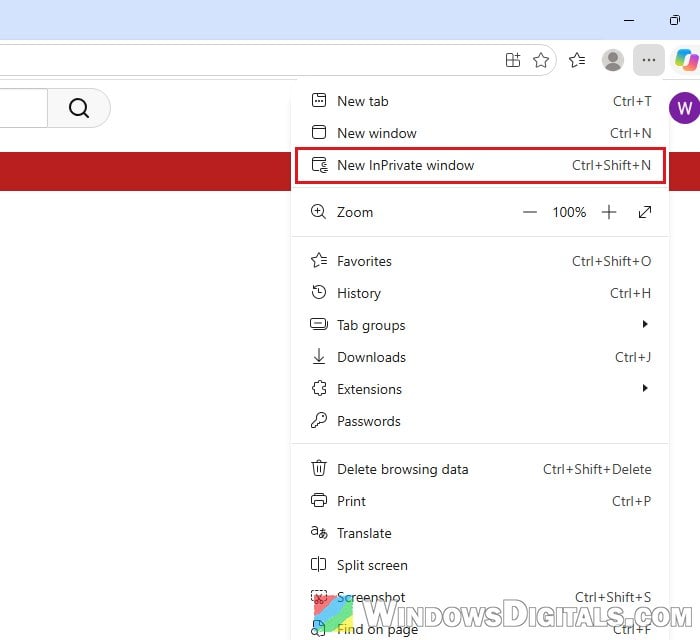
- In Chrome it’s called a new Incognito window, with the same keys.
- Paste the address in the private window and open the channel without signing in.
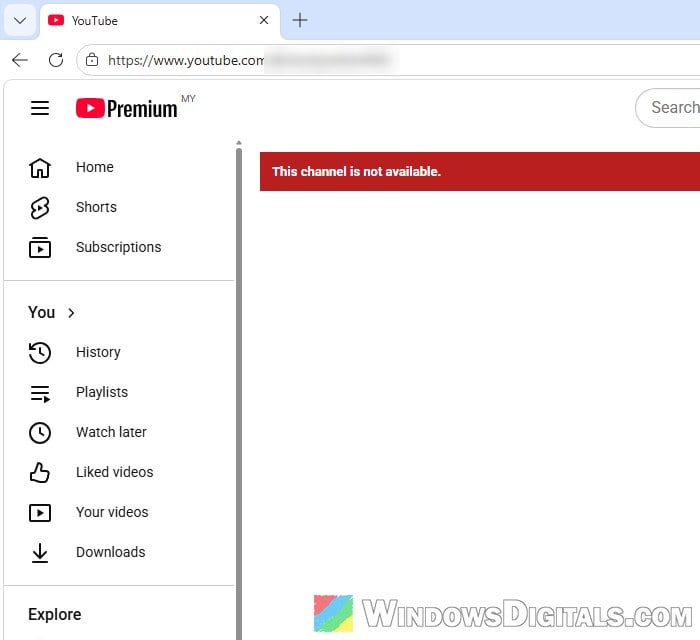
If the channel opens normally in the private window, the block is on your account, so skip to the age check section below. Trying another account, or asking a friend to open the same link, tells you the same thing. If it still says “This channel is not available” in the private window, like in the screenshot below, the channel itself is the problem.
The channel was hidden or removed
When one channel shows this message for everyone, the channel has been taken out of public view. It’s usually one of these:
- The owner hid the channel. Hiding doesn’t delete anything, but the channel’s videos, playlists and posts are hidden from search and from other users, and visitors get the “not available” message instead.
- The owner deleted the channel or closed the Google account behind it.
- YouTube terminated the channel for repeated or serious violations of its rules. Only the owner can appeal it.
In Indonesia and Malaysia, channels of anyone under 16 have also been disabled since November 2026, until they turn 16.
Unfortunately, there’s nothing you can fix on your side here. A hidden channel can come back whenever its owner restores it, so it’s worth checking again later. Otherwise, the creator may have moved to a new channel or another platform.
Might be useful: How to Block a YouTube Channel from Search Results
YouTube might think your account is under 18
If almost every channel shows the message only when you’re signed in, including big channels with lots of videos, the problem is your account. This has been reported on and off since August 2026, with a new wave of reports in November. Google hasn’t explained it, but some users on Reddit link it to YouTube’s age check.
YouTube uses an age estimation model to guess whether a signed-in user is over or under 18, no matter what birthday is on the account. It does this in the US, the UK, Canada, Australia, Brazil, the European Economic Area and several other countries. Once an account is treated as a teen account, YouTube applies its teen protections, such as blocking age-restricted videos, filtering search results and turning on break and bedtime reminders by default.
Google’s own list of teen protections doesn’t mention hiding channels, so this isn’t confirmed. Still, the timing matches the wave of error 151 on videos, which hits accounts the same way (blocked when signed in, fine when signed out). Here are the signs that your account is being treated as under 18:
- Age-restricted videos won’t play when you’re signed in.
- Some videos show “This video isn’t available for your account” with error 151.
If either sounds familiar, verifying your age is the only way to lift those limits. Changing the birthday on your Google account isn’t enough, since the estimate ignores it. Only do this on Google’s own page while signed in, and never send your ID or card details to anyone who offers to verify your account for you.
- Go to
https://myaccount.google.com/age-verificationand sign in with the account that has the problem.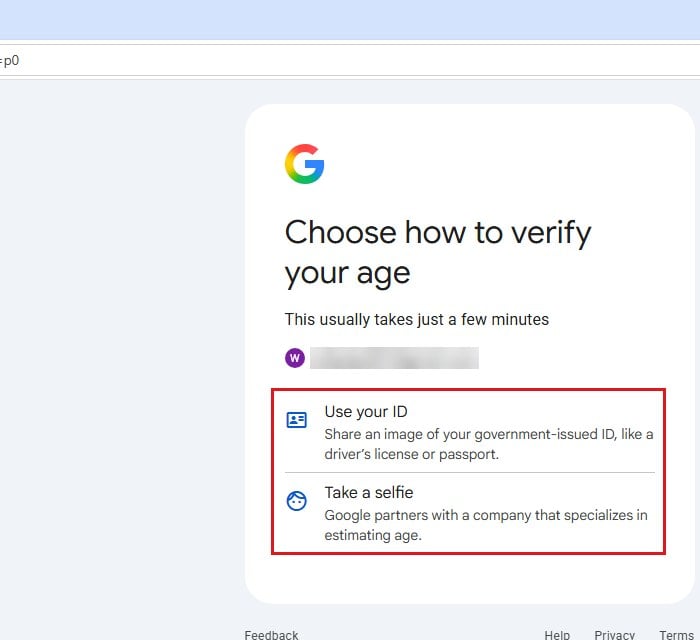
- On the “Choose how to verify your age” page, pick one of the options, such as “Use your ID” (a photo of a government ID) or “Take a selfie“. Some accounts are also offered a credit card, since the options depend on your account and country.
- Follow the instructions on screen to finish.
Please note that with a credit card, Google only sends an authorization request. It’s not a charge. A photo of your ID is deleted once your date of birth is verified.
Once you’re verified, open the channel again and see if it loads now.
Sometimes it clears up by itself
If age-restricted videos play fine on your account and you haven’t seen error 151, the problem might be on YouTube’s end. For some people, the channels started opening again after a while without them changing anything.
So give it a day or two, then sign out of YouTube and back in. In the meantime, you can still open the channels you want in a private window or while signed out.
What if it’s your own channel?
If people tell you your channel shows “This channel is not available”, first check whether it’s hidden. Here’s how to restore it:
- Sign in to YouTube on a computer with the account that owns the channel.
- Go to
https://www.youtube.com/account, YouTube’s Settings page. - In the list on the left, click “Advanced settings“.
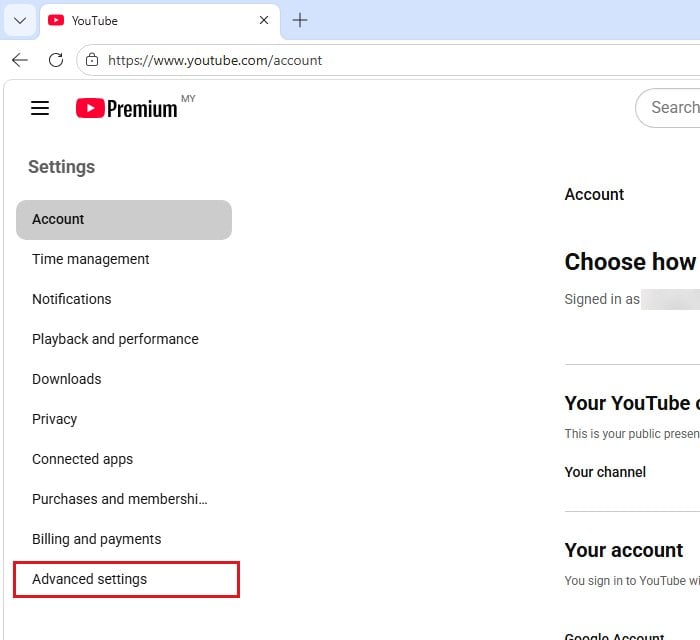
- Click “Restore your channel“, then click “Restore” to confirm.
Your channel, name, handle and profile picture become visible to others again, but videos that were public before are set to private when you restore the channel, so you’ll need to make them public again.
Related concern: Why Can’t You Watch Private Videos on YouTube?
If YouTube terminated the channel, you’d have received an email about it, and you can appeal from YouTube Studio within one year of the termination. And if you’re in Indonesia or Malaysia and your channel was disabled because of the under-16 rule, you may need to verify your age on your Google account once you’re 16 before you can restore it.