If you’ve just paid for Microsoft 365 Personal, Family or Basic but OneDrive still shows only 5 GB of storage (the free amount), or your 1 TB suddenly dropped back to 5 GB, the storage you paid for usually isn’t on the account you’re looking at, hasn’t shown up yet, or the plan has ended. This guide will explain the usual reasons and how to get the right amount to show up.
Also see: OneDrive Says Storage Is Full but Your Files Don’t Add Up
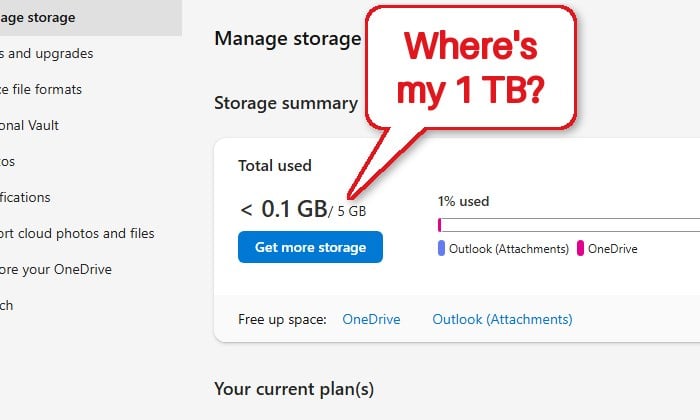
How much storage should your plan show?
Microsoft changed the numbers recently, so first check what your plan should show. According to Microsoft:
- Free Microsoft account: 5 GB, shared by your OneDrive files, Outlook.com attachments and Microsoft 365 apps.
- Microsoft 365 Basic: 100 GB. Personal: 1 TB. Both for the account holder only.
- Microsoft 365 Family or Premium: 2 TB shared by you and up to five other people, if you bought or upgraded on or after October 8, 2026. Older Family subscriptions keep 1 TB per person until their first renewal on or after May 2, 2027.
So a new Family plan shows one shared 2 TB pool, not 1 TB each. If yours still says 5 GB, the sections below explain why.
Give it up to 24 hours, then refresh “Manage storage”
Microsoft says it can take up to 24 hours for purchased storage to appear, and about 2 hours for someone who just joined a family plan.
To check what OneDrive really has for your account, follow the steps below:
- Open your browser and go to
https://onedrive.live.com/?v=managestorage, signed in with the Microsoft account you use for OneDrive. - Check Total used under Storage summary, and the plan listed under Your current plan(s).
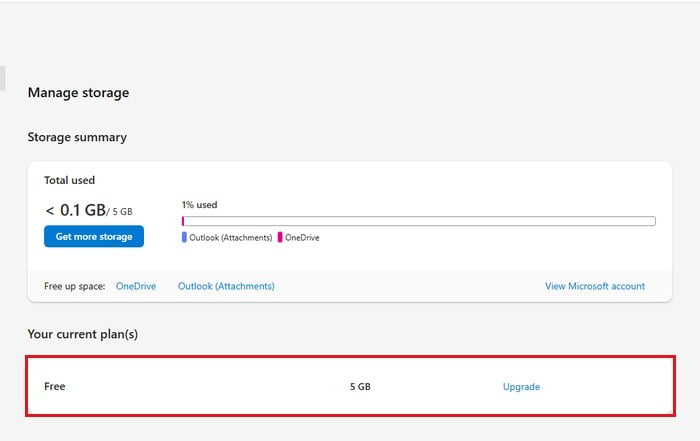
- If it still says 5 GB, refresh the page after a while (a few hours, up to a day) and check again.
While you’re waiting, don’t buy the subscription again. If it still shows 5 GB after a day, go through the checks below. Contact Microsoft only if they all pass after 48 hours.
The subscription might be on a different Microsoft account
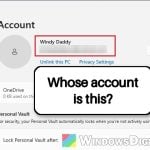
One of the usual reasons is that the subscription is on another Microsoft account. The storage only goes to the account the subscription is on, so if you bought it with one email and look at OneDrive with another, that OneDrive stays at 5 GB. This can happen on a new PC: setup makes a new Microsoft account, the subscription gets bought on one account, and OneDrive uses the other.
Here’s how to check which account has the subscription:
- Go to
https://account.microsoft.com/servicesand sign in with the same account you use for OneDrive. - On the Subscriptions page that opens, your Microsoft 365 plan (Personal, Family or Basic) should be listed. If it only shows “Microsoft 365 is free to start” with a Try for free button, this account doesn’t have it.
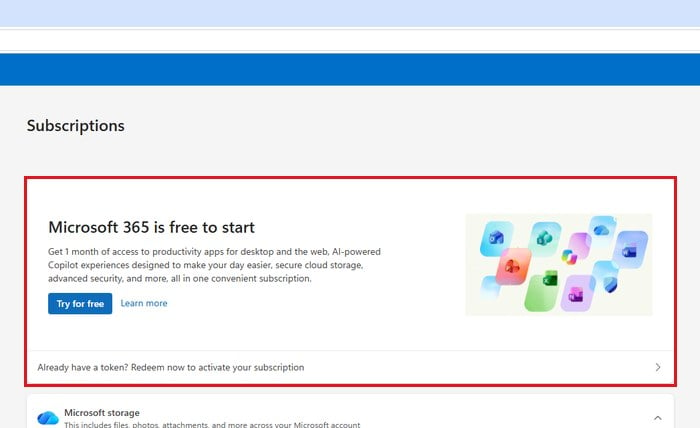
- If nothing is listed, sign out and sign in with the other email you might have used to buy it. Once you find the account that has it, use that account for OneDrive too.
Related guide: How to Install Microsoft 365 on a New or Second Computer
Did the subscription expire or get cancelled?
If your storage dropped from 1 TB back to 5 GB on its own, check the same Subscriptions page for the plan’s status. When a Basic or Personal subscription is cancelled or runs out, your storage goes back to 5 GB. Renew it from that page if it has expired.
If you see Turn on recurring billing instead of an option to cancel, your subscription is set to end on the date shown, and the storage drops to 5 GB after that.
Family members need to accept the invite and join
If someone else shared their Microsoft 365 Family plan with you, being added to their family group alone isn’t always enough. You have to open the invitation, select Accept, and then select Join now, or the shared storage might not reach your account. After joining, wait about 2 hours, then refresh the Manage storage page from the first section.
Other things that can stop the shared storage from showing up:
- The invitation got missed. It can land in the junk folder, so look for an email with “Microsoft 365” in the subject.
- Only the person who pays can share it, from their own Subscriptions page with Share subscription.
- You’re already in another shared subscription. You can’t be added to a second one.
- The owner’s plan ended or you left their plan. Your storage goes back to what it was before, though your files stay.
Office Home 2024 doesn’t come with the extra storage
If you bought Office Home 2024 (or another one-time Office purchase), this is your answer. A one-time Office license only gives you the apps, like Word and Excel. The 1 TB of OneDrive storage only comes with a Microsoft 365 subscription, so you’re left with the free 5 GB every Microsoft account gets.
It’s easy to mix the two up, since both include Word and Excel. You can see which one you have from inside any Office app:
- Open Word (or Excel) and select Account on the left of its start screen (or File > Account in an open document).
- Look under Product Information. If it names Office Home 2024 or another Office version like the “Microsoft Office LTSC Professional Plus 2024” in the screenshot below, it’s a one-time purchase.
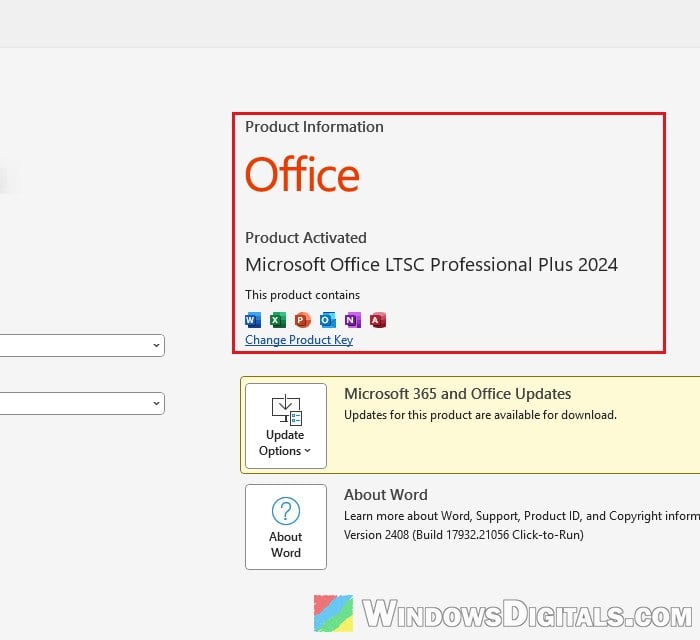
If it’s a one-time purchase, you’ll need Microsoft 365 Basic, Personal or Family to get more storage.
Might be useful: “Microsoft 365 Basic doesn’t include Word on your desktop” Message
OneDrive on your PC might be signed in to another account
Sometimes the website shows the right amount but the OneDrive app on your PC still says 5 GB. That usually means the app is signed in to a different Microsoft account than the one with the subscription. You can check it in the app’s settings:
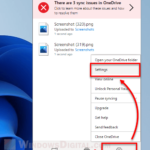
- Select the OneDrive cloud icon in the notification area of the taskbar.
- Select the Help & Settings icon (the gear), then select Settings.
- Go to the Account tab. Check that the email shown there is the one that has your subscription, and look at the storage shown at the bottom.
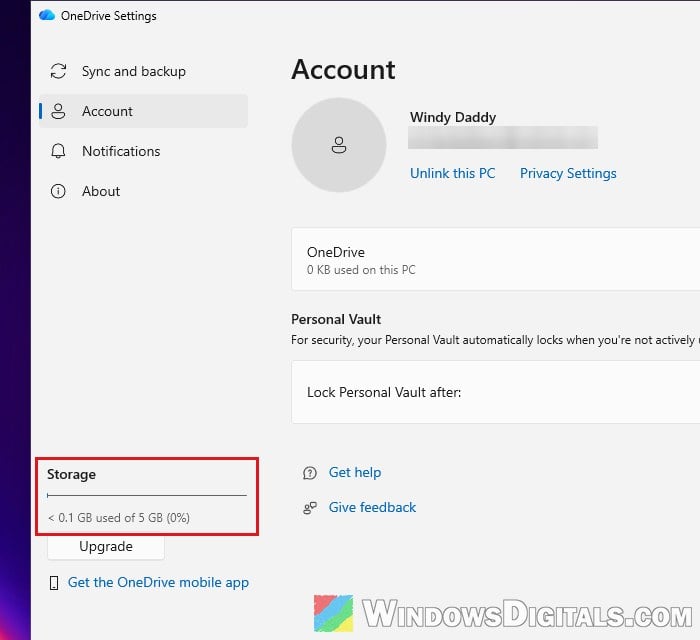
If it’s the wrong account, unlink it and sign in with the right one. According to Microsoft, unlinking OneDrive doesn’t lose any data (online-only files disappear from this PC, but they stay in OneDrive). Here’s how to do it:
- On the same Account tab, select Unlink this PC.
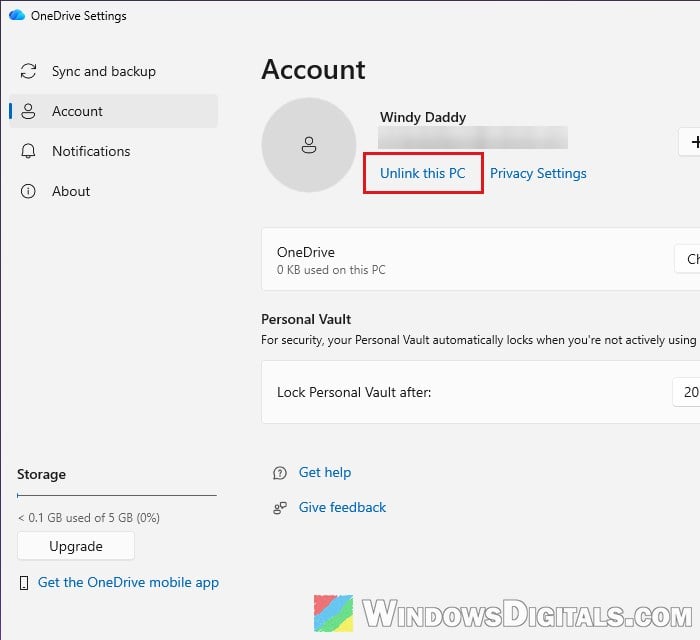
- Select Unlink account to confirm.
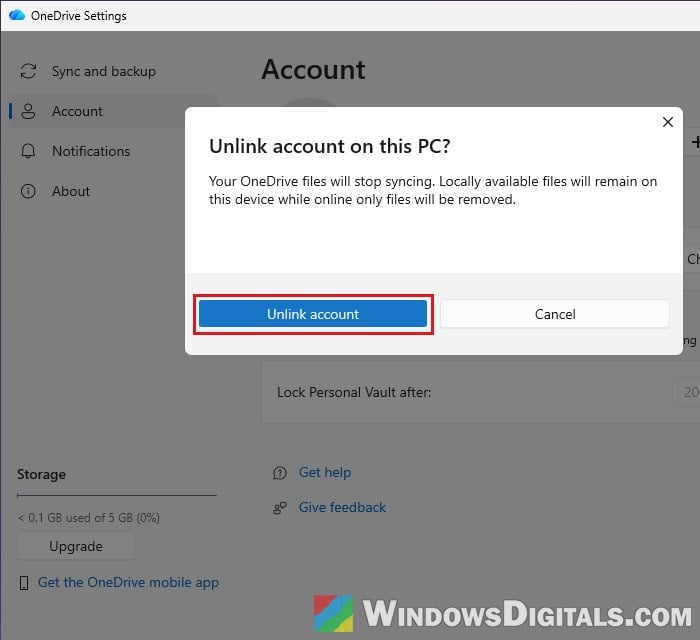
- Sign in again with the account that has the subscription when OneDrive asks. If the sign-in window doesn’t show up, press the Win key, type “OneDrive” and open the app.
When OneDrive asks about the old folder, read the guide below first, so the other account’s files don’t get uploaded to this one.
Linked issue: OneDrive Signed In With the Wrong Account on Windows 11
If the app shows the right total but files still won’t upload, check that your PC’s drive has enough free space for them.
Contact Microsoft if it still shows 5 GB after 48 hours
If the subscription is active on the right account, you’ve joined the family plan (if it’s shared), and Manage storage still shows 5 GB after 48 hours, only Microsoft can fix it on their end.
Go to https://support.microsoft.com/home/contact, describe the problem, select Get Help, and then select Sign in to contact Support. Tell them which plan you bought, when, and that Manage storage still shows only 5 GB.