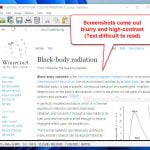
When you lower Roblox’s Graphics Quality below 6 on your PC, you might notice that every game suddenly looks blurry or pixelated, with jagged edges and chat bubbles that are hard to read, while the menus and buttons still look sharp. Move the slider to 6 or higher and it’s clear again. This guide will explain why Roblox started doing this and what you can do to get a sharper picture.
Also see: Roblox Keeps Freezing and Crashing on PC
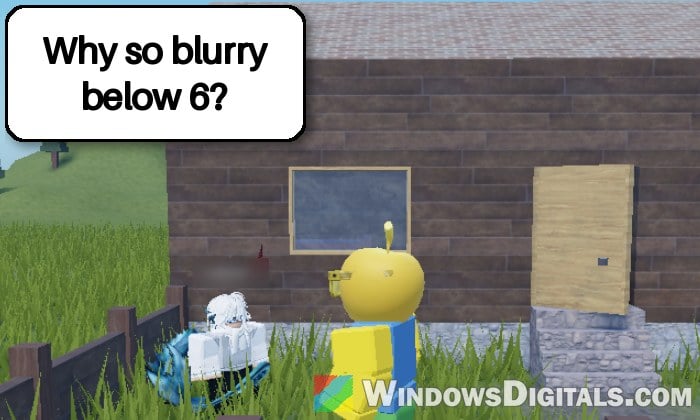
Why does Roblox look blurry below graphics quality 6?
This one isn’t your PC, your monitor or your graphics driver. Since around November 17, 2026, Roblox uses dynamic resolution scaling on the lower Graphics Quality levels. When Graphics Quality is set to 1 to 5, Roblox draws the game world at a lower resolution than your screen and then stretches it to fit. That’s meant to help performance, but it also makes everything look soft and pixelated, whatever resolution you play at.
The menus, buttons and other on-screen UI aren’t affected, which is why they stay crisp while the game itself looks smeared. Earlier in November, Roblox applied the same upscaling even at the maximum quality by mistake, reverted it, and then said it would bring it back for the lower quality levels only.
Because the problem is on Roblox’s side, reinstalling Roblox or switching launchers usually doesn’t help. It’s a pretty common complaint right now on Reddit and Roblox’s own developer forum, and most people get rid of it the same way: by moving the slider up.
Related problem: Ideas to Fix Blurry and Washed Out Graphics in Games
Set “Graphics Quality” to 6 or higher
Since the lower resolution only kicks in below level 6, setting Graphics Quality to 6 or above turns it off and the game looks sharp again. You’ll need to switch Graphics Mode to Manual first, because on Automatic Roblox picks the level by itself, and it can pick one below 6.
Here’s how to do it:
- Join any Roblox experience on your PC.
- Press Esc (or click the Roblox logo at the top left) to open the menu, then go to the Settings tab.
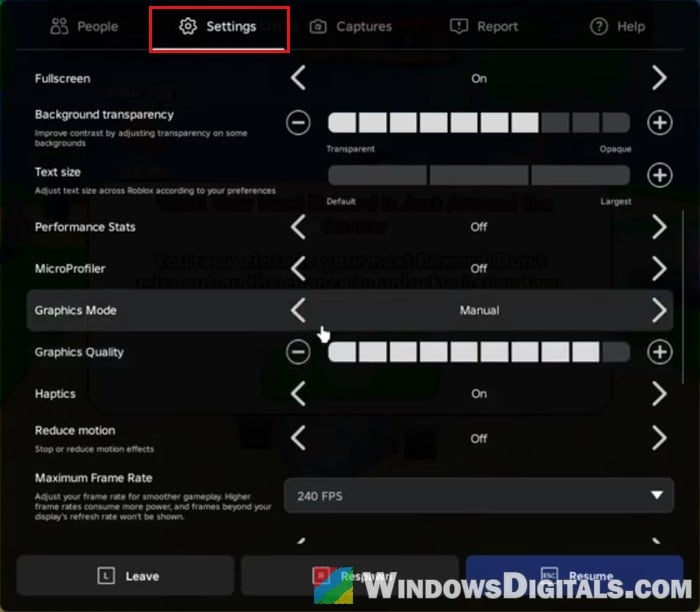
- Set Graphics Mode to Manual.
- Move the Graphics Quality slider to the right until it’s at 6 or higher.
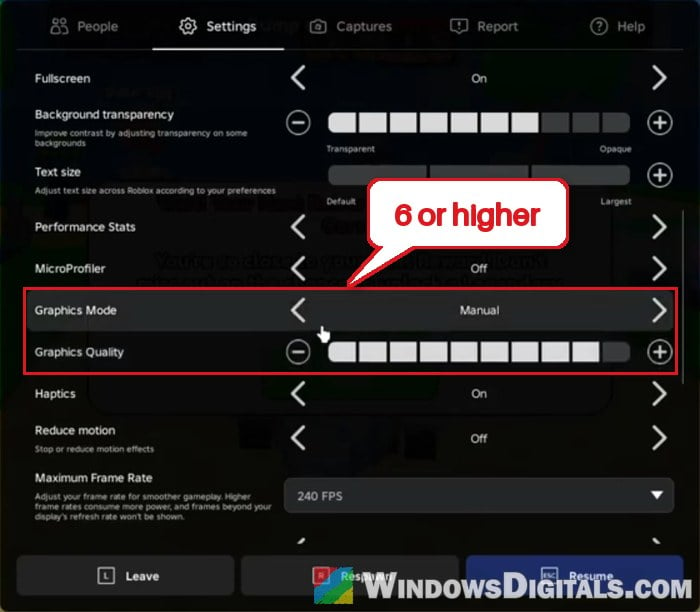
- Close the menu and look at the game again.
If 6 still looks a little soft, try a higher level. On some PCs the scaling seems to stay on until the slider is all the way up at 10.
Please note that a higher graphics quality can lower your FPS, especially on a weaker PC. If the game starts to lag, try the lowest level that still looks clear, rather than going straight to 10.
Set your Windows display scale to 100%
There’s a second, older reason Roblox can render at a lower resolution. If your Windows display scale is above 100% (laptops are often set to 125% or 150% out of the box), Roblox’s performance system can lower the game’s resolution on top of that, and Roblox has said this is a side effect of how it manages performance. It doesn’t explain the sudden change below level 6, but it can make the blur worse at any quality level.
To check and change it on Windows 11:
- Open Settings (Win + I) and go to System > Display.
- Set Scale to 100%.
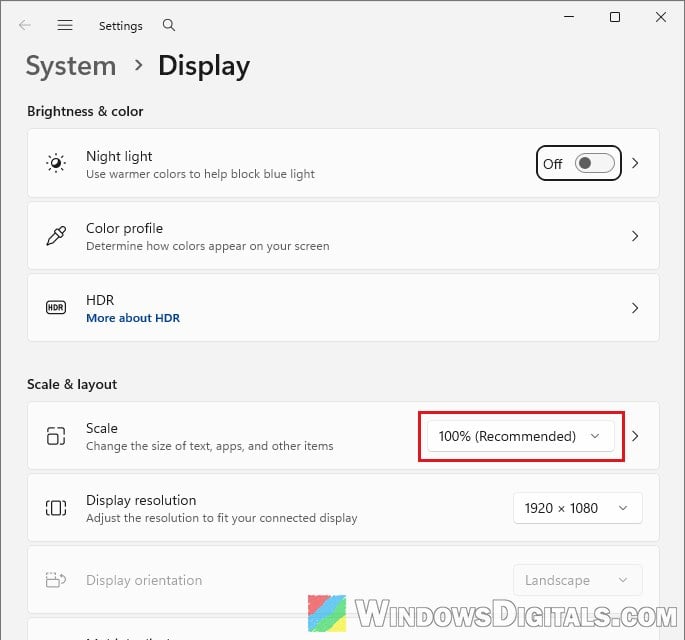
- Restart Roblox and check the game again.
Everything on your desktop will look smaller at 100%, so if it doesn’t make Roblox any sharper, you can set the scale back to what it was.
Might be useful: How to Make Everything Smaller or Bigger on Windows 11
Let Roblox handle its own DPI scaling
This tells Windows to stop stretching the Roblox window for your display scale and let Roblox handle it itself. It cleared up an earlier Roblox blur bug for some players back in June. Players with the blur below level 6 say it hasn’t helped them, but it’s quick to try and easy to undo.
Here’s how to do it:
- Close Roblox completely.
- Right-click the Roblox Player shortcut on your desktop and select Open file location. This opens the folder with RobloxPlayerBeta.exe in it.
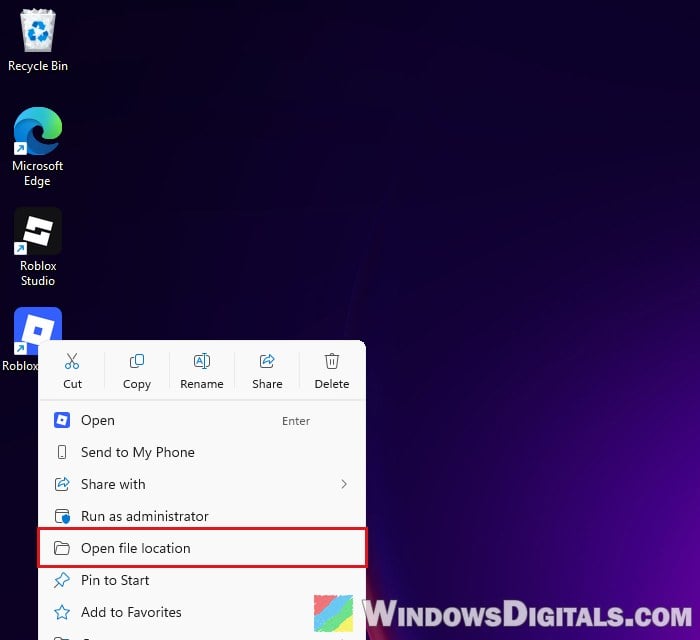
- Right-click RobloxPlayerBeta.exe and select Properties.
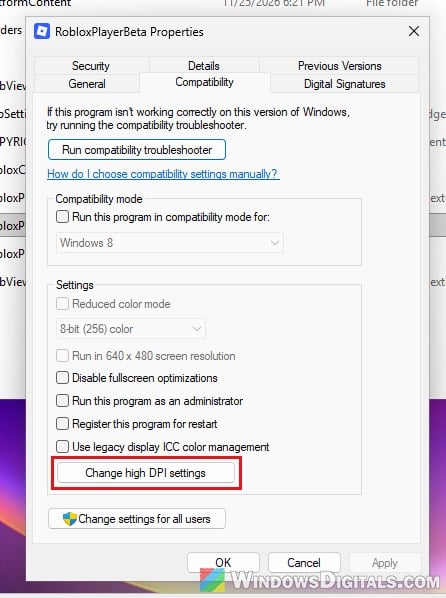
- Go to the Compatibility tab and click Change high DPI settings.
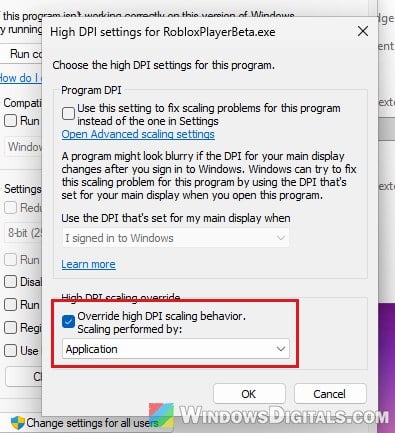
- Tick “Override high DPI scaling behavior“.
- Make sure “Scaling performed by” is set to Application and click OK.
- Click Apply and OK, then open Roblox again.
Roblox installs each update into a new version folder, so you may have to do this again after Roblox updates.
Switch between fullscreen and windowed mode
Some of Roblox’s blur bugs depend on the size of the Roblox window, so the picture can turn sharp when the window changes size. Switching between fullscreen and windowed mode (the Fullscreen option in the same Settings tab) or resizing the Roblox window can make it clear again.
For the blur below level 6, though, resizing may only make the game sharp while you’re still dragging the window edge. This one works better on the window-size kind of blur, and even then the fix tends not to last.
Restart or reinstall Roblox
Many of Roblox’s graphics bugs get fixed on Roblox’s end, but you only get the fix once you restart the app. When Roblox fixed the blur at maximum quality earlier in November, it just asked players to restart Roblox. So if you’ve had Roblox open for a long time, close it fully (check the notification area near the clock too) and open it again.
If that doesn’t help, a clean reinstall clears out any leftover files from older versions:
- Uninstall Roblox from Settings > Apps > Installed apps.
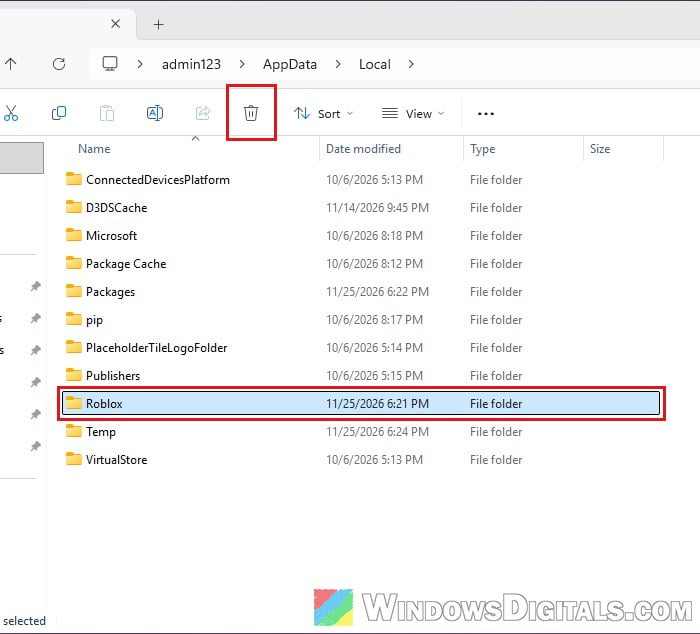
- Press Win + R, type
%localappdata%and press Enter. - Delete the Roblox folder.
- Go to
https://www.roblox.com, download Roblox and install it again.
Don’t expect too much from this one, though. For the blur below level 6, a reinstall won’t do much, since there’s nothing broken on your PC to repair. It’s more useful when the blur shows at every quality level.
Linked issue: Roblox Stuck on “Joining server” on PC (Works on Your Phone)
Will Roblox add a resolution setting?
Roblox has said it plans to add resolution settings for desktop players, though they haven’t shipped yet (as of late November 2026). Once they’re out, they may let you keep a lower graphics quality without the lower resolution.
Until then, Graphics Quality is the only control you have, so check the Settings tab after Roblox updates to see if a new resolution option has appeared.