Steam’s checkout normally takes a few clicks, but sometimes it stops you with “It looks like you’ve been attempting a lot of purchases in the last few hours. Please wait a while before trying again.” It can show up when checkout keeps failing during a big launch, after you redeem a bunch of keys, or even on a brand new account that hasn’t bought anything yet. This guide will help you figure out how long to wait, check whether your money was taken and get the purchase through.
Also see: “An unexpected error has occurred” Using Paysafecard on Steam
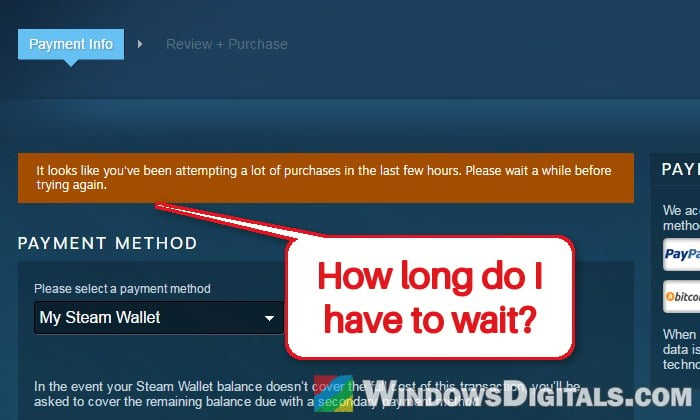
Why does Steam say you’ve been attempting a lot of purchases?
Valve doesn’t publish the rule behind this message, but it behaves like a cooldown on checkout attempts. One figure that gets mentioned is about 10 checkout attempts, 10 failed key activations or 50 successful key activations within an hour. Take those numbers as a rough guide, since Steam hasn’t confirmed them.
The important part is that failed attempts count too, so you can get locked out without having bought anything. Some common ways people end up here are:
- Retrying a checkout that keeps failing, which is why the message hits so many people at once during big releases and restocks, like Slay the Spire 2 and the Steam Controller.
- Redeeming a lot of keys in one go, usually from a bundle.
- Buying games one at a time in separate checkouts.
Stop clicking and wait about an hour
This is what clears it for most people, even though it’s not the answer anyone wants. Don’t press the purchase button again while you wait, because each new attempt can restart the cooldown.
Most reports put the wait at somewhere between 30 minutes and 2 hours after your last attempt, and about an hour is often enough. In rare cases it can last much longer, even past 14 hours. Leave it alone for a full hour before you try again, and then try just once. If the message comes back, give it another hour or two.
You might also come across advice to keep spamming the button until it works. That did get some people through the Steam Controller launch, when checkout itself was failing, but it didn’t work for others, and it can land you on this exact message. Once it’s showing, more clicking only works against you.
Check if the purchase actually went through
Before you buy anything again, make sure one of your earlier attempts didn’t go through. People have seen this error and later found the game already paid for, or sitting there as a pending purchase. Check your game library first, then your purchase history:
- In Steam, click your account name at the top right.
- Select “Account Details“.
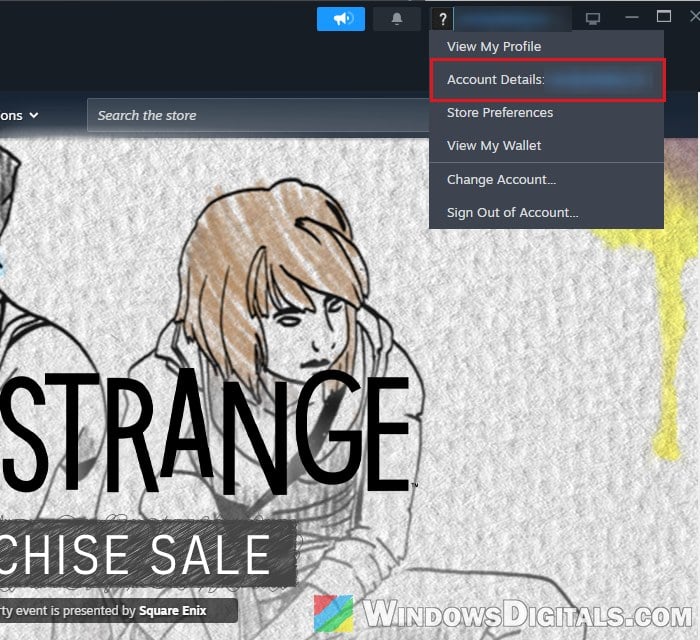
- Click “View purchase history“.
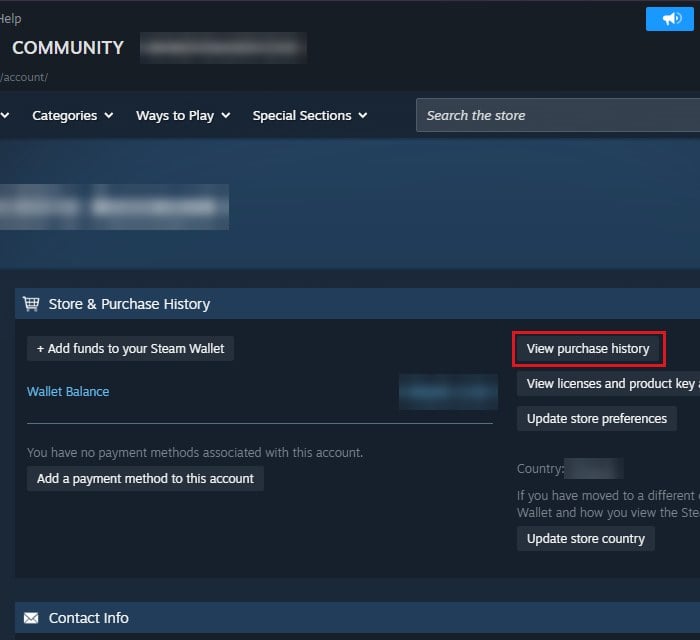
- Look for the game and see whether it’s listed as completed or pending.
If it’s pending, don’t buy the game again yet, since you may already have paid for it. If the purchase failed but your bank shows a pending charge, Steam says that’s often just a temporary hold. Steam doesn’t collect that money, and it can take your bank up to 30 days to release it.
If the purchase stays stuck and you’d rather start over, click it in your purchase history and look for the option to cancel it. Then buy the game again, just once.
Might be useful: Unable to confirm payment method: Discord declines cards
Turn off any VPN or proxy and try the other way of buying
A VPN or proxy can make your next attempt fail. Steam declines purchases made through anonymous proxies, and for failed purchases it recommends switching that software off and buying through the other route. So if you used the Steam client, try the website in a browser, and if you used the website, try the client.
If you use a VPN, turn it off in its own app or in Settings > Network & internet > VPN.
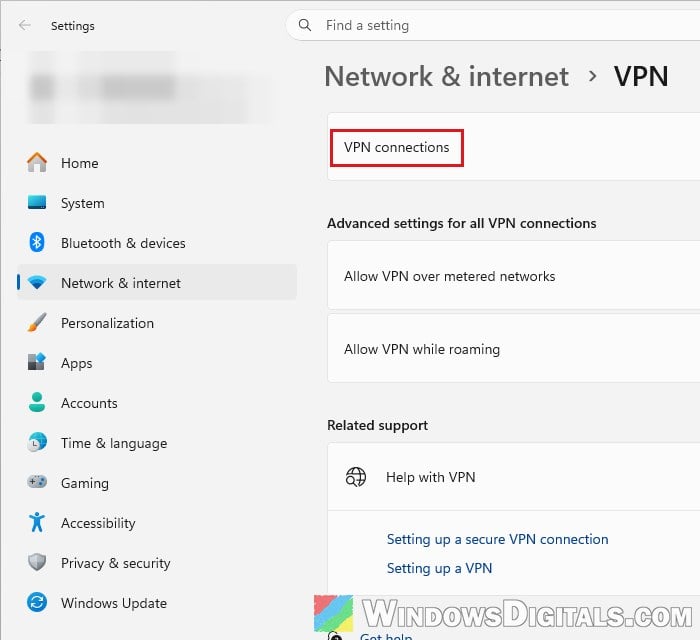
If you haven’t bought anything lately and still get this message, your VPN could be the reason. Otherwise, these two changes only help when checkout itself is failing. They won’t lift the limit, so switching from your PC to your phone won’t get you past it.
Pro tip: How to Disable VPN in Windows 11
Put everything in one cart and space out your keys
To avoid running into this again, add all the games you want to your cart and check out once, rather than buying them one by one. If you’re buying gifts, those may need their own transactions, so don’t rush through them back to back.
The same goes for keys. If you’ve got a big bundle to redeem, do it in smaller batches over time instead of all at once, especially right before you plan to buy something on Steam.
Contact Steam Support if it doesn’t go away
If you’ve left it alone for several hours and the message is still there, it’s time to contact Steam Support. This matters even more if you see a red alert on your account, since that’s a restriction only Steam can lift, and it could be what’s behind this message.
- In the Steam client, click “Help” at the top left and select “Steam Support“.
- Click “Purchases“.
- Click “I can’t complete my purchase on the Steam Store“.
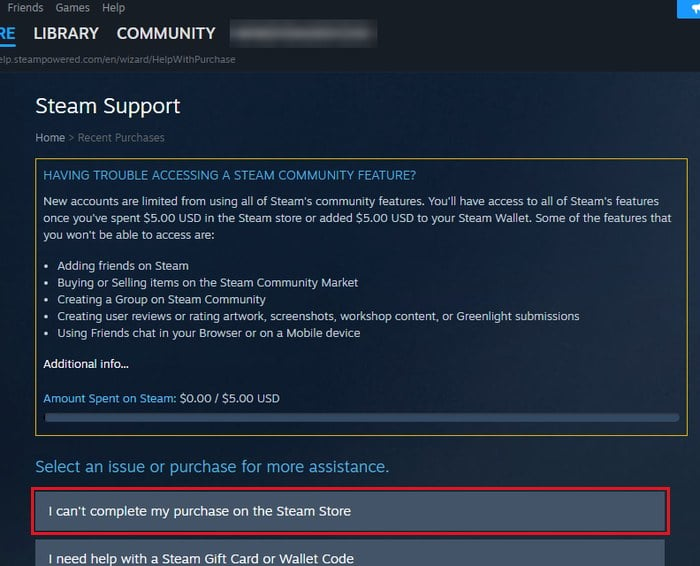
- If you see “My purchase isn’t listed here“, click it. Then choose “Game or other software“.
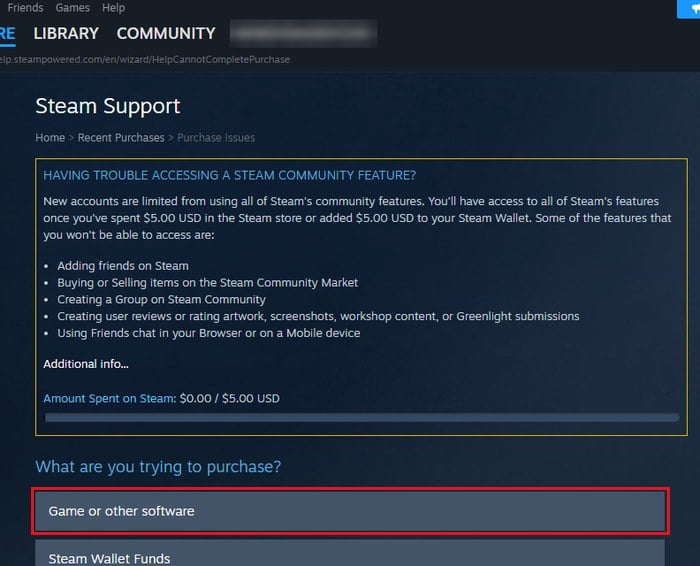
- Under “Which product are you having trouble with?“, search for the game and select it.
- Follow the prompts from there. When it lets you send a request, include the exact message and roughly when it first appeared.
Mention how many times you tried and whether any money left your account, so Support can see right away whether it’s the cooldown or something on your account.