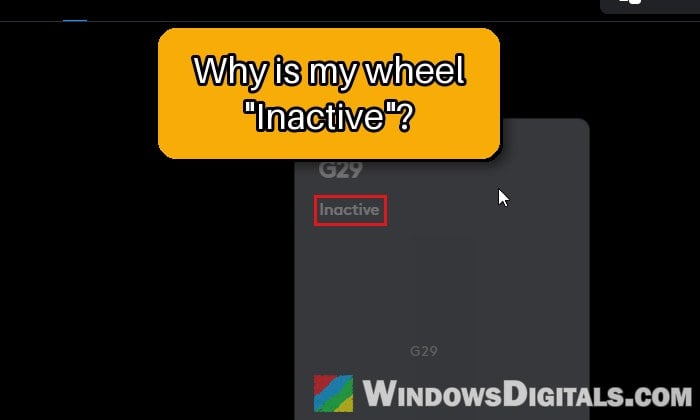
Logitech G HUB is supposed to show your G29 or G920 moving on screen as soon as you turn the wheel or press a pedal. On many PCs, though, the wheel shows up in G HUB (sometimes as “Inactive”) but nothing responds, your steering angle and button assignments stop applying, or the wheel isn’t detected at all. This guide will help you work out which problem you have and how to fix it.
Also see: Logitech G HUB Stuck on “Loading Localizations” in Windows 11
First, check if Windows can see the wheel
Windows has its own test panel for game controllers, and it quickly tells you whether the problem is G HUB or the wheel’s connection.
- Press Win + R to open the Run dialog box.
- Type
joy.cpland press Enter.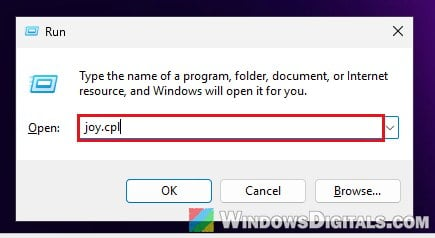
- Select your wheel in the list and click “Properties“.
- Turn the wheel, press the pedals and buttons, and watch the test page.
If everything moves here, your inputs and connection are fine, even if G HUB shows the wheel as “Inactive” or doesn’t list it, so it’s a G HUB problem. Start with the next section. If the wheel is missing from this list or doesn’t respond here, skip to “If the wheel isn’t detected at all” further down.
Update G HUB to get the wheel input fix
Logitech says a Windows update broke input detection in G HUB and that the fix is in G HUB 2026.6, which also installs a new wheel driver. While the bug is active, G HUB can show a frozen wheel, and macros and button assignments made in G HUB can stop working. Your steering angle and other settings might not apply in games either.
Logitech says driving input and force feedback in games shouldn’t be affected, but some users lost force feedback and many got stuck at the full 900 degrees, so don’t assume your wheel is dying.
- Open G HUB and click the gear icon at the top right.
- Select “Updates” on the left, then click “CHECK FOR UPDATE“. Your version is under “Current Software version“.
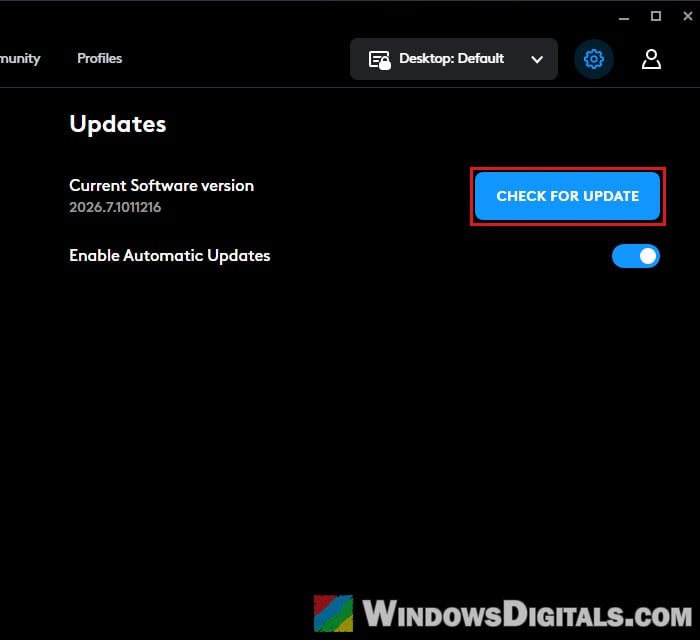
- If there’s an update, install it. Any version from 2026.6 on should have the fix.
- Restart your PC after the update, even if G HUB doesn’t ask you to.
If G HUB says it’s up to date but you’re below 2026.6, run the latest installer from Logitech’s page at https://support.logi.com/hc/articles/360025298133.
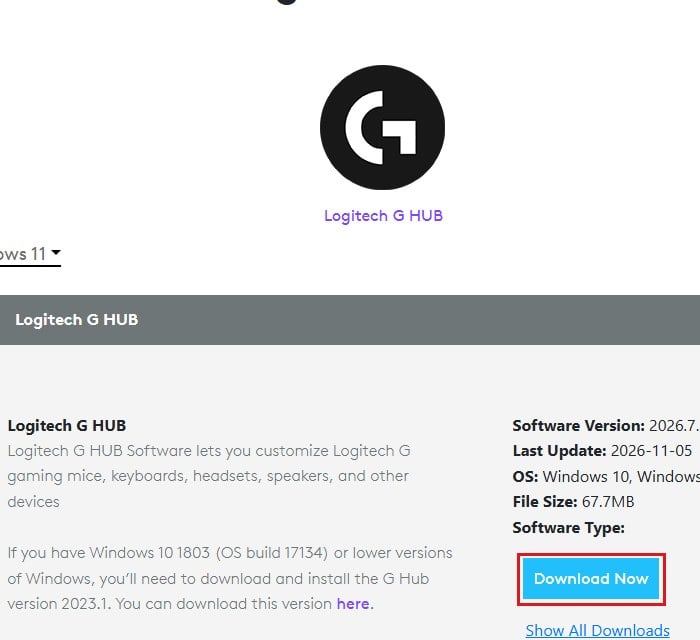
This brought inputs back for several people, but not everyone, so keep going if yours still doesn’t respond.
Check that the new wheel driver actually installed
G HUB can update while the wheel keeps its old driver, so it’s worth checking in Device Manager.
- Right-click the Start button and select “Device Manager“.
- Expand “Human Interface Devices“.
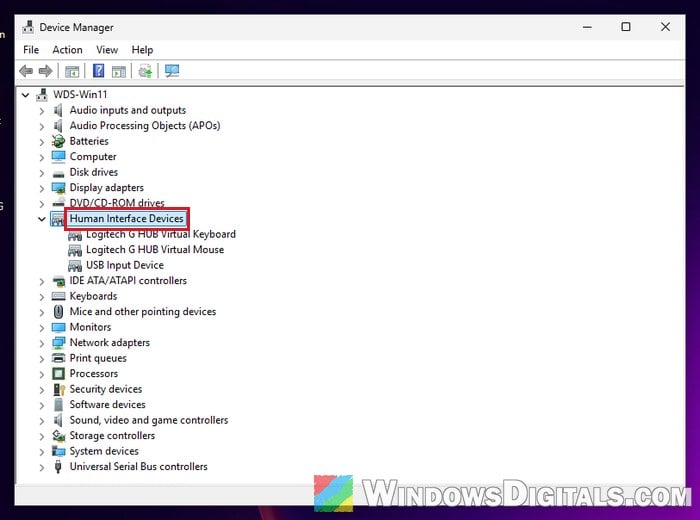
- Right-click one of your wheel’s entries (for example, G29, not the Logitech G HUB Virtual ones) and select “Properties“.
- Go to the “Driver” tab and look at the Driver Version.
Logitech gave these numbers for the G29, where 2026.0.1.0 or newer is the fixed driver and 2026.0.0.0 is the old one. If you have the old one, forcing a driver update by hand might not help. Uninstall G HUB and install it fresh instead:
- Open Settings > Apps > Installed apps.
- Search for “G HUB“, click the three dots next to it, and select “Uninstall“.
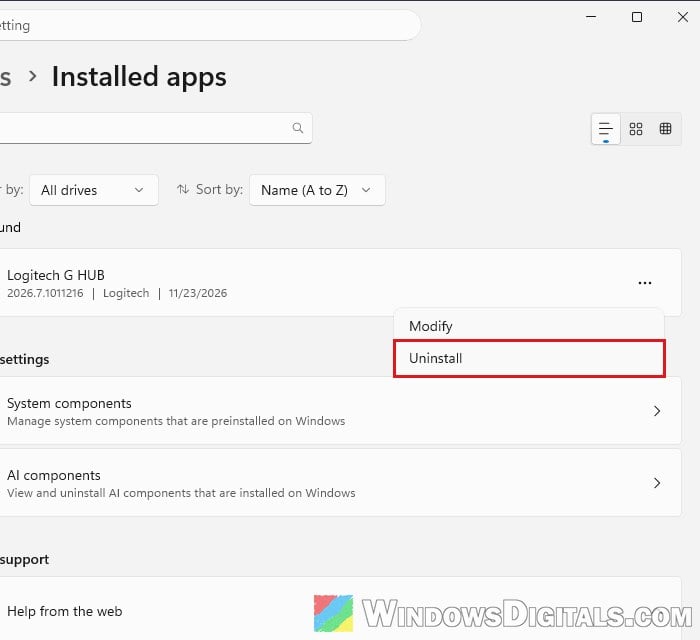
- Restart your PC.
- Install G HUB again using the installer from Logitech’s page above.
Then check the driver version again and turn the wheel.
Should you go back to Logitech Gaming Software?
Some people went back to it or an older G HUB while waiting for the fix. I wouldn’t bother, since Logitech says the app’s files and links are permanently removed from its website as of October 31, 2026.
Connect the wheel before you turn on the PC
If your steering angle doesn’t apply in games, try starting the PC with the wheel already connected and powered on. Logitech said that on the affected G HUB version, angle settings apply as long as the wheel is connected first.
Run G HUB as administrator
Logitech’s support team usually suggests running G HUB in admin mode when it misbehaves, including when settings like the center spring won’t apply.
- Press Ctrl + Shift + Esc to open Task Manager.
- Right-click LGHUB Agent and select “End task“, then do the same for G HUB. Leave LGHUB Updater running.
- Search for “G HUB” in the Start menu and select “Run as administrator“.
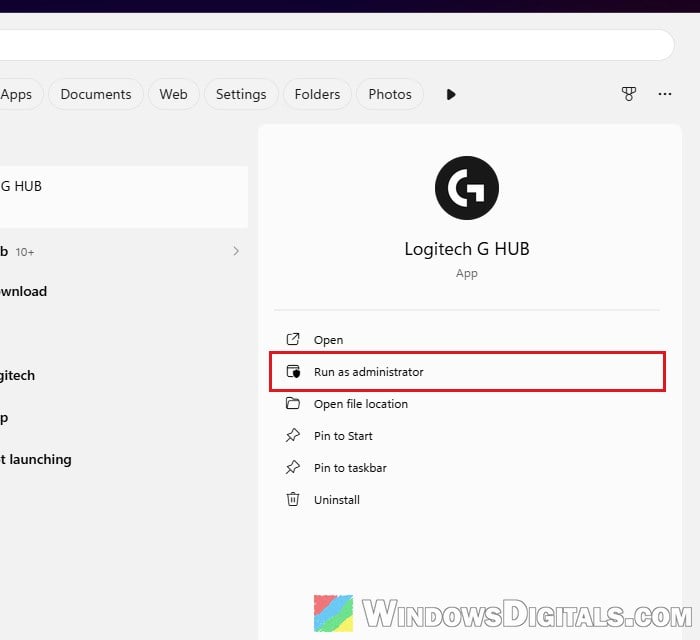
Turn the wheel again and check that G HUB responds and your settings apply.
Remove HidHide and other controller tools
Tools that hide or remap controllers can stop G HUB from seeing your wheel. Logitech names HidHide and HIDGuardian, and also asks about reWASD, vJoy and utilities people install to get PlayStation controllers working on PC. If you have any of these, uninstall them and restart your PC.
Also disconnect any other controllers and turn off Steam’s controller support for your racing game.
Related problem: PS5 or PS4 Controller Keeps Disconnecting from PC
Delete the wheel’s registry entry
Logitech lists a registry key for each wheel for calibration problems or a blank controller test page. Windows can create the key again after you delete it and restart.
Incorrectly changing the registry can seriously damage Windows, so please create a system restore point first. If you’re not sure what you’re doing, it’s better to get someone to help you instead.
- Press Win + R, type
regeditand press Enter. - Copy and paste the path for your wheel into the address bar and press Enter:
- G29:
HKEY_CURRENT_USER\System\CurrentControlSet\Control\MediaProperties\PrivateProperties\Joystick\OEM\VID_046D&PID_C24F
- G920:
HKEY_CURRENT_USER\System\CurrentControlSet\Control\MediaProperties\PrivateProperties\Joystick\OEM\VID_046D&PID_C262
- G923 (PlayStation):
HKEY_CURRENT_USER\System\CurrentControlSet\Control\MediaProperties\PrivateProperties\Joystick\OEM\VID_046D&PID_C266
- G923 (Xbox):
HKEY_CURRENT_USER\System\CurrentControlSet\Control\MediaProperties\PrivateProperties\Joystick\OEM\VID_046D&PID_C26E
- G29:
- Right-click that exact key on the left and select “Delete“, then confirm. If it isn’t there, skip this fix.
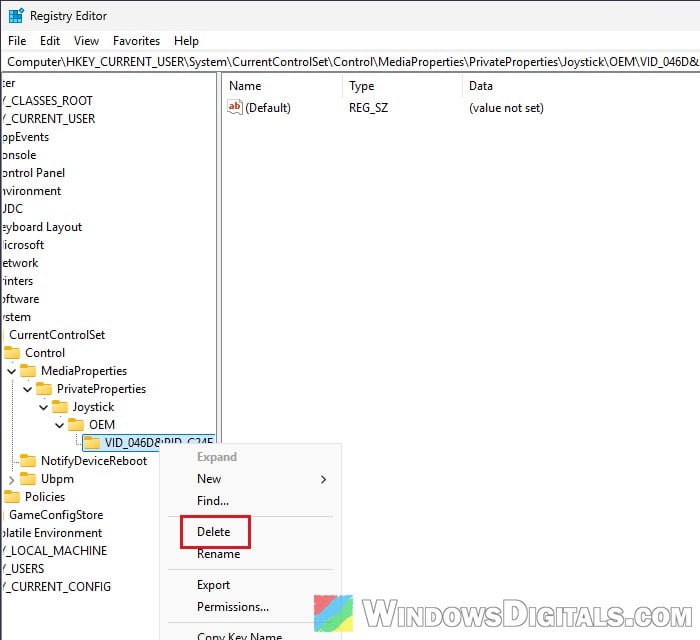
- Restart your PC.
Open joy.cpl again and check that the wheel and pedals respond.
If the wheel isn’t detected at all
When the wheel is missing from joy.cpl or doesn’t respond there, the cause is usually physical. If G HUB still shows it as Inactive after the fixes above, there’s no single confirmed cause, so try these checks too:
- Power: The wheel needs its own power brick. Check the cable going into the brick and the wall socket, because it can get knocked loose and still look connected. A wheel that doesn’t calibrate when plugged in might not be getting power.
- Mode switch (G29): On a PC, the switch must be set to PS4. It’s on top of the wheel’s inner frame, just behind the RPM lights, and you should set it before connecting the wheel.
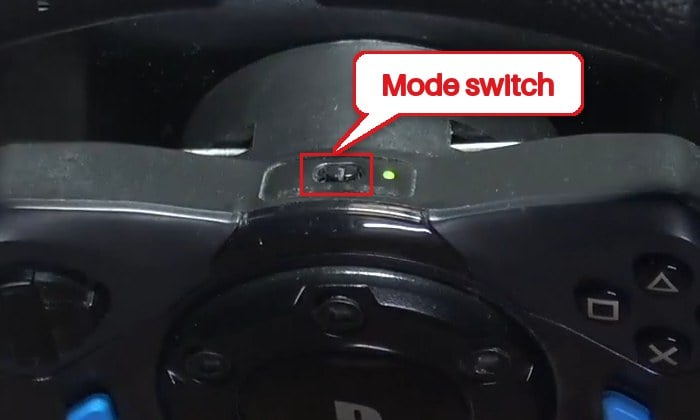
- USB port: Plug the wheel straight into another USB port on the PC.
- Pedals and shifter: Unplug them and reconnect the wheel. If it now works, plug them back one at a time, since a faulty accessory can stop the whole wheel.
- Another device: Try the wheel on another PC or a compatible console to see if the problem is your PC or the wheel.
Might be useful: How to Fix a Loose USB Port on Any Device
If the wheel freezes or drops out while racing
Some G920 owners see the wheel freeze on its last input or lose force feedback mid-race until it’s unplugged. On AMD systems, some users on Reddit stopped this by using a port on a different USB controller (such as a USB-C port on the graphics card) or by updating their AMD chipset drivers from AMD’s website. It doesn’t work for everyone.
Could it be a hardware fault?
If the wheel misbehaves on a second PC or compatible console as well, the wheel itself is probably at fault. Contact Logitech before opening it, since taking it apart can void any warranty.