Thermal paste is supposed to stay between the CPU and the cooler, but when you swap a cooler or a processor, some of it can easily end up somewhere else. Crumbs of old dried paste fall into the socket as you lift the CPU out, a smear lands on the socket frame while you line up an AIO, or the CPU comes out stuck to the cooler and leaves paste on the pins. This guide explains whether it’s actually a problem and how to clean it up without damaging the socket.
Also see: Can you use old Thermal Paste? Does it expire?
Is thermal paste on the CPU socket a problem?
In most cases, no. Most ordinary thermal pastes are electrically non-conductive, so they can’t short anything out. ARCTIC lists its MX-4 as electrically non-conductive and non-capacitive, and Noctua says its NT-H2 is non-conductive too. With a paste like that, a bit of it on the motherboard, on the socket’s metal frame or around the outside of the socket is harmless and easy to wipe off.
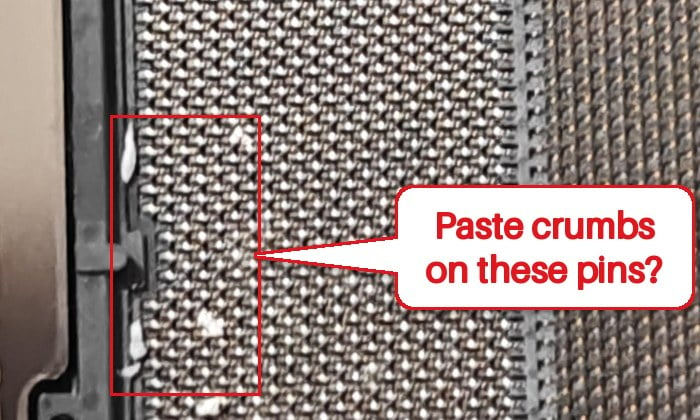
It’s a little different when the paste is inside the socket, between the pins (or in the pin holes on an AM4 socket). It won’t short anything there either, but a lump of it can sit between a pin and the CPU’s contact pad and keep them from touching properly, especially old paste that has dried out and gone hard. That’s rare with a small smear, and plenty of people have installed their CPU over a bit of paste without any problem.
Cleaning it is usually the bigger risk. The pins are tiny and bend easily, and a bent pin is far worse than a bit of paste.
Related concern: Why is my CPU Overheating and How to Fix it
Which thermal paste did you use?
Check the tube or the paste’s product page first, since it decides how careful you need to be:
- Ordinary paste (ARCTIC MX-4, Noctua NT-H2 and most others): non-conductive. A small amount in the socket is unlikely to hurt anything.
- Silver-based paste like Arctic Silver 5: the maker says it isn’t electrically conductive but is very slightly capacitive, and could cause problems if it bridges two electrical paths close to each other. It also says to keep it away from pins and traces, so clean it out of the socket completely.
- Liquid metal (such as Thermal Grizzly Conductonaut): this one is electrically conductive and can cause short circuits. Thermal Grizzly says not to power on the PC if liquid metal has gotten into the socket or onto electrical contacts, so don’t turn anything on until every bit of it is out.
If you don’t know which paste it was, it’s safer to treat it like the silver kind and clean it out of the socket.
Wipe off paste around the socket
If the paste is only on the motherboard around the socket, on the socket frame or on the edge of the CPU, it’s not in the contacts, and you can just wipe it off. Put some isopropyl alcohol (90% or higher) on a lint-free cloth, a coffee filter or a paper towel, and wipe the paste away. Noctua’s own instructions say kitchen towels with isopropyl alcohol work fine for cleaning paste.
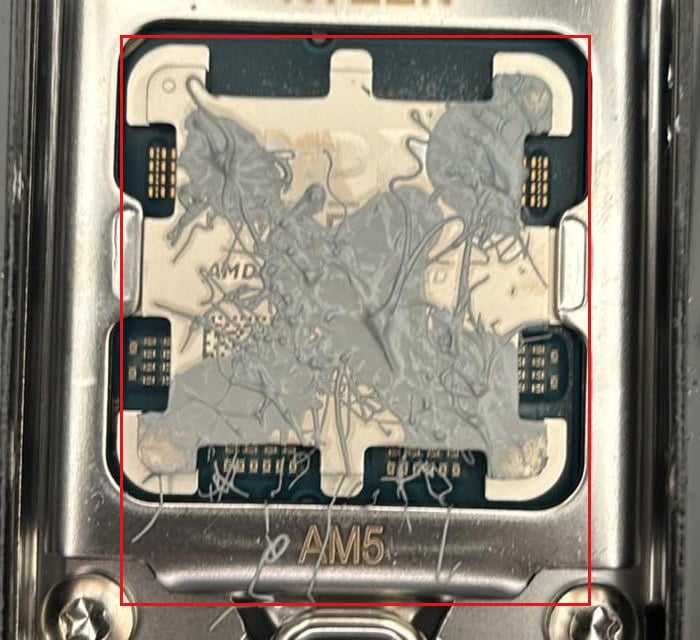
Keep the cloth away from the socket’s opening, so you don’t push paste into it or snag a pin.
How to get thermal paste out of the socket itself
First, check which kind of socket you have, because it changes what’s safe:
- Intel desktop sockets and AMD AM5 are LGA sockets: the pins (contacts) sit in the motherboard’s socket, and the CPU only has flat pads.
- AMD AM4 is a PGA socket: the pins are on the CPU, and the socket on the board is just a grid of holes.
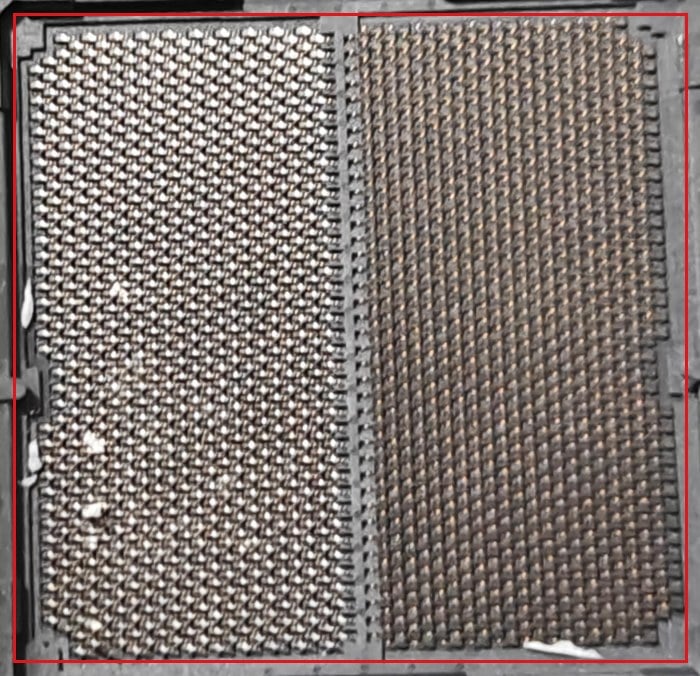
Be warned: On an Intel or AM5 socket, never touch the pins with your finger, a cotton swab, a toothbrush, a toothpick or a needle. The pins are hooked at the tip, so anything you rub over them can catch them and bend or rip them out. Intel itself warns against touching the contacts.
Leaving a small amount of ordinary paste
If it’s only a tiny bit of ordinary, non-conductive paste and you’re worried about damaging the pins, you can leave it there. Just don’t do this with liquid metal, a silver-based paste or a big lump of dried paste.
Washing it out with isopropyl alcohol
To get paste out without touching anything, wash it out with 99% isopropyl alcohol. Here’s how to do it:
- Turn off the PC, unplug it and take the motherboard out of the case, so you can tilt it and nothing drips onto other parts.
- If it’s only dry crumbs of old paste, turn the board upside down and shake it gently first, or blow on it. That may be all you need. A can of compressed air also works if you keep it some distance away from the pins.
- For anything that stays, get 99% isopropyl alcohol, not 70%. The 70% kind is almost a third water, so it takes much longer to dry and can leave moisture behind.
- Pour or spray the alcohol gently onto the socket so the paste softens and dissolves.
- Tilt the board and shake it gently so the alcohol runs off with the paste. Repeat until the lumps are gone (it doesn’t have to be spotless).
- Leave the board to dry for a couple of hours before putting the CPU back in.
AM4 sockets are more forgiving
An AM4 socket has no pins to bend, only holes, so a soft toothbrush dipped in isopropyl alcohol is generally fine there. Don’t press hard, and flush with alcohol afterward. Also check the CPU itself, since on AM4 the pins are on the processor.
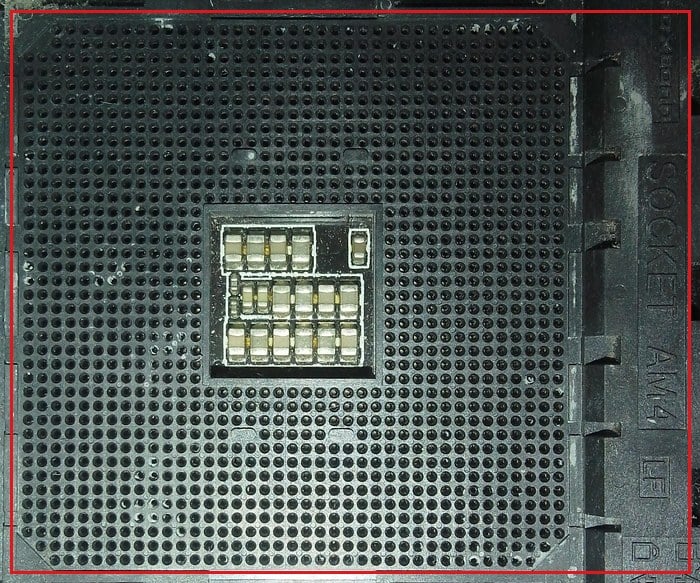
Check for bent pins before you put the CPU back
Whatever you did, look at the socket closely with a flashlight before you install the CPU, from a few different angles, as Intel recommends. On AM4, check the pins on the bottom of the CPU instead.
If you find a bent pin in an Intel or AM5 socket, don’t use the board (Intel says the same about damaged contacts). If it’s still under warranty, contact the manufacturer.
Once the socket looks fine, install the CPU, apply fresh paste and mount the cooler. If the PC won’t start afterward (no display, a CPU or DRAM light, or beeps), take the CPU out again, check the socket for paste or a bent pin, and reseat it.
Related problem: EZ Debug LED DRAM Light Stays On and PC Won’t POST
How to keep it from happening again
Paste usually gets into the socket when the CPU comes out, so next time:
- Clean the old paste off the CPU first, while it’s still locked in the socket, and only then lift the CPU out.
- Never leave an LGA socket open. It should always have either a CPU or its protective cover in it.
- Use only as much paste as you need. A big blob just squeezes out over the edges of the CPU.
If you’re only replacing the cooler, you don’t need to take the CPU out at all. Clean it in place and apply new paste.