Sometimes when you click “Sleep” or leave your PC idle, the monitor goes dark but the fans keep spinning and your keyboard stays lit, and the PC never actually goes to sleep. If you have Logitech G HUB installed, there’s a good chance its background process, lghub_agent.exe, is holding it awake. This guide will explain how to confirm it’s G HUB and what you can do to get sleep working again.
Also see: Logitech G HUB Stuck on “Loading Localizations” in Windows 11
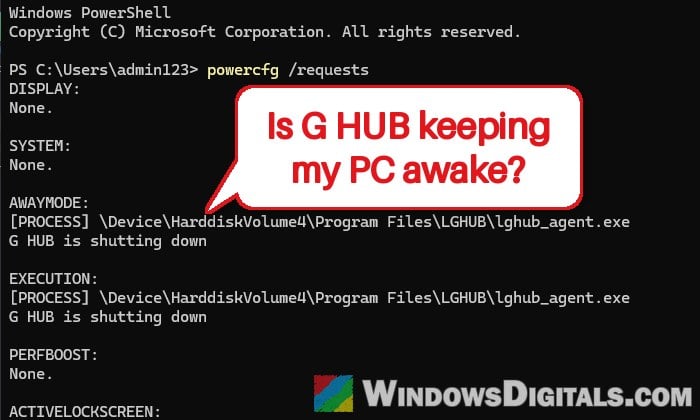
Check if G HUB is what’s keeping your PC awake
Apps and drivers can ask Windows to stay awake for a while, for example while a video plays. Windows calls these power requests, and as long as one is active, the PC won’t power off the display or go to sleep on its own. The problem with G HUB is that its agent process sometimes opens these requests and never lets go of them. This has been going on across many G HUB versions in 2026, it’s a pretty common complaint on Reddit, and Logitech hasn’t released a fix for it yet.
You can see every active power request with one command. Here’s how to do it:
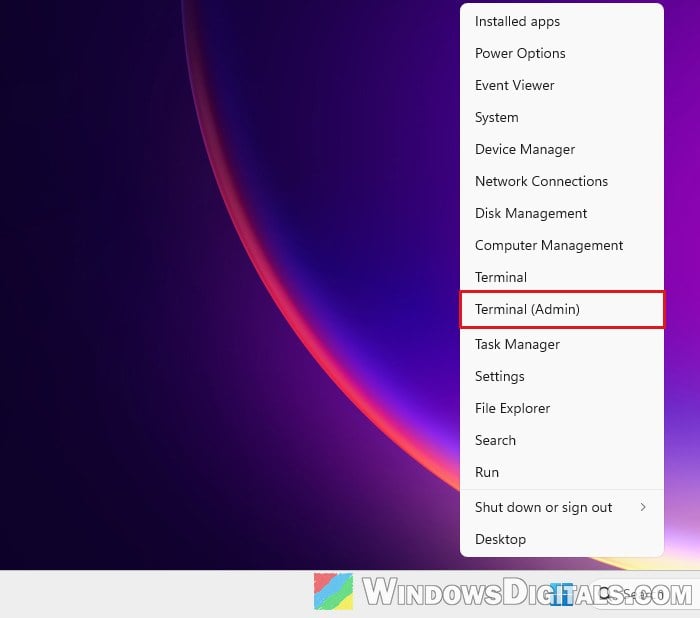
- Right-click the “Start” button and select “Terminal (Admin)“. Click “Yes” if User Account Control asks.
- Type the following command and press Enter:
powercfg /requests
- Look through the list. If G HUB is the problem, you’ll see
lghub_agent.exe(with its full path underProgram Files\LGHUB) listed under “AWAYMODE” and “EXECUTION“, usually with the text “G HUB is shutting down“.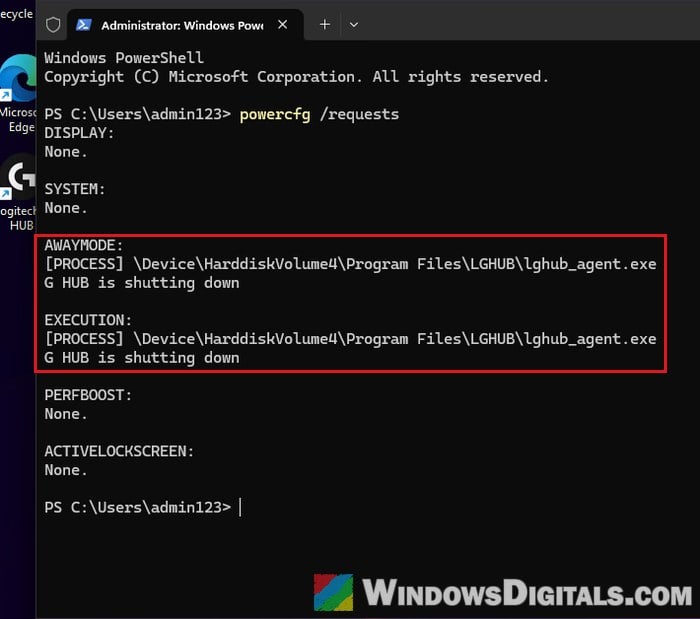
Other entries in the list have nothing to do with G HUB. For example, an audio driver entry saying an audio stream is “currently in use” means something is still playing sound, like a browser tab with a video.
Might be useful: How to Stop Windows 11 From Turning Off Screen or Sleeping
End the LGHUB Agent process in Task Manager
The quickest way to get your PC to sleep right now is to close the stuck agent. Ending it releases the power requests it’s holding, so Windows can go to sleep normally again. Sometimes there are several “LGHUB Agent” entries left behind, so make sure you end all of them.
- Press Ctrl + Shift + Esc to open Task Manager.
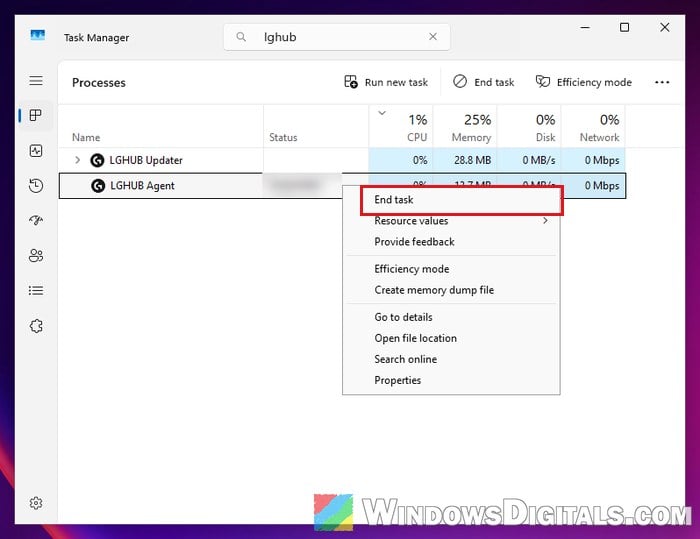
- In the “Processes” tab, type “lghub” in the search box at the top.
- Right-click “LGHUB Agent” and select “End task“. Do the same for “G HUB” and any other LGHUB Agent entries if they’re still there.
- Open G HUB again from the Start menu if you need it.
Run powercfg /requests again, and lghub_agent.exe should be gone from the list. Your PC should now go to sleep as usual. The bad news is that this is only temporary: the stuck request often comes back after a while or after the next restart.
Tell Windows to ignore G HUB’s sleep requests
Windows lets you override power requests from a specific process. With an override in place, Windows simply ignores the request types you name when they come from that program, so G HUB can’t block sleep even when its agent gets stuck. It doesn’t work for everyone, and it doesn’t stop G HUB itself from hanging.
- Open “Terminal (Admin)” like before.
- Type the following command and press Enter:
powercfg /requestsoverride process lghub_agent.exe execution awaymode
- To see which overrides are active, run this command on its own:
powercfg /requestsoverride
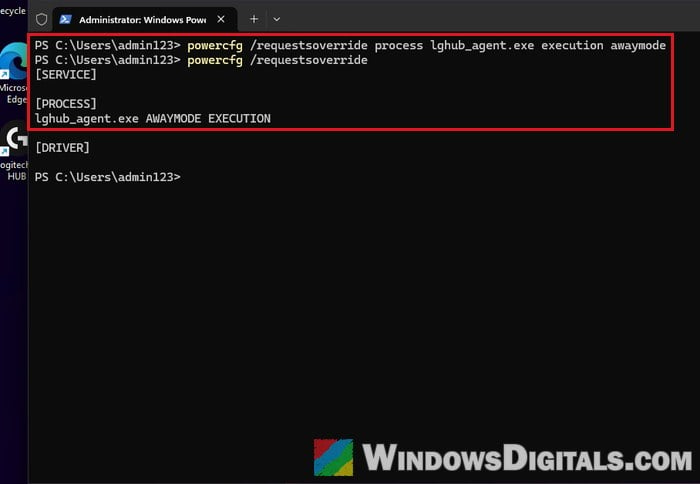
Put your PC to sleep and see if it stays asleep this time. If it doesn’t help, or if you want to undo it later, run this command:
powercfg /requestsoverride process lghub_agent.exe
Suggested read: Sleep vs. Hibernate vs. Hybrid Sleep vs. Shutdown in Windows
Stop G HUB from starting with Windows
Since the stuck agent tends to come back after every restart, you can keep G HUB from starting with Windows and only open it when needed. Your mouse still works without it, using the profile stored on the mouse itself (the next section shows how to save your settings there).
Please note that anything that runs through G HUB itself, like macros and automatic profile switching per game, won’t work while G HUB is closed.
- Open Task Manager with Ctrl + Shift + Esc.
- Click “Startup apps” on the left.
- Find G HUB’s entry, which is called “lghub_system_tray” (type “lghub” in the search box if the list is long).
- Right-click it and select “Disable“.
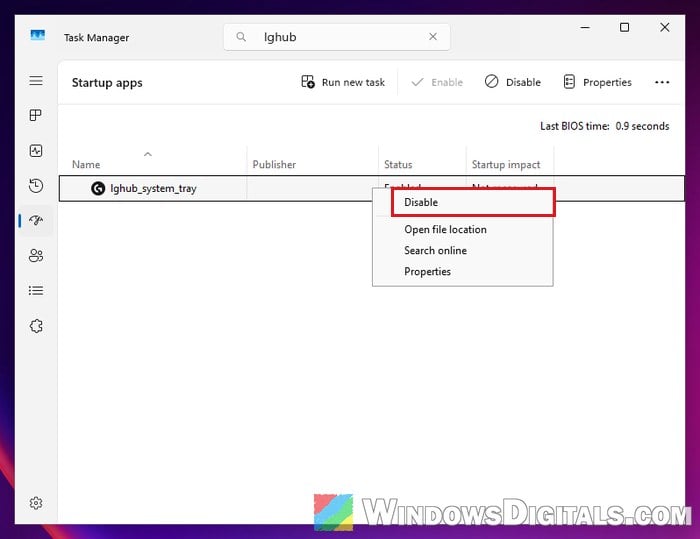
After the next restart, G HUB won’t open by itself, and you can start it from the Start menu whenever you need it. After a restart, open Task Manager and check that no “LGHUB Agent” process is running.
Save your settings to the mouse and close G HUB for good
Many Logitech G mice (and some keyboards) have on-board memory, which lets them keep settings like DPI and lighting without G HUB. Once your settings are saved to the device, you can close G HUB, keep it from starting with Windows, or even uninstall it. It’s the only way to stop relying on G HUB completely.
According to Logitech, here’s how to turn on on-board memory mode in G HUB:
- Open G HUB and click your mouse.
- Click the gear icon (settings) in the top right corner.
- Switch “ON-BOARD MEMORY MODE” to “ON“.
- Choose the profile you want to save to the mouse’s on-board memory.
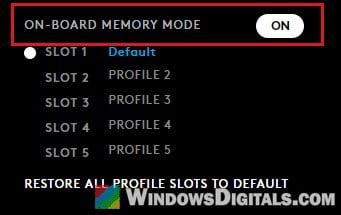
While this mode is on, G HUB can’t change the device’s settings. The downsides: no macros, no automatic profile switching, and only as many profiles as the mouse can store (usually up to 5). Logitech also has a small tool called Onboard Memory Manager on its support site that can change the on-board settings of some G mice without G HUB.
Pro tip: How to Use G-Shift on Logitech Mouse or Keyboard
Reinstalling G HUB rarely helps for long
A clean reinstall of G HUB sometimes helps, but usually only for a day or a few days before the stuck agent comes back. If you want to try anyway, go to “Settings” > “Apps” > “Installed apps“, click the three dots next to “Logitech G HUB“, select “Modify” and choose to reinstall it.
What if your PC goes to sleep but wakes right back up?
That’s a slightly different problem. Instead of a stuck power request, a device is waking the PC up, and with Logitech gear it can be the mouse’s wireless receiver. In some cases a G HUB update even turned the mouse’s wake setting back on. Uninstalling G HUB usually won’t fix this one, but you can find out what woke the PC and stop that device from doing it.
- Open “Terminal (Admin)“.
- Run the following command to see what woke the PC the last time:
powercfg /lastwake
If it names your Logitech receiver or mouse, continue.
- Run the following command to list every device that’s allowed to wake the PC:
powercfg /devicequery wake_armed
- Turn off wake for the device by its name, exactly as the list shows it, for example:
powercfg /devicedisablewake "HID-compliant mouse"
- A Logitech receiver usually shows up as both a mouse and a keyboard, so do the same for the matching keyboard entry, then run the
wake_armedcommand again to check that both are gone.
You can also do this in Device Manager instead, as shown in this guide: Allow Keyboard or Mouse to Wake Computer in Windows 11 (just untick the option instead of ticking it).
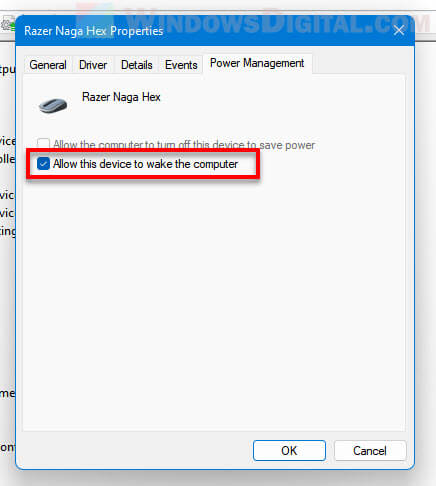
The only trade-off is that moving the mouse or pressing a key will no longer wake the PC, so you’ll have to press the power button instead.